Videos
Turn screenshots into a video
You have a folder of screenshots from documenting something, and they are already in roughly the right order. The work is deciding which of them deserves its own step, which are duplicates, which belong together, and what the narration says over each one.
Every screenshot is read before anything is built
Each image goes through a vision pass that returns what kind of thing it is, a summary of what it shows, a few key points, whether it is usable as a scene asset, and a sequence hint. That last one is the interesting field: it is evidence about where the shot sits in an order, such as a step number visible in the interface or a stage in a wizard. Separately the real pixel size is read from the file header rather than guessed, so a tall mobile capture is cast into a tall slot.
The director arranges rather than accepts
It is told explicitly that the screenshots are the core of the tutorial, that it should arrange the ones that fit into a logical teaching order using the sequence evidence, and that it should leave out irrelevant, duplicate or low quality shots. So an upload of fifteen screenshots does not become fifteen steps. It becomes the six or eight that actually teach something, in the order somebody would perform them.
One screenshot per step, on purpose
The rule is one screenshot per step scene so the viewer sees each screen properly. Shots that genuinely belong together, three variations of a settings page for instance, may share a single recap scene at the end using a step cards, quad or slideshow layout, but never as steps in the middle. The same full screen layout is held for every step, so the badge and the instruction line stay in the same place and the eye stops relearning the frame.
Shots with nothing to show
Some steps have no screenshot worth taking: a decision, a wait, something happening outside the software. Sixteen step layouts draw the interface themselves, covering a terminal, a keyboard shortcut, a toggle, a form being filled, a menu being navigated, a warning, a tip and a result. So a gap in your screenshot set does not become a gap in the video.
How it works, in three steps
Step 1
Upload them in order
Display order is what the analysis is indexed against, and it is the strongest signal the director has after the sequence evidence in the images themselves.
Step 2
Describe the steps in words too
The brief is passed to the vision pass as context, so telling it what the software is makes every image description sharper.
Step 3
Drop the ones you regret in the review grid
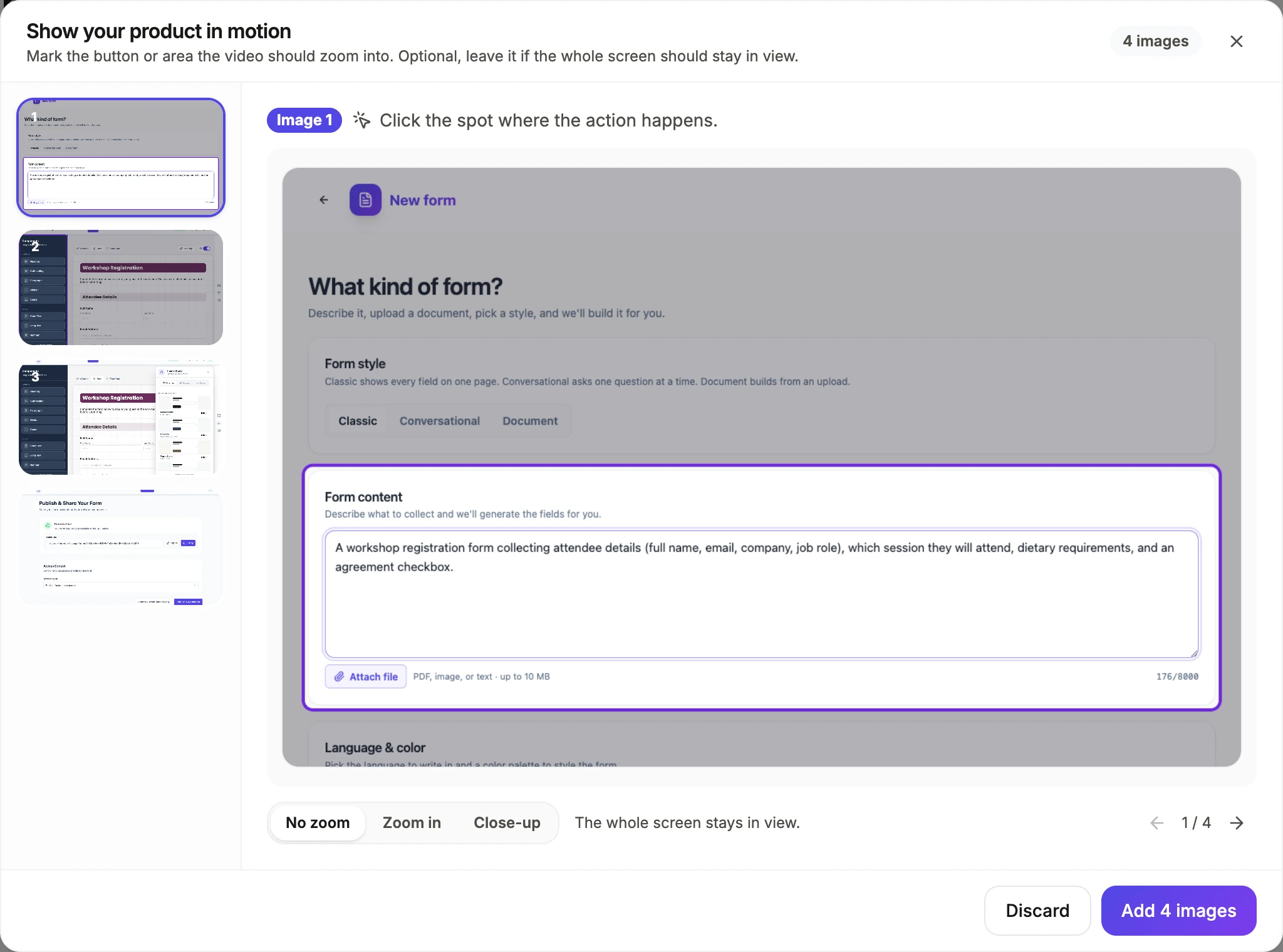
Uploaded images land in a review dialog first. Remove the near duplicates yourself rather than hoping the analysis catches them.
The full walkthrough with screenshots is in the guide Make a how-to video with AI.
Limits worth knowing
- Eight images per generation. A longer process has to be split into more than one video.
- Screenshots are not cropped, redacted or retouched. Anything sensitive in the frame stays in the frame.
- Uploaded pictures are never upscaled, except a hero slot filling most of the canvas, and even then only up to two and a half times.
- Tutorial videos are a paid feature from the Starter plan. Screenshots in a promotional video are not gated.
Questions people ask
Does the order I upload them in matter?
Yes, it is the default order and the analysis is indexed to it. The director can rearrange when a screenshot carries clear evidence of its own position, but starting in the right order gives it much less to guess.
What if two screenshots show the same screen?
It is told to leave out duplicates, and it usually does. Where two shots genuinely differ in a way that matters, say so in the brief, otherwise one of them will be dropped.
Can I highlight part of a screenshot?
Yes. In the review grid, click the spot where the action happens and pick Zoom in or Close-up. The video glides a cursor to it, clicks with a ripple, then eases in over about a second.
Do phone screenshots work?
They do, and their shape is read correctly, so a tall capture lands in a tall slot instead of being cropped. There is a phone frame layout that suits them, and one that walks through mobile taps.
Make your own video
The button opens the generator with this use case already described. Change the wording to match yours, generate, then edit anything you like.
Create a video with OneCraftRelated pages
Zoom into a screenshot
A full screen screenshot in a video has a problem: the thing you are talking about is a small button somewhere in it. Marking a focus point solves that by turning one static picture into a small piece of choreography, a pointer arriving, a click landing, and the frame closing in on it.
Capture screenshots for a tutorial, one step at a time
To capture screenshots for a tutorial, share your screen once, then press a button for each step and it snaps one still frame. There is no recording, no video file, and nothing is processed from footage afterwards. What you end up with is a set of PNG screenshots and a walkthrough built from them.
AI tutorial video maker
A walkthrough fails for boring reasons: it moves too fast to follow, it changes layout every step so the eye has to relearn the screen, or the narration says something different from the words on the picture. The tutorial director is a set of rules written specifically against those three failures.
More finished work of this kind is on the video examples hub.
Written and checked by the OneCraft team. Last checked .