How to
Make a how-to video with AI
Pick the Tutorial video type, describe the steps, add your own screenshots, and AI builds a narrated walkthrough video you can edit and export.
Promo Videos2 min readUpdated
This guide shows you how to make a how to video with AI: pick the Tutorial video type, describe the steps, upload your screenshots, and OneCraft builds a narrated walkthrough.
Product walkthroughs, onboarding clips, feature explainers. Everyone wants them and nobody has time to edit them. You describe the steps once and hand over your screenshots.
Choose the Tutorial video type
Open the video generator and switch Video type from Promotional to Tutorial. The whole flow adapts: instead of pitching a product, the video walks through steps, and the narration is written to teach rather than sell.
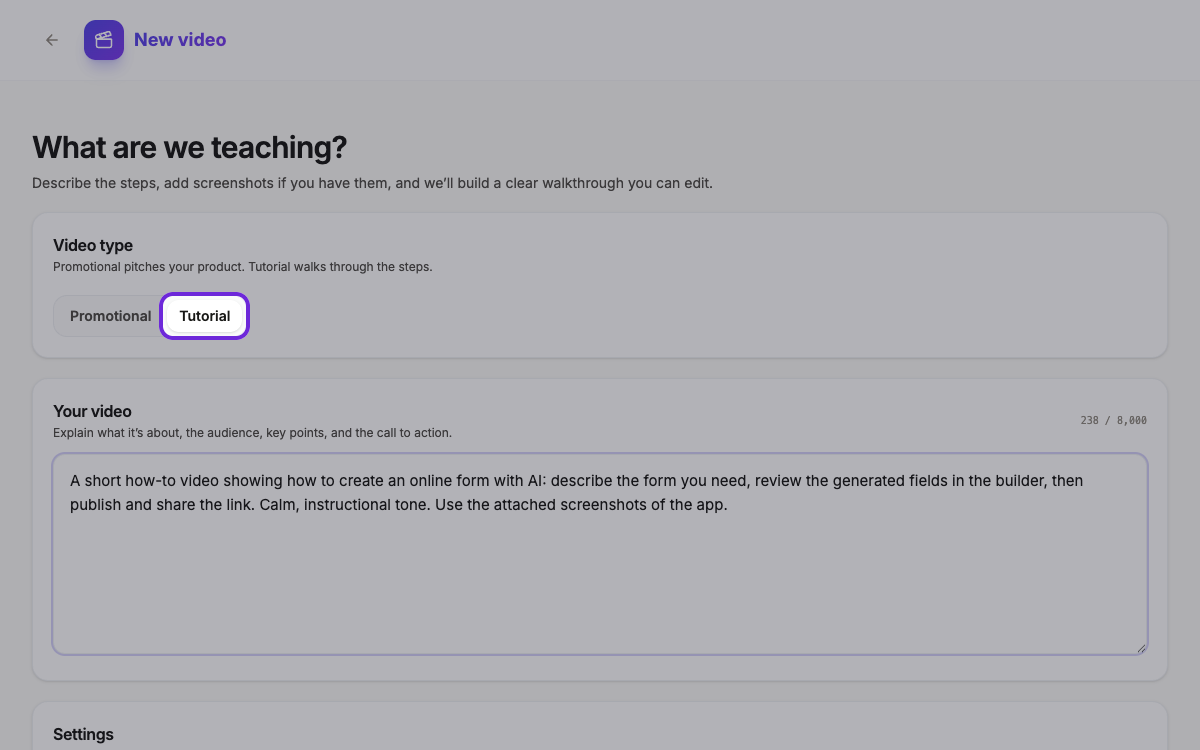 Promotional pitches your product. Tutorial walks through the steps.
Describe the steps and add your screenshots
Explain what you’re teaching in plain language: the steps, who it’s for, and the tone. Then scroll to Images & Documents and upload your screenshots. Images appear inside the video’s scenes; documents like PDFs are read for context, so OneCraft gets the details right. You can also set the product name, format, length, language, and color here.
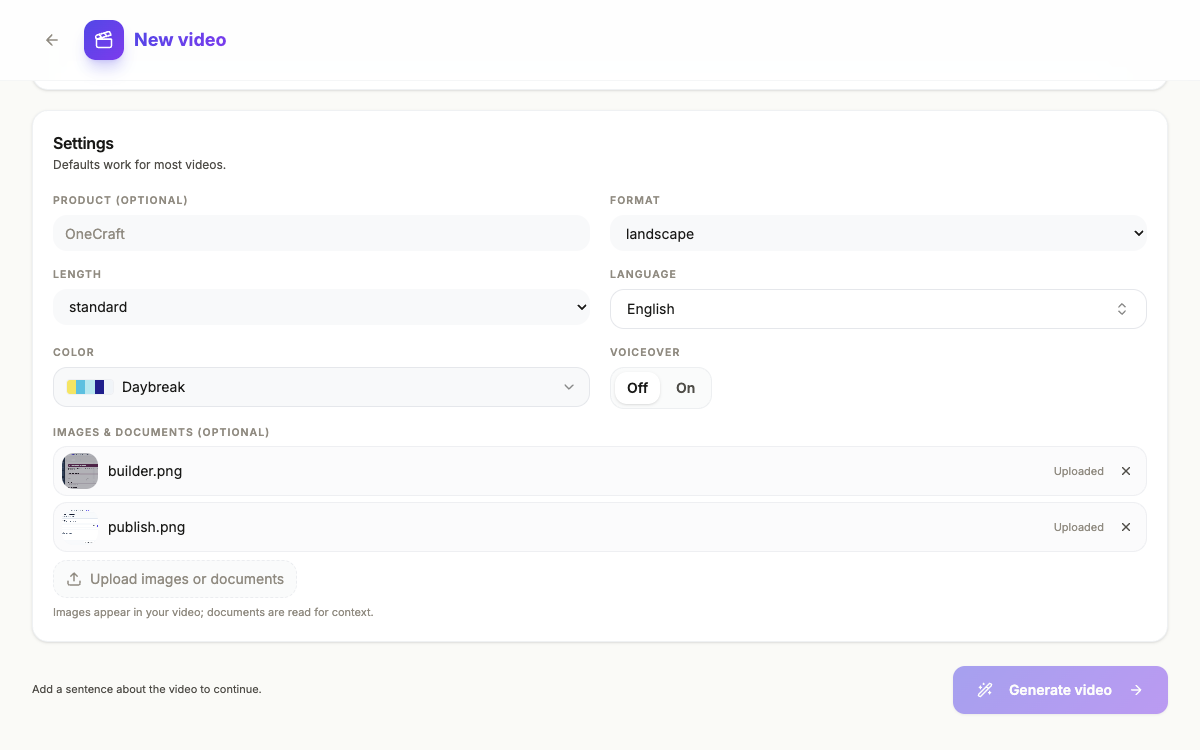 Your screenshots appear in the video. Documents are read for context.
No screenshots yet? Press Capture your screen instead: share your screen once and snap a shot for each step from a floating button. Capture your screen and turn it into a tutorial video walks through it.
Let OneCraft build the walkthrough video
Click Generate video and OneCraft writes the script, lays out the scenes with your screenshots, and narrates each step. You land in the builder with a first cut that already plays: an intro, the walkthrough scenes, and a closing call to action.
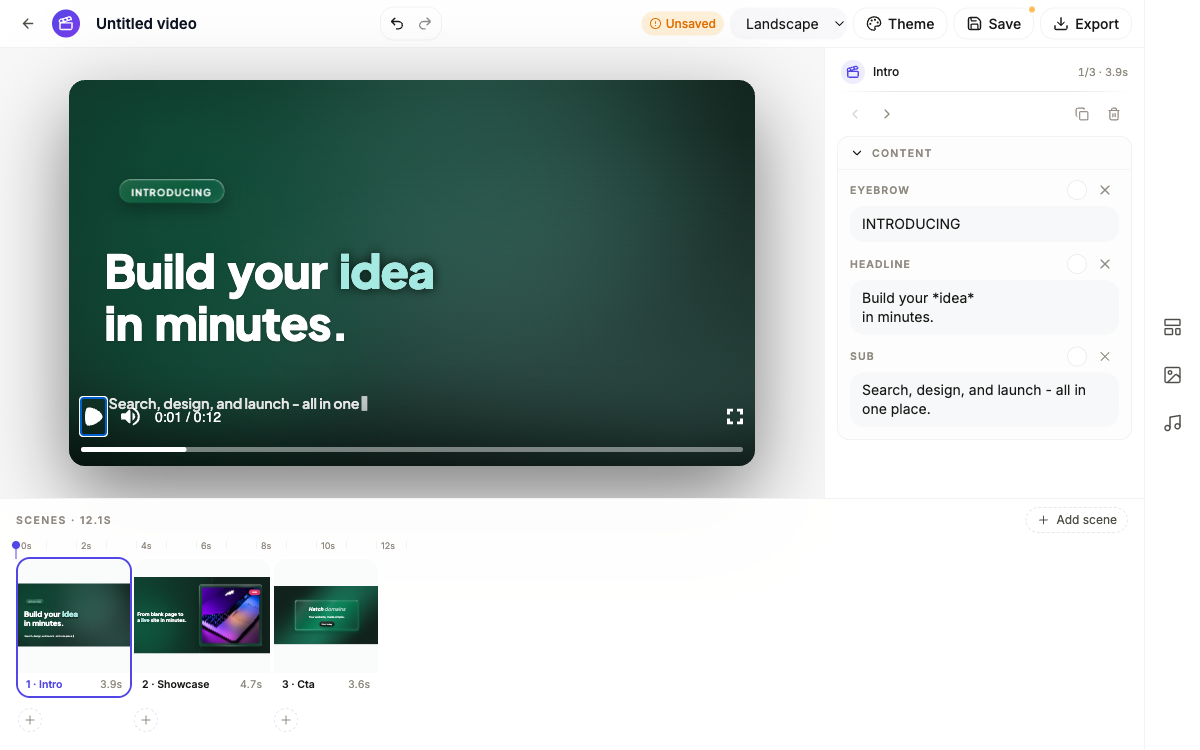 A generated walkthrough: intro, showcase scenes with your screenshots, and a call to action.
Refine the video and export it
From here it’s a normal video project. Rewrite any line, adjust each scene’s voiceover, add scenes from the template library, and drag pointer callouts to aim at the right part of a screenshot. When it reads well, pick landscape or vertical and hit Export for the finished MP4. For the full editing tour, see Make a promo video with AI voiceover.
Ready to try it yourself?
Start free. Describe what you need and let OneCraft do the first draft.
Get startedSee it in the product
More promo videos tutorials
- Add voiceover, captions and music to a videoGive every scene its own narration in the language and voice you pick, turn on captions, and add a music track that ducks under the voice automatically.
- Capture your screen and turn it into a tutorial videoShare your screen once, snap a shot for every step from a small floating button, then let OneCraft turn those shots into a narrated walkthrough video.
- Export one video for YouTube, Reels and TikTokBuild the video once, then switch between landscape and vertical and export an MP4 for each platform. Your edits are kept per format, so nothing breaks.