Videos
AI tutorial video maker
A walkthrough fails for boring reasons: it moves too fast to follow, it changes layout every step so the eye has to relearn the screen, or the narration says something different from the words on the picture. The tutorial director is a set of rules written specifically against those three failures.
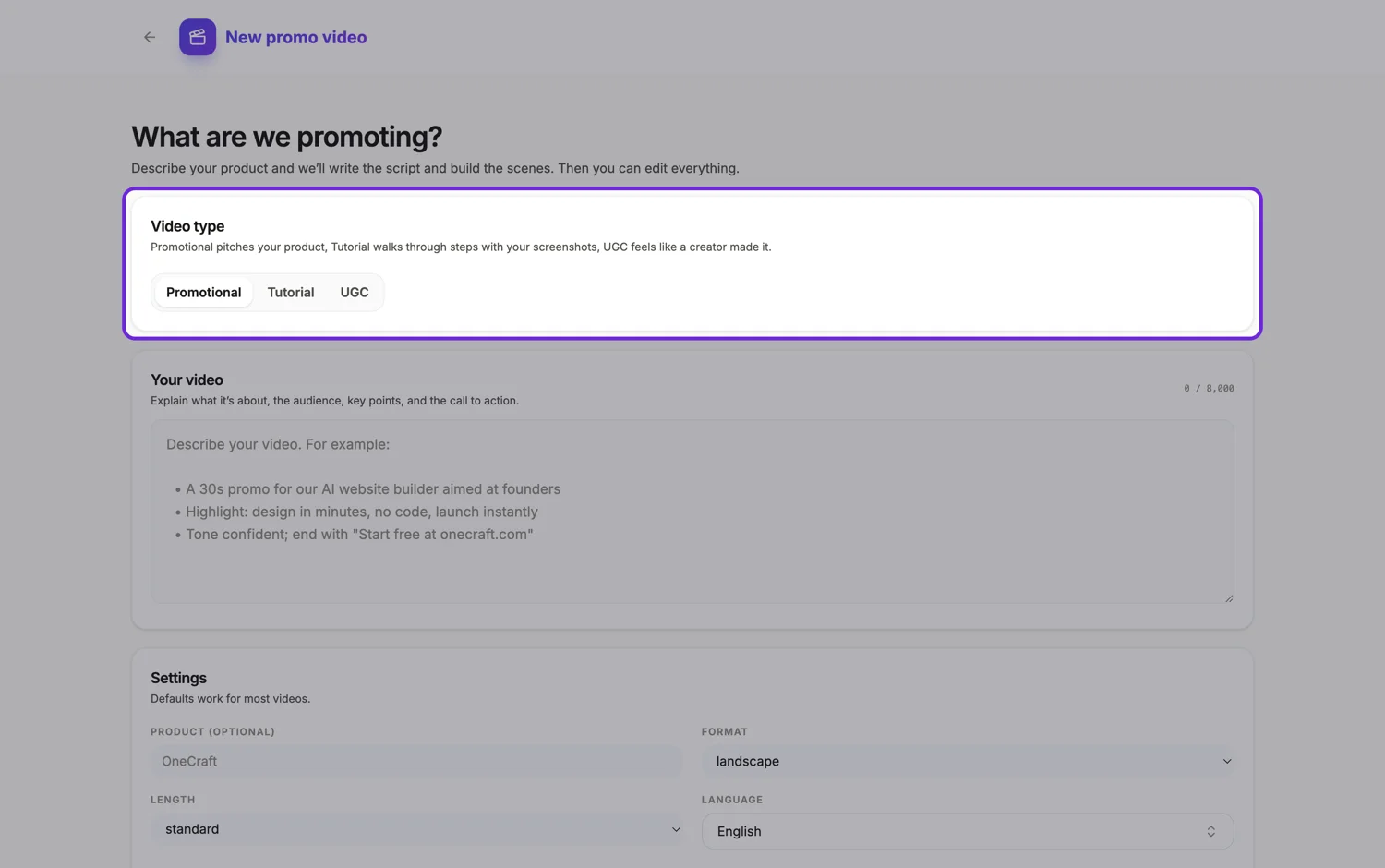
One layout, held
The director is told to choose a single full screen step layout and reuse it for every screenshot step, so the badge and the caption sit in the same place every time. It may only break that pattern when the step is genuinely different: a tall page that needs scrolling, a before and after, a typed command, a keyboard shortcut, a final result, or a step with no screenshot at all. Consistency is the point. A viewer following along should never have to hunt for where the instruction moved to.
Slower on purpose
Every step scene runs 5 to 9 seconds, against 2.5 to 4 for a promo beat, with 3 to 5 seconds for the opening and the wrap-up. Narration per step is 10 to 25 words and has to name the real control, so Open Settings, then click Team members, rather than navigate to the relevant section. The pace is set to calm, which crossfades every cut and replaces the ad style camera moves with one slow push-in.
Screenshots are the material
Upload one screenshot per step and they become the video. A vision pass reads each one, notices which shots belong together and in what order, and drops duplicates and unusable frames. Screenshots that go together can share a single recap scene at the end rather than each becoming a step. With no screenshots at all it still works: sixteen step layouts draw the interface themselves, including a terminal, a keyboard shortcut, a toggle, a form and a menu.
It refuses to sell
Only five roles exist in tutorial mode: an intro that says what you will learn, tutorial steps, an optional how it works overview, an optional checklist recap, and an outro. There is no call to action role, no offer, no testimonial. The voice is forced to instructional even if the director asks for the energetic one, because a tutorial that sounds like an ad is not trusted.
How it works, in three steps
Step 1
List the steps in doing order
Write them the way someone actually performs them, naming the button or menu at each point. That list becomes the scene order.
Step 2
Add a screenshot per step
Upload them, or share your screen once and snap each step from the floating capture button. Extra and duplicate shots get dropped.
Step 3
Mark the click point
In the review grid, click where the action happens and pick Zoom in or Close-up. The video glides a cursor there, clicks, then eases in.
The full walkthrough with screenshots is in the guide Make a how-to video with AI.
Limits worth knowing
- Tutorial videos are a paid feature. A free account gets a locked button and a 402 from the API.
- Screen capture snaps still PNG frames, one per press. It does not record motion video and cannot capture an animation.
- Screen capture needs a desktop browser. On a phone you upload screenshots instead.
- Step narration is never allowed to say step three, because the badge already numbers it.
Questions people ask
How many steps fit in one video?
The length setting caps the scene count at 6, 9 or 12, and every step is a scene, so a long tutorial holds around ten steps once the intro and wrap-up take their places. Longer processes are better split into two videos.
Do I need screenshots?
No, but they make it better. Without them the walkthrough is built from your description using layouts that draw the interface themselves, which suits conceptual steps and looks obviously generic for a real product.
Can it narrate each step in a different voice?
Each scene carries its own narration with its own language and voice, so it can. It rarely helps. One instructional voice throughout is what makes a walkthrough easy to follow.
Why is it not letting me pick a punchy voice?
Tutorial mode overrides the energetic voice and forces the instructional one. That is a hard rule in the voice selector, not a preference, because ad delivery over an instruction reads as a sales demo.
Make your own video
The button opens the generator with this use case already described. Change the wording to match yours, generate, then edit anything you like.
Create a video with OneCraftRelated pages
Zoom into a screenshot
A full screen screenshot in a video has a problem: the thing you are talking about is a small button somewhere in it. Marking a focus point solves that by turning one static picture into a small piece of choreography, a pointer arriving, a click landing, and the frame closing in on it.
Turn screenshots into a video
You have a folder of screenshots from documenting something, and they are already in roughly the right order. The work is deciding which of them deserves its own step, which are duplicates, which belong together, and what the narration says over each one.
SaaS demo video maker
The failure mode in software demo video is specific and almost universal. It walks the navigation in menu order, here is the dashboard, here is settings, here is integrations, and nothing is ever produced. The viewer finishes it unable to say whether the thing would do their job.
More finished work of this kind is on the video examples hub.
Written and checked by the OneCraft team. Last checked .