Flyers
Add icons to a flyer
Icons on a flyer are theme coloured vector marks, not pictures. The picker opens on 135 featured ones, and typing at least two letters searches the whole Lucide library behind them.
135 featured, then everything
Open the picker and you get 135 hand picked icons covering the things a flyer usually needs: targets, trends, charts, buildings, people, calendars, contact marks. Type a single letter and it filters those 135 by what they start with. Type two or more and it searches the entire Lucide set by name and shows up to 200 matches. So the featured list is a shortcut for the common case rather than a limit on what you can use.
Search by what the thing is called
The search matches icon names, not concepts, so phone finds the phone icons and telephone finds nothing. If a word returns nothing, try the plainer noun: mail rather than email, map-pin rather than location, clock rather than time. Once you know a name it stays the same across the whole product, because slides, documents and flyers all draw from the same library.
Colour comes from the theme
An icon is drawn in a colour token from the theme rather than a fixed hex, which is what lets a whole flyer recolour when you change theme. The one to avoid is filling an icon with an element colour token: those render transparent on an icon, so the mark disappears while the box around it stays. If an icon vanishes after a colour change, that is what happened, and picking an ink or accent token brings it back.
Icon lists save you placing them one by one
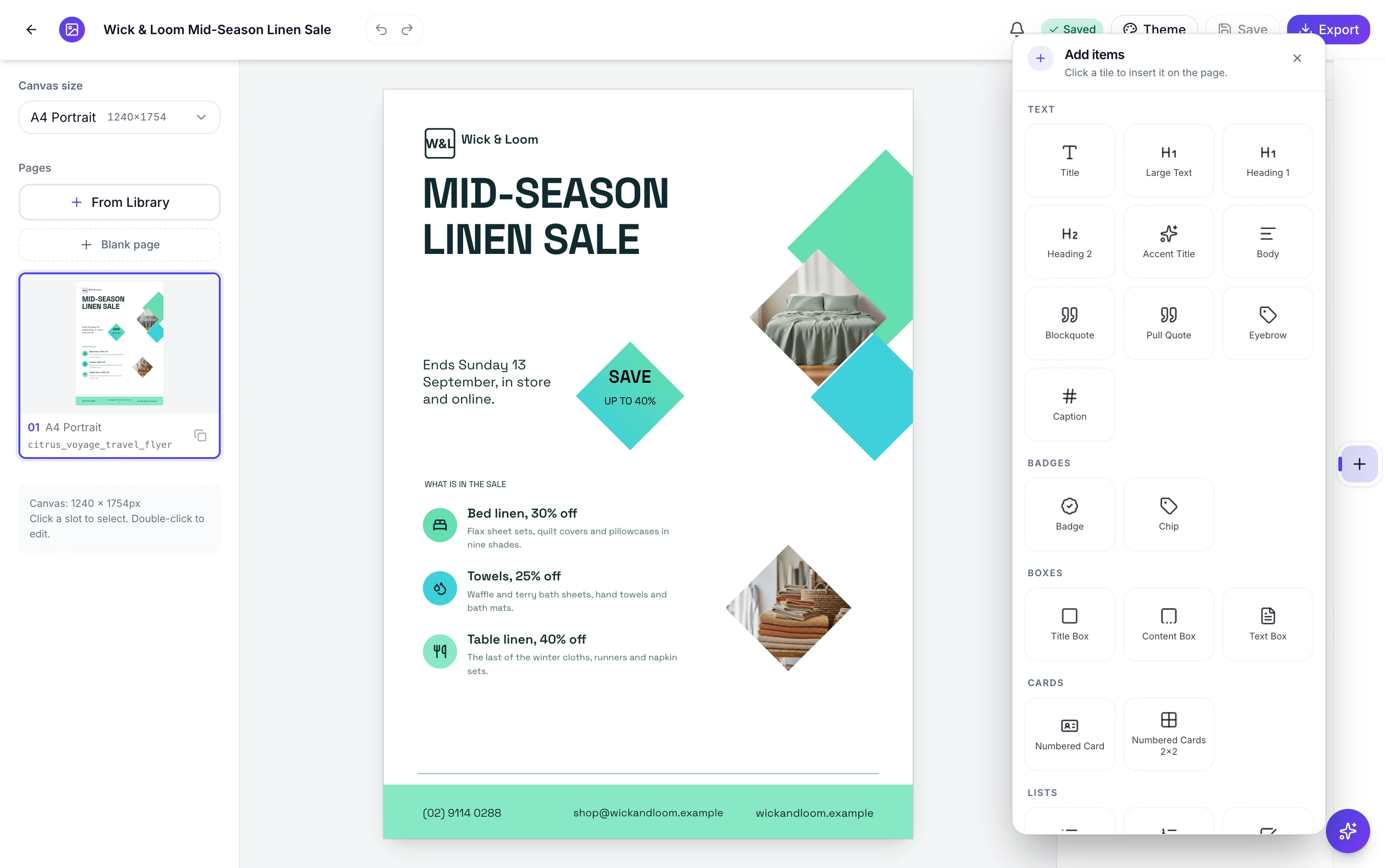
The Lists section of the Add items panel carries layouts that already pair an icon with a line of text, which is what most flyers actually want: three services, three benefits, three steps. Placing one of those is faster than dropping three separate icons and three text boxes and then trying to align them, and the spacing is part of the design rather than something you eyeball.
The AI fills icons too
When a design's slots include icons, the first generation picks names for them from your brief, so a services flyer comes back with marks that roughly match the services. They are a suggestion, not a decision: every one can be swapped in the picker afterwards. The AI chat, being text only, will not change an icon for you.
How it works, in three steps
Step 1
Open Add items and pick the icon tile
It drops an icon on the active page, selected, with the picker in the inspector.
Step 2
Search by name
135 featured icons show first. Two letters or more searches the full library.
Step 3
Set the colour from the theme
Use an ink or accent token. An element colour token renders an icon transparent.
Step 4
Or use an icon list instead
The Lists section has layouts that pair an icon with text and space them for you.
The full walkthrough with screenshots is in the guide Resize one flyer for every social size.
Limits worth knowing
- The picker shows 135 featured icons until you type at least two characters.
- A search returns at most 200 matches from the full library.
- Search matches icon names, not synonyms or concepts.
- An element colour token on an icon fill renders transparent; use an ink or accent token.
- The AI chat cannot change an icon; it edits text only.
Questions people ask
How many icons can I choose from?
135 are featured, and the rest of the Lucide library is behind the search. That is well over a thousand marks. The featured list exists because scrolling a thousand icons is not a way to choose one, and the ones on it are the marks a flyer reaches for most often.
Why does my search return nothing?
Because it matches names rather than meanings. Email returns nothing while mail returns several; location returns nothing while map-pin does. Try the plainest noun for the object, and remember a single letter only filters the featured 135 rather than searching everything.
My icon disappeared after I changed its colour.
You have almost certainly filled it with an element colour token, which renders transparent on an icon. The box or panel behind it stays visible, which is why it looks like the icon was deleted. Set it back to an ink or accent token from the theme and it returns.
Can I upload my own icon?
Not into an icon slot, which draws from the library so it can be recoloured by the theme. Upload it as an image instead, into an image slot or a placed image element. You lose the automatic recolouring, so use a version whose colour works on that background.
Do icons print well?
Yes. They are vectors, so they stay sharp at any size, which is the main reason to use one rather than a small picture of a symbol. What does not scale is meaning: an icon that needs a caption to be understood is decoration, and at flyer size decoration is expensive.
Can the AI pick better icons for me?
The first generation picks them from your brief, so a more specific brief gets better marks. After that they are yours to change in the picker, one click each. The AI chat cannot help here, because it only edits text.
Make your own flyer
The button opens the generator with this use case already described. Change the wording to match yours, generate, then edit anything you like.
Create a flyer with OneCraftRelated pages
Flyer with a price table
A table is the right block whenever a reader will compare one line against another: services against prices, sizes against costs, sessions against times. It is the wrong block when there are only two values, and knowing which side of that line you are on saves a lot of layout work.
Flyer with a chart
Charts belong on a flyer far less often than people put them there, but when the message is a number moving, one chart does the work of a paragraph. Here it is a block you insert, type figures into, and then flip between ten shapes until one of them actually reads.
Flyer with a map
Most people searching for a map on a flyer want the corner their shop is on. That is not what this block does. It is a world map you colour country by country, which is the right tool for showing reach and the wrong tool for showing an address, and the difference is worth five minutes before you build.
More finished work of this kind is on the flyer examples hub.
Written and checked by the OneCraft team. Last checked .