Flyers
Flyer with a map
Most people searching for a map on a flyer want the corner their shop is on. That is not what this block does. It is a world map you colour country by country, which is the right tool for showing reach and the wrong tool for showing an address, and the difference is worth five minutes before you build.
It is a world map, at country resolution
The block draws the world's country outlines and lets you colour individual ones. That is the only geography it knows. There are no states, no cities, no roads, no zoom, no satellite view and no address search. If your flyer needs to show where a venue is, this block will not do it, and no combination of settings will make it.
Two modes: highlight and choropleth
Highlight paints the countries you list in one colour against the rest of the world. Choropleth adds a value to each country and shades them along a ramp, so bigger numbers come out stronger. Highlight is for we operate here. Choropleth is for we sold this much here. Switching between them keeps your list intact.
Countries go in as three letter codes
Each row takes an ISO three letter code, uppercased and trimmed to three characters as you type, so AUS, NZL, USA, GBR. A label is optional and a value appears as a third field only when you are in choropleth mode. Add and delete rows from the same panel, and the map redraws as you go.
Six colours, all from the theme
The highlight colour is picked from six theme tokens: brand, brand secondary, brand accent, ink, tinted surface and highlight. The base landmass, the strokes and the choropleth ramp are all resolved from the theme too, so the map belongs to the flyer rather than looking like an embedded screenshot. A shadow toggle sits underneath if the map needs lifting off the page.
For a real location, use an address and a code
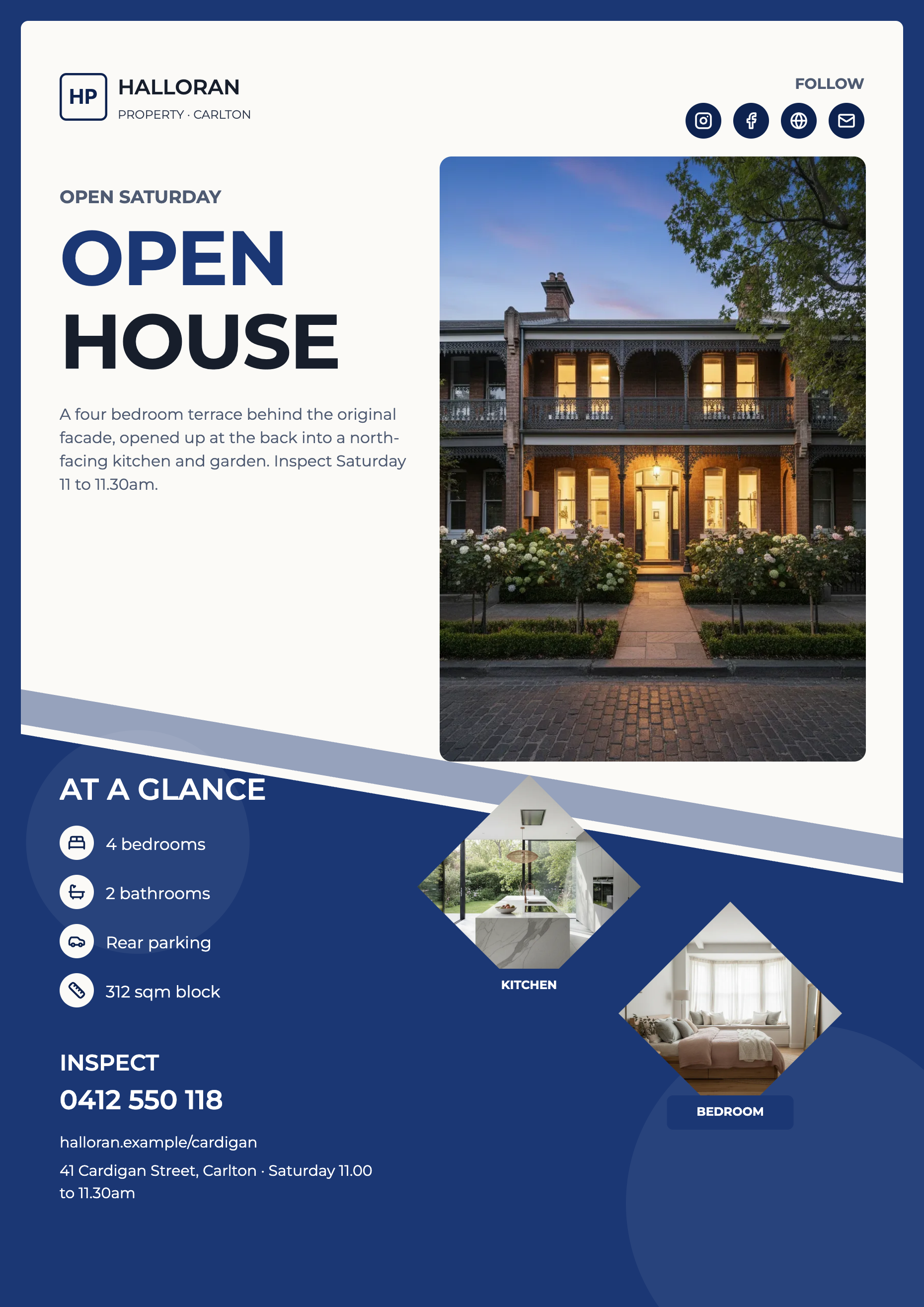
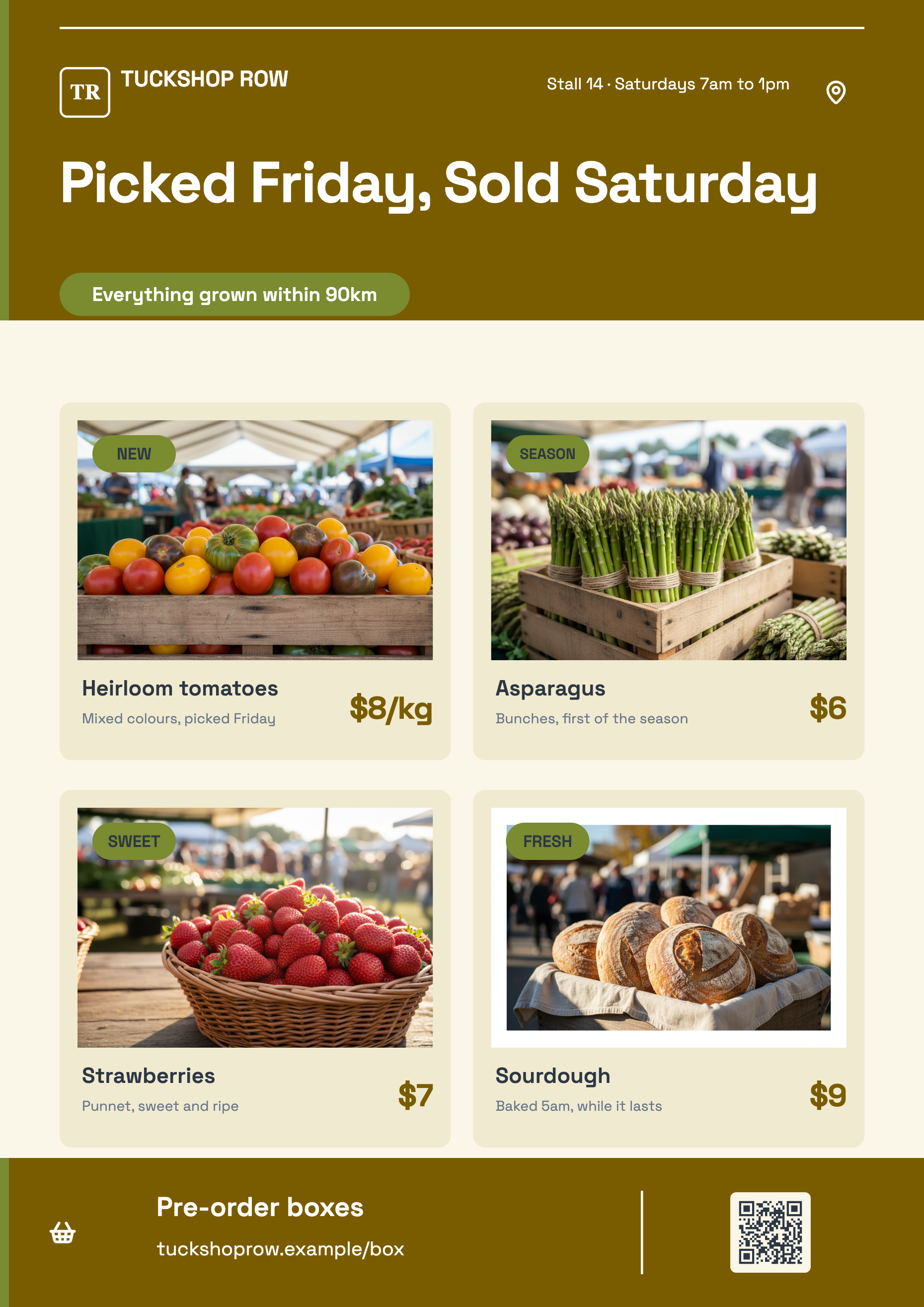
The reliable pattern on a flyer is the written address in a text element, plus a QR code encoding a link to your listing in whichever map app your readers use. That is one line and one block, it scans from paper, and it stays correct if you move. Twenty five of the designs already ship a QR slot for exactly this.
How it works, in three steps
Step 1
Insert the map
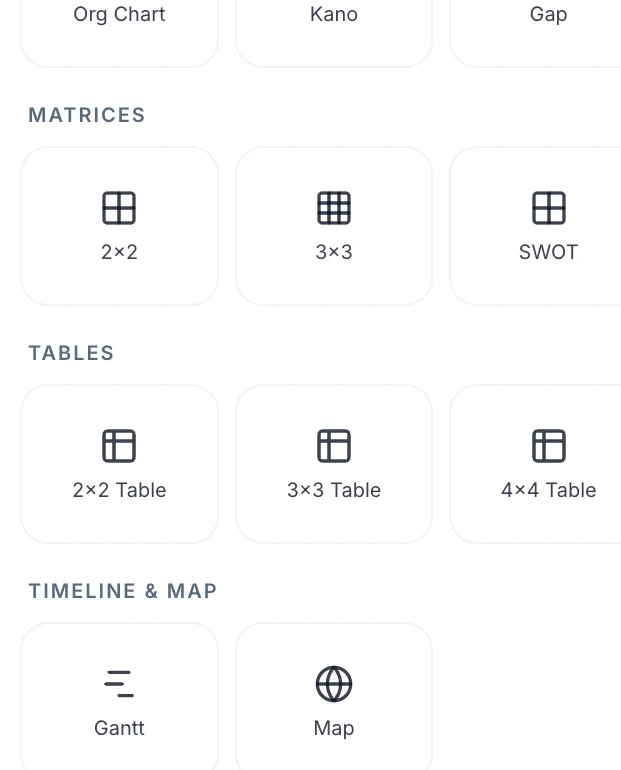
It sits in the Timeline and map section of the element panel, beside the Gantt block.
Step 2
Choose highlight or choropleth
Highlight for presence, choropleth for volume. The value field appears only in choropleth mode.
Step 3
Add the ISO codes
Three letters each, with an optional label. The map updates as each one is entered.
The full walkthrough with screenshots is in the guide Add charts and diagrams to a flyer.
Limits worth knowing
- Country outlines only. No states, cities, streets, roads, zoom, satellite imagery or address search.
- Markers and route lines exist in the data format but there is no way to add or edit one from the inspector.
- Countries are entered as three letter ISO codes, not by name.
- Colours are limited to six theme tokens. There is no custom colour for a map.
- Only twenty six map slots exist across the whole template library, so the map is usually a block you insert.
See it on a finished piece
Questions people ask
Can I show where my shop is?
Not with this block. It has no street level geography at all. Put the address in text and add a QR code that opens your listing in a map app, which is what actually gets somebody to your door.
Can I drop a pin on a city?
No. The data format has a place for markers, but the inspector offers no way to add one, so in practice pins are not available.
How do I enter a country?
By its three letter ISO code. Typing more than three characters is trimmed and lower case is converted, so AUS, NZL and SGP all work as typed.
What is choropleth mode for?
Shading countries by a number, so a flyer can say we shipped to these twelve markets and these three are the biggest, without a table. Give each country a value and the shading follows.
Make your own flyer
The button opens the generator with this use case already described. Change the wording to match yours, generate, then edit anything you like.
Create a flyer with OneCraftRelated pages
Flyer with a QR code
A QR code on a flyer is the shortest route from paper to a booking page. On these designs it is not a pasted picture: the code is computed from whatever you type into it and drawn as vector art that takes its colours from the theme, so it stays crisp and stays legible when the palette changes.
Sale badge on a flyer
A sale badge is a small promise: new, half price, this weekend only. Two elements do that job here, a badge and a chip, and they are pill shaped text blocks that take their colour from the theme rather than stickers you drag off a shelf. That has consequences worth knowing before you place one.
Add icons to a flyer
Icons on a flyer are theme coloured vector marks, not pictures. The picker opens on 135 featured ones, and typing at least two letters searches the whole Lucide library behind them.
More finished work of this kind is on the flyer examples hub.
Written and checked by the OneCraft team. Last checked .