Videos
Add my own video clip
Not everything should be generated. If you already have footage, six scene layouts exist to play it, with a title beside it, three icon bullets, a quote, a counting number, or full screen with a caption over the top. The clip is trimmed and fitted in the inspector rather than in a separate editor.
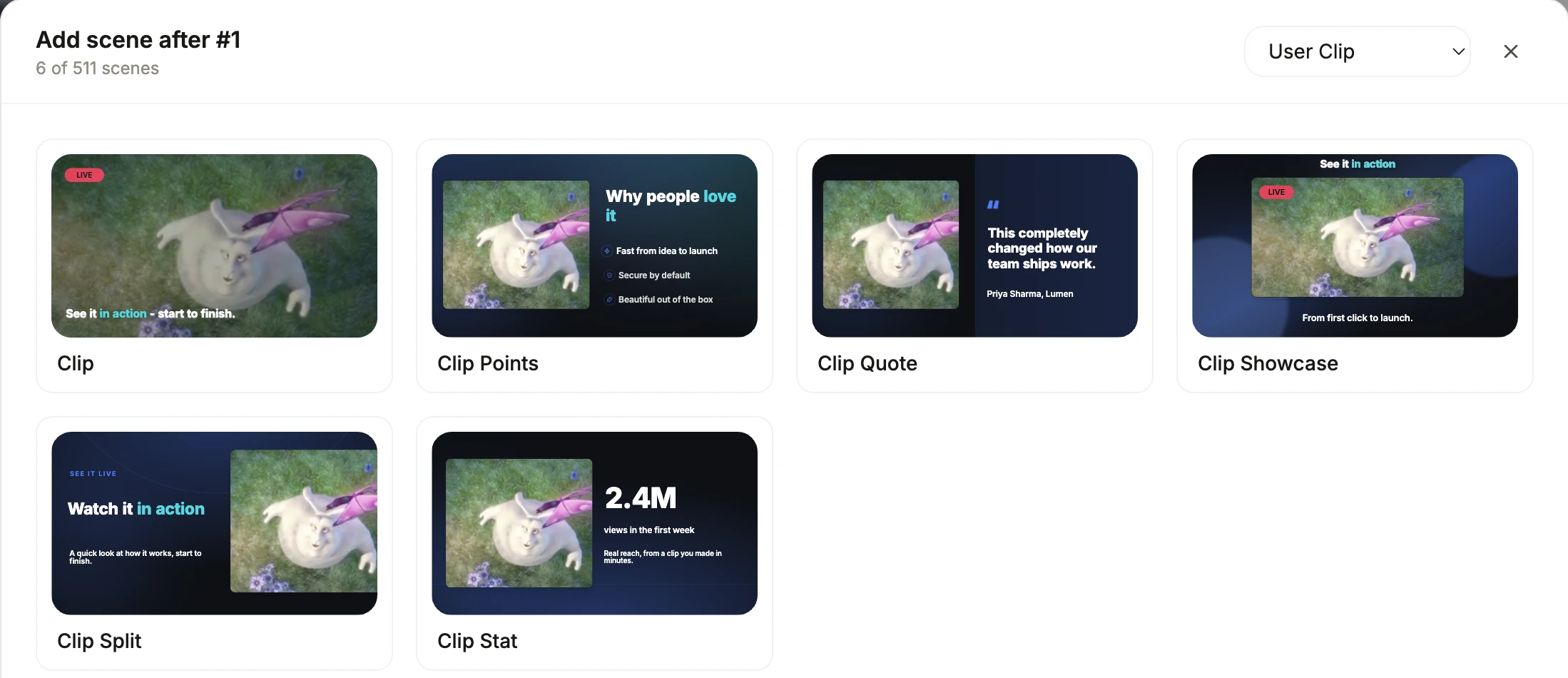
What a clip scene offers
Six layouts: the clip full screen with a caption, beside a headline and paragraph, beside three icon bullets, beside a quote, beside a count-up number, or centre stage under a title. The role is only offered when your brief actually includes a video upload, since there is nothing to play otherwise, and it is never used in the creator format at all, where the talking scenes are generated instead.
The controls, all in the inspector
Upload the file or paste a URL. Set the source length in seconds. Set a trim start and a trim end, both in half second steps, which is how you take the useful five seconds out of a thirty second clip. Choose fit: cover, which fills the box and crops, or contain, which fits the whole frame and letterboxes. And choose the audio policy: mute, keep, or keep and duck.
The audio setting that is not wired
Worth stating plainly. Keep and duck is offered in the dropdown, and the intention is that the clip's own audio would push the music down the way narration does. It is not implemented. Music only ducks under narration, so keep and duck currently behaves as keep. If your clip has important audio, plan for it to sit against the music at whatever level you set rather than pushing it aside.
How the clip changes the timing
A clip scene's duration is derived from the clip itself, so setting the source length and the trim points changes how long the scene runs rather than requiring you to set both. That makes trimming the natural way to time a clip scene, and it also means a long untrimmed clip can quietly make a short video much longer than the length setting intended.
How it works, in three steps
Step 1
Upload the clip with the brief
A video in the brief is what makes the clip role available at all. Without one, no clip scene is offered.
Step 2
Trim to the seconds that matter
Set the source length, then the trim start and end. Five useful seconds beats thirty seconds of which four are good.
Step 3
Decide about the audio
Mute is the default and usually right under a voiceover. Keep it only when the sound is the point, and expect the music to stay where it is.
The full walkthrough with screenshots is in the guide Make a promo video with AI voiceover.
Limits worth knowing
- Clips are capped at 200 MB, in MP4, WebM or MOV.
- Keep and duck is not implemented. Music only ducks under narration, so it behaves as keep.
- There is no timeline scrubber for trimming. Start and end are typed in seconds, in half second steps.
- Uploaded clips are never used in the creator format, which generates its talking scenes instead.
Questions people ask
Can I put several clips in one video?
Yes, as separate clip scenes, and one layout even holds more than one clip slot. Each clip carries its own trim, fit and audio setting.
Will the narration play over the clip?
Yes. A clip scene takes narration like any other scene, and the voice track runs across the whole video regardless of what a given scene is showing.
What resolution should the clip be?
At least the canvas dimension in the direction the slot is largest, so 1920 wide for a full width landscape clip. Cover crops to fill, so a clip shot in the other orientation will lose a lot of frame.
Can I edit the clip here?
Only trim and fit. There is no colour correction, no speed change, no cut within the clip and no audio editing. Do that work before uploading.
Make your own video
The button opens the generator with this use case already described. Change the wording to match yours, generate, then edit anything you like.
Create a video with OneCraftRelated pages
Change a video's aspect ratio
Cropping a wide video into a tall one throws away two thirds of the frame and whatever was in it. Switching format here does something different: every element already knows where it belongs in each shape, so the design is rebuilt at the new aspect rather than trimmed to it.
Share a video link
The share link here is not a link to a file. It opens a page that plays your saved video by rendering it in the viewer's browser, from the same document the builder works on. That has one very useful consequence and one you need to know about before you send it to a client.
YouTube video maker
The watch page is the one place in this list where 16:9 is the native shape rather than a compromise, where sound is on by default, and where a viewer has already decided to watch before the first frame plays. That changes what the video has to do in its opening seconds.
More finished work of this kind is on the video examples hub.
Written and checked by the OneCraft team. Last checked .