Videos
Change a video's aspect ratio
Cropping a wide video into a tall one throws away two thirds of the frame and whatever was in it. Switching format here does something different: every element already knows where it belongs in each shape, so the design is rebuilt at the new aspect rather than trimmed to it.
Every slot carries a box per canvas
This is the mechanism. A slot does not have a position, it has a position for landscape, one for vertical and one for square, and the landscape one is the authoring master the others reflow from. All three are explicit rather than derived, which is the real authoring cost of supporting more than one size and the reason a lower third badge or a moving element still sits correctly in each shape.
Five things can be overridden per format
Beyond position, a slot can carry a different size, a different alignment, a different type size, a different camera move and a different 3D tilt for a given canvas. Those exist because they solve specific problems: a heading that reads well wide is too large for a narrow frame, a tilt that looks dimensional in landscape crops badly in vertical, and something centred in vertical often wants to be left aligned in landscape. Container layouts can also switch, so a row becomes a column.
Your own edits are kept per format too
Anything you change by hand on the preview, dragging a slot to a new point, nudging an offset, cropping an image, resizing, hiding a slot, is stored under the format you were in when you made it. So fixing the vertical cut cannot break the landscape one, and you can be aggressive in the narrow frame without worrying about what it does to the wide version.
The three things to check after switching
The longest headline, because a line that fits wide can wrap to three lines narrow. Any scene with several images side by side, since a row of three in landscape becomes a stack in vertical and the images get smaller. And the bottom third of the vertical cut, because captions and the corner watermark both sit low and phone interfaces cover that area.
How it works, in three steps
Step 1
Get one format right first
Finish the placement you care about most, including the closing scene copy, before you switch. Half finished work reflows into half finished work.
Step 2
Switch in the toolbar
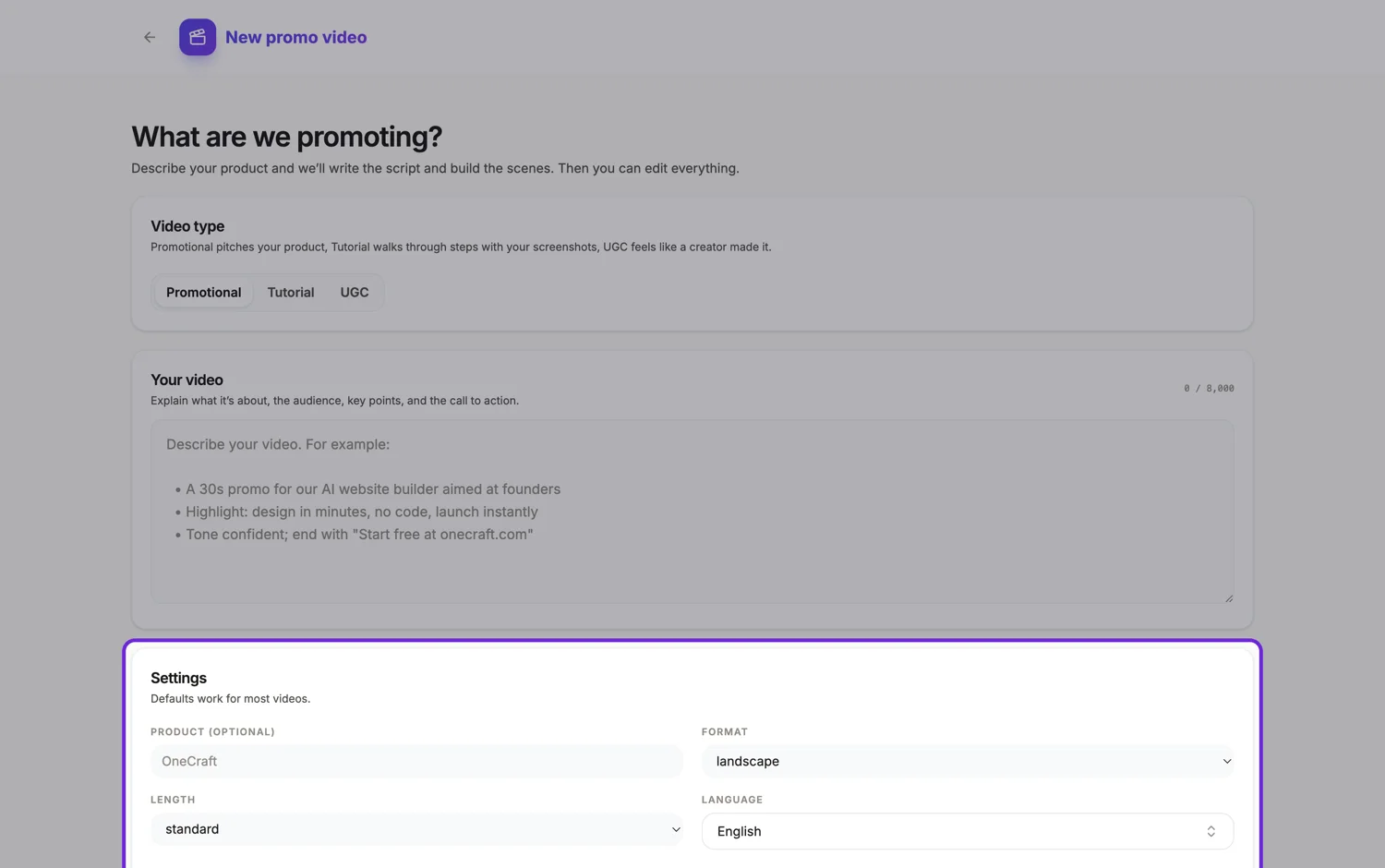
The format dropdown sits beside the save state. Changing it rebuilds the layout immediately in the preview.
Step 3
Fix only what the new shape broke
Work through the scenes once. Because edits are stored per format, nothing you do here touches the version you already finished.
The full walkthrough with screenshots is in the guide Export one video for YouTube, Reels and TikTok.
Limits worth knowing
- Only landscape and vertical are offered. The 1:1 square canvas exists in the engine and is hidden from both pickers.
- A video saved in square before it was hidden still opens, still shows square as its selected format and still renders.
- Format is a document wide setting. You cannot have one scene wide and the next one tall.
- There is no 4:5 or 21:9 canvas, so the Facebook Feed and Instagram legacy 4:5 specifications cannot be matched exactly.
Questions people ask
Do I have to export twice?
Yes, once per format. Each export is a separate render at that canvas, and a render already produced from identical content is reused rather than charged again.
Does switching lose my narration?
No. Narration, captions, music, images and copy are all format independent. Only layout is per canvas, which is why the switch is safe to make late.
Which format should I build first?
Landscape, if you are unsure, because it is the authoring master the other shapes reflow from. If your only placement is a phone feed, build vertical from the brief instead so the director designs for a narrow frame from the start.
Why does one scene look worse after the switch?
Usually because it holds several images at once. A gallery of four in a wide frame becomes four small tiles in a tall one. Swapping that scene for a layout that holds fewer pictures is a better fix than shrinking the text.
Make your own video
The button opens the generator with this use case already described. Change the wording to match yours, generate, then edit anything you like.
Create a video with OneCraftRelated pages
Export a video in 4K
There are two export options and the difference is simpler than the labels suggest. Standard renders at the canvas size. Ultra renders at exactly twice it. That is the whole mechanism, which makes deciding between them a question about where the video is going rather than about quality settings.
Landscape video maker
Vertical took the feeds, but it did not take everything. A watch page, a television, an in-stream ad, a LinkedIn desktop feed, a page embed, a screen at the back of a trade stand and any video that is mostly a screenshot are all still landscape problems, and they are the ones where a 16:9 master earns its keep.
YouTube video maker
The watch page is the one place in this list where 16:9 is the native shape rather than a compromise, where sound is on by default, and where a viewer has already decided to watch before the first frame plays. That changes what the video has to do in its opening seconds.
More finished work of this kind is on the video examples hub.
Written and checked by the OneCraft team. Last checked .