Videos
Export a video in 4K
There are two export options and the difference is simpler than the labels suggest. Standard renders at the canvas size. Ultra renders at exactly twice it. That is the whole mechanism, which makes deciding between them a question about where the video is going rather than about quality settings.
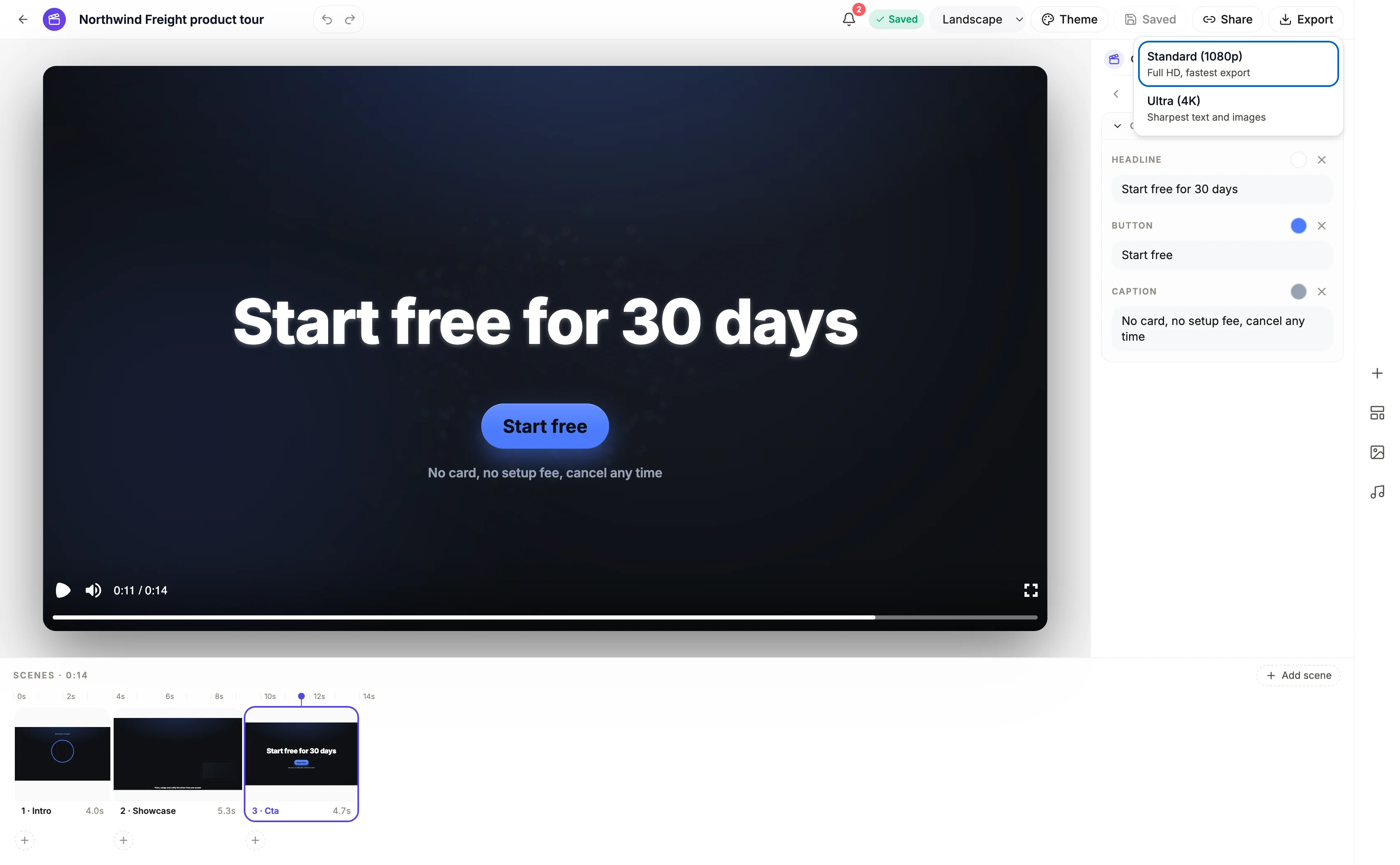
The two options and what they output
Standard is described as Full HD and fastest export, and renders the canvas as it is: 1920 by 1080 landscape, 1080 by 1920 vertical. Ultra is described as sharpest text and images, and applies a scale of two, giving 3840 by 2160 or 2160 by 3840. Both are H.264 in an MP4 container at 30 frames a second, rendered on the same path with the same quality settings, so the only variable is resolution.
The plan gate, in two places
Ultra needs the Starter plan or above. In the export menu a free account sees the option greyed with a lock and the line Upgrade to the Starter plan to unlock, and if the request reaches the backend anyway it is refused with a 402 saying 4K export is available from the Starter plan. That is a deliberate double check: the menu state is display only and the tier is re-verified server side.
When it is genuinely worth it
Two cases. A video that will play on a television or a large screen, where the extra pixels are visible. And a tutorial full of screenshots, where small interface text is the content and doubling the resolution is the difference between readable and guessed at. Outside those, the honest answer is usually no, and there are placements where it actively hurts: Shorts caps upload resolution at 1080p, so a 4K vertical file is a bigger upload for nothing.
What an export costs
An export bills its real render time, usually a small amount, plus any narration it still has to synthesise. Anything over thirty seconds, or anything with narration text that has not been spoken yet, needs at least 1 credit left to start. Separately, an MP4 already rendered from exactly the same content is reused rather than re-rendered, so exporting twice without changing anything does not charge twice.
How it works, in three steps
Step 1
Export when the edit is done
Export saves your latest edits first, and cancels with a message if that save fails, so the file always matches what the builder shows.
Step 2
Choose from the export menu
Standard for anything going into a feed, Ultra for a television, a large screen or a screenshot heavy walkthrough.
Step 3
Wait for the render
The job runs on the server and the builder watches for the finished file. A 4K render splits into smaller chunks and takes noticeably longer.
The full walkthrough with screenshots is in the guide Export one video for YouTube, Reels and TikTok.
Limits worth knowing
- 4K needs the Starter plan and above. A free account is limited to 1080p.
- 4K is exactly twice the canvas, so there is no 1440p option and no custom resolution.
- Every export is 30 frames a second, H.264, in an MP4. There is no codec, bitrate or frame rate choice.
- YouTube Shorts caps upload resolution at 1080p, so a 4K vertical file gains nothing there.
Questions people ask
Does 4K make the text sharper?
Yes, because the text is drawn at the higher resolution rather than upscaled. That matters most for small type, which in practice means screenshots in a tutorial rather than the headline in a promo.
Will my uploaded photos look better in 4K?
Only up to their own resolution. Pictures are not upscaled beyond a frame filling hero slot, and even then by no more than two and a half times, so a small photo stays the size it was.
Why did my export cost almost nothing?
Because only the render time was billed: every narration line already had audio, and a short video renders quickly. Rewrite a line without regenerating its voice and the next export also bills that narration, and an unchanged re-export is free.
Can I export both formats?
Yes, they are separate renders. Switch format in the toolbar and export again, and each render is cached against its own content so re-exporting an unchanged one is free.
Make your own video
The button opens the generator with this use case already described. Change the wording to match yours, generate, then edit anything you like.
Create a video with OneCraftRelated pages
YouTube video maker
The watch page is the one place in this list where 16:9 is the native shape rather than a compromise, where sound is on by default, and where a viewer has already decided to watch before the first frame plays. That changes what the video has to do in its opening seconds.
Change a video's aspect ratio
Cropping a wide video into a tall one throws away two thirds of the frame and whatever was in it. Switching format here does something different: every element already knows where it belongs in each shape, so the design is rebuilt at the new aspect rather than trimmed to it.
Testimonial video scene
A quote lands harder with a face attached, and there is a scene role for exactly that. What it will not do is invent the person. The instruction is explicit: only claim a named person when the brief actually names one, so a testimonial from nobody in particular is a quote scene instead.
More finished work of this kind is on the video examples hub.
Written and checked by the OneCraft team. Last checked .