Forms
Generate a form from a description
The same request written three ways produces three different forms. This page is about that gap: what a vague prompt gives you, what naming your sections adds, and what happens when you paste the questions you already have.
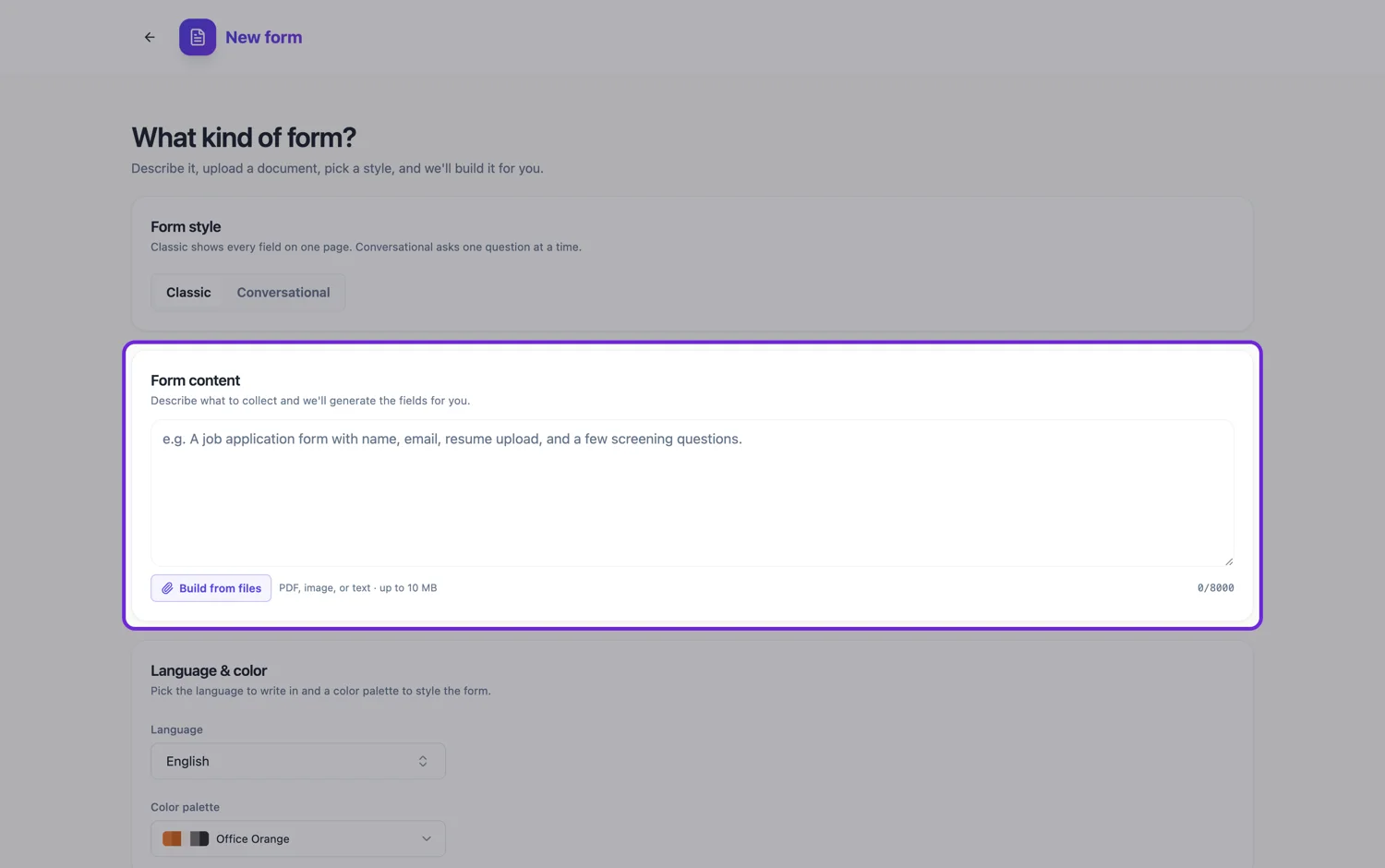
One line: you get the obvious form
A prompt like "a workshop booking form" produces a short, safe form: name, email, phone, which session, a comments box. Nothing is wrong with it, and for a simple job it is often enough. What it cannot do is guess the choices in your session dropdown, or know that you run three sessions rather than one, so those come back as an empty dropdown or a free text box.
Name the sections and the choices
The moment you write the section headings and list the options for a choice question, the form comes back grouped the way you described, with the real options in the dropdown. This is the single highest value thing you can add to a prompt. Options you list are used verbatim, so spell them the way you want respondents to read them.
Say what not to ask
Prompts are better at including than excluding, so an explicit "do not ask for date of birth" or "no questions about health" is respected and is worth writing whenever there is a field you legally or politically cannot collect. It also stops the generator from adding the field back when it fills a section out.
Paste the questions you already have
If the form exists on paper, in a spreadsheet or in an email thread, paste the questions rather than describing them. The generator infers the type from each question, splits comma separated choices into real options, and marks the ones that read as mandatory. That is usually the fastest route to a form you barely have to edit.
How it works, in three steps
Step 1
Write the prompt as a brief
Sections first, then the fields inside each, then the options for any choice question, then anything that must not be asked.
Step 2
Generate
Pick classic or conversational and generate. The job runs in the background and drops you into the builder.
Step 3
Fix the field list, not the design
Read the fields in order and correct the two or three that are wrong. Themes and colours take one click later and never need to be part of the prompt.
The full walkthrough with screenshots is in the guide Create a form from scratch with AI.
Limits worth knowing
- Options you do not list are left for you to fill in. The generator will not invent your session times or product names.
- The prompt is capped at 8,000 characters.
- A prompt asking for several separate forms produces one form. Generate them one at a time.
- Language and colour are set with the two pickers under the prompt box, not by writing them into the prompt.
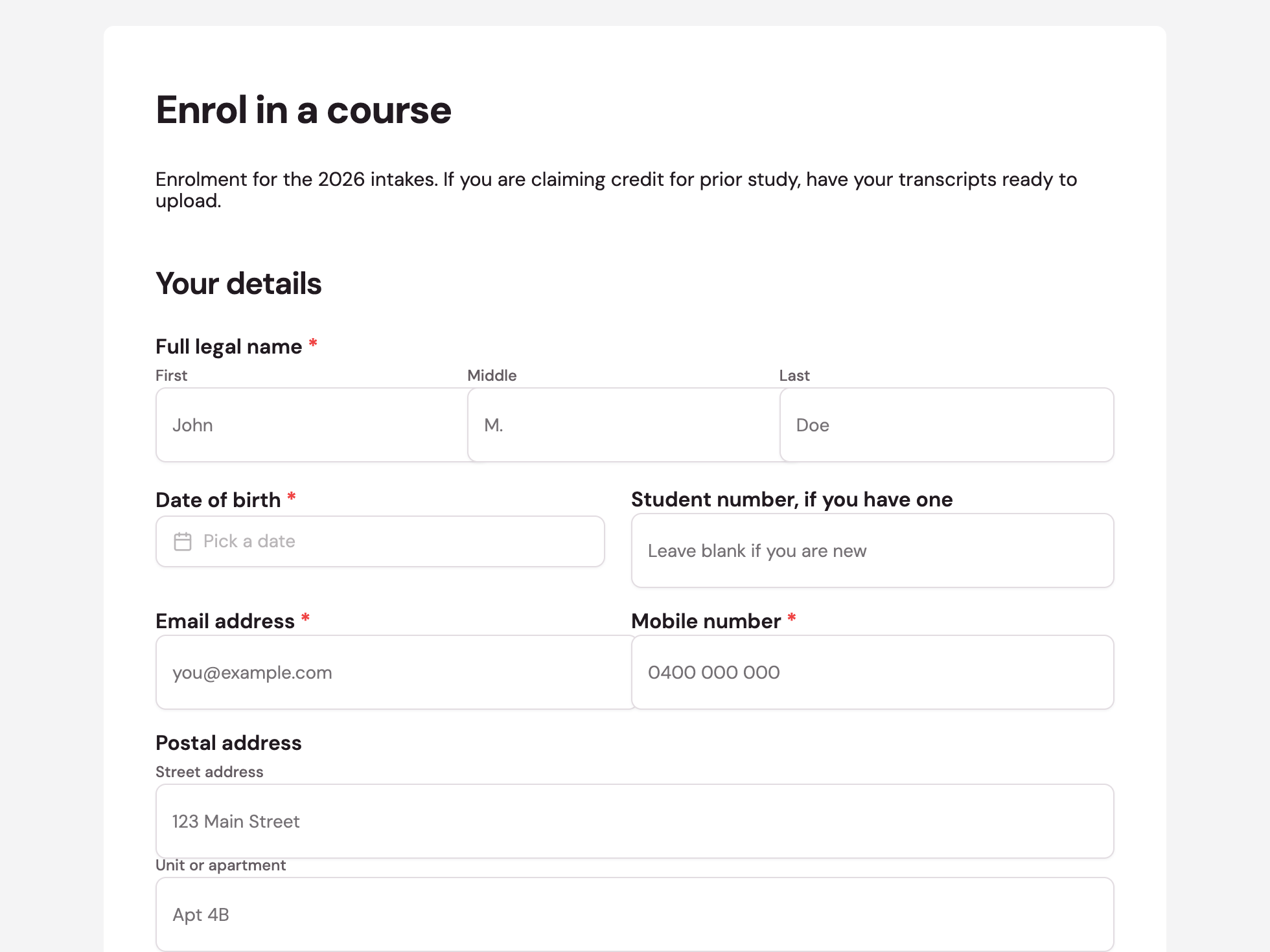
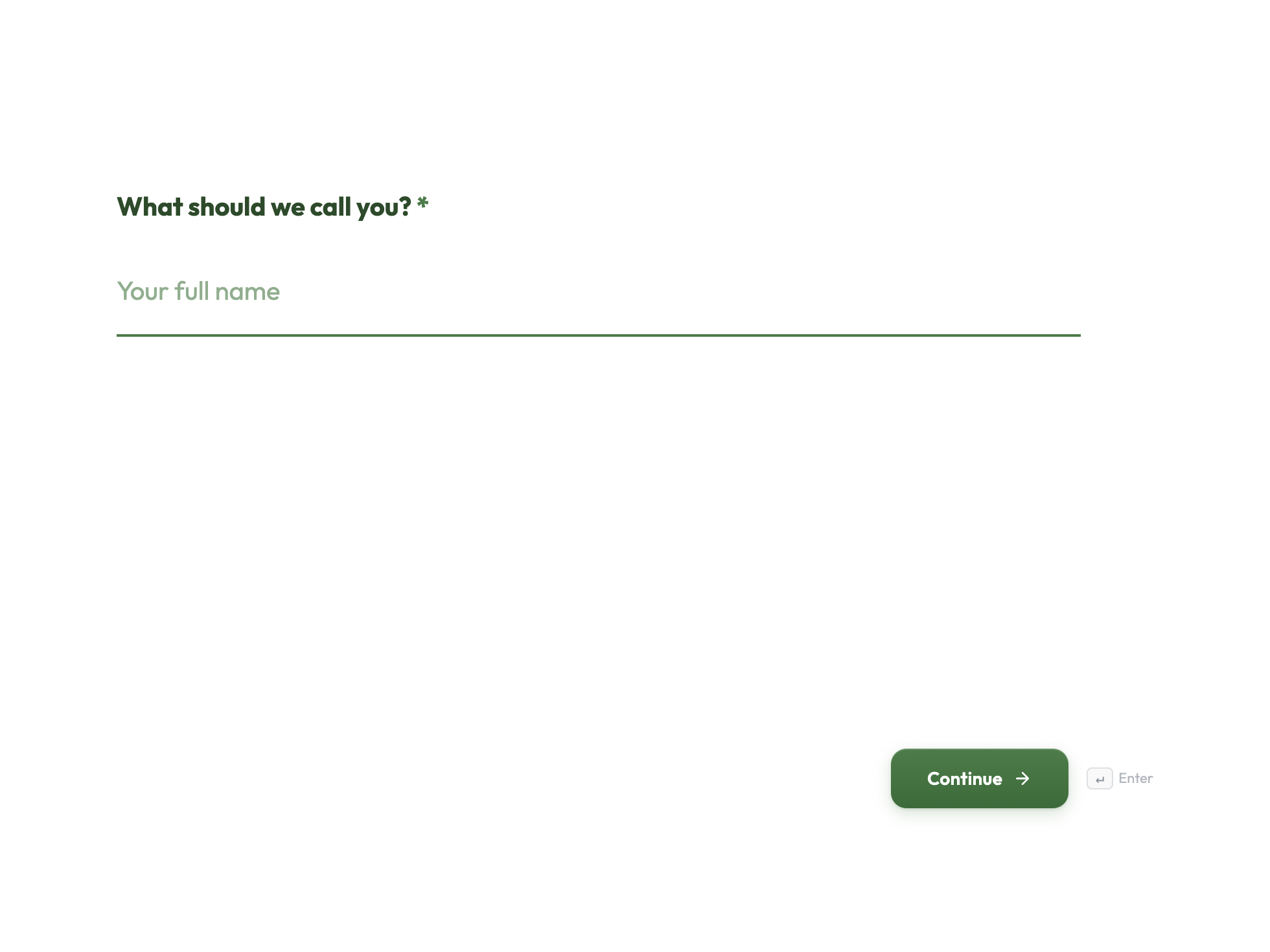
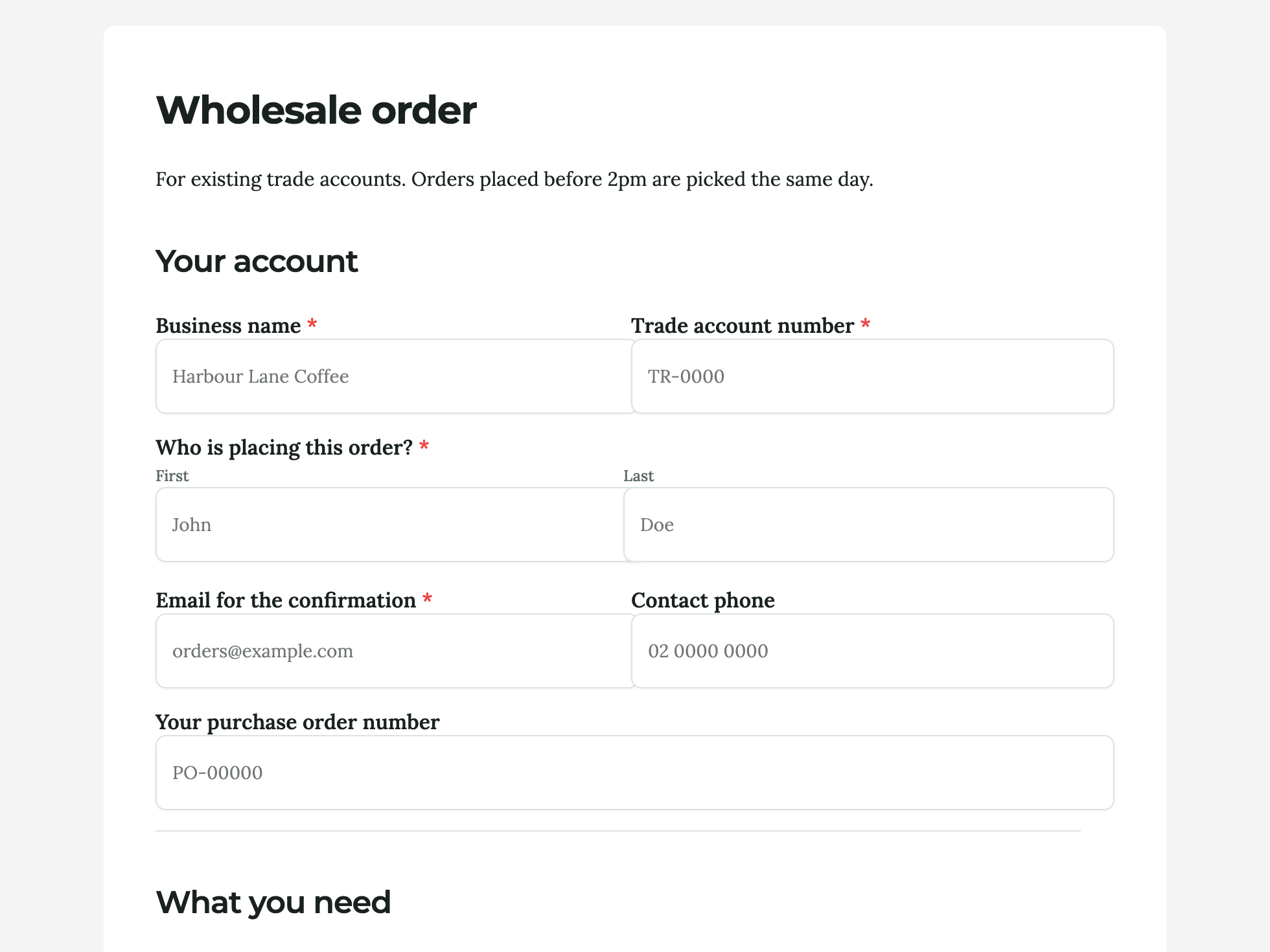
See it on a finished piece
Questions people ask
How long should a form prompt be?
As long as the form is complicated. Two lines for a contact form, a paragraph per section for an application form. There is no benefit in being brief.
Can I paste a list of questions instead of describing the form?
Yes, and it usually gives a better result. Each line is read as a question, types are inferred, and comma separated choices become real options.
Does the wording of a question carry through to the form?
Labels are tidied rather than copied word for word. Options you list are used exactly as written, so put your care into those.
Make your own form
The button opens the generator with this use case already described. Change the wording to match yours, generate, then edit anything you like.
Create a form with OneCraftRelated pages
AI form builder
You type a sentence about the form you need. What comes back is not a wireframe or a list of suggestions, it is a finished form with its fields chosen, labelled, ordered and marked required or optional, ready to publish on a link.
Turn a list of questions into a form
If your form already exists as a list in a document, an email or a spreadsheet, you do not need to describe it. Paste the questions and each line becomes a field with a type, options where you listed them, and a required flag.
Build a form in any language
The language picker sits under the prompt box. Choose a language and the whole form comes back in it: labels, descriptions, option lists, the button, the welcome screen and the thank-you screen, not just the questions.
More finished work of this kind is on the form examples hub.