Forms
Build a form in any language
The language picker sits under the prompt box. Choose a language and the whole form comes back in it: labels, descriptions, option lists, the button, the welcome screen and the thank-you screen, not just the questions.
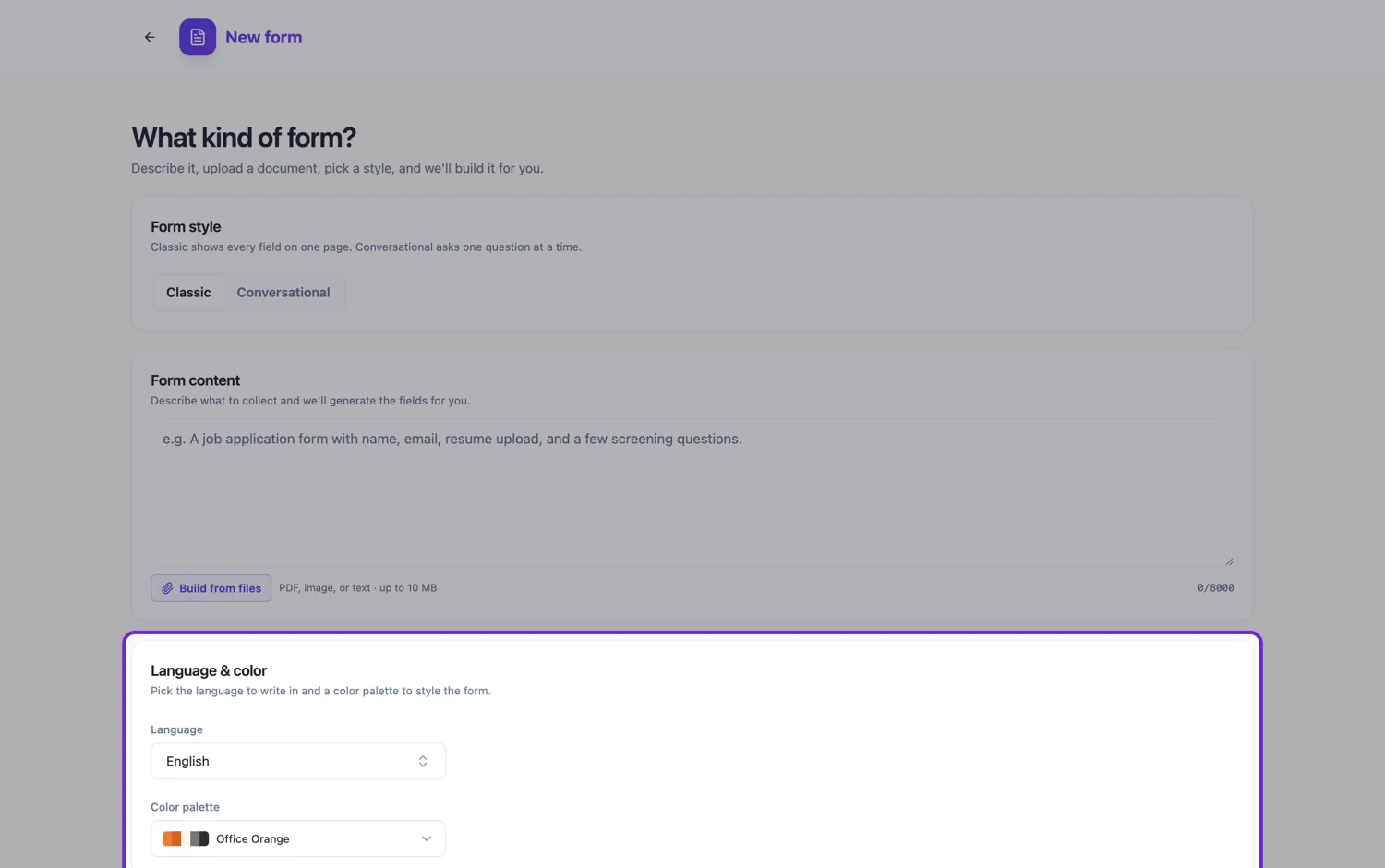
It is a picker, not a prompt instruction
Language is one of the two settings under the prompt box, alongside colour. Writing "in Spanish" in the prompt is less reliable than choosing Spanish from the picker, because the picker applies to every generated string rather than to whatever the model happened to translate. Write the prompt in whatever language you think in and set the picker separately.
Thirty two suggestions, and anything else
The list offers thirty two languages with their native names, from Spanish and French through Arabic, Hindi, Bengali, Tamil, Vietnamese, Thai, Japanese, Korean, both written forms of Chinese, and Swahili. It is a combo box rather than a fixed list, so you can type any language that is not on it. Leaving it empty means the language is inferred.
Right to left scripts
Arabic, Hebrew, Persian and Urdu are on the list, and the form is built with the labels written in those scripts. Check the result rather than assuming, particularly where a label mixes a script with Latin characters or numbers, because mixed direction text is where layout problems show up.
Translate the whole experience
The parts people forget are the button label, the welcome screen and the thank-you screen. Generating in a language covers all three. If you translate a form by editing labels one at a time afterwards, those three are the ones that stay in English and give the game away.
Auto detect is the default, and the picker overrides it
Leaving the language field empty means detect automatically: the form is written in whatever language your prompt is in. Picking a language overrides that, which is what you want when you are describing a Spanish form in English. Both routes go through the same generation, so there is no quality difference between typing your prompt in the target language and asking for it explicitly.
Right to left is written, not mirrored
Arabic, Hebrew, Persian and Urdu come back with their labels, options, help text and buttons in the language. The layout does not mirror: fields still run left to right down the page. For most forms that is acceptable and for some it is not, so look at a preview before you send the link, and consider whether a short form with fewer side by side fields reads better in those scripts.
How it works, in three steps
Step 1
Write the prompt in your own language
The prompt is a brief for you. It does not have to be in the output language.
Step 2
Set the language picker
Choose from the thirty two suggestions or type any other language.
Step 3
Check the screens, not just the fields
Button label, welcome screen and thank-you screen are where an untranslated string hides.
The full walkthrough with screenshots is in the guide Create a form from scratch with AI.
Limits worth knowing
- One language per form. There is no language switcher for respondents.
- The picker sets the language of the generated content; it does not translate a form you have already built.
- Right to left scripts are supported, and mixed direction labels are worth checking by eye.
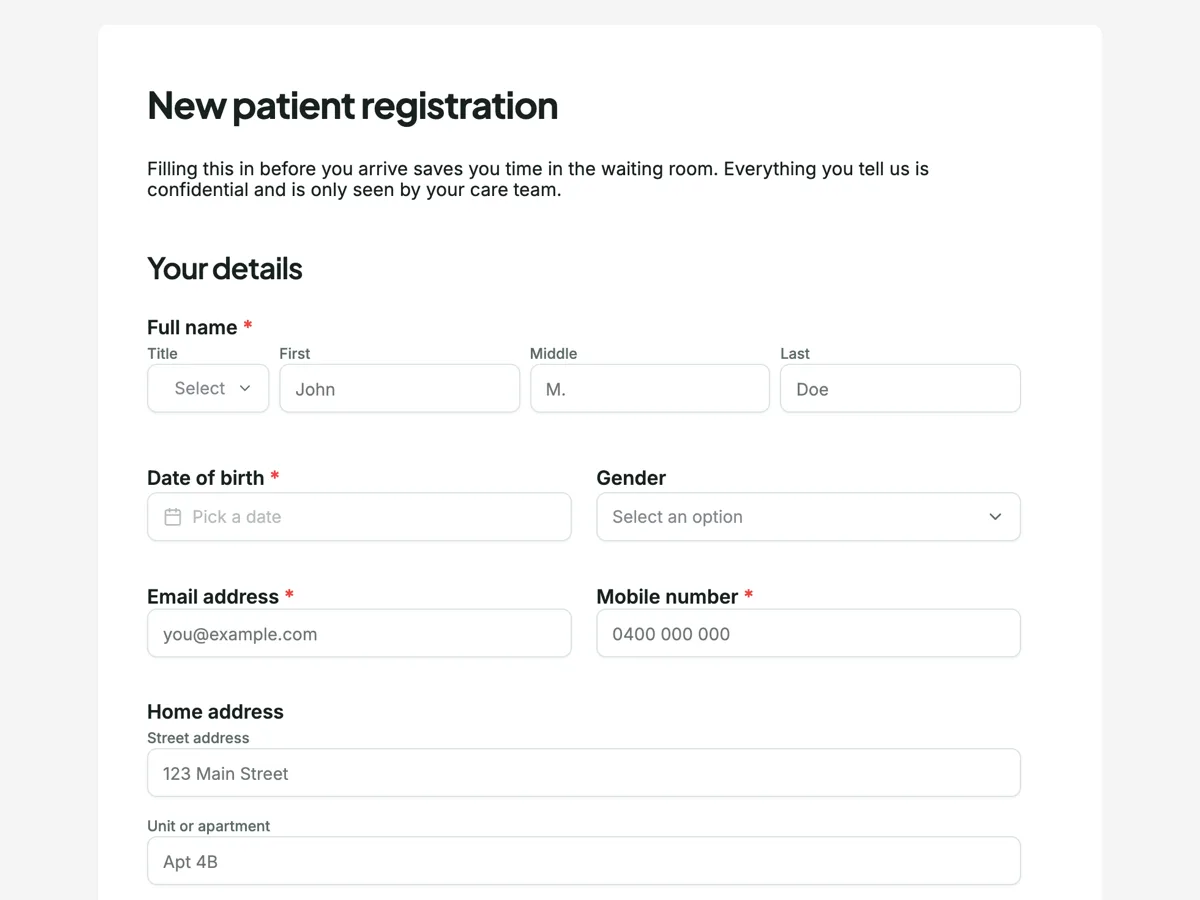
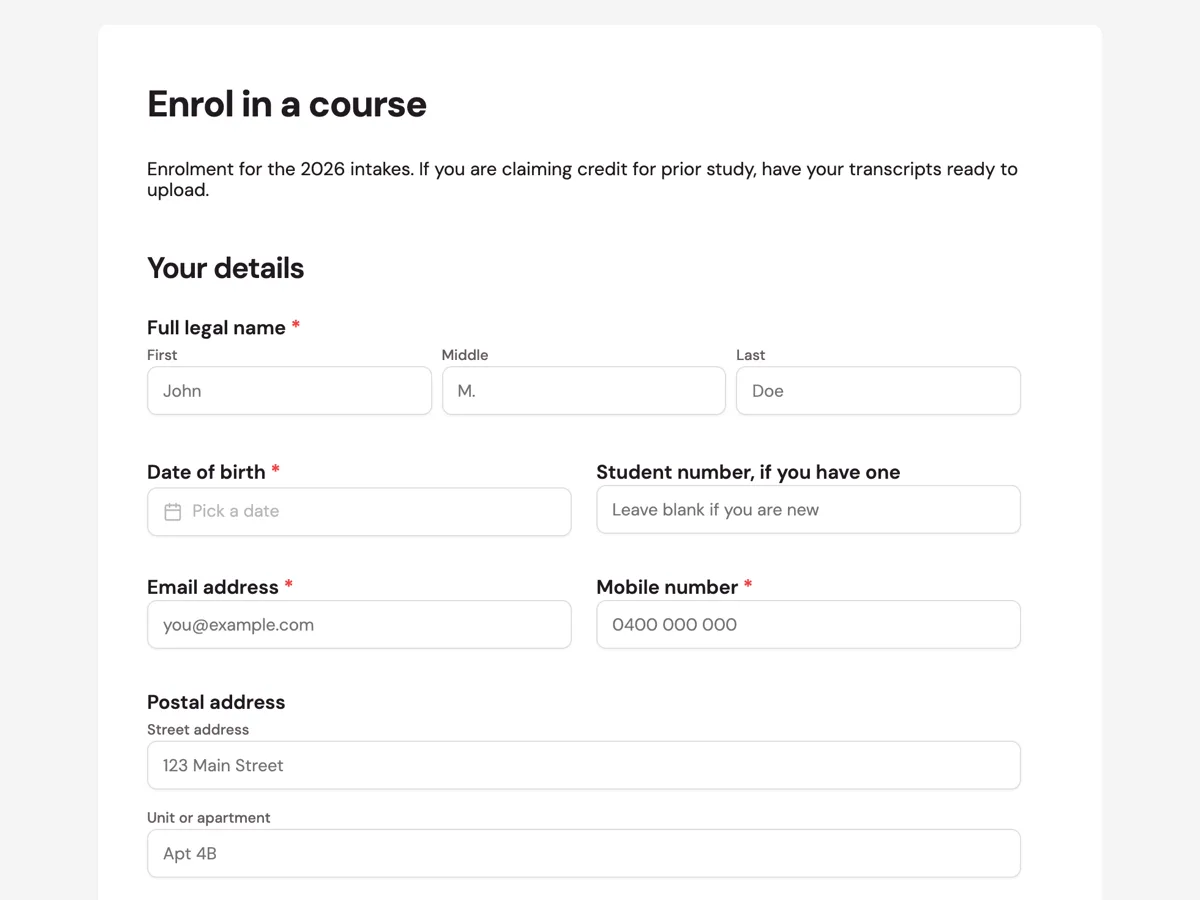
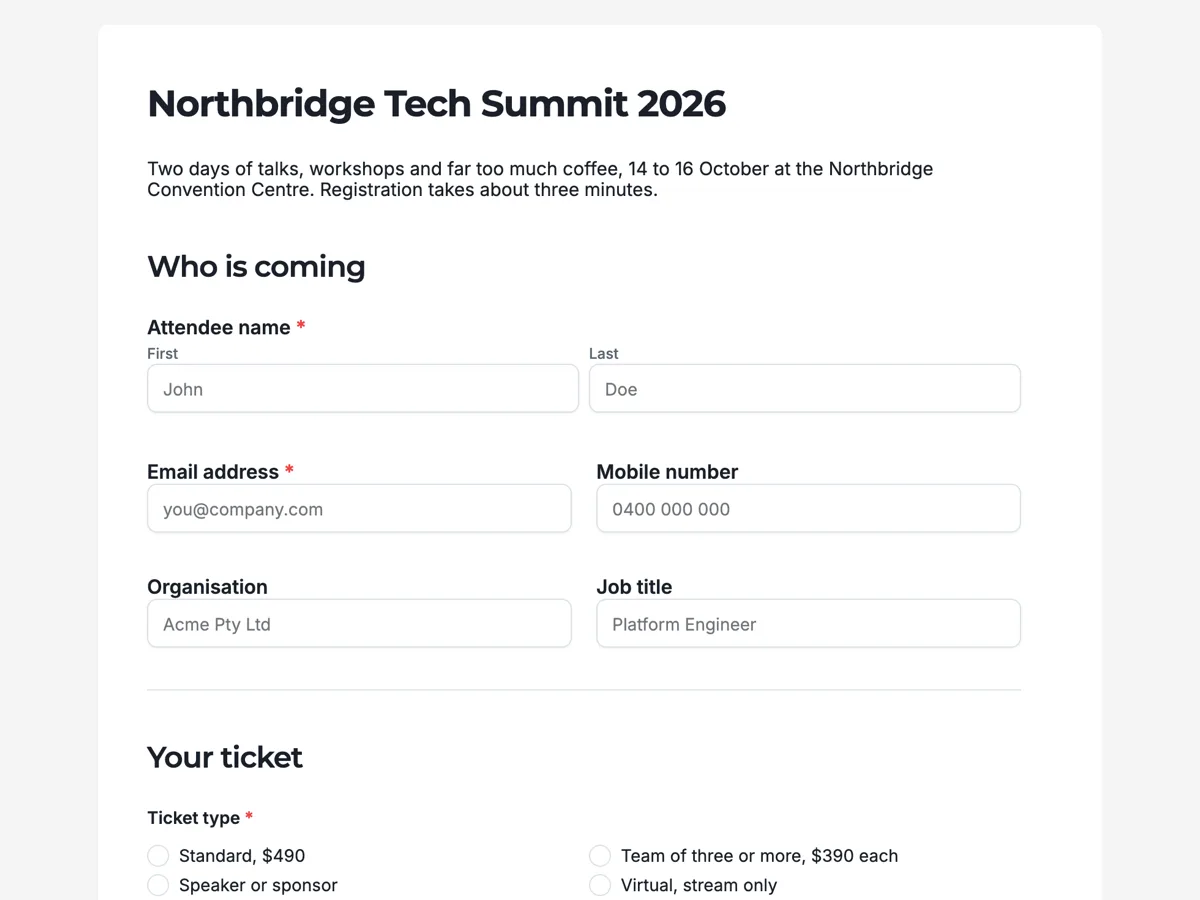
See it on a finished piece
Questions people ask
Can one form be offered in two languages?
No. A form is generated in one language and stays in it. For two audiences, build two forms and link to each from your own page, which also lets you word them differently where a direct translation would read oddly. The responses come into two separate tables, which is usually what you want anyway.
Can I translate a form I already built?
The picker applies at generation, so the clean route is to generate again with the same description and the language set. The AI chat can rewrite individual labels into another language if you only need a few, but for a whole form regenerating gets the buttons, the help text and the thank you screen too.
Which languages are supported?
Thirty two are suggested with their native names, and the field accepts any language you type. Leaving it empty means detect automatically, so a prompt written in Portuguese produces a Portuguese form without you touching the picker at all.
Which languages are suggested?
Thirty two: English, Spanish, Portuguese, French, German, Italian, Dutch, Polish, Czech, Hungarian, Romanian, Greek, Russian, Ukrainian, Turkish, Arabic, Hebrew, Persian, Hindi, Bengali, Urdu, Tamil, Indonesian, Malay, Vietnamese, Thai, Filipino, Japanese, Korean, Chinese Simplified, Chinese Traditional and Swahili. The field also accepts anything you type, so the list is a shortcut rather than a limit.
Does the CSV export translate?
No, and it should not. The export writes what was actually on the form and what people actually typed, so a Spanish form exports Spanish labels and Spanish answers. Translating an export would put words in a respondent's mouth. Translate the file afterwards if you need to, where you can see what changed.
Make your own form
The button opens the generator with this use case already described. Change the wording to match yours, generate, then edit anything you like.
Create a form with OneCraftRelated pages
Write a proposal in another language
A proposal in another language should read as if it were written in that language, not translated line by line afterwards. Setting the language before the draft is written means the headings, the scope, the item descriptions and the terms all come out in it from the start.
Write a document in another language
The language picker sits under the description box, next to the colour. Choosing there produces a document written in that language throughout, rather than an English document with translated paragraphs.
Build a presentation in another language
The language control sits with the theme and length settings under the prompt box. What it does is not translation. The whole deck is planned and written in the language you name, which produces different sentences from writing it in English and translating afterwards.
More finished work of this kind is on the form examples hub.
Written and checked by the OneCraft team. Last checked .