Documents
Write a document in another language
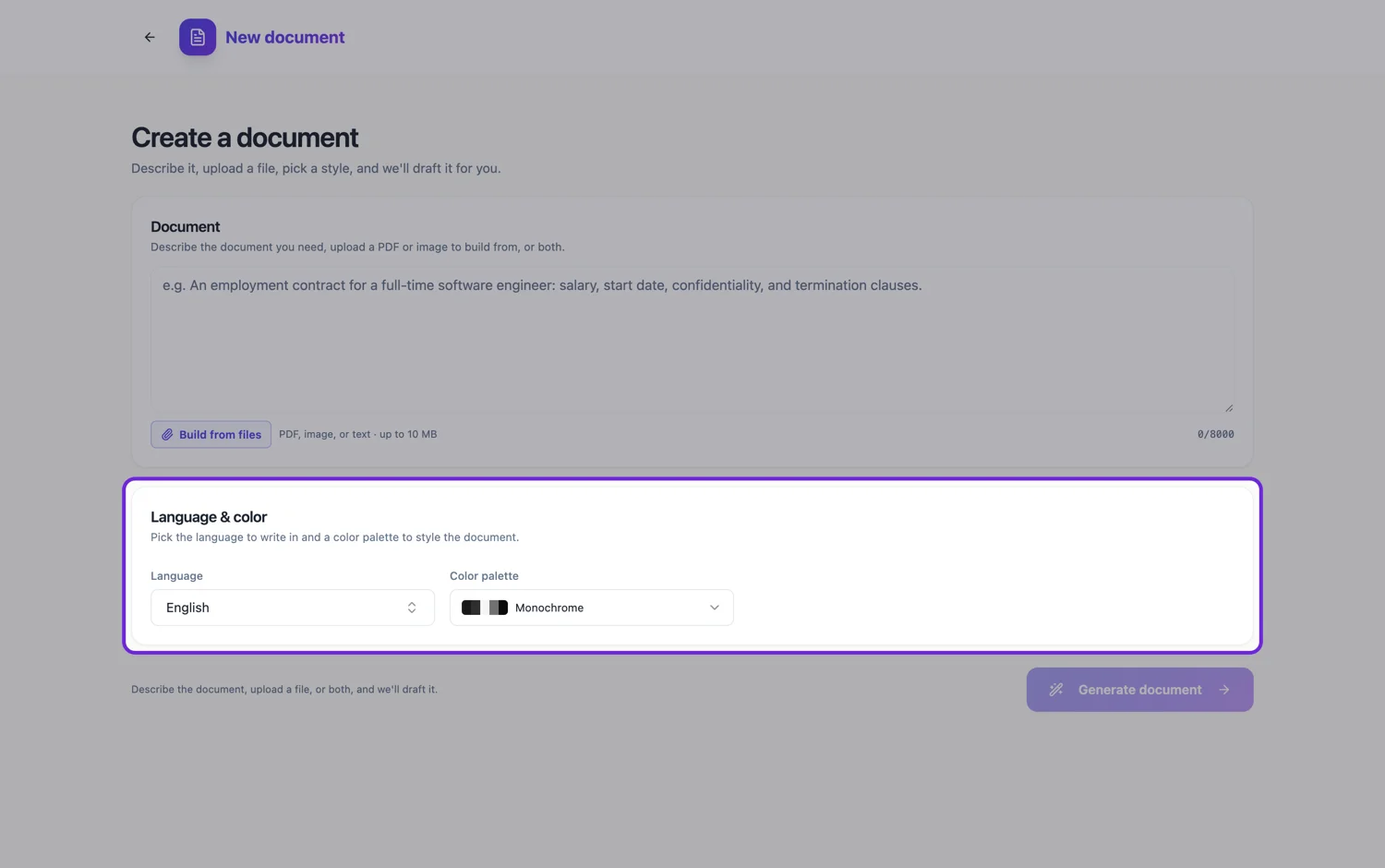
The language picker sits under the description box, next to the colour. Choosing there produces a document written in that language throughout, rather than an English document with translated paragraphs.
It is a picker, not an instruction
Write your description in whatever language you think in and set the language separately. Asking for Spanish inside the prompt is less reliable than choosing Spanish from the picker, because the picker applies to every generated string rather than to whatever the model chose to translate.
What gets translated that people forget
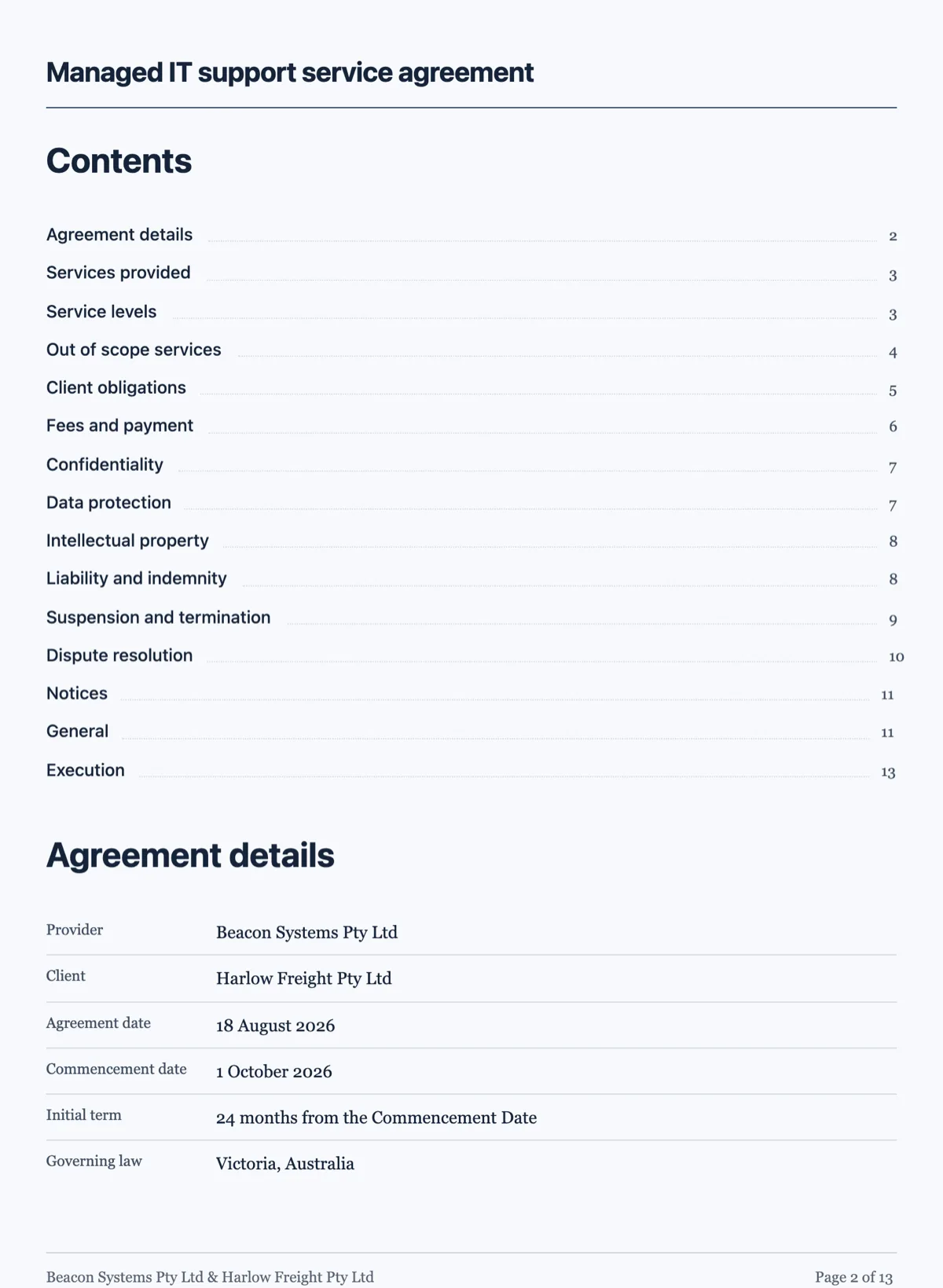
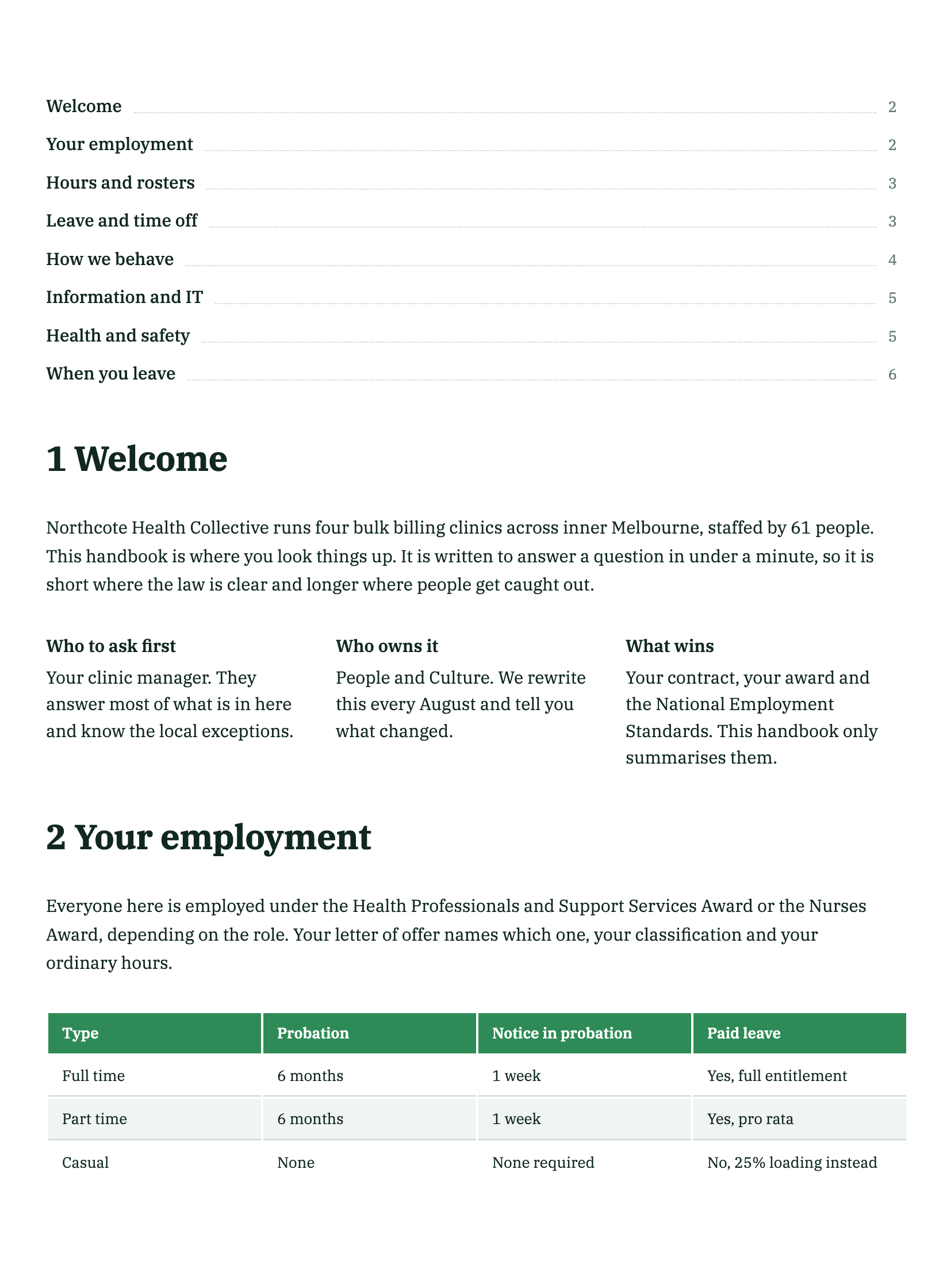
Section headings, table column headers, clause titles, the contents list, the footer text and the cover lines. Those are exactly the parts a hand translation misses, and they are the parts that give away a document as an English one wearing a translation. Generating in the language covers all of them.
Conventions travel with the language
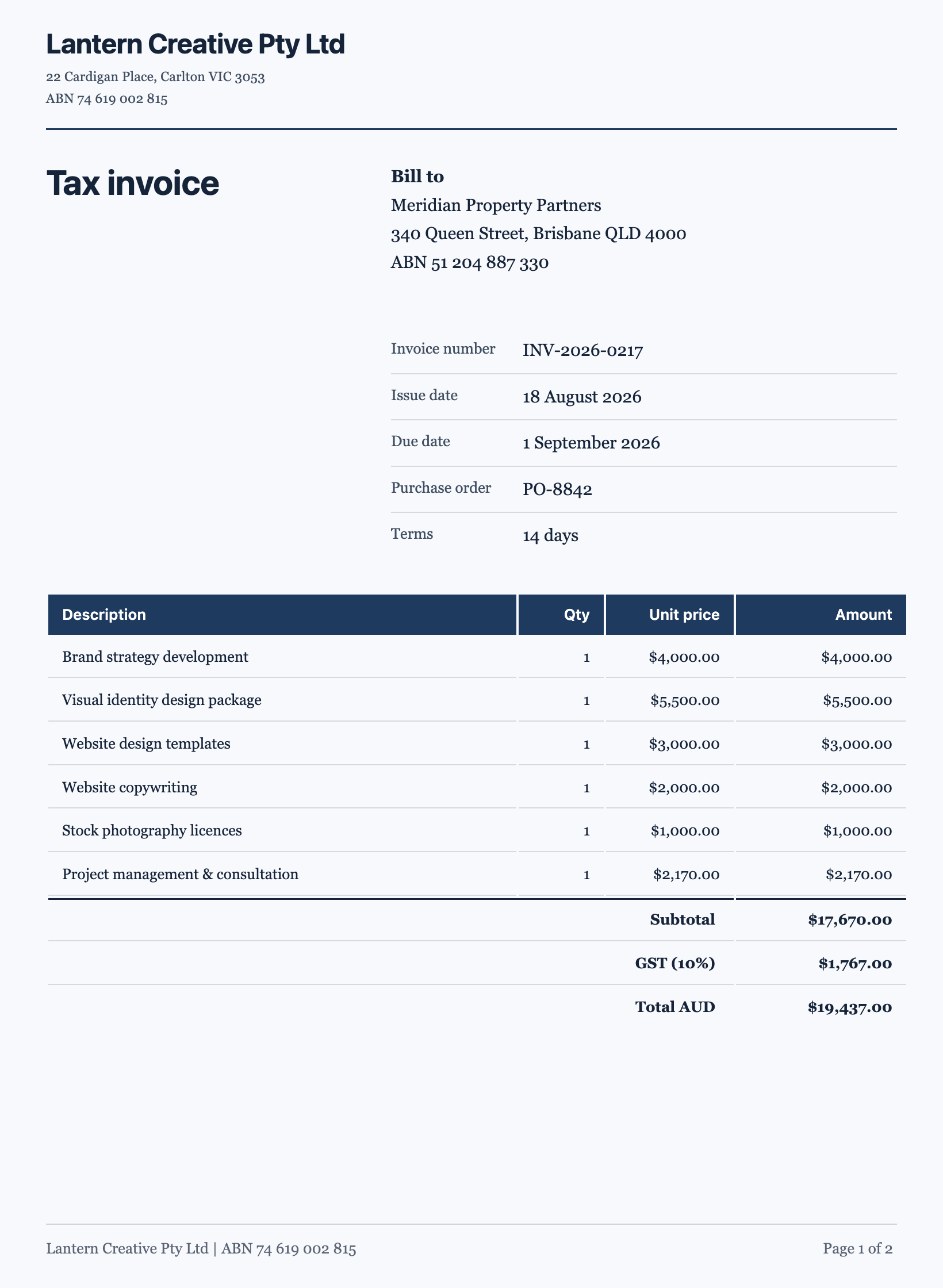
A document written in another language should follow that language’s document conventions, not English ones dressed up. Date order, currency placement, the way parties are named in an agreement, and how a formal register reads all differ. Reading the result once with somebody who works in that language is worth more than any amount of checking the vocabulary.
One language per document
There is no bilingual mode and no side by side column. For a document that has to exist in two languages, generate it twice from the same description and keep the two as separate documents, which is also how they will be signed and filed.
Say what the document is for, in any language
The description drives the classification, so it matters more than the vocabulary. Saying a residential lease agreement with numbered clauses produces a numbered legal document whichever language you set, because the structure comes from what the document is rather than from the words you happened to use. Describing it vaguely gets you a vague document in perfect Spanish, which is the worse outcome.
How it works, in three steps
Step 1
Describe it in your own language
The description is a brief for you, not the output.
Step 2
Set the language picker
Under the description box, beside the colour palette.
Step 3
Check the furniture, not just the prose
Headings, table headers, contents and footer are where an untranslated string hides.
The full walkthrough with screenshots is in the guide Create a document with AI.
Limits worth knowing
- One language per document. There is no bilingual layout.
- The picker applies at generation; it does not translate an existing document.
- Legal conventions differ by language and are not adapted for you.
See it on a finished piece
Questions people ask
Can I have a bilingual document?
No. Generate it twice, once per language, and keep them as two documents, which is how they get signed and filed anyway.
Can I translate a document I already made?
The picker applies when the document is generated. To move an existing one, generate again from the same description with the new language set.
Does it handle right to left scripts?
The text is written in the language, and the browser orders right to left script correctly inside each block, but the layout is not mirrored: headings, columns, tables and the cover stay arranged left to right. Read the result by eye, especially where a heading mixes scripts with numbers.
Make your own document
The button opens the generator with this use case already described. Change the wording to match yours, generate, then edit anything you like.
Create a document with OneCraftRelated pages
Generate a long document
A handbook is not a long letter. Past about six pages a document needs navigation, a consistent structure and sections that do not repeat each other, and that only happens if the outline exists before the writing does.
Build a form in any language
The language picker sits under the prompt box. Choose a language and the whole form comes back in it: labels, descriptions, option lists, the button, the welcome screen and the thank-you screen, not just the questions.
AI flyer generator
You write what the flyer is for. The generator chooses the designs, writes the copy into their slots, generates the photographs and hands you two complete flyers to pick between. Nothing about the layout is yours to fight with, because the layout was already designed.
More finished work of this kind is on the document examples hub.
Written and checked by the OneCraft team. Last checked .