Documents
Generate a long document
A handbook is not a long letter. Past about six pages a document needs navigation, a consistent structure and sections that do not repeat each other, and that only happens if the outline exists before the writing does.
The outline comes first
A long document is planned as a list of sections, each with a brief of a few sentences saying exactly what that section must cover: the specific obligations, figures or steps that belong in it, and the one visual block it should carry. Only then is each section written against its brief. The brief is what stops section four repeating section two, which is the usual failure in a long generated document.
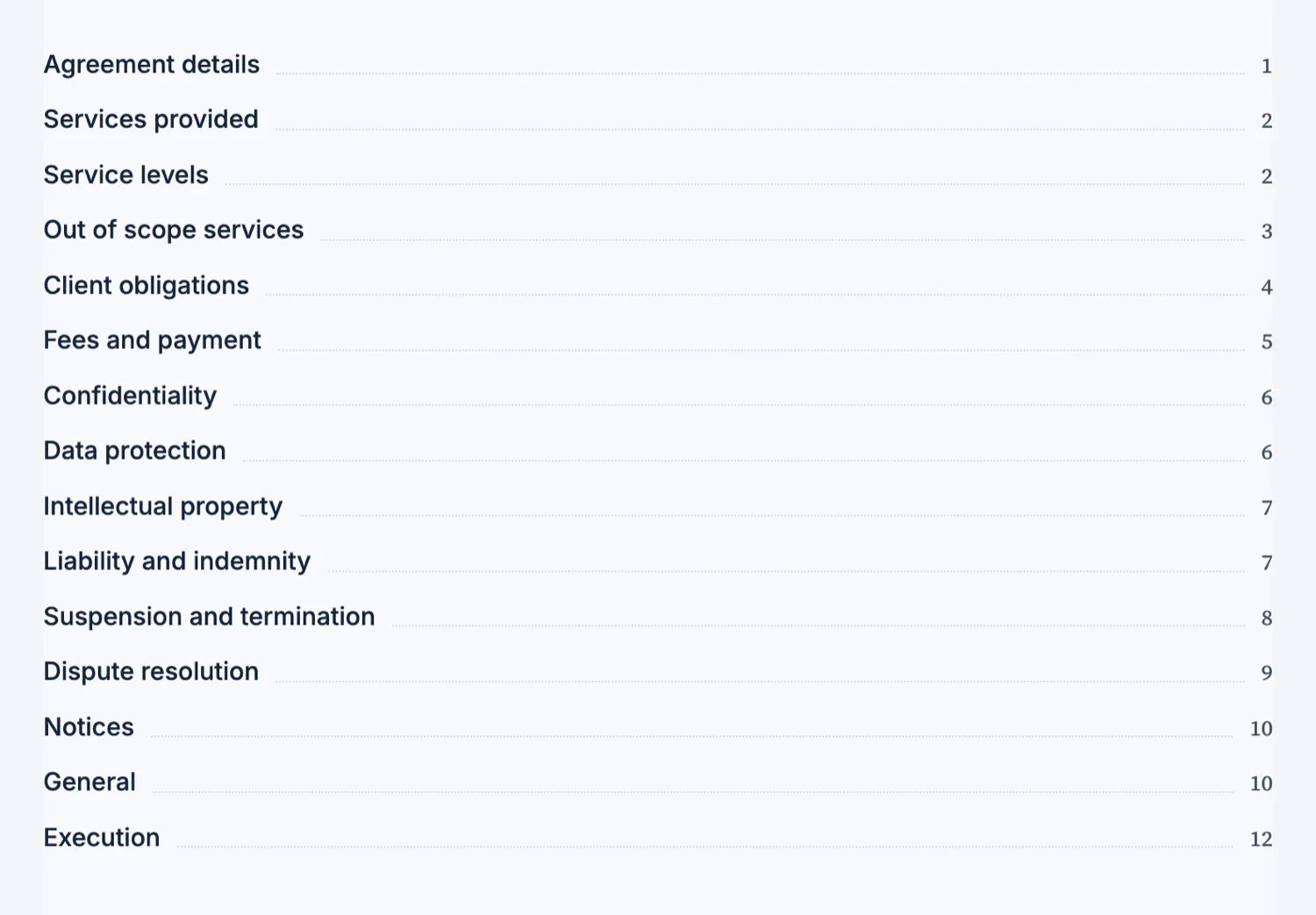
The contents list resolves its own page numbers
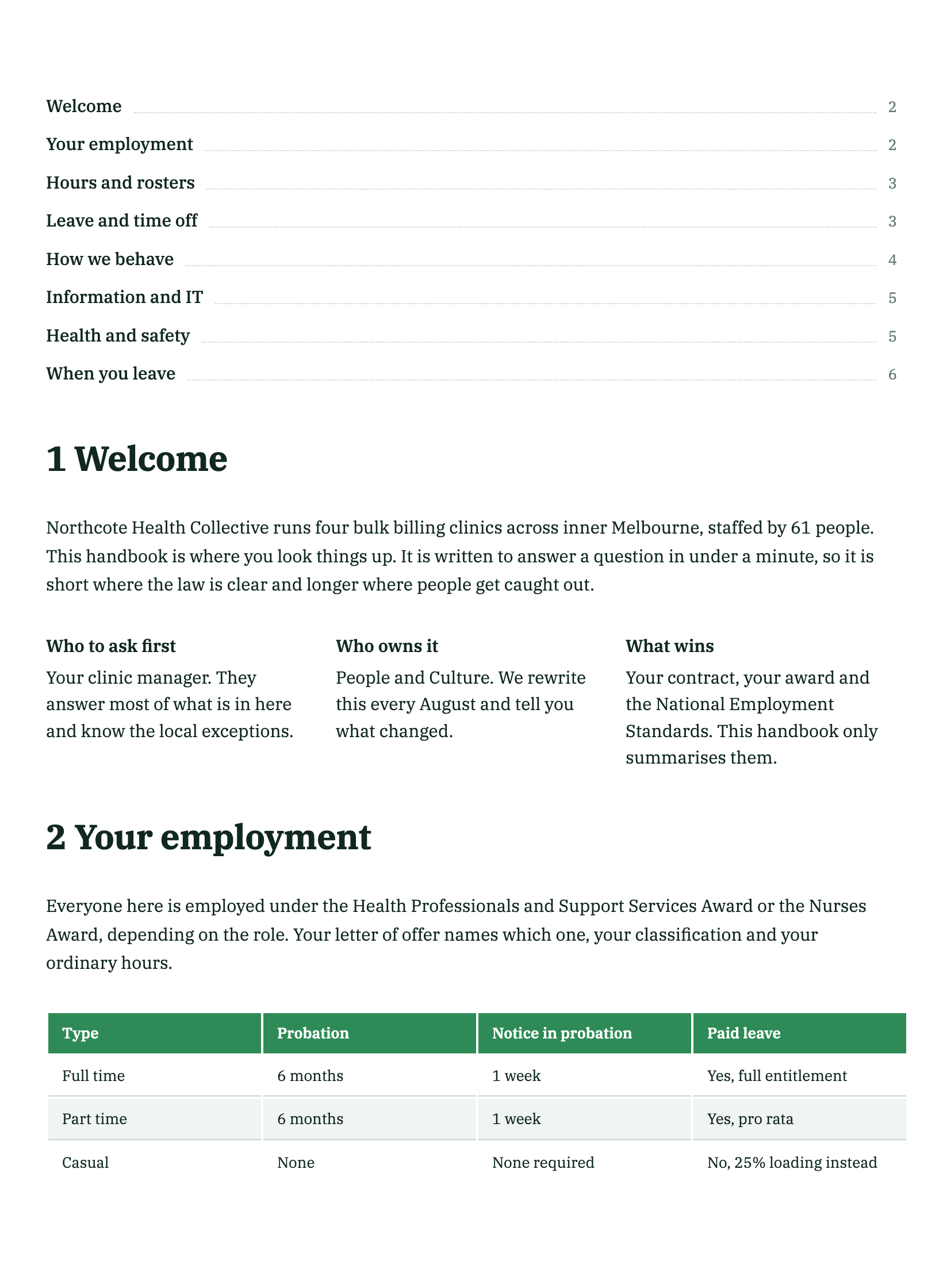
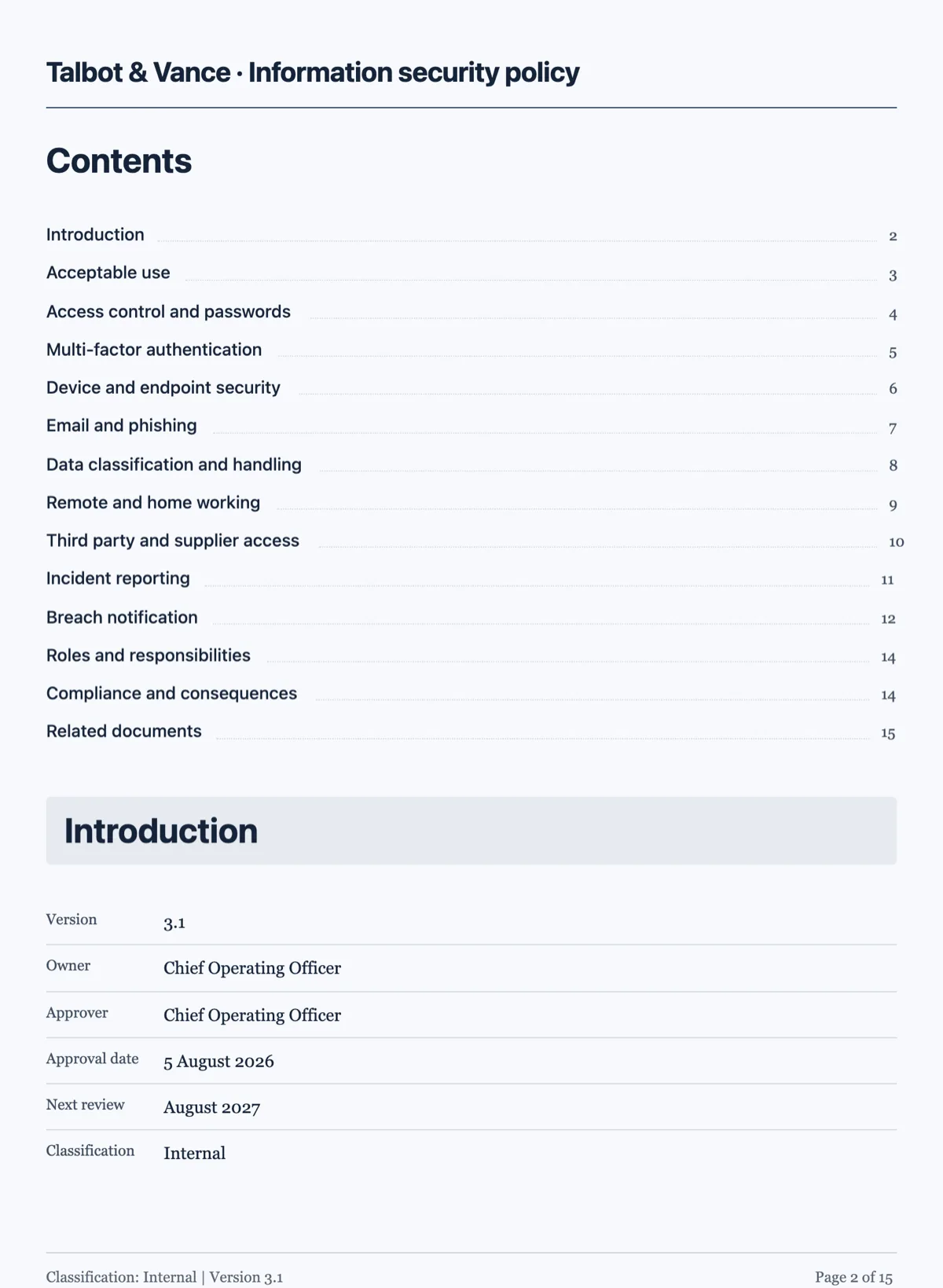
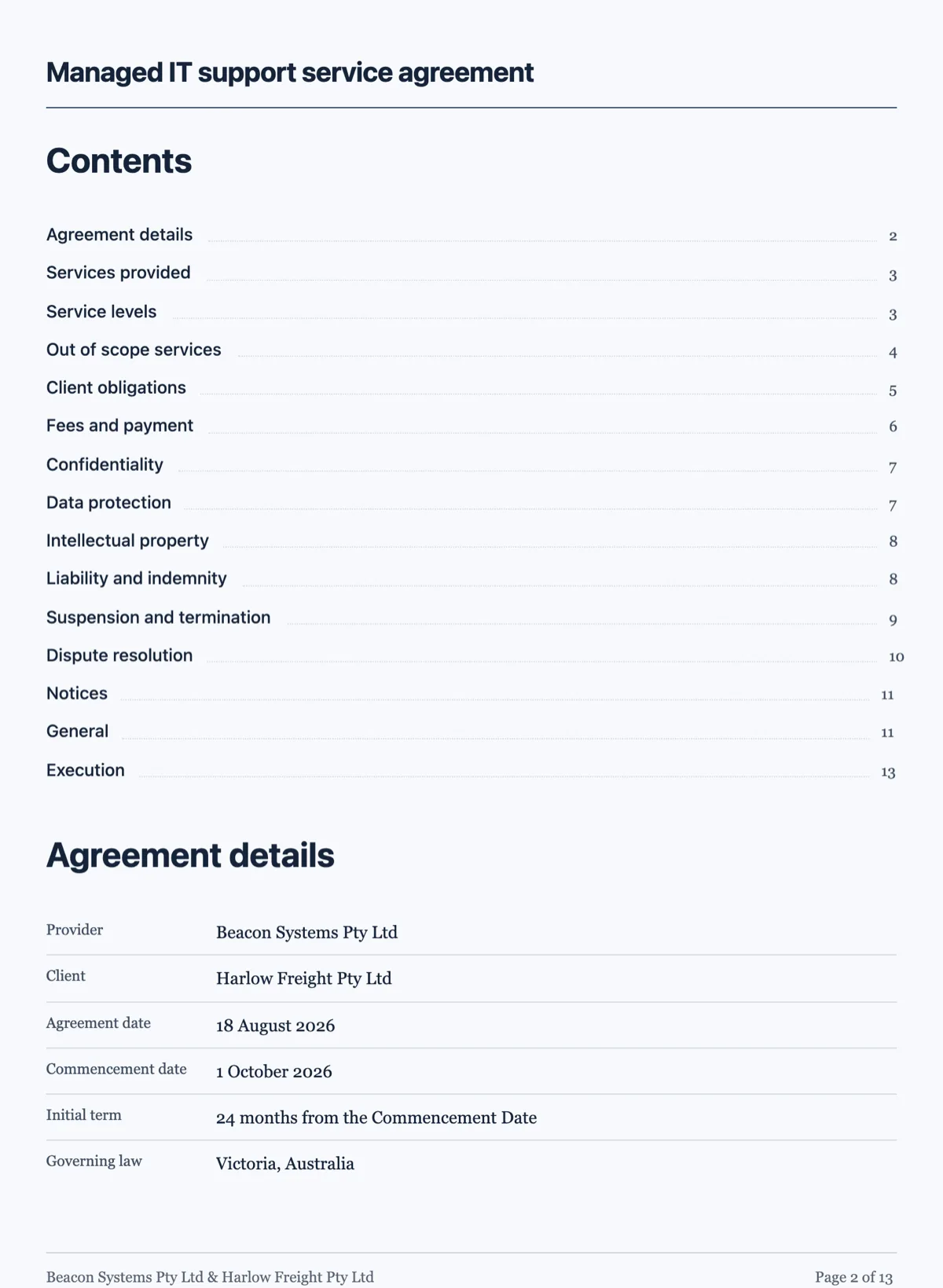
A contents block carries the section titles and the engine fills in the page numbers. The numbering runs last, after every layout pass, because moving one section changes every page number after it. That also means the titles in the contents must match the headings exactly, which they do when the document is generated as one piece.
Structure stays consistent because it was decided once
The same kind of information uses the same kind of block throughout: if one set of inclusions is a list, so is the next; if one schedule is a timeline, every schedule is a timeline. That consistency is what makes a long document feel edited rather than assembled, and it comes from the plan rather than from luck.
What to expect on the clock
A long document takes longer than a short one, because it is genuinely two passes. Generation runs as a background job you can leave, and the document opens in the builder when it lands. If you want it faster, ask for fewer sections rather than a shorter document.
How it works, in three steps
Step 1
Name the sections
The section list is the outline. Naming it yourself is the most direct control you have over a long document.
Step 2
Let it plan then write
It outlines first, then writes each section against its brief. The job runs in the background.
Step 3
Check the contents list
Open the contents block and confirm the page numbers after any edit that moves a section.
The full walkthrough with screenshots is in the guide Create a document with AI.
Limits worth knowing
- A contents list is only added to a genuinely long document, not to a two page one.
- Contents titles have to match the section headings exactly for their page numbers to resolve.
- Long documents take longer, because they are planned before they are written.
See it on a finished piece
Questions people ask
How long is a long document here?
Six pages and up. Below that a document is written as continuous content, and at that size and above it is outlined first so the sections do not overlap.
Do the contents page numbers stay right when I edit?
Numbering is resolved during layout, so it follows the document. It is still worth opening the contents after an edit that moves a whole section.
Can I add a section afterwards?
Yes, everything on the canvas is editable, and the pages reflow around anything you add or delete.
Make your own document
The button opens the generator with this use case already described. Change the wording to match yours, generate, then edit anything you like.
Create a document with OneCraftRelated pages
Document table of contents
You write the section titles, the engine writes the page numbers. Numbering runs last, after every other layout pass, because moving one section changes every number after it.
Write a document in another language
The language picker sits under the description box, next to the colour. Choosing there produces a document written in that language throughout, rather than an English document with translated paragraphs.
AI document generator with web research, grounded but not cited
An AI document generator with web research searches the web once before it writes from a prompt alone, reads the strongest result in full, and writes with those findings in front of it. It grounds the facts in the document; it does not print citations, a reference list or links, and the difference matters.
More finished work of this kind is on the document examples hub.
Written and checked by the OneCraft team. Last checked .