Flyers
AI flyer generator
You write what the flyer is for. The generator chooses the designs, writes the copy into their slots, generates the photographs and hands you two complete flyers to pick between. Nothing about the layout is yours to fight with, because the layout was already designed.
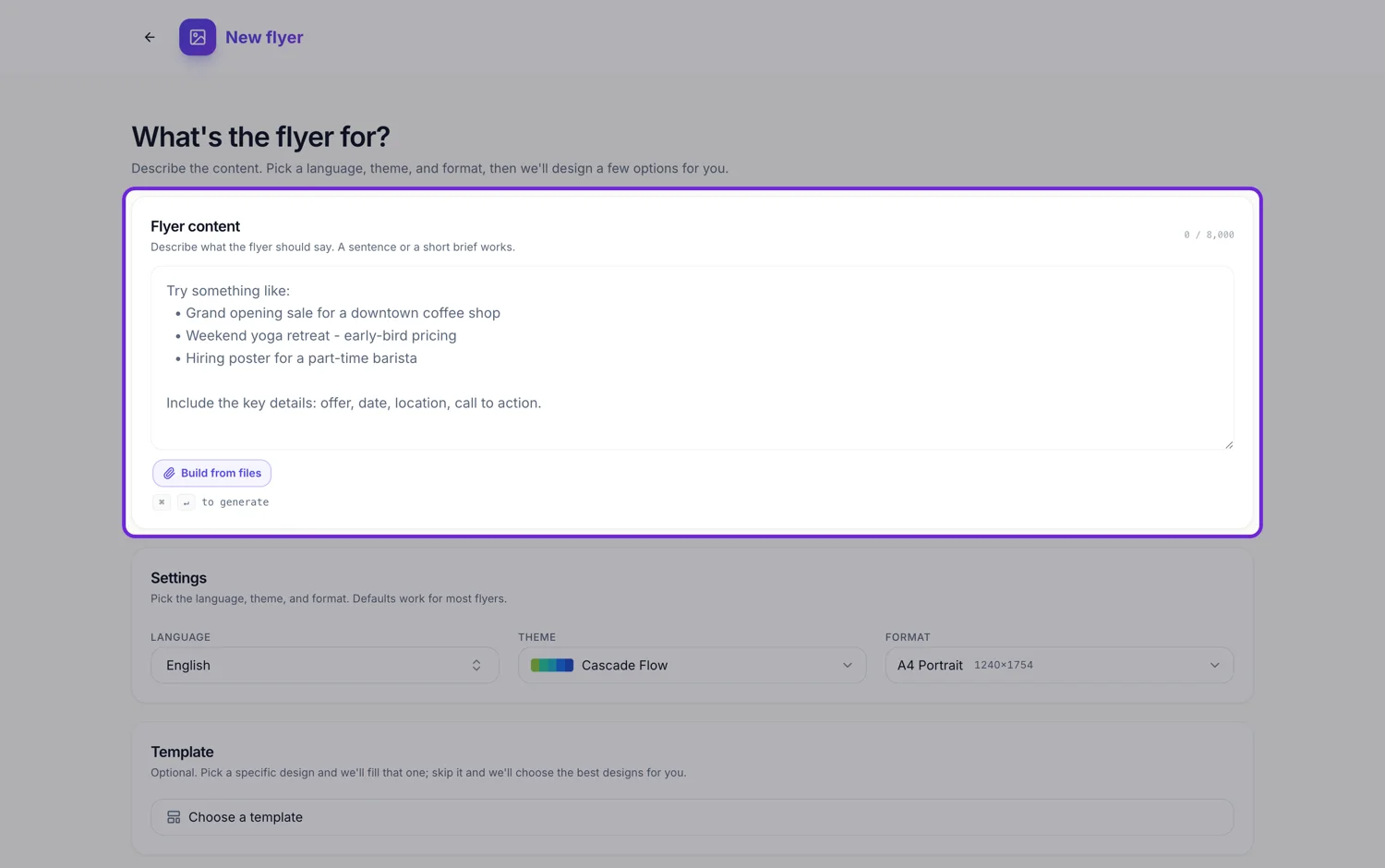
Four settings sit above the button
Language, Theme, Format and an optional Template. Language is free typed with thirty two suggestions, so the copy is written natively rather than translated. Theme is any of the ninety nine colour themes, and it decides the palette and the type before a single word is written. Format is one of eight canvases, grouped into Print and Social, each showing its pixel size. Template is the only optional one, and it changes how many designs come back.
The brief is the source of truth
The fill instruction is explicit that every fact, name, number, date and claim in your request has to appear in the flyer, worded as you meant it. Web research and template hints are support material and can never outweigh it. Put the price, the date, the address and the phone number in the prompt and they land in the matching slots exactly as typed.
It will not make your details up
Brand names, prices, dates, phone numbers, addresses and statistics you never supplied are forbidden. An optional slot with nothing genuine to say is left out rather than padded, and a required slot with no grounded value gets neutral wording, never the words N slash A or TBD. That is why a thin brief produces a shorter flyer rather than a confident, wrong one.
Copy is written to fit, not trimmed to fit
Each slot carries a character budget from the design that owns it, enforced on the tool schema itself. The model is told to write less rather than truncate mid word, so a headline slot gets a headline and a caption slot gets a caption. It also picks a Lucide icon name for every icon slot and a photographic prompt for every image slot, which is what the image step then generates against.
Every option comes back as one page
Generation always produces single page flyers. If you want a back page, a three page set or a brochure, you add those pages yourself in the builder afterwards, from the template library or blank. The generator's job ends at one finished side.
How it works, in three steps
Step 1
Write the offer, not the design
What it is, when, where, how much, and what you want the reader to do. Eight thousand characters are available and a short paragraph is usually enough.
Step 2
Set language, theme and format
Defaults work. Change Format first if the flyer is for a feed rather than a printer, because that decides which designs are even in the running.
Step 3
Choose one of the two designs
A dialog shows both finished flyers. Pick one and it opens in the builder. The other stays available as Flyer 2.
The full walkthrough with screenshots is in the guide Create a flyer for Instagram and print.
Limits worth knowing
- The prompt box takes 10,000 characters, and you need at least eight characters or one attached file before Generate is live.
- Building from your own PDF or photo is a Starter plan feature. On the free plan the Build from files button opens the upgrade dialog.
- Every generated design is one page. Multi page and double sided flyers are assembled afterwards in the builder.
- The design director sees a random sample of at most fifty designs for your size, so running the same prompt twice deliberately surfaces different layouts.
- You do not get to direct the layout, positions, fonts or colours through the prompt. Those belong to the template and the theme.
See it on a finished piece
Questions people ask
Why did I get two flyers instead of one?
Because you left the Template field empty. With no template chosen the job asks for two options and the picker is told to prefer visual and structural variety between them. Choose a template and you get that one design, filled.
Can I tell it to move the headline or change a colour?
Not in the prompt. The template owns the positions and the theme owns the colours, and the fill step is explicitly barred from touching either. Change the theme in the builder in one click, or drag the block after it is generated.
Will it look up facts about my business?
It runs one web search when you have not attached a file, and uses whatever is relevant. It still cannot print a price or a phone number you did not give it, because inventing those is forbidden.
What if the flyer needs a back page?
Generate the front, then add pages in the builder. You can pull a back page from the design library at the same size or start one blank and build it from the element panel.
Make your own flyer
The button opens the generator with this use case already described. Change the wording to match yours, generate, then edit anything you like.
Create a flyer with OneCraftRelated pages
Flyer design options
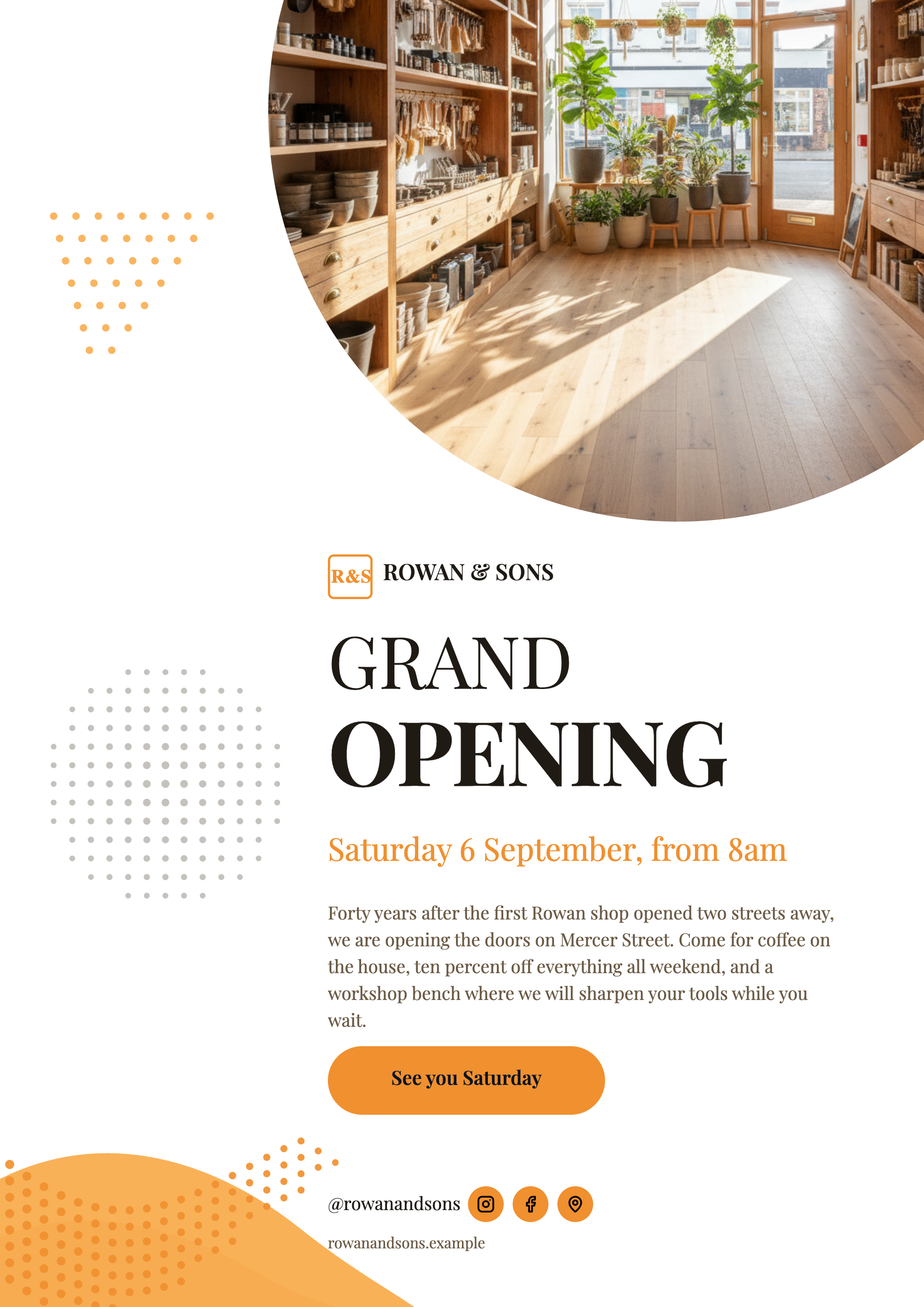
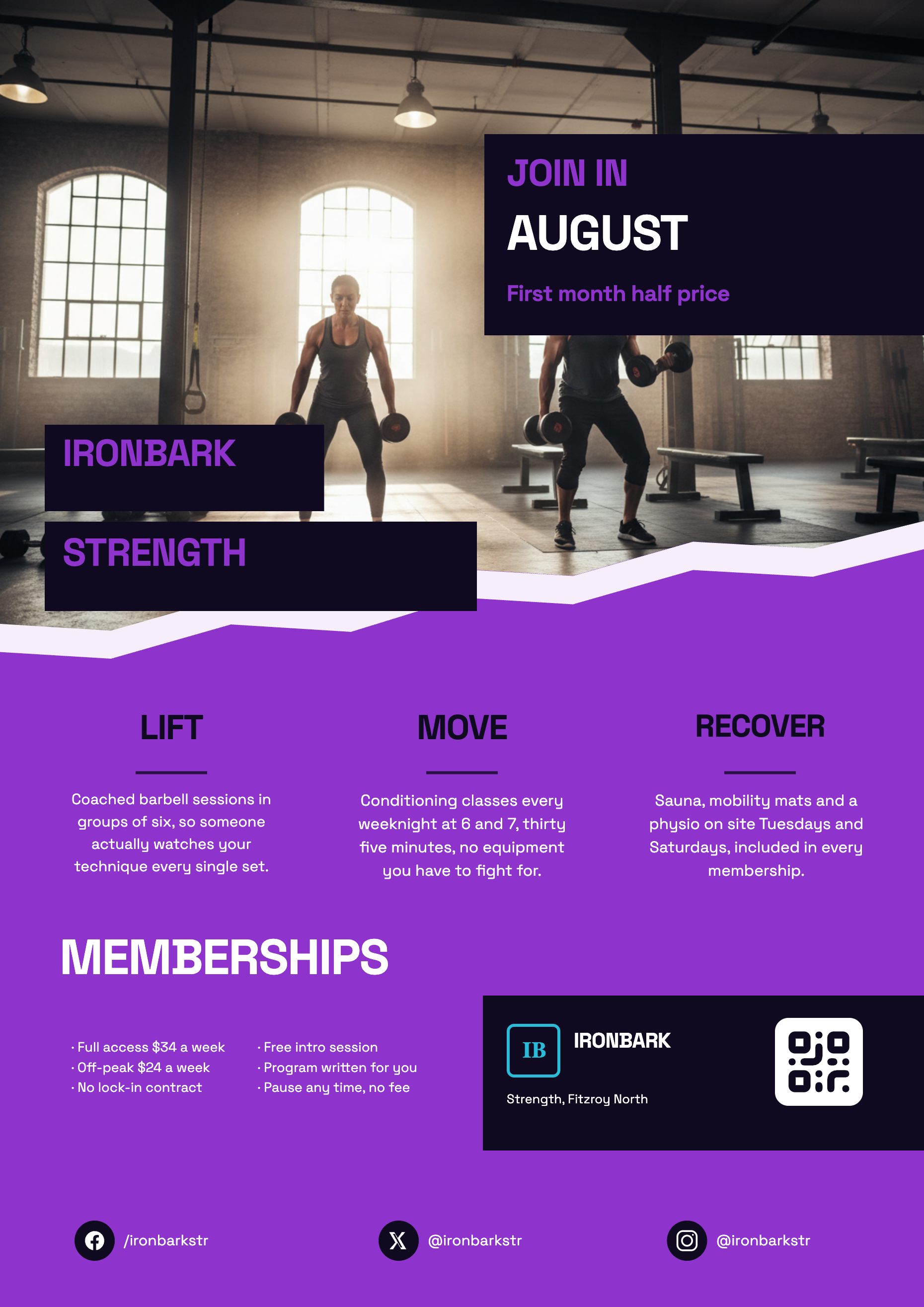
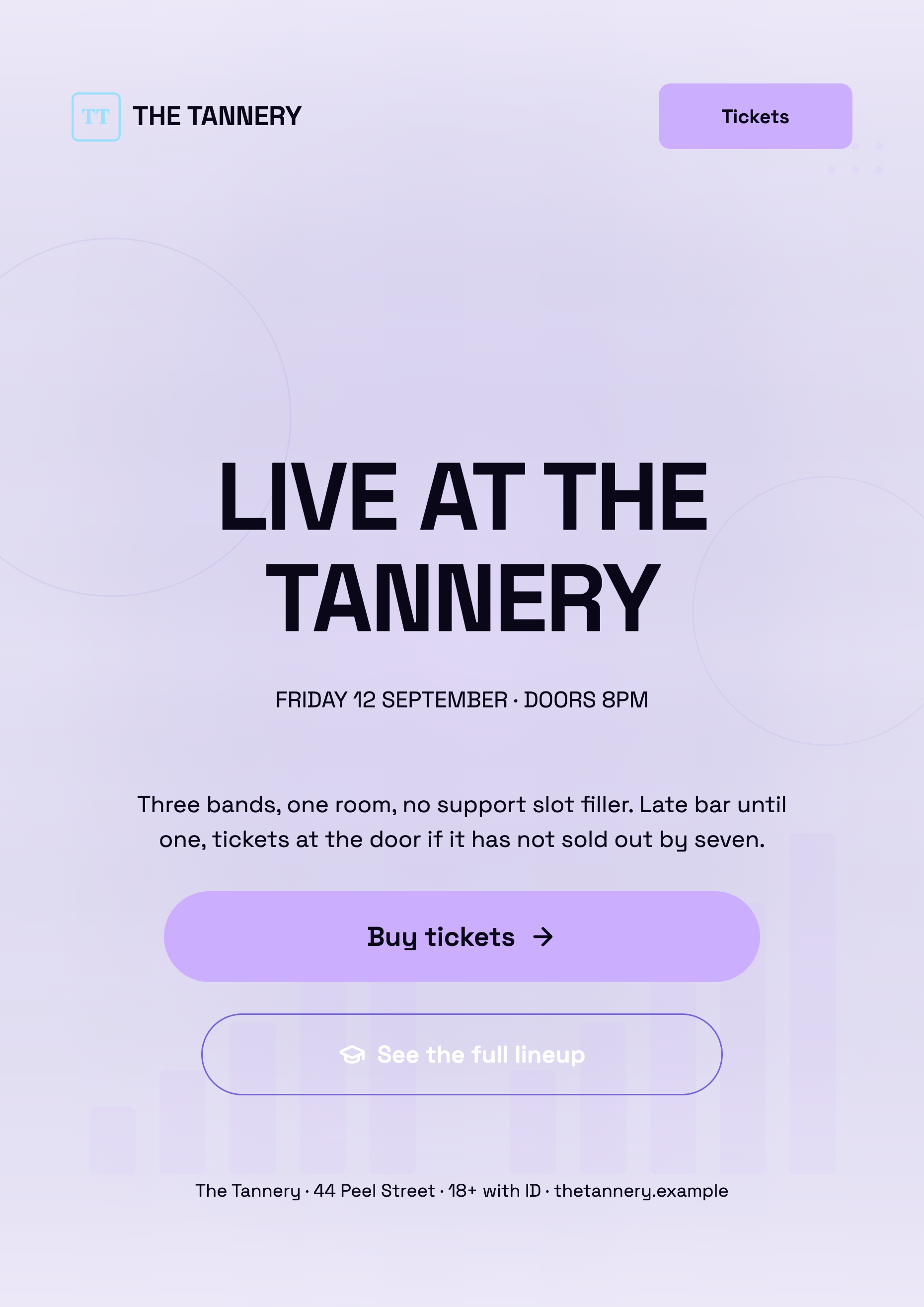
Comparing two finished flyers is a different act from reading a description of two ideas. Both come back fully written, fully coloured and fully illustrated, and you choose the way you would in a print shop: by looking at them side by side.
Flyer templates gallery
The gallery is a browsing surface, not a shop. It renders every design at full size with sample content in whichever theme you choose, so you can judge composition and colour together before you commit a prompt to one of them.
AI images for a flyer
Generating a picture for a flyer is not the same as generating a picture. The slot already has a shape, a place in the composition and a job to do, and the generator is told all three before your words are added. That is why the result drops into the design instead of sitting on top of it.
More finished work of this kind is on the flyer examples hub.
Written and checked by the OneCraft team. Last checked .