Flyers
Flyer design options
Comparing two finished flyers is a different act from reading a description of two ideas. Both come back fully written, fully coloured and fully illustrated, and you choose the way you would in a print shop: by looking at them side by side.
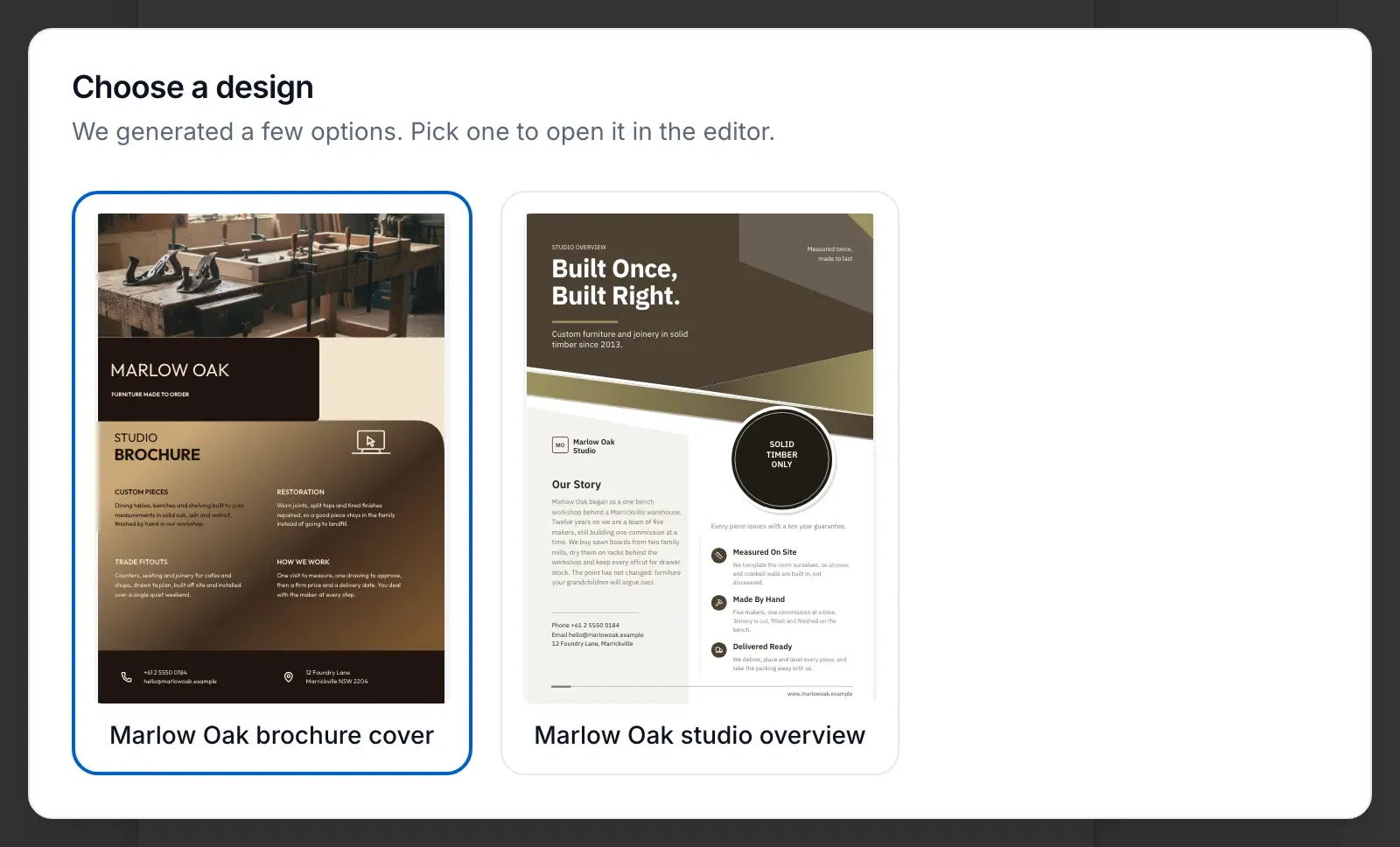
The pair is chosen for contrast
The design director is given the brief, the canvas size and a shuffled sample of the designs authored for that size, and asked for the best fitting ones while explicitly preferring visual and structural variety across its picks. So the two you get are chosen to differ from each other, not just to fit, which is what makes the comparison worth making.
Both are complete before you choose
Each option is filled independently: its own copy written into its own slot budgets, its own icons chosen, its own images generated at the aspect each slot asks for. The dialog that appears shows both as live renders rather than thumbnails. What you are picking between is two finished flyers, not two starting points.
The one you did not pick is still there
Both options are written into the flyer's history as separate branches. Once there are two of them a small Flyer 1 and Flyer 2 control appears over the canvas, and switching loads that branch's latest saved state. So changing your mind an hour later costs one click, not a regeneration.
Both branches stay independently editable
Edit Flyer 1, save, switch to Flyer 2 and edit that. Each branch keeps its own edits, because the switcher walks each branch to its own leaf and the flyer simply points at whichever one is current. It is genuinely two designs living in one project, not an undo history you can only travel backwards through.
When you get one instead of two
Choosing a specific design in the Template field asks for a single option, because you already made the choice the dialog exists to offer. No dialog appears and the flyer opens straight into the builder. The switcher never shows up on that flyer, since a second branch was never created. The switch is the Template field in the generator: leave it empty and the director picks two designs for you to choose between; name a design and the generator skips the selection step and fills that one design only.
How it works, in three steps
Step 1
Leave the Template field empty
That is what asks the job for two options. Filling it asks for one.
Step 2
Compare the two in the dialog
Both render live. Pick the one that reads best from arm's length, which is how a flyer is actually met.
Step 3
Switch between them later
The Flyer 1 and Flyer 2 pills sit at the top left of the canvas. Both keep whatever edits you made to them.
The full walkthrough with screenshots is in the guide Create a flyer for Instagram and print.
Limits worth knowing
- The switcher only appears when at least two AI generated branches exist on the same flyer.
- Choosing a template in the generator produces a single design, so no switcher appears.
- There is no side by side compare view inside the builder. Switching swaps the canvas.
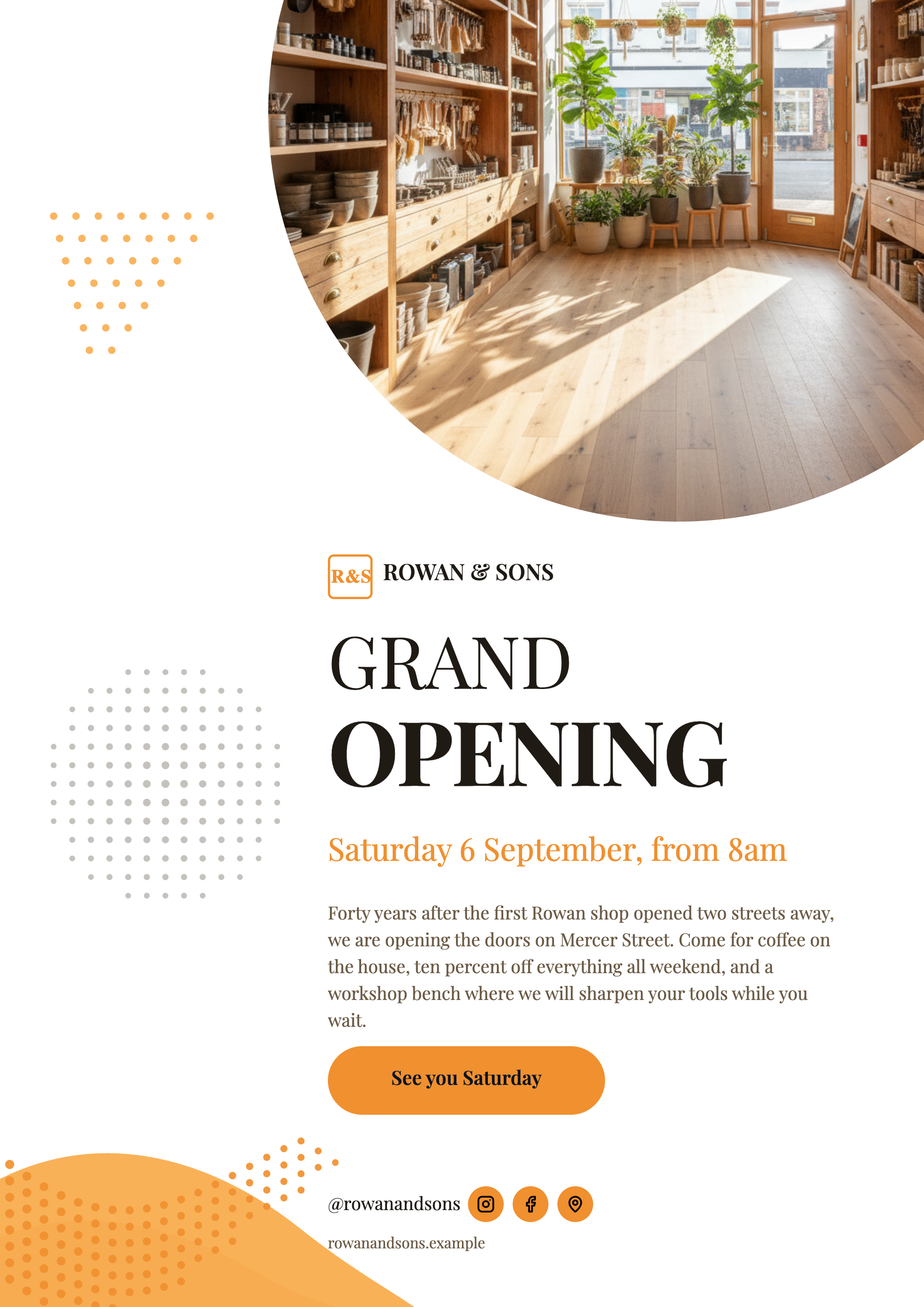
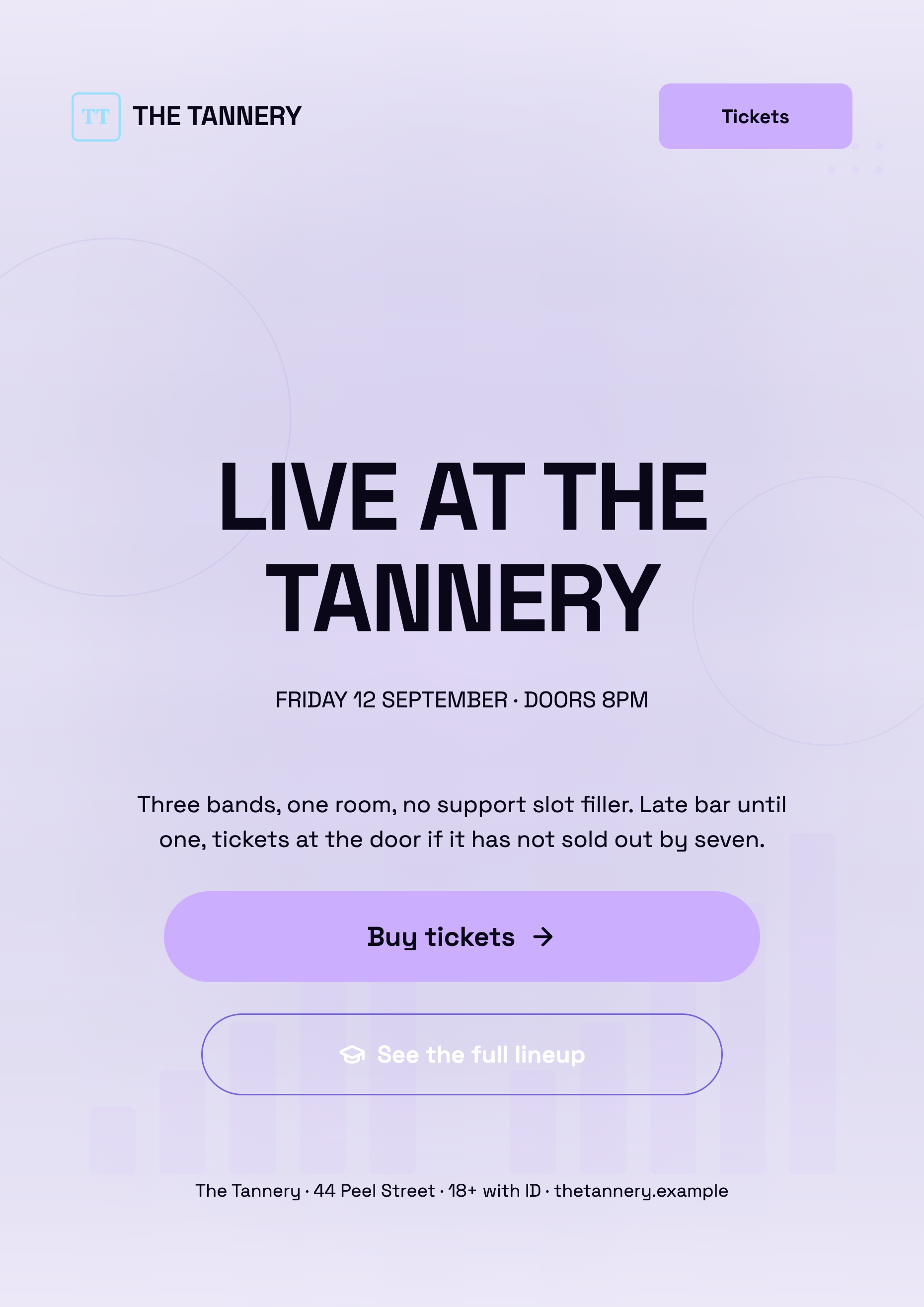
See it on a finished piece
Questions people ask
Can I get more than two options?
No. A run with no template chosen asks for two, and a run with one chosen asks for one. To see more, generate again, which deliberately draws a fresh random sample of designs.
Does switching lose my edits?
No. Each branch is walked to its own latest saved version, so edits stay with the branch they were made on. Save before switching, since saving is manual.
Can I merge the two designs?
Not automatically. They are separate layouts. What you can do is copy the wording across, since the text is editable on both.
Do the two options ever come back looking similar?
Occasionally, because the director works from a random sample of designs rather than the whole library. Generating again shuffles that sample and usually breaks the tie.
Make your own flyer
The button opens the generator with this use case already described. Change the wording to match yours, generate, then edit anything you like.
Create a flyer with OneCraftRelated pages
A client list for proposals and invoices
A client list for proposals saves typing the same name, email and address into every quote and invoice. It also makes sure the right person gets each email and the right details print on each invoice.
Update a live form without breaking its link
Once a link is out in the world you cannot take it back, which makes editing a live form feel risky. It is not: saving only writes the draft, and the link keeps serving the last published version until you deliberately publish again.
Flyer templates gallery
The gallery is a browsing surface, not a shop. It renders every design at full size with sample content in whichever theme you choose, so you can judge composition and colour together before you commit a prompt to one of them.
More finished work of this kind is on the flyer examples hub.
Written and checked by the OneCraft team. Last checked .