Proposals
A client list for proposals and invoices
A client list for proposals saves typing the same name, email and address into every quote and invoice. It also makes sure the right person gets each email and the right details print on each invoice.
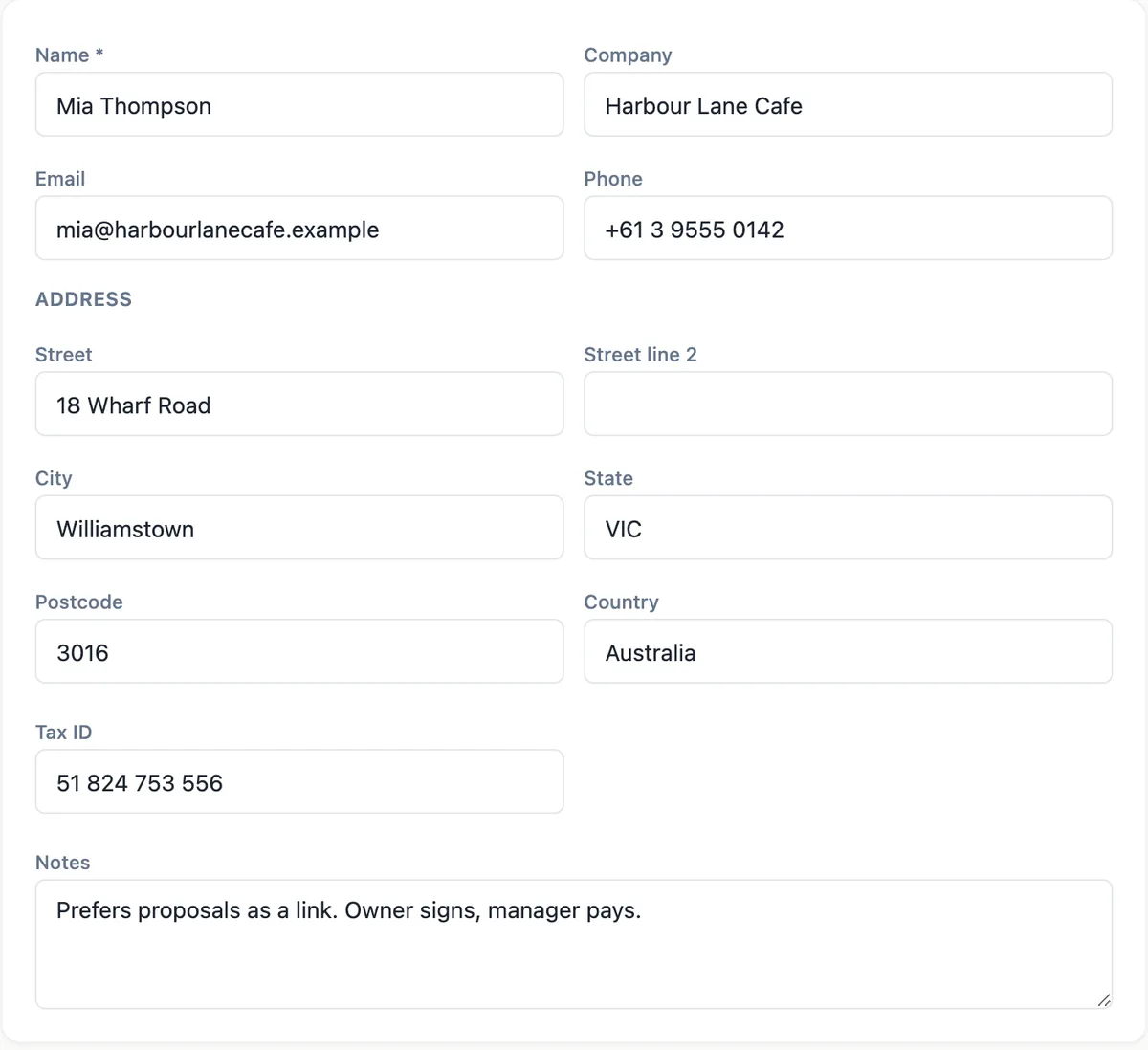
The client record
Each client has a name, which is required, a company, an email, a phone, an address in street, second line, city, state, postcode and country, a tax ID such as an ABN, VAT or EIN, and private notes. Clients live under the Clients tab on the Proposals home, where New client adds one and each row opens its form for editing.
Where clients are picked
The generator Options has a client picker with New client beside it, and an optional client website for the research step. The Pricing panel of every proposal has the same picker. Choosing a client there sets who the proposal is for, prefills the recipients when you send, and carries the client onto the invoices that acceptance creates.
Emails go to the client
When you send a proposal, the recipient row is prefilled from the client email. Invoices are emailed to the client email, falling back to the person who accepted when the client has none. Keeping the email current is therefore the simplest way to make sure invoices and reminders reach accounts rather than a contact who has left.
On the invoice
The invoice bill to block prints the client name and company, the email, the address lines and the tax ID, which matters for business clients who need their own ABN shown. Your own business details come from your default brand kit, not from the client record.
What it is not
The client list is a contact list for Proposals, not a CRM. There are no deal stages, no pipeline and no sync with HubSpot, Salesforce or Pipedrive, and other modules do not read it. If your sales process runs through a CRM, keep it there and use the client list only for the details Proposals needs to send and invoice.
How it works, in three steps
Step 1
Add a client
On the Proposals home, open Clients and press New client, or use New client in the generator or the Pricing panel.
Step 2
Fill the details
Enter the name, company, email, address and tax ID, plus any private notes.
Step 3
Pick it on proposals
Choose the client in the generator or the Pricing panel so sending and invoicing use the right details.
The full walkthrough with screenshots is in the guide Send a proposal and get paid.
Limits worth knowing
- A contact list for Proposals only; no CRM features or connectors.
- Name is the only required field.
- Clients are private to your account.
- Invoices email the client address, or the person who accepted if the client has none.
Questions people ask
Is this a CRM?
No. It holds the contact and billing details Proposals needs: name, company, email, phone, address, tax ID and notes. There are no deal stages, tasks or pipeline reports, and no connector to HubSpot, Salesforce or Pipedrive. Businesses that live in a CRM usually keep it and use this list only for sending and invoicing.
Can I import my clients?
There is no import. Clients are added one at a time, either on the Clients tab or inline from the generator and the Pricing panel when you start a proposal for someone new. For a handful of active clients that takes minutes; adding them as work comes in is the usual pattern.
Does the client see my notes?
No. Notes are internal and never print on a proposal or an invoice. The fields that print on invoices are the name, company, email, address and tax ID in the bill to block. Use notes for things like who approves spend or preferred payment method.
Can I delete a client?
Yes, from the client form. Delete removes the record from your list. Check first whether proposals or invoices still name that client, since they use the client for the bill to block and the email address. For a client you no longer work with, keeping the record costs nothing.
Can two proposals share a client?
Yes, that is the point. Every proposal, quote and invoice for the same business can name the same client record, so updating the email or address once updates where future emails go. Each proposal still keeps the version that was sent, so past offers are not rewritten.
Make your own proposal
The button opens the generator with this use case already described. Change the wording to match yours, generate, then edit anything you like.
Create a proposal with OneCraftRelated pages
The proposal activity log, from sent to paid
A proposal activity log is the history of one offer: who it went to, when they opened it, what they did and what was paid. Having it on one page means a follow up call or a dispute starts from facts rather than memory.
Branded proposals from your brand kit
A branded proposal carries your name, logo and colours so the client recognises it as yours before reading a word. Setting the brand once and having every proposal and invoice pick it up is faster and more consistent than restyling each document.
Stripe invoice payments into your own account
Taking invoice payments through Stripe means the client pays by card on a Stripe hosted checkout page and the money lands in your Stripe account. The invoice should mark itself paid without you checking a bank feed.
More finished work of this kind is on the proposal examples hub.
Sources
Written and checked by the OneCraft team. Last checked .