Proposals
Send a proposal by email the client can act on
Sending a proposal by email works best as a short message with a link rather than an attachment. The client opens the proposal in one click, and you learn when they did, while the version they read stays exactly as you sent it.
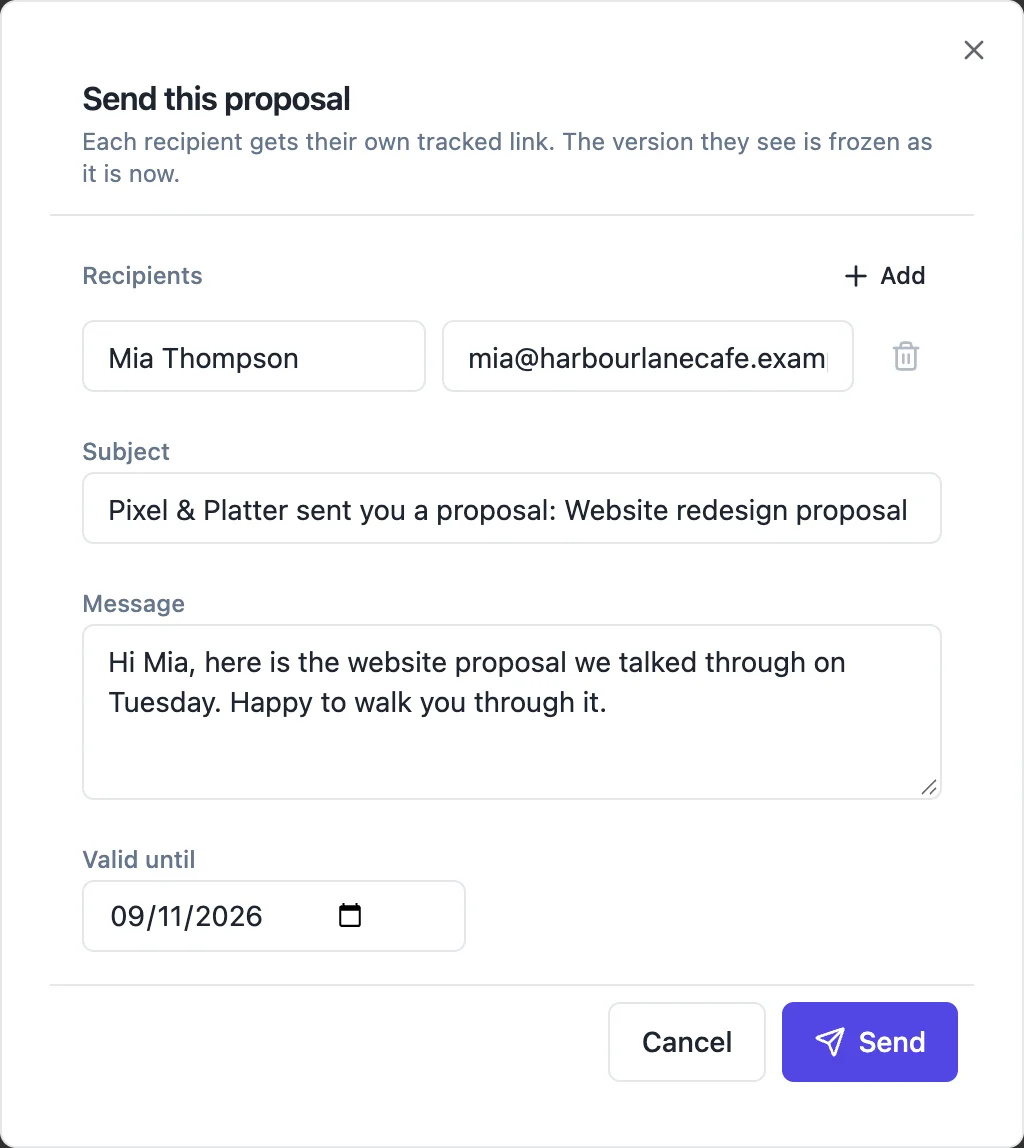
What the dialog asks for
Send opens once the proposal has a title. Recipients are prefilled from the client chosen in the Pricing panel, and Add gives another row, up to five, each with a name and an email. The subject defaults to your business name, taken from your default brand kit, followed by sent you a proposal and the title. A message of up to 2,000 characters goes in the email body, and Valid until defaults to the date already set on the proposal.
Saved, then frozen
Unsaved edits are saved first, because sending freezes the saved proposal as a version. The frozen version holds the document, the layout, the items and the pricing settings, identified by a hash of their contents. Send the same content again and the existing version is reused; change anything and the next send creates a new version number. The proposal status becomes sent.
What the client receives
Each recipient gets an email with their own private link, and replies go to your email address. The email carries the link, not a PDF attachment; the client downloads the PDF from the link if they want one. Behind the scenes the PDF of the version is rendered once so that download is ready. If you void the proposal before the email goes out, it is dropped.
Before you press Send
Check two things. The pricing table: a proposal with no items is refused unless you tick No pricing on this proposal. And the valid until date, because an expired proposal cannot be accepted. Send also refuses a proposal that is already accepted or void.
Writing the covering message
Keep it to what the client needs to act: what the proposal is, the one decision you are asking for, the date it is valid until and how to reach you. The proposal carries the detail. A message that repeats the proposal gives the client two versions to compare, and a short one gets the link opened sooner.
How it works, in three steps
Step 1
Press Send in the builder
The button is in the builder header and needs a title on the proposal.
Step 2
Add recipients and a message
Check the prefilled client, add up to four more people, adjust the subject, write a short message and confirm the valid until date.
Step 3
Send and copy the links
After sending, the dialog lists each link with Copy, Preview as client and View activity.
The full walkthrough with screenshots is in the guide Send a proposal and get paid.
Limits worth knowing
- Up to 5 recipients per send; subject up to 200 characters, message up to 2,000.
- Needs pricing items, or the No pricing on this proposal box ticked.
- Accepted and void proposals cannot be sent.
Questions people ask
Does the client get the PDF attached?
No, the proposal email carries a private link, not an attachment. The client opens the proposal in the browser and can download the PDF from there. A link lets the client tick optional extras and accept online, and lets you see opens and time viewed, none of which an attachment can do. Invoice emails, by contrast, attach the invoice PDF.
Can I send to several people at a company?
Yes, up to five recipients per send, each with their own link, so the activity page shows who opened it and for how long. Any one of them can accept. If you need more than five, send again to the next group; with unchanged content the same version is reused, so everyone sees the same offer.
Who do replies go to?
Replies to the proposal email go to your account email address, so a client who hits reply reaches you directly. The subject starts with your business name from your default brand kit, falling back to We when you have no kit, which is worth setting up before your first send so the email looks like it came from your business.
Can I send the link myself instead of by email?
Yes. After sending, the dialog shows each recipient link with a Copy button, and the activity page keeps them. Paste the link into a text message or a chat. Opens are still recorded per link, so it does not matter how the client received it, as long as each person uses their own link.
What happens if I edit the proposal after sending?
The client keeps seeing the version you sent. To give them the change, send again: a new version is created and the client gets a new link. Accepting from a link to the older version is refused with a message to open the latest link. Once the client has accepted, the proposal is locked against edits.
Make your own proposal
The button opens the generator with this use case already described. Change the wording to match yours, generate, then edit anything you like.
Create a proposal with OneCraftRelated pages
Send a proposal as a link instead of an attachment
Sending a proposal as a link means the client reads it in a browser at an address only they have. The link can be copied, previewed, replaced or switched off, which an attached file never can.
The proposal activity log, from sent to paid
A proposal activity log is the history of one offer: who it went to, when they opened it, what they did and what was paid. Having it on one page means a follow up call or a dispute starts from facts rather than memory.
Proposal view tracking, per recipient
Proposal view tracking tells you whether the client has opened what you sent and roughly how much time they gave it. Knowing that a proposal was read twice yesterday changes how and when you follow up.
More finished work of this kind is on the proposal examples hub.
Written and checked by the OneCraft team. Last checked .