Proposals
Send a proposal as a link instead of an attachment
Sending a proposal as a link means the client reads it in a browser at an address only they have. The link can be copied, previewed, replaced or switched off, which an attached file never can.
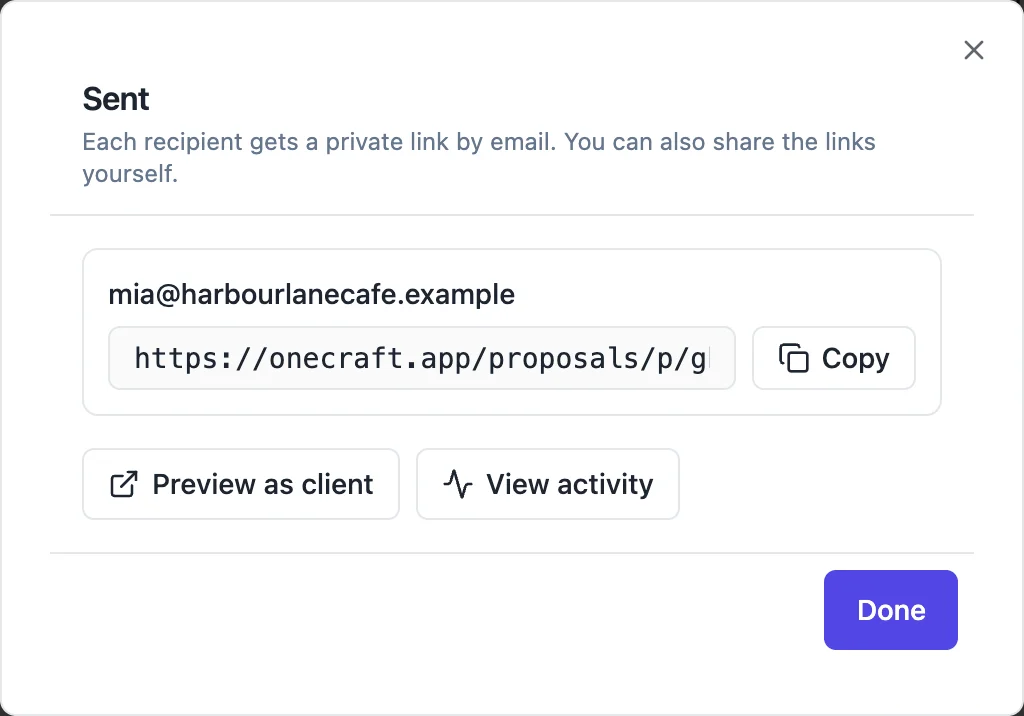
One link per person
Every recipient gets a separate link with its own random token, 32 bytes long, in the form /proposals/p/ followed by the token. The token is the only credential: the client needs no account and no password, and nothing in the address identifies the proposal or the client. Unknown, revoked and expired tokens all get the same answer, so the link cannot be used to probe for other proposals.
Copy, preview, follow
The Sent dialog and the activity page both list each link. Copy puts it on the clipboard for a text message or a chat. Preview as client opens the client view exactly as the recipient will see it, which is the quickest way to check the optional extras and totals behave. View activity goes to the page that records opens and time viewed per link.
Resend and revoke
Resend emails the recipient again with a fresh token: the old address stops working and the new one points at the same version. Use it when a client says they lost the email, or when a link may have been forwarded. Revoke switches a link off for good without touching the others, for example when a contact leaves the client business. Voiding the proposal revokes every link at once.
When a link stops working
A link expires with the proposal valid until date. Opened after that, the client sees the proposal marked expired with a note to contact you for an updated version, and acceptance is refused. A revoked or replaced link shows a page saying it may have been revoked, replaced or expired and to ask the sender for a new one. A void proposal shows that the sender has withdrawn it.
Links and new versions
A link always points at the version it was sent with. When you change the proposal and send again, the new links carry the new version and the old links keep showing the old one, but acceptance from an old link is refused with a request to open the latest link. That way nobody can accept an offer you have already revised.
How it works, in three steps
Step 1
Send the proposal
Send it to each person who should read it; each gets their own link.
Step 2
Share or check a link
In the Sent dialog or on the activity page, copy a link, or open Preview as client to see it as they will.
Step 3
Resend or revoke when needed
Resend issues a fresh link to the same person; Revoke stops one link without affecting the others.
The full walkthrough with screenshots is in the guide Send a proposal and get paid.
Limits worth knowing
- A link is valid until the proposal valid until date.
- Resend replaces the token; the old address stops working.
- Revoking cannot be undone; send again to give that person a new link.
- Acceptance from a link on an older version is refused.
Questions people ask
Does the client need an account to open the link?
No. The token in the link is the credential, so the client opens it like any web page, on a phone or a computer, without signing up or signing in. That is why each person should have their own link: anyone holding a link can read that proposal and accept it, so treat links like the document itself.
What if the client forwards the link?
Whoever opens a forwarded link sees the proposal and can accept it on behalf of the client, and their opens count against that recipient. If you suspect a link has gone further than intended, use Resend to issue a fresh link to the right person, which stops the old one, or Revoke to switch it off entirely.
Can I see the link before the client does?
Yes. Preview as client opens the same view the recipient gets: the pages, the selection panel with optional extras, the totals and the accept and decline buttons. Use it to check that extras start ticked or unticked as you meant and that the deposit looks right. Your own previews are not the client opening the link.
How long does a proposal link last?
Until the proposal valid until date, which you set in the Pricing panel or in the Send dialog. After that the proposal shows as expired and cannot be accepted. To extend an offer, change the date and send again, which gives the client a new link to a new version, or simply resend if nothing else changed.
Is the link secure?
Each token is 32 random bytes, compared in constant time, and unknown, revoked and expired links all return the same response, so links cannot be guessed or enumerated. The connection is HTTPS in production. The main risk is the human one, a forwarded email, which Resend and Revoke are there to handle.
Make your own proposal
The button opens the generator with this use case already described. Change the wording to match yours, generate, then edit anything you like.
Create a proposal with OneCraftRelated pages
Send a proposal by email the client can act on
Sending a proposal by email works best as a short message with a link rather than an attachment. The client opens the proposal in one click, and you learn when they did, while the version they read stays exactly as you sent it.
Accept a proposal online in one dialog
Accepting a proposal online should take the client a minute: confirm what they are buying, put their name to it and agree to the terms. The record of that moment needs to be strong enough to rely on later.
Share a video link
The share link here is not a link to a file. It opens a page that plays your saved video by rendering it in the viewer's browser, from the same document the builder works on. That has one very useful consequence and one you need to know about before you send it to a client.
More finished work of this kind is on the proposal examples hub.
Written and checked by the OneCraft team. Last checked .