Proposals
Proposal version history, one version per offer sent
Proposal version history is the record of each offer as the client received it. When a proposal goes back and forth, it answers the questions that matter later: which price did they see, and which one did they accept.
Versions are made by sending
Saving in the builder updates your draft; it does not create a version. A version is created when you send: the document, the page layout, the items and the pricing settings are frozen together and given a SHA-256 fingerprint. If you send again without changing anything, the latest version is reused. If anything changed, the next version number is created. The Versions list on the activity page shows each one with its time.
Links follow versions
Each recipient link points at the version it was sent with, and the client always sees that frozen copy, never your later edits. When you send version 2, the new links show version 2. Old links still open version 1 so nobody is confused by a page that changes under them, but acceptance from them is refused with a message to open the latest link.
Acceptance locks the proposal
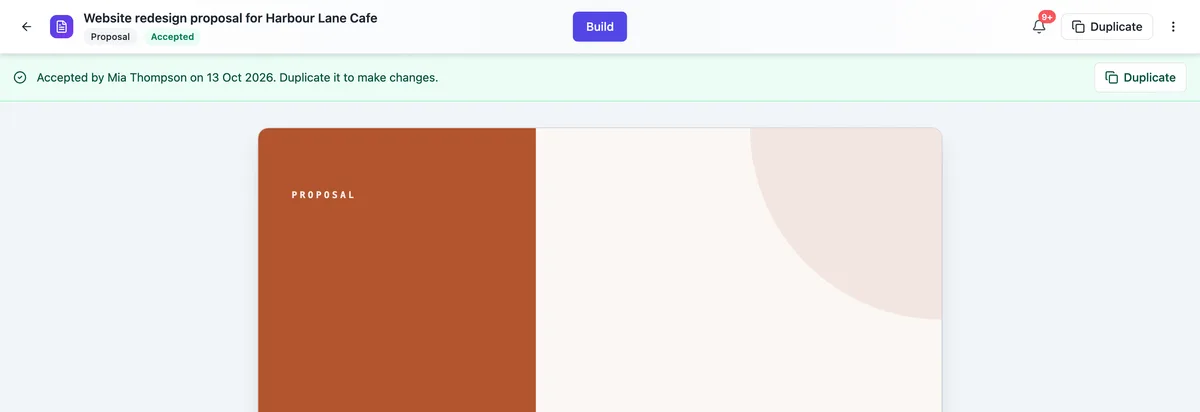
When a client accepts, the accepted version is recorded with the acceptance and its content hash appears on the certificate. The proposal status becomes accepted and the builder replaces the editing canvas with a read only view of the frozen document, a banner naming who accepted and when, and Duplicate. Save, undo, Theme and Send disappear from the header.
Duplicate to change an accepted deal
Duplicate makes a new draft with the same document, items and pricing settings, titled with copy at the end. Use it for a variation, a renewal or next year at new rates. The duplicate is a separate proposal with its own versions and its own acceptance, and creating it uses 1 credit like any new proposal.
Undo inside the builder
For your own editing, the builder has undo and redo for document changes, and the AI assistant keeps an undo for its last turn, which also restores pricing changes it made. The Pricing panel saves item edits on its own after a short pause. None of these create versions; only sending does, which keeps the version list a clean record of what clients received.
How it works, in three steps
Step 1
Edit and send
Make your changes in the builder and send. A changed proposal becomes the next version.
Step 2
Check the versions
Open Activity to see each version with its time, and the timeline of sends and opens.
Step 3
Duplicate after acceptance
Once accepted, use Duplicate to start a new draft from the accepted proposal.
The full walkthrough with screenshots is in the guide Send a proposal and get paid.
Limits worth knowing
- Versions are created on send, not on save.
- There is no restore of an older version into the draft.
- Old links open their version but cannot accept once a newer version is sent.
- An accepted proposal cannot be edited or voided; duplicate it instead.
Questions people ask
Can I go back to an earlier version?
Not as a restore button. The versions are kept as the record of what was sent, and each recipient link keeps showing its own version. To offer an earlier version again, edit the draft back to those terms and send; identical content to the latest version is reused, otherwise it becomes a new version number.
Does saving create a version?
No. Saving updates the draft that only you see. Versions exist to record what clients received, so they are created when you send. That keeps the list short and meaningful: every version in it was in front of a client at some point, and the timeline shows who received it and when.
What does the client see when I send a new version?
The new link opens the new version. If they open an older link, they see the older version, and if they try to accept it they are told a newer version was sent and asked to open the latest link. That prevents the most common proposal dispute, a client accepting an offer you had already revised.
Can I edit a proposal after the client accepts?
No. The accepted proposal locks to protect the record of what was agreed. The builder shows the accepted document read only, with a banner and a Duplicate button. For a variation or a follow on job, duplicate it, edit the copy and send that as a new proposal.
How do I prove which version was accepted?
The acceptance records the version, and the certificate page added to the accepted PDF prints its SHA-256 content hash along with the signer, time, IP address, browser, selected items and consent text. The activity page Versions list and timeline show when each version was sent. Together they show exactly which offer was accepted.
Make your own proposal
The button opens the generator with this use case already described. Change the wording to match yours, generate, then edit anything you like.
Create a proposal with OneCraftRelated pages
The proposal activity log, from sent to paid
A proposal activity log is the history of one offer: who it went to, when they opened it, what they did and what was paid. Having it on one page means a follow up call or a dispute starts from facts rather than memory.
Flyer design options
Comparing two finished flyers is a different act from reading a description of two ideas. Both come back fully written, fully coloured and fully illustrated, and you choose the way you would in a print shop: by looking at them side by side.
Proposal to PDF without layout surprises
Turning a proposal into a PDF should give a file that matches the screen page for page, so the copy the client files is the copy they accepted. Here the PDF is rendered on a server in a headless browser from the same layout the builder and the client view use.
More finished work of this kind is on the proposal examples hub.
Written and checked by the OneCraft team. Last checked .