Proposals
Proposal to PDF without layout surprises
Turning a proposal into a PDF should give a file that matches the screen page for page, so the copy the client files is the copy they accepted. Here the PDF is rendered on a server in a headless browser from the same layout the builder and the client view use.
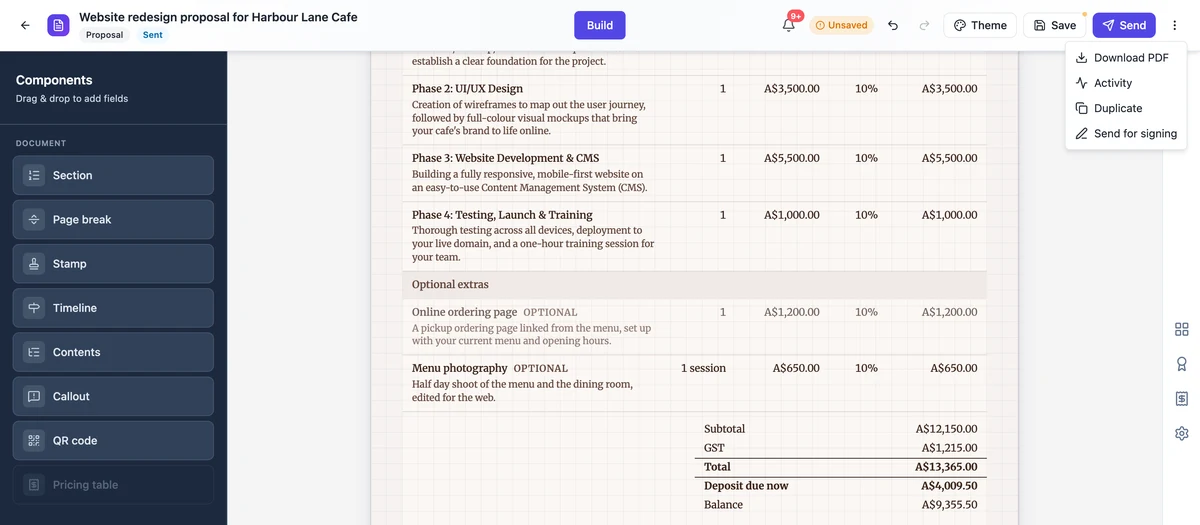
Rendered where the layout lives
The browser never builds the PDF. Download PDF saves your changes first, then asks the server to render the proposal: a headless Chromium opens a private render page, waits until every page and image has settled, and prints. The page sets the document title before printing, so the PDF carries the proposal title in its properties. Because the same pagination code runs on screen and in the render, page breaks fall in the same places.
The client copy
A client opening a tracked link can download the PDF of the version they were sent. Each send freezes a version, and its PDF is rendered once and stored, so the button reads Preparing until it is ready. That PDF is of the frozen version, not of whatever you have edited since, which is what makes it a fair record of the offer.
After acceptance
When a client accepts, the accepted version is rendered again with one more page, the acceptance certificate, and emailed to you and the client. It records the proposal title, the name and email of the person who accepted, the time, the IP address, the browser, a hash of the content, the selected items with totals and the consent text.
Invoices are PDFs too
Every invoice has its own Download PDF, rendered the same way from the A4 invoice sheet you see in the editor preview, and the client can download it from the pay page. When an invoice is emailed, its PDF is attached as long as the whole email stays under 10 MB; above that the email goes with the link only.
PDF only, by design
Export is PDF only. There is no Word or PowerPoint export of a proposal, because the point of the format is a fixed record of an offer. If a client asks for an editable copy, send the link: they can tick extras and accept there, and the final PDF records what they chose. PDF is a published ISO standard that keeps its layout on any device, which is why it is the format clients file.
How it works, in three steps
Step 1
Save your changes
Download PDF saves first if you have unsaved edits, so the file always matches the builder.
Step 2
Choose Download PDF
Open the menu at the right of the builder header and choose Download PDF. The render runs on the server.
Step 3
Wait for the file
The download starts when the render finishes. A first failed attempt is retried once automatically.
The full walkthrough with screenshots is in the guide Send a proposal and get paid.
Limits worth knowing
- PDF only; no Word export.
- A PDF render is charged in credits by page count, once the file exists; a failed render costs nothing.
- The client PDF is of the version they were sent, not your later edits.
- An invoice email attaches the PDF only when the email stays under 10 MB.
Questions people ask
Does the PDF match what I see in the builder?
Yes. It is rendered from the same pages with the same layout and pagination code, in a headless browser on the server, and the render waits until every image has loaded before printing. If something looks wrong in the PDF, it will look wrong in the builder too, so fix it there and download again.
Is downloading a PDF free?
Rendering a PDF is charged in credits by its page count, and the charge is taken only once the PDF actually exists, so a failed render costs nothing. The client downloading the PDF of a sent version does not add a charge each time; that file is rendered once for the version and stored.
Can I send the PDF instead of a link?
You can download it and attach it to your own email. You lose what the link gives you: knowing when it was opened, letting the client tick optional extras, and online acceptance with the invoice and pay link that follow. A common middle way is to send the link and let the client download the PDF from it.
Can I edit the PDF afterwards?
The PDF is a print of the proposal, not an editable file, and there is no Word export. Edit the proposal in the builder and download a new PDF. Once a proposal is accepted it is locked, and the accepted PDF with its certificate page is the record; duplicate the proposal if you need a revised offer.
Why does the client see Preparing on the PDF button?
The PDF for a sent version is rendered once in the background after sending. Until that render has finished, the button reads Preparing and stays clickable so the client can try again. It usually takes moments. The proposal pages themselves are readable straight away, so the client never has to wait to read the offer.
Make your own proposal
The button opens the generator with this use case already described. Change the wording to match yours, generate, then edit anything you like.
Create a proposal with OneCraftRelated pages
The proposal acceptance certificate, field by field
A proposal acceptance certificate is the page that proves an offer was accepted: by whom, when, from where and for exactly what. It is added to the PDF of the accepted proposal so the offer and its acceptance travel together.
Export a presentation to PDF
PDF is the export that works everywhere and needs nothing installed, which is why it is the one available on every plan. It is a faithful picture of your deck, and understanding that it is a picture is the difference between using it well and being disappointed by it.
Document to PDF
Export is not a print dialog. The document is rendered on the server from the same page layout you have been editing, which is why the PDF matches the screen rather than approximating it.
More finished work of this kind is on the proposal examples hub.
Sources
Written and checked by the OneCraft team. Last checked .