Proposals
Accept a proposal online in one dialog
Accepting a proposal online should take the client a minute: confirm what they are buying, put their name to it and agree to the terms. The record of that moment needs to be strong enough to rely on later.
Before the dialog
The client reads the proposal as pages, scaled to fit the screen, with a Your selection panel beside it. Optional extras can be ticked or unticked and editable quantities changed, and the total and deposit in the bar at the bottom follow at once. The bar also holds Decline and the PDF download. Nothing the client chooses is final until they accept.
The accept dialog
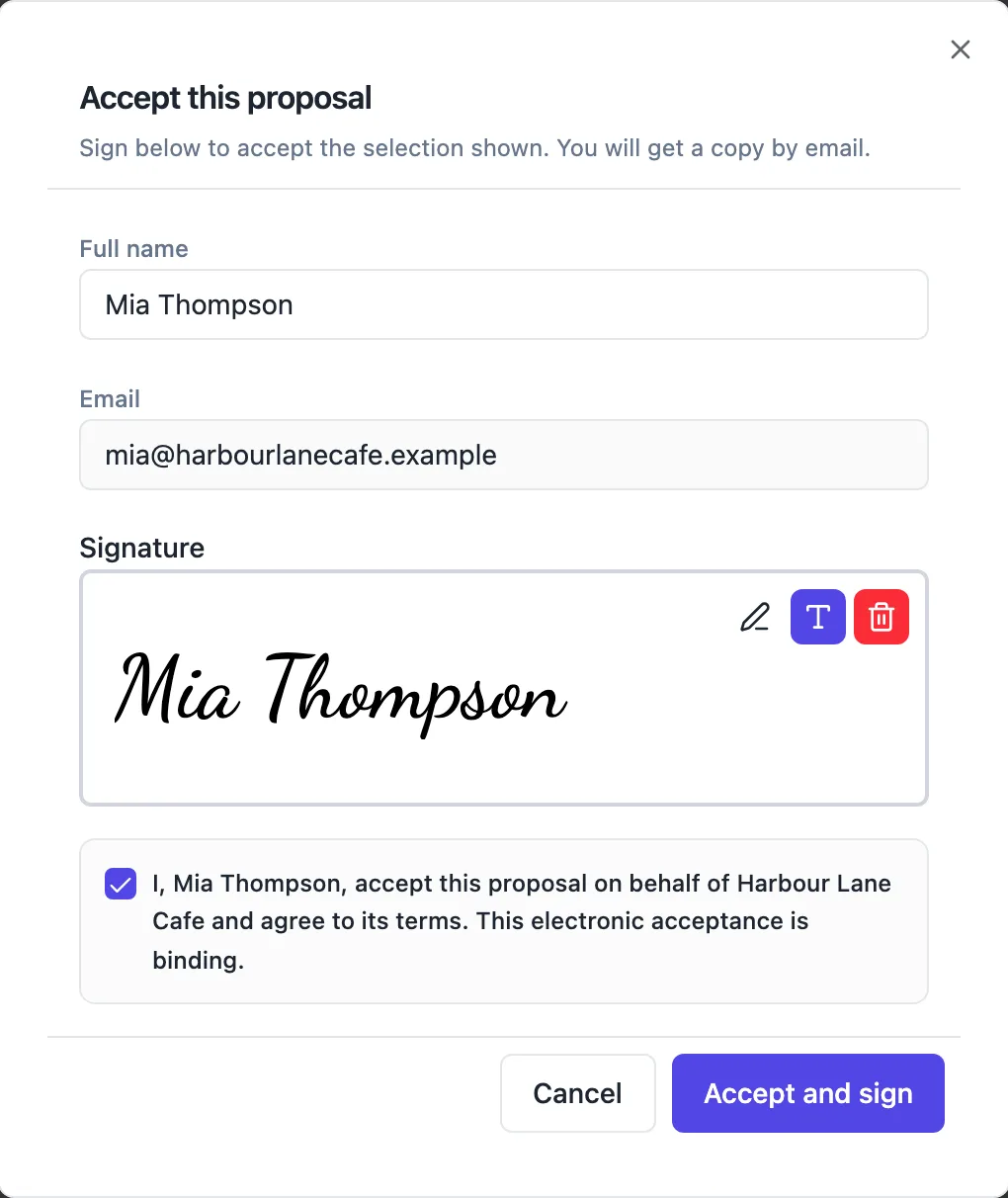
Accept proposal opens a dialog asking for the full name, showing the email the link was sent to as read only, and a signature pad where the client can draw a signature or type one in a script font. A consent box carries the sentence: I, followed by their name, accept this proposal on behalf of the client business and agree to its terms; this electronic acceptance is binding. Accept and sign stays disabled until the box is ticked.
What is recorded
The acceptance stores the name, the email, the signature image, the selection, the consent text, the time, the IP address, the browser and a hash of the content of the version that was accepted. One proposal can be accepted once: a second attempt is refused. An expired proposal, a declined one and a link to an outdated version are refused too.
Straight after
The client sees Accepted with a list of the invoices just created. With a deposit, the deposit invoice comes with a Pay deposit now button when card payments are on; the balance invoice follows later with its own payment link. Each issued invoice is emailed. On your side the proposal locks, the builder shows an Accepted by banner, and the activity page shows the acceptance.
How it works, in three steps
Step 1
Client opens the link
The proposal opens in the browser with the selection panel and the total.
Step 2
Client chooses and accepts
They tick any extras, press Accept proposal, type their name, sign and tick the consent box.
Step 3
Invoices follow
The acceptance screen lists the new invoices, with Pay deposit now when card payments are on.
The full walkthrough with screenshots is in the guide Send a proposal and get paid.
Limits worth knowing
- A proposal can be accepted once.
- Expired, declined and outdated version links cannot accept.
- The client cannot edit the proposal text, only optional items and editable quantities.
- The signature image is limited to 200 KB.
Questions people ask
Is an online acceptance legally binding?
Australian law generally recognises electronic agreement, and the Electronic Transactions Act 1999 sets the conditions for a method of identifying the person and showing their intention. The acceptance here records a name, a signature, an explicit consent sentence, the time, the IP address and a content hash. Whether a given proposal is an enforceable contract still depends on its terms, so take advice for high value work.
Can the client accept on a phone?
Yes. The client view scales the pages to the screen width, the action bar stays at the bottom, and the signature pad works with a finger. Typing a signature instead of drawing is often easier on a small screen. The selection panel moves with the layout so extras can still be ticked before accepting.
What if the client wants changes before accepting?
The client cannot edit the text. They can decline with a reason, or simply tell you what they want changed. Edit the proposal and send again, which creates a new version and new links. Links to the earlier version can no longer be used to accept, so the client always accepts the latest offer.
Can someone other than the recipient accept?
Anyone holding the link can accept, and the consent sentence records the name they type and the business they accept for, alongside the email the link was sent to.
What does the client receive after accepting?
The acceptance screen confirms it and lists the invoices, and every issued invoice is emailed with its pay link. The client keeps the link to the proposal, where the PDF of the accepted version can be downloaded. Once produced, that PDF carries an acceptance certificate page summarising what was accepted, by whom and when.
Make your own proposal
The button opens the generator with this use case already described. Change the wording to match yours, generate, then edit anything you like.
Create a proposal with OneCraftRelated pages
Turn an accepted quote into an invoice without retyping
Turning an accepted quote into an invoice should not mean copying lines from one document to another. Here acceptance creates the invoices from the items the client actually chose, at the quantities they chose, so the invoice and the agreed quote match to the cent.
AI invoice generator that starts from the quote
An AI invoice generator saves the most time when the invoice does not have to be written at all. Here the AI writes the quote or proposal, and the invoices are created from its accepted items, so the numbers on the invoice are the numbers the client agreed to.
The proposal acceptance certificate, field by field
A proposal acceptance certificate is the page that proves an offer was accepted: by whom, when, from where and for exactly what. It is added to the PDF of the accepted proposal so the offer and its acceptance travel together.
More finished work of this kind is on the proposal examples hub.
Written and checked by the OneCraft team. Last checked .