Proposals
A quote with optional extras the client chooses
A quote with optional extras lists the core job at a fixed price and offers add ons the client can take or leave. Done online, the client ticks the extras they want, sees the new total straight away, and accepts that exact selection.
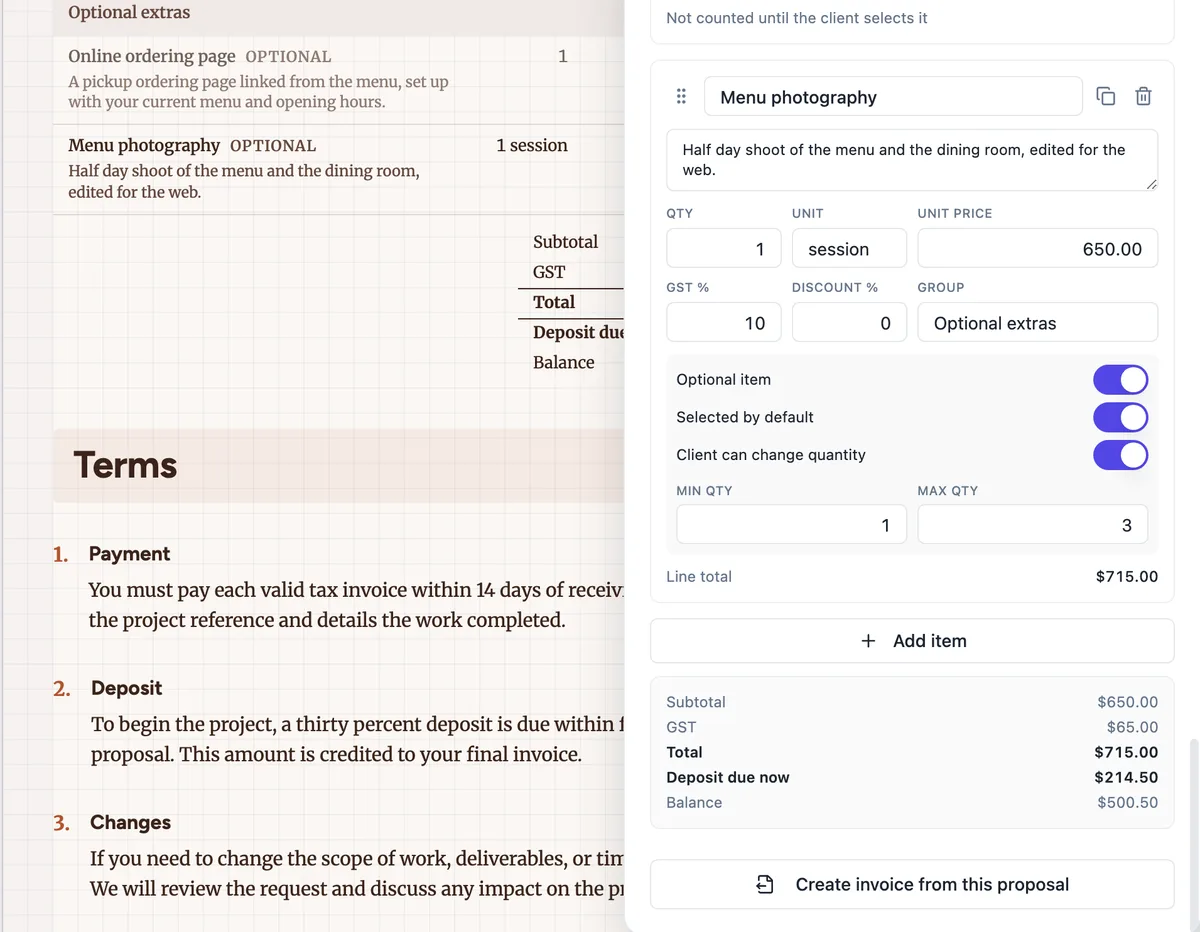
Three switches per item
Every line in the Pricing panel has three settings that turn a fixed quote into a menu. Optional item marks the line as an extra. Selected by default decides whether it arrives ticked. Client can change quantity lets the client pick how many, with a minimum and maximum you set. A core phase keeps all three off; an upsell you expect most clients to take is optional and ticked; a nice to have is optional and unticked.
What the client sees
In the client view a Your selection panel sits beside the pages. Fixed items show a tick, optional ones show a checkbox, and quantity editable ones show a quantity control held between your limits. The total at the bottom of the screen changes as soon as they choose, and the pricing table inside the proposal follows the same selection, so the pages never disagree with the panel. The server checks the selection again before anything is accepted.
The selection becomes the deal
When the client accepts, the acceptance stores the items and quantities they chose, and the totals are computed from that selection. The invoices created at acceptance carry those lines and nothing else, so an extra the client left unticked never appears on an invoice. The acceptance certificate page in the PDF lists the selected items with their totals as part of the record.
Pricing extras that get taken
Extras work best when each one stands alone and has a clear outcome, priced as a round figure the client can weigh quickly. Two or three are usually enough; a long menu turns a decision into homework. Put the most common choice as selected by default if it genuinely suits most clients, and say so in its description rather than hiding it in the total.
Changing extras after sending
The version a client sees is frozen when you send it. If you change an extra after sending, send again: the edited proposal becomes a new version, and accepting from a link on the older version is refused with a message asking the client to open the latest link. That stops a client accepting a price you have since changed.
How it works, in three steps
Step 1
Add the extra as an item
In the Pricing panel, add the extra with its name, description, price and an Optional extras group label.
Step 2
Set its switches
Turn on Optional item, decide whether it is selected by default, and allow quantity changes with a minimum and maximum if it makes sense.
Step 3
Send and watch the choice
Send the quote. The activity page shows when it was opened, and the acceptance records which extras were chosen.
The full walkthrough with screenshots is in the guide Send a proposal and get paid.
Limits worth knowing
- The client can tick extras and change editable quantities, nothing else; the text cannot be edited by the client.
- Up to 200 items per proposal.
- Quantities are clamped to the minimum and maximum you set; the minimum defaults to 1.
- Accepting from a link to an older version is refused once a newer version was sent.
Questions people ask
Can the client remove a core item?
No. Only items marked optional show a checkbox. Core items are always counted and cannot be unticked, and the server ignores any attempt to drop one. If a phase might genuinely be left out, mark it optional and decide whether it starts ticked. That keeps the scope you need fixed while still giving the client a real choice.
Can the client change the quantity of an item?
Only where you allow it. Turn on Client can change quantity and set a minimum and maximum, for example 1 to 3 photography sessions. The client sees a quantity control limited to that range and the total follows. Quantities outside the range are clamped on the server as well, so the limits hold even if someone edits the request.
Will an unticked extra still appear in the proposal?
Yes, as a line marked Optional in the pricing table, so the client can see what is on offer and its price. It is simply not counted in the total while unticked. Once accepted, only the selected items carry into the invoices and the certificate, so the record of what was agreed never includes extras the client declined.
Can extras have a different tax rate?
Each item has its own tax rate, so an extra can carry 10% GST while a GST free item carries none. The tax column appears in the table when rates are set and the toggle is on. The GST line in the summary adds up the tax on whatever is selected at that moment, so it changes as the client ticks and unticks.
How do I see which extras the client chose?
After acceptance the activity page shows the acceptance card with the total and deposit of the accepted selection, and the balance invoice lists the chosen lines. The acceptance certificate on the accepted PDF, emailed to you and the client, lists the selected items with their totals, the signer, the time, the IP address and the browser, which is the record to keep with the job.
Make your own proposal
The button opens the generator with this use case already described. Change the wording to match yours, generate, then edit anything you like.
Create a proposal with OneCraftRelated pages
AI proposal generator: brief in, priced proposal out
An AI proposal generator takes a short description of a job and returns a complete proposal: the opening, the approach, a pricing table and the terms. The useful ones keep your numbers exactly as you typed them and leave the document fully editable.
A proposal with a pricing table that does its own sums
A proposal with a pricing table shows the client exactly what each part of the work costs and how the total is reached. The table should be built from line items, so a change to one quantity updates the subtotal, the tax, the deposit and the balance without anyone retyping a figure.
AI quote generator for trades and service jobs
An AI quote generator turns a few lines about a job into an itemised quote with prices, tax and terms. For a trade or service business the point is speed on site: describe the job once, check the numbers, and send a link the customer can accept from a phone.
More finished work of this kind is on the proposal examples hub.
Written and checked by the OneCraft team. Last checked .