Proposals
AI quote generator for trades and service jobs
An AI quote generator turns a few lines about a job into an itemised quote with prices, tax and terms. For a trade or service business the point is speed on site: describe the job once, check the numbers, and send a link the customer can accept from a phone.
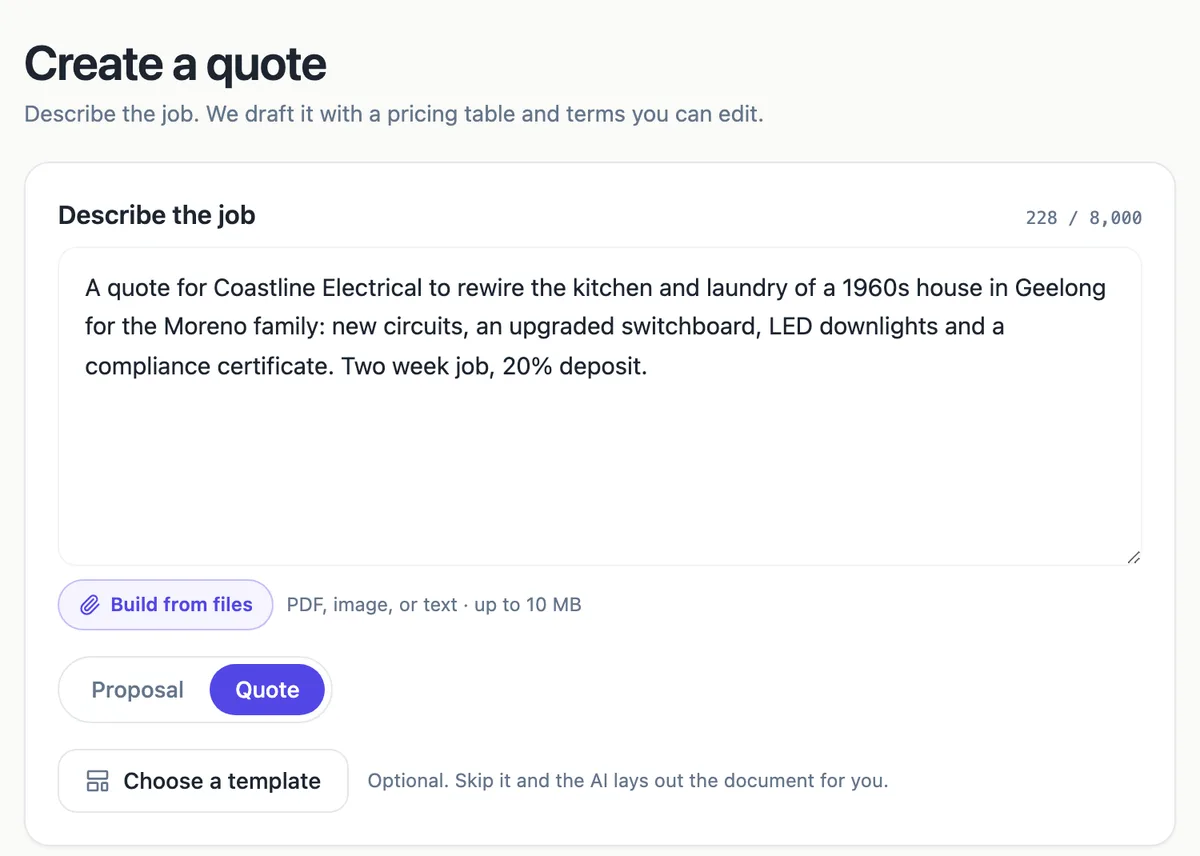
Quote mode, not a different tool
The same screen that writes proposals has a Proposal and Quote switch. Choosing Quote changes the document kind, the heading to Create a quote, the button to Generate quote and the templates the picker shows first. The output is shorter than a proposal: a scope, the itemised price and the terms, without the approach and timeline sections a consulting proposal carries. Everything downstream is identical, so a quote is sent, accepted, invoiced and paid exactly like a proposal.
Price hints in plain words
Type prices the way you would say them on site: switchboard $1,850, each circuit $320, downlights $65 each. The generator turns each one into an item at that price and works out the quantity from the deliverables, so six circuits become one line of 6 at $320. Anything it adds without a price arrives blank. That rule exists because a quote with an invented price is worse than no quote at all.
GST and the deposit
Quotes default to AUD with the tax label GST. Each item carries its own rate, and the AI sets one only when your brief or business details state it, so write GST 10% in the brief for a standard Australian taxable supply. A deposit percent typed in the options becomes the deposit setting, and the pricing table shows Deposit due now and the Balance under the total. When the customer accepts, a deposit invoice is issued due that day and the balance waits as a draft invoice with the deposit already counted as paid.
Six quote templates
Trades call-out, repair, landscaping, catering, printing and tutoring each have a quote template with sample items in AUD. Choosing one in the picker gives the AI a section skeleton and starter items to follow, while your description still decides the content. Open as is creates the quote straight from the template if you would rather fill in the numbers yourself.
Validity matters more on a quote
Material prices move, so a quote should say how long it holds. Valid for (days) defaults to 30 and becomes the quote valid until date. A daily check moves a sent or viewed quote past that date to expired, and an expired quote cannot be accepted, which protects you from a customer accepting a three month old price after copper went up.
How it works, in three steps
Step 1
Switch to Quote
Open the generator, choose Quote, and describe the job in a few sentences with the address type, the work and the timing.
Step 2
Type the prices you know
In Options, list the deliverables and the price hints, set the deposit percent and the number of days the quote is valid.
Step 3
Generate, check, send
Generate the quote, check every line in the builder, then send it to the customer as a tracked link.
The full walkthrough with screenshots is in the guide Send a proposal and get paid.
Limits worth knowing
- Free accounts can hold 3 proposals or quotes at a time; Starter holds 25.
- Taking the deposit by card needs a connected Stripe account, which needs a paid plan.
- The AI writes at most 40 line items per quote.
- Each quote created costs 1 credit plus the model use of generating it.
Questions people ask
Can I quote from a photo of the job?
On the Starter plan or above, Build from files takes up to five images or PDFs of 10 MB each, so a photo of a switchboard or a plan can go in with the description. The AI reads what it can from the image, but it will not measure from a photo. Put quantities and prices in the price hints so the quote is built on numbers you trust.
What if I do not know the price yet?
Leave the price hints empty. The items arrive with blank prices and the descriptions written, so you can price each line in the Pricing panel after a site visit. The totals, the GST line and the deposit update as you type. Nothing is sent to the customer until you press Send, so a half priced draft can sit there safely.
Does the customer need an account to accept?
No. The customer opens a private link, reads the quote, and accepts with a name, a drawn signature and a consent box. The link itself is the credential, and it works on a phone. You can see when it was opened and for how long on the activity page, and you get a notification on the first open.
Can the customer choose between options?
Yes, if you mark items as optional. An optional line shows a checkbox in the customer view, ticked or unticked as you set it, and items can allow the customer to change the quantity within a minimum and maximum. The total updates as they choose, and the acceptance records exactly that selection.
Can I send the quote as a PDF instead?
The customer can download the PDF from the link, and you can download it from the builder. The PDF is rendered on the server from the same pages, so it matches what the customer sees. There is no Word export. Sending the link rather than an attachment is what makes tracking, online acceptance and the deposit payment possible.
Make your own proposal
The button opens the generator with this use case already described. Change the wording to match yours, generate, then edit anything you like.
Create a proposal with OneCraftRelated pages
AI proposal generator: brief in, priced proposal out
An AI proposal generator takes a short description of a job and returns a complete proposal: the opening, the approach, a pricing table and the terms. The useful ones keep your numbers exactly as you typed them and leave the document fully editable.
Send a proposal by email the client can act on
Sending a proposal by email works best as a short message with a link rather than an attachment. The client opens the proposal in one click, and you learn when they did, while the version they read stays exactly as you sent it.
Write a proposal from a brief, with your prices kept
Writing a proposal from a brief means turning what the client asked for into a scope, a price and terms they can accept. The brief supplies the problem and the constraints; you supply the deliverables and the prices; the proposal joins them in the client language.
More finished work of this kind is on the proposal examples hub.
Written and checked by the OneCraft team. Last checked .