Proposals
Proposal templates for services and trades
Proposal templates give a business a known section order and sample prices to start from, instead of a blank page. There are 18 here: 12 proposals for services such as web design, consulting and bookkeeping, and 6 quotes for jobs such as repairs, landscaping and catering.
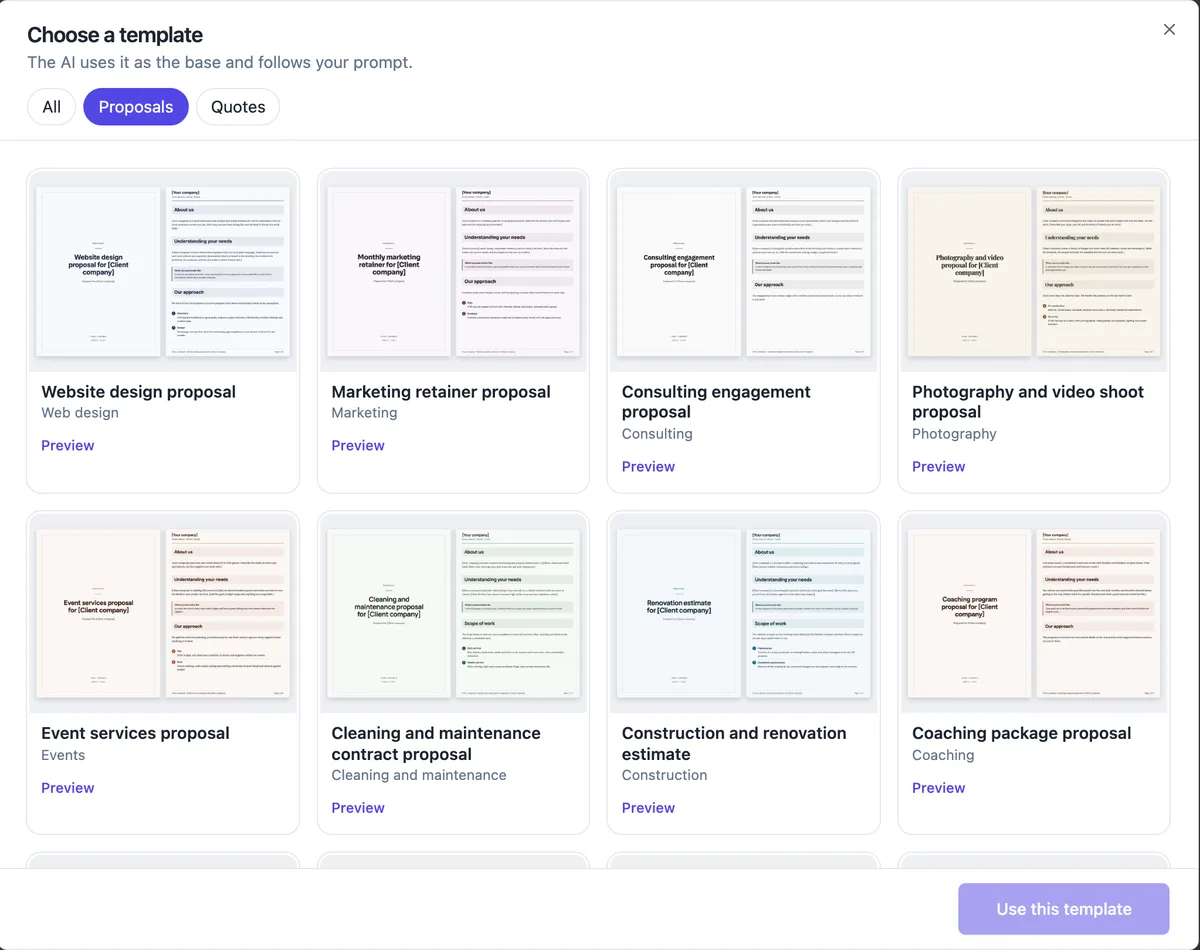
All 18 templates
The proposals are: website design, marketing retainer, consulting engagement, software project, photography and video shoot, event services, interior design, construction and renovation estimate, cleaning and maintenance contract, bookkeeping and accounting, coaching package, and wedding and celebrant services. The quotes are: trades call-out, repair, landscaping, catering, printing and tutoring. Each one carries its section titles, its terms and three to six sample items priced in Australian dollars, plus a theme that suits its trade.
Two ways to use one
In the generator, Choose a template opens the picker with tabs for All, Proposals and Quotes. Use this template selects it as the base: the AI follows its section skeleton and starter items while your description supplies the facts. Open as is skips the AI entirely and creates a proposal from the template, with the sample items in place for you to reprice. The Home screen also has a From a template entry that jumps straight to the picker.
What the AI changes and keeps
With a template selected, the AI writes the content for your client and job in the template section order. Your price hints still win over the sample prices, and the template kind sets whether you get a proposal or a quote. If you want the template exactly as published, with its wording, open it as is instead; that is also the way to avoid model costs, since only the 1 credit for a new proposal applies.
Placeholders to replace
Templates opened as is contain bracketed placeholders such as the company and client names and sample addresses, and the sample items are realistic but generic. Replace every bracket before sending; the preview cards show where they sit. A proposal still holding placeholder text is the most common reason a template looks unprofessional, and the client view shows exactly what you send.
Choosing between templates
Pick by the shape of the work rather than the industry name. A one off job with parts and labour suits the trades call-out or repair quote. A monthly service suits the marketing retainer or bookkeeping proposal, written with month as the unit because there are no recurring invoices. A staged project with a payment schedule suits the construction and renovation estimate or the software project proposal.
How it works, in three steps
Step 1
Open the picker
On the generator, press Choose a template, or use From a template on the Proposals home.
Step 2
Preview and choose
Filter by Proposals or Quotes, open Preview on a card, then Use this template or Open as is.
Step 3
Replace and price
Replace every bracketed placeholder, reprice the items in the Pricing panel, and send.
The full walkthrough with screenshots is in the guide Send a proposal and get paid.
Limits worth knowing
- 18 templates: 12 proposals and 6 quotes, all priced in AUD.
- Opening a template creates a proposal, which costs 1 credit and counts toward the plan cap.
- Templates are starters; there is no shared library of approved sections.
- Generating from a template also bills the model use of generation.
Questions people ask
Are the templates free to use?
Every plan can use them. Opening a template creates a new proposal, which costs 1 credit, and the free plan holds up to 3 proposals at once, Starter 25 and Pro unlimited. Using a template as the base for an AI generation adds the model use of that generation on top of the credit.
Can I save my own proposal as a template?
There is no save as template action. The practical equivalent is duplicating a finished proposal: Duplicate makes a fresh draft with the same document, items and pricing settings, ready for the next client. Keep one clean master proposal per service and duplicate it each time, replacing the client details and adjusting the items.
Do the templates include terms and conditions?
Yes. Each template carries terms as numbered clauses suited to its trade, such as payment, cancellation, variations and validity. They are generic starting points, not legal advice. Read them against how you actually work, and against any industry rules that apply to you, before sending a proposal built on them.
Can I change the look of a template?
Each template comes with a theme that suits its trade, and the Theme button in the builder changes the palette and fonts like any proposal. Your default brand kit also feeds the business details on invoices. Layout changes are made on the canvas: move, add or remove sections, and the pricing table stays one per proposal.
Is there a template for invoices?
Invoices are not templates here. They come from accepted proposals, from the Create invoice button in a proposal, or from the New invoice form, and all of them use the same A4 invoice sheet. For a standalone invoice document with a different layout, the documents examples include an invoice and a proforma invoice.
Make your own proposal
The button opens the generator with this use case already described. Change the wording to match yours, generate, then edit anything you like.
Create a proposal with OneCraftRelated pages
Turn a list of questions into a form
To turn a list of questions into a form, paste the list into the form generator's prompt box and say what the form is for. Each question comes back as a field with a type, options where you listed them, and a required flag, ready to publish on a link.
AI quote generator for trades and service jobs
An AI quote generator turns a few lines about a job into an itemised quote with prices, tax and terms. For a trade or service business the point is speed on site: describe the job once, check the numbers, and send a link the customer can accept from a phone.
AI proposal generator: brief in, priced proposal out
An AI proposal generator takes a short description of a job and returns a complete proposal: the opening, the approach, a pricing table and the terms. The useful ones keep your numbers exactly as you typed them and leave the document fully editable.
More finished work of this kind is on the proposal examples hub.
Written and checked by the OneCraft team. Last checked .