Proposals
The proposal activity log, from sent to paid
A proposal activity log is the history of one offer: who it went to, when they opened it, what they did and what was paid. Having it on one page means a follow up call or a dispute starts from facts rather than memory.
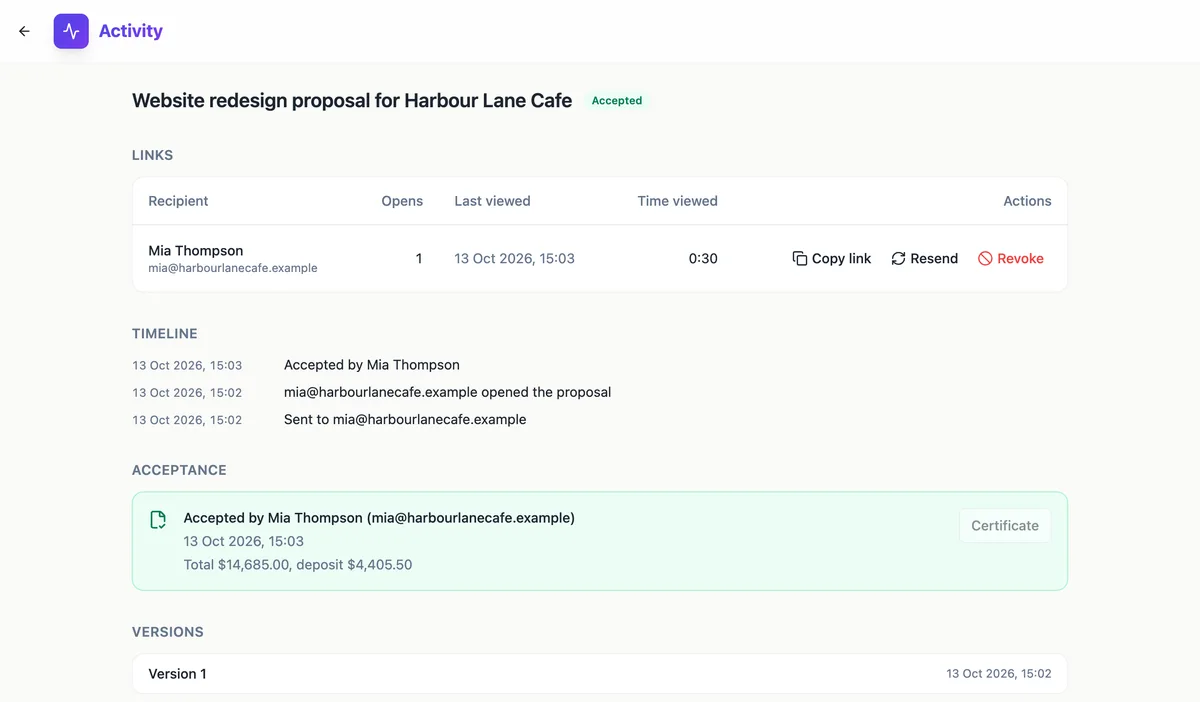
Links
The top table lists every recipient link with the person name and email, the number of opens, when it was last viewed and the total time viewed. Each row has Copy link, Resend and Revoke. This is where you go when a client says they never got the email: resend from here and their old link stops working while a fresh one is emailed.
Timeline
Below the links, the timeline reads like a diary, newest first, and keeps the last 200 events. It records sends and resends, revoked links, opens, PDF downloads, acceptance with the signer name, a decline with the reason if the client gave one, expiry, voiding, payments started and received with the amount and invoice number, and reminders sent with their tone of before, due or late.
Acceptance
Once accepted, a card shows who accepted, with their email, when, the accepted total and the deposit. The acceptance certificate itself arrives as a PDF in the acceptance email sent to you and the client; the Certificate button on the card is not active yet.
Versions
The last section lists every version that was sent, with its number and time. A version is made only when the content changed since the last send, so the list is a clean record of the offers the client actually received. If a dispute ever turns on what was offered when, this list and the timeline answer it.
Where it sits
Activity opens from the row menu of any sent proposal on the Proposals home, and from the link in the Sent dialog. Drafts have no activity because nothing has gone out. The page is read only apart from the link actions; to change the proposal itself, go back to the builder, or duplicate it if it has been accepted.
How it works, in three steps
Step 1
Open Activity
From the Proposals home, open the menu on a sent proposal and choose Activity, or use View activity after sending.
Step 2
Read the timeline
Scan the newest events first: opens, downloads, acceptance or decline, payments and reminders.
Step 3
Act on a link
Copy, resend or revoke a recipient link from the table at the top.
The full walkthrough with screenshots is in the guide Send a proposal and get paid.
Limits worth knowing
- The timeline shows the most recent 200 events.
- Drafts have no activity page entries until they are sent.
- The Certificate button on the acceptance card is not active yet; the certificate PDF arrives in the acceptance email.
- Activity is per proposal; there is no report across all proposals.
Questions people ask
What counts as an event?
Sends and resends, revoked links, opens, PDF downloads, acceptance, decline with its reason, expiry, voiding, payment started, payment received and reminders sent. Each event records its time, and opens also record the IP address and browser. Together they cover the life of an offer from the first send to the last payment.
Can I export the activity?
There is no export button. The acceptance certificate PDF holds the formal record of the acceptance, including the signer, the time, the IP address, the browser and the content hash, and the invoices hold the payments. For a dispute, those two documents plus a screenshot of the timeline are usually what you need.
Why is the Certificate button greyed out?
It is not connected to the file yet, so it stays disabled. The certificate is still produced: after acceptance the accepted version is rendered with its certificate page and emailed to you and the client, so keep that copy with the job.
Does a declined proposal show the reason?
Yes, when the client gave one. The decline dialog asks for an optional reason of up to 500 characters, and the timeline shows it next to the decline. You are also notified when a proposal is declined. A declined proposal can be edited and sent again, which creates a new version and new links.
Can I see payments on the activity page?
Yes. When a client starts paying an invoice from the proposal, and when the payment is received, the timeline records it with the amount and the invoice number. Reminders sent for those invoices appear too. The invoice itself, under the Invoices tab, shows the payment history in detail.
Make your own proposal
The button opens the generator with this use case already described. Change the wording to match yours, generate, then edit anything you like.
Create a proposal with OneCraftRelated pages
Proposal version history, one version per offer sent
Proposal version history is the record of each offer as the client received it. When a proposal goes back and forth, it answers the questions that matter later: which price did they see, and which one did they accept.
Proposal view tracking, per recipient
Proposal view tracking tells you whether the client has opened what you sent and roughly how much time they gave it. Knowing that a proposal was read twice yesterday changes how and when you follow up.
Send a proposal by email the client can act on
Sending a proposal by email works best as a short message with a link rather than an attachment. The client opens the proposal in one click, and you learn when they did, while the version they read stays exactly as you sent it.
More finished work of this kind is on the proposal examples hub.
Sources
Written and checked by the OneCraft team. Last checked .