Flyers
Flyer templates gallery
The gallery is a browsing surface, not a shop. It renders every design at full size with sample content in whichever theme you choose, so you can judge composition and colour together before you commit a prompt to one of them.
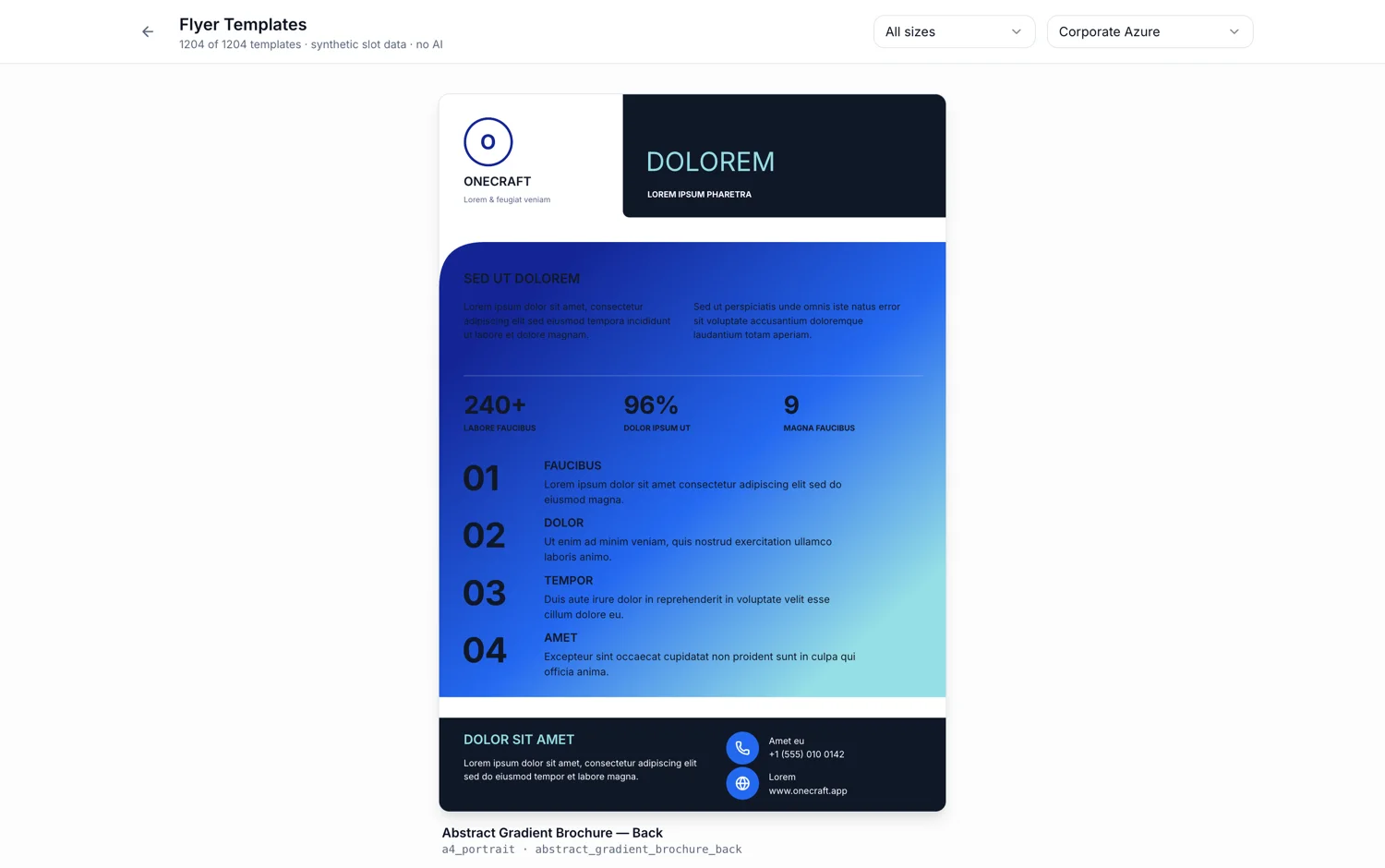
259 designs, 1,813 files
Every design is drawn natively for eight canvases and filed as seven templates, since the Facebook post layout is declared for LinkedIn as well. 259 designs with seven files each is where 1,813 comes from. The counter at the top of the page reads 1813 of 1853, because its total also includes the 40 poster boards. Filter to any single size and you see 259 cards, one per design.
Two filters, and one is a preview control
The size filter narrows the list to the designs authored for one canvas, from All sizes down to any of the eight. The theme selector is different: it does not filter anything, it repaints every card in that theme. So the size dropdown answers what exists and the theme dropdown answers what it looks like in your colours.
The content is synthetic, and it says so
The counter line reads synthetic slot data, no AI. Cards are filled with sample copy generated from each slot's own description so the layout is exercised properly, with long text where a design expects long text. It is not a preview of what your brief would produce, it is a preview of what the design can hold.
Cards render lazily, at real size
Each card mounts as it scrolls near the viewport and loads its template at that moment, then renders the design itself rather than a picture of it. That is why a card carries the real type, the real vector artwork and the real theme colours. Under the design you get its name and, in monospace, the canvases it serves and its id.
There is no way into the builder from a card
Cards are not clickable. The gallery tells you which design you want; the generator is where you use it. Set the same canvas size in the Format field, open the Template picker, and find the design by the name you noted. That picker lists the same designs, previewed in the theme you have chosen.
Using a design from the gallery
The gallery is a preview surface, so there is no link from a card into the builder. Note the design's name while you are browsing, then open the flyer generator and set three fields: Format for the canvas size you need, Theme for the colours, and Template for the design you picked. The picker inside the generator lists only designs authored for the Format you set, so choose the size first; changing Format afterwards clears the template, because a design chosen for A4 is not the design you would choose for a story.
How it works, in three steps
Step 1
Filter to the size you will build at
All sizes shows every file. One size shows the designs drawn for that canvas, sorted by id: 259 at A4 portrait and 199 at every other size.
Step 2
Switch the theme and scroll again
The theme selector repaints every card, so the same design in a different palette is one click, not a rebuild.
Step 3
Note the name, then use the generator
Set the same Format, open the Template field, and pick it there.
The full walkthrough with screenshots is in the guide Choose the template, theme and size for your flyer.
Limits worth knowing
- Cards are previews only. Nothing on this page opens the builder or starts a flyer.
- The sample content is synthetic and has nothing to do with your brief.
- There is no keyword search, category filter or tag filter. Size and theme are the only two controls.
- Rendering 1,813 full designs is why cards load as you scroll rather than all at once.
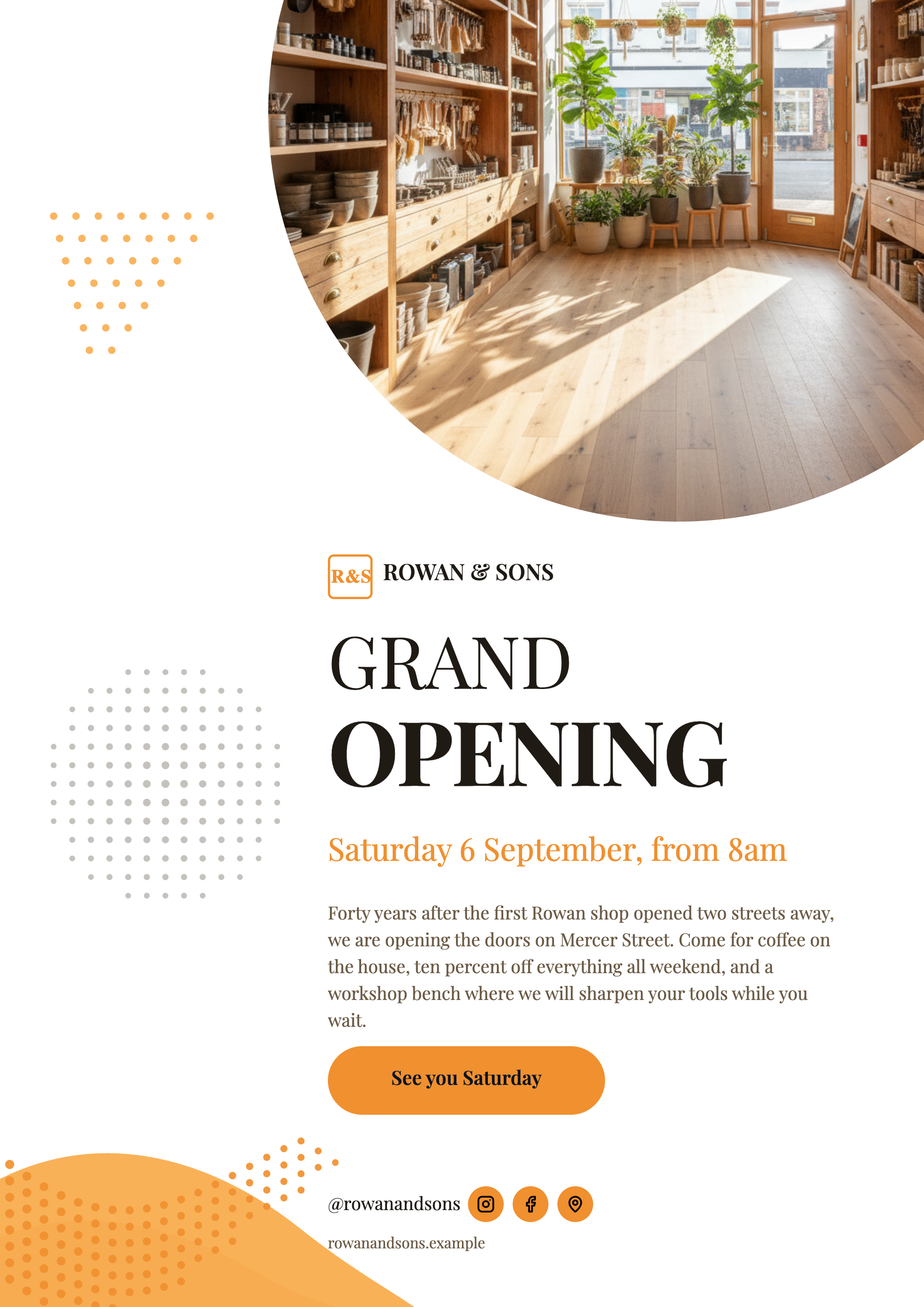
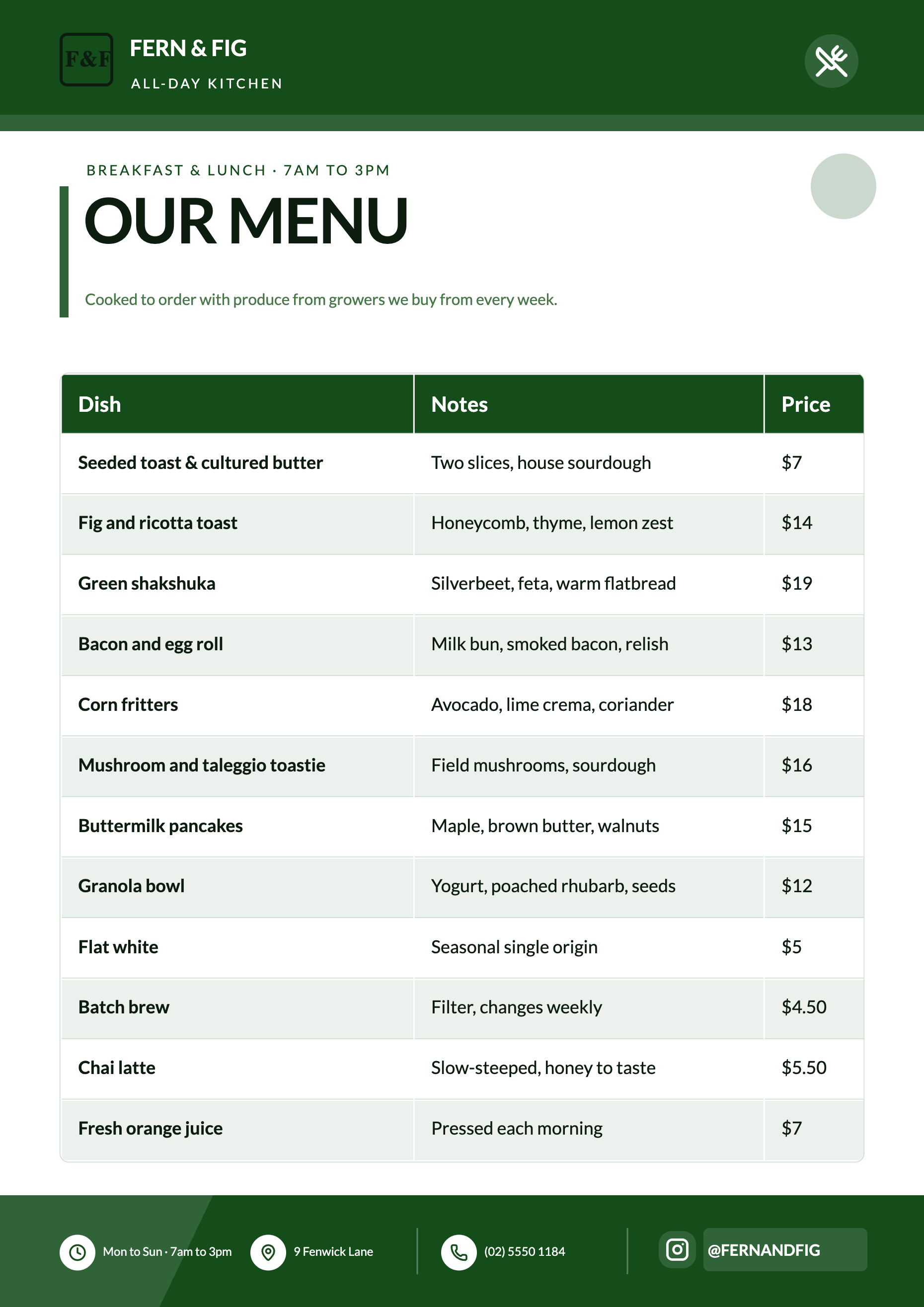
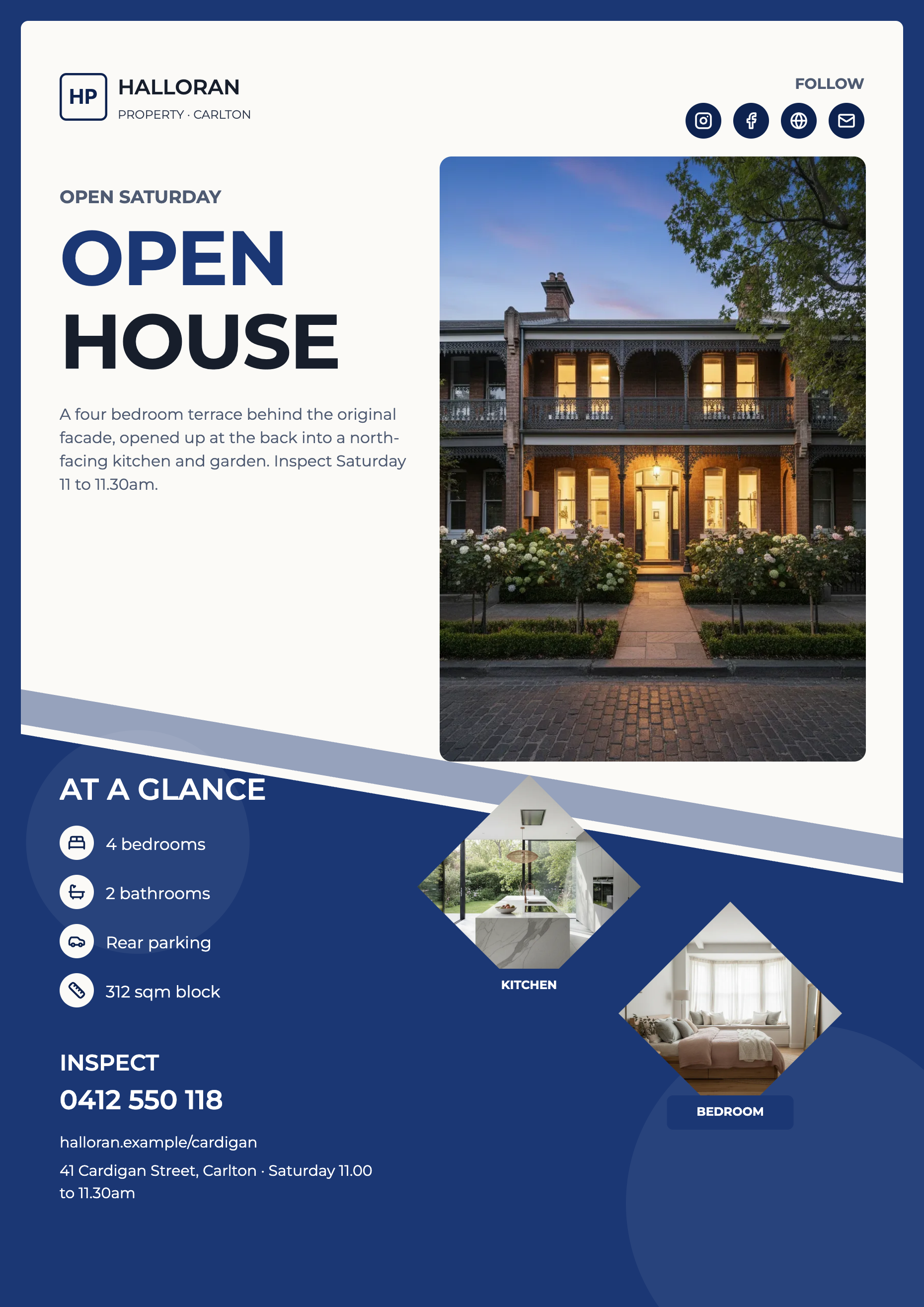
See it on a finished piece
Questions people ask
Why does the counter say 1,813 when there are 259 designs?
It counts template files. Every design has seven, one per distinct canvas shape. The second number in the counter is larger again, because it also counts the 40 poster boards. Filter to a single size and the count drops to the designs drawn for it, 259 at every size.
Can I search for a restaurant template?
Not on this page. There is no keyword search, so browsing is by size and by eye. The design names describe the use case, which is what the AI reads when it picks for you.
Do I need an account to look?
No, the gallery is public. Generating a flyer from one of the designs is what needs an account.
Is the theme in the gallery the theme I will get?
Only if you pick the same one in the generator. The gallery selector is purely a preview control, and it defaults to Corporate Azure.
Make your own flyer
The button opens the generator with this use case already described. Change the wording to match yours, generate, then edit anything you like.
Create a flyer with OneCraftRelated pages
AI flyer generator
You write what the flyer is for. The generator chooses the designs, writes the copy into their slots, generates the photographs and hands you two complete flyers to pick between. Nothing about the layout is yours to fight with, because the layout was already designed.
Edit flyer text with AI
The in canvas assistant does exactly two things: it replaces the value of a slot, and it renames the flyer. That is a narrow scope, and it is narrow on purpose. Everything it writes is checked against the design's own character budgets before it reaches your canvas.
Twitter header maker (X)
1500 by 500 is the widest canvas in the set at exactly three to one. Nothing about that shape behaves like a flyer. It is a banner, it is read in passing above a profile, and the designs drawn for it treat it that way: one statement, one mark, and a lot of considered empty space.
More finished work of this kind is on the flyer examples hub.
Written and checked by the OneCraft team. Last checked .