Flyers
Edit flyer text with AI
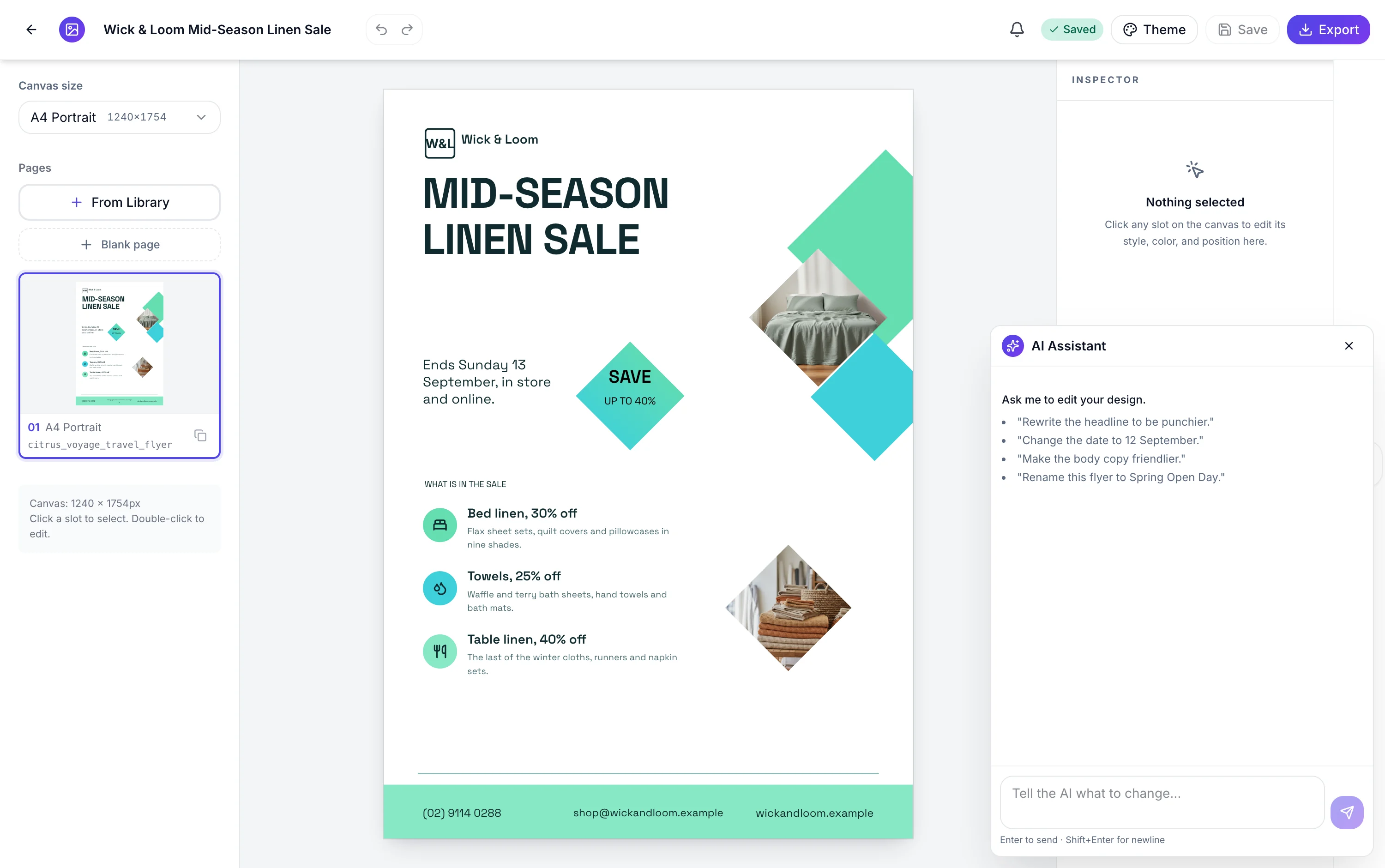
The in canvas assistant does exactly two things: it replaces the value of a slot, and it renames the flyer. That is a narrow scope, and it is narrow on purpose. Everything it writes is checked against the design's own character budgets before it reaches your canvas.
Two edits, and no third
Update the value of a slot, and set the flyer's name. There is no operation for adding a page, changing the layout, switching the theme, moving a block, resizing the canvas or generating an image. Ask for any of those and it will say so rather than pretend, because the vocabulary genuinely does not contain them.
It reads the design before it writes
The snapshot it receives says what each page currently says, not what the layout can hold. So it is instructed to fetch the template's component list first, which returns each slot's type, its character budget and how many items a list takes. That is the difference between copy that fits and copy that quietly shrinks the headline to nothing.
Budgets are enforced twice
Once by that read, and again on the server: whatever it proposes is clamped against the real template before the operation is recorded. A text slot must receive a string, a list slot must receive an array, and an unknown page or slot id is rejected with an error telling it to look the ids up properly. Very little reaches your canvas that the design cannot carry.
It can look things up
Alongside the design read it has a web search and a page fetch, so asking it to check this year's dates or to use the wording from our own site is a reasonable request. It never edits the flyer directly either way. The worker records operations, the builder applies them, and text only changes apply as soon as the turn lands.
Images are refused, explicitly
Asking it to change a picture returns a message saying image editing is not available in chat, and pointing you at the inspector. That is a deliberate refusal rather than a silent failure. The same is true of anything that would require a layout or theme operation, since none exists.
How it works, in three steps
Step 1
Open the chat panel in the builder
It sits beside the canvas and works on whichever pages the flyer currently has.
Step 2
Ask for a text change
Shorten the headline, correct the price, rewrite the three benefits for parents. Up to 4,000 characters per message.
Step 3
Refine in the next message
Say make it shorter and it updates the same edit rather than starting again, because the previous turn's proposal is sent with your reply.
The full walkthrough with screenshots is in the guide Create a flyer for Instagram and print.
Limits worth knowing
- Two operations exist: replace a slot's value, and rename the flyer. Nothing else.
- It cannot add, delete or reorder pages, change the layout, switch the theme or resize the canvas.
- Image slots are refused outright with a message telling you to use the inspector.
- A message can be 4,000 characters and only the last five turns of history are carried.
- On a blank page you built yourself there is no template on disk, so text is not budget checked there.
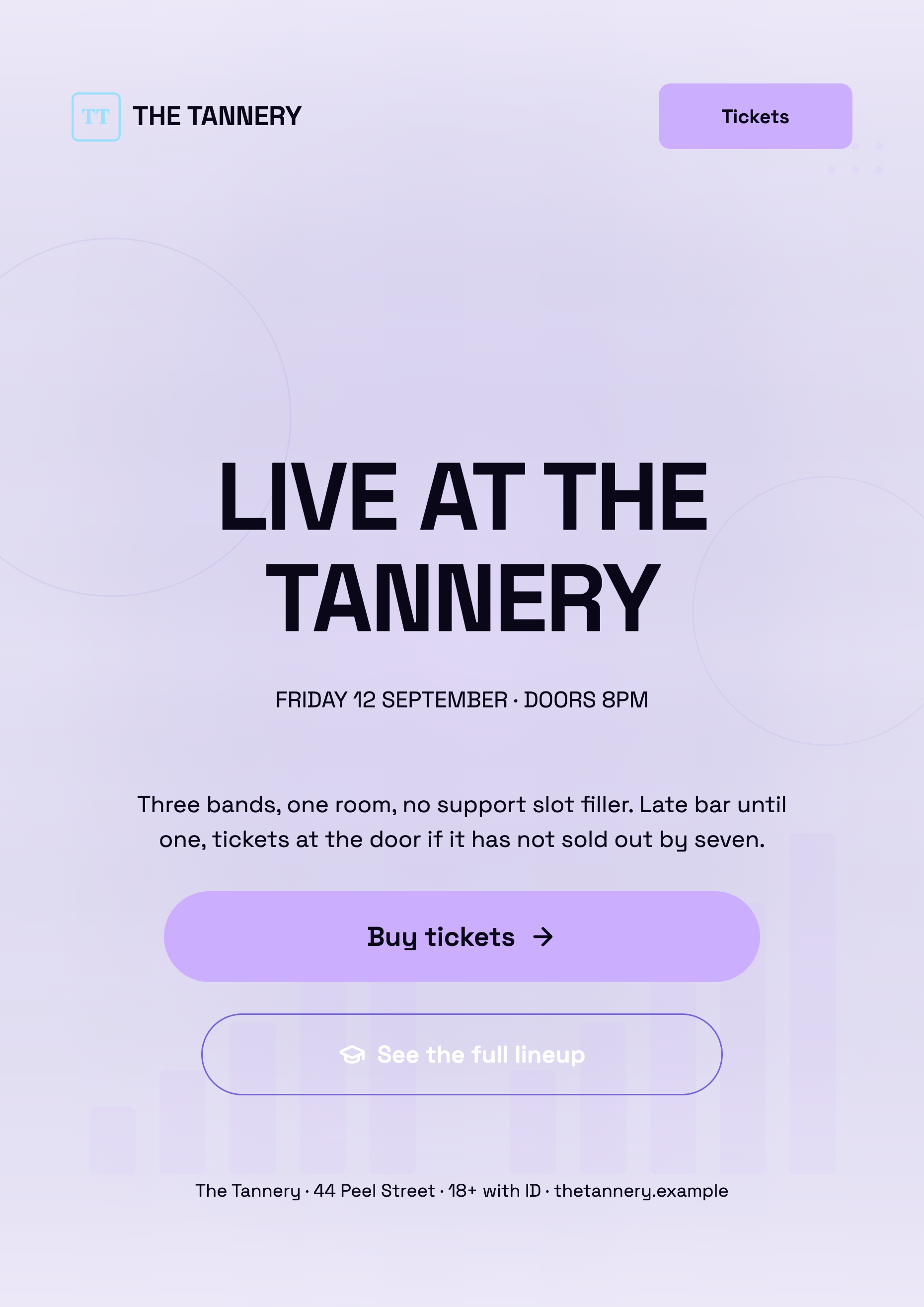
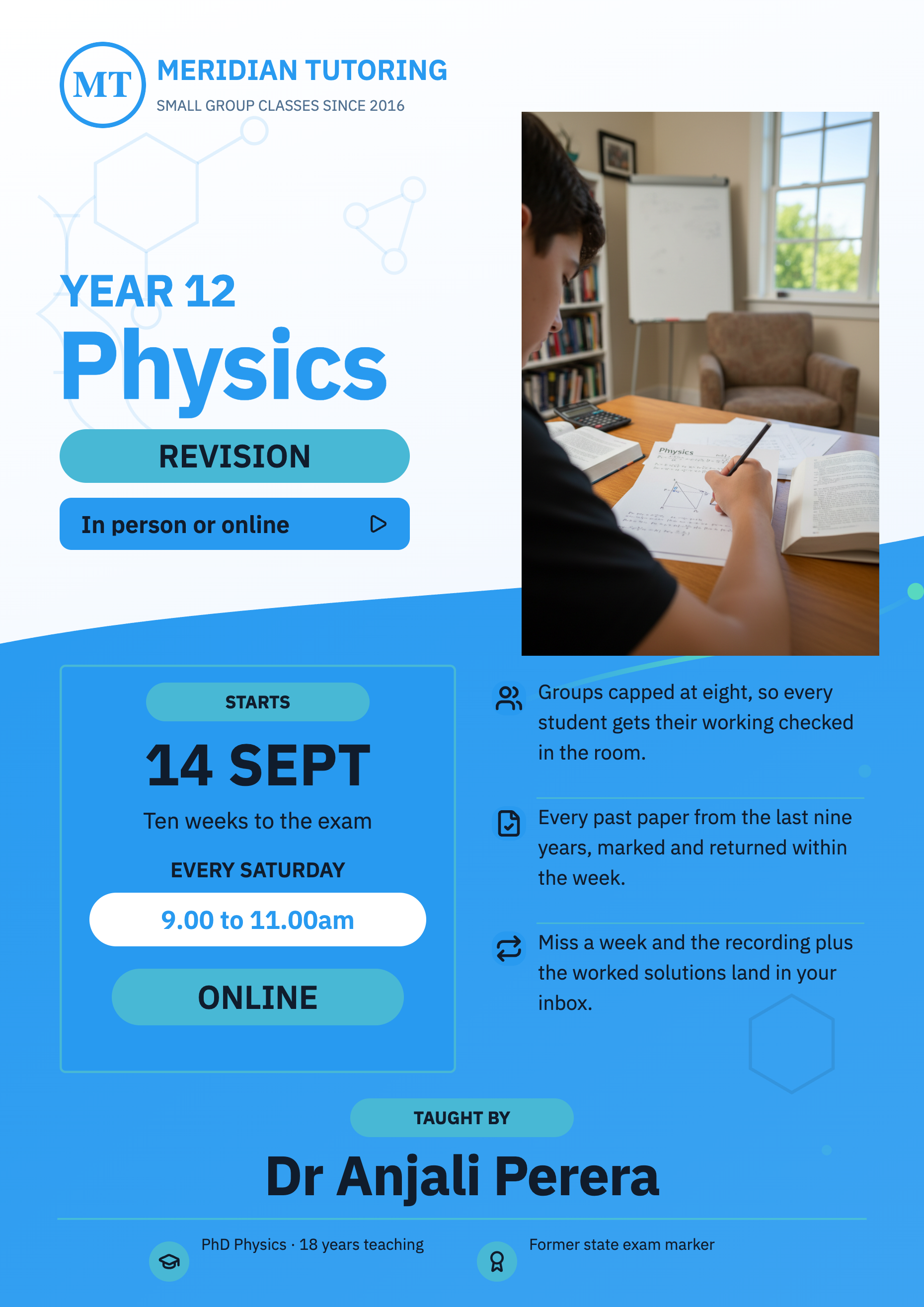
See it on a finished piece
Questions people ask
Can it change the colours or the layout?
No. There is no theme, layout, position or size operation in its vocabulary, so it can neither do it nor claim to have done it. Use the Theme control and the inspector for those.
Will it break my design with long text?
It is told to read the slot budgets first, and whatever it proposes is clamped against the real template on the server before it becomes an edit. The exception is a blank page you built yourself, which has no template to check against.
Does it edit the flyer directly?
No. It records edits, the builder applies them to your canvas, and you save. Text only edits apply as soon as the turn finishes; a proposal left over from a previous session asks before it applies.
Can it look up real information?
Yes, it has a web search and a page fetch. Asking it to check a date or pull the wording from your own website is within scope, and it still cannot invent a price you never gave it.
Make your own flyer
The button opens the generator with this use case already described. Change the wording to match yours, generate, then edit anything you like.
Create a flyer with OneCraftRelated pages
Edit a form with AI
The chat panel is a text editor you talk to. Ask it to soften a label, shorten the help text or rewrite every question in plainer English and it does that across the form. What it will not do is just as important as what it will.
Undo flyer changes
Two safety nets exist on a flyer and it is worth knowing where each one stops. Undo goes back fifty steps but only while the tab is open, and the Flyer 1 and Flyer 2 switch takes you between the AI designs you were originally offered. There is no version history drawer, and this page is about working around that.
Edit a flyer image by rebuilding it
To edit a flyer image, attach the JPG or PNG to the flyer generator and let it rebuild the words into a new design. The picture is read for its text, and that text is placed into a real template, so every line can be selected, rewritten, recoloured and moved to another size afterwards. A flyer you only have as a photograph is a picture of text, and tracing it would only give you another picture.
More finished work of this kind is on the flyer examples hub.
Written and checked by the OneCraft team. Last checked .