Flyers
Undo flyer changes
Two safety nets exist on a flyer and it is worth knowing where each one stops. Undo goes back fifty steps but only while the tab is open, and the Flyer 1 and Flyer 2 switch takes you between the AI designs you were originally offered. There is no version history drawer, and this page is about working around that.

Fifty steps, held in the tab
The undo stack keeps up to fifty previous states of your pages, with undo and redo buttons in the top bar. It is entirely in memory. Close the tab, reload the page or navigate away and it starts empty, which makes it a safety net for the last few minutes of work rather than a record of the session.
It covers pages, not everything on screen
Content edits, moves, resizes, inserted elements, deleted blocks, added and removed pages and canvas size changes all go through the same page history. The theme and the flyer's name do not. Change the theme, press undo, and the layout steps back while the colours stay where you put them, so a theme change is reversed by choosing the old theme again.
There is no version history drawer
Presentations have one, with a list of earlier saves you can preview and restore. Flyers do not, and nothing in the builder exposes past saves. Every save does append a version behind the scenes, which is what the export reuse and the design switch are built on, but there is no interface that lets you browse or roll back to one.
The design switch is the other way back
If the flyer was generated without a chosen template you were given two designs, and both remain as separate branches. The Flyer 1 and Flyer 2 pills over the canvas move between the latest saved state of each. Switching resets the undo stack, because you have loaded a different set of pages, so save anything you care about before you switch.
Save deliberately, because nothing does it for you
There is no timer autosave. The top bar shows Unsaved, Saving or Saved, and the Save button carries a pulsing dot while there is work to write. Exporting also saves first, which is the one place a save happens without you asking. Treat a save as a checkpoint and take one before any change you are unsure about.
How it works, in three steps
Step 1
Use the top bar buttons
Undo and redo sit next to the flyer name. There is no keyboard shortcut for either, and they are hidden on very narrow screens.
Step 2
Save before anything risky
Deleting several blocks, changing canvas size or switching designs are the three worth a checkpoint first.
Step 3
Switch designs rather than rebuilding
If the other generated option was better after all, the Flyer 1 and Flyer 2 pills load it with its own edits intact.
The full walkthrough with screenshots is in the guide Create a flyer for Instagram and print.
Limits worth knowing
- The undo stack holds fifty steps and is cleared by a reload, a navigation or a design switch.
- Undo does not revert a theme change or a rename; those are separate state.
- There is no version history drawer, no list of past saves and no restore action for flyers.
- There is no keyboard shortcut for undo or redo in the flyer builder.
- There is no timer autosave. Saving is the Save button, or an export, which saves first.
- The design switch only appears when the flyer was generated with two AI options.
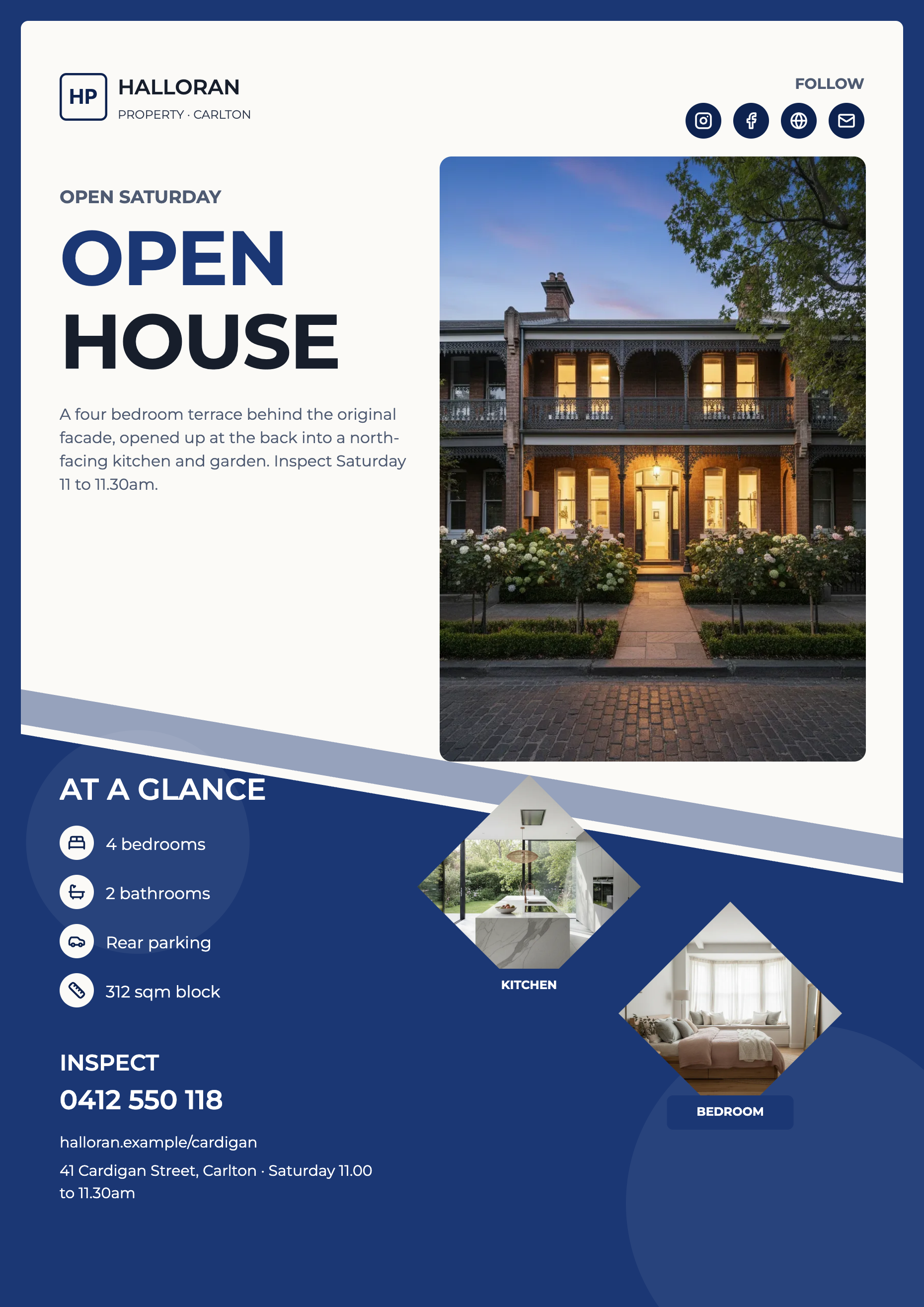
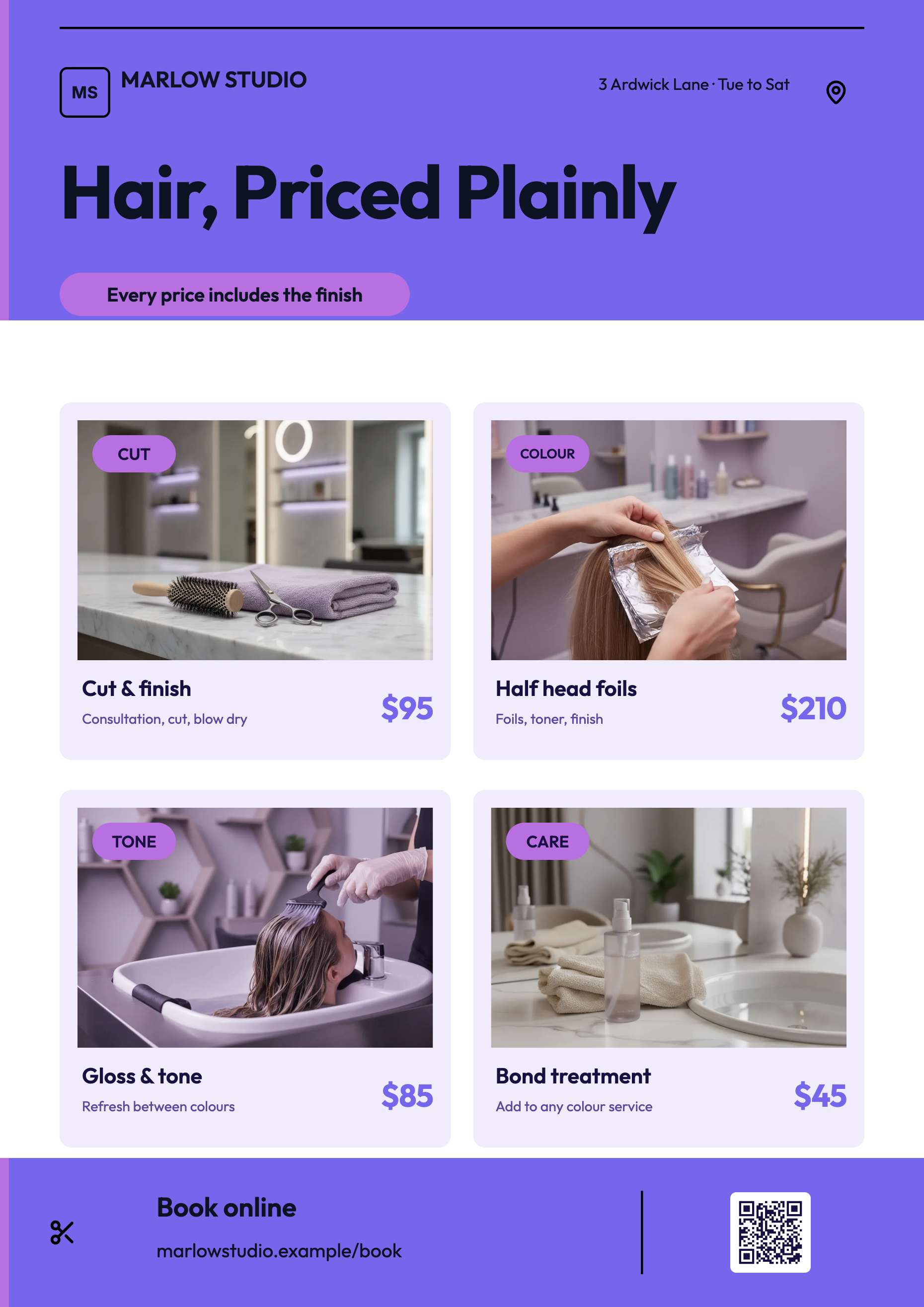
See it on a finished piece
Questions people ask
Can I restore yesterday's version of a flyer?
No. Saves are appended behind the scenes but nothing in the builder lists or restores them, and undo does not survive a reload. If a flyer matters, export a PDF as your archive copy.
Does Cmd+Z work?
No. The only keyboard bindings in the flyer builder are Delete and Backspace to remove the selection and the arrow keys to nudge it. Undo and redo are the top bar buttons.
I changed the theme and undid it. Why are the colours still wrong?
Because the theme is not part of the page history. Reopen the Theme control and choose the previous one; the list shows the current theme with a tick beside it.
Will switching to Flyer 2 lose my work on Flyer 1?
No, each branch keeps its own saved edits. It does clear the undo stack though, so save any unsaved work on the branch you are leaving first.
Make your own flyer
The button opens the generator with this use case already described. Change the wording to match yours, generate, then edit anything you like.
Create a flyer with OneCraftRelated pages
Add text and shapes to a flyer
Every design arrives finished, but a flyer usually needs one more thing: a price, a disclaimer, an extra card, a QR alternative. The element panel is where that comes from, and it holds sixty seven items grouped into thirteen sections.
Brochure maker
A brochure is a sequence, not a page. The cover earns the pick up, the inside earns the read and the back carries the contact details. The library holds designs written for each of those jobs, and building one is a matter of putting them in order.
Presentation version history
Versions are created when you save, not on a timer, so the history is a list of decisions rather than a stream of keystrokes. Each one carries a summary of what changed, which is what makes a long list readable instead of a wall of timestamps.
More finished work of this kind is on the flyer examples hub.
Written and checked by the OneCraft team. Last checked .