Flyers
Brochure maker
A brochure is a sequence, not a page. The cover earns the pick up, the inside earns the read and the back carries the contact details. The library holds designs written for each of those jobs, and building one is a matter of putting them in order.
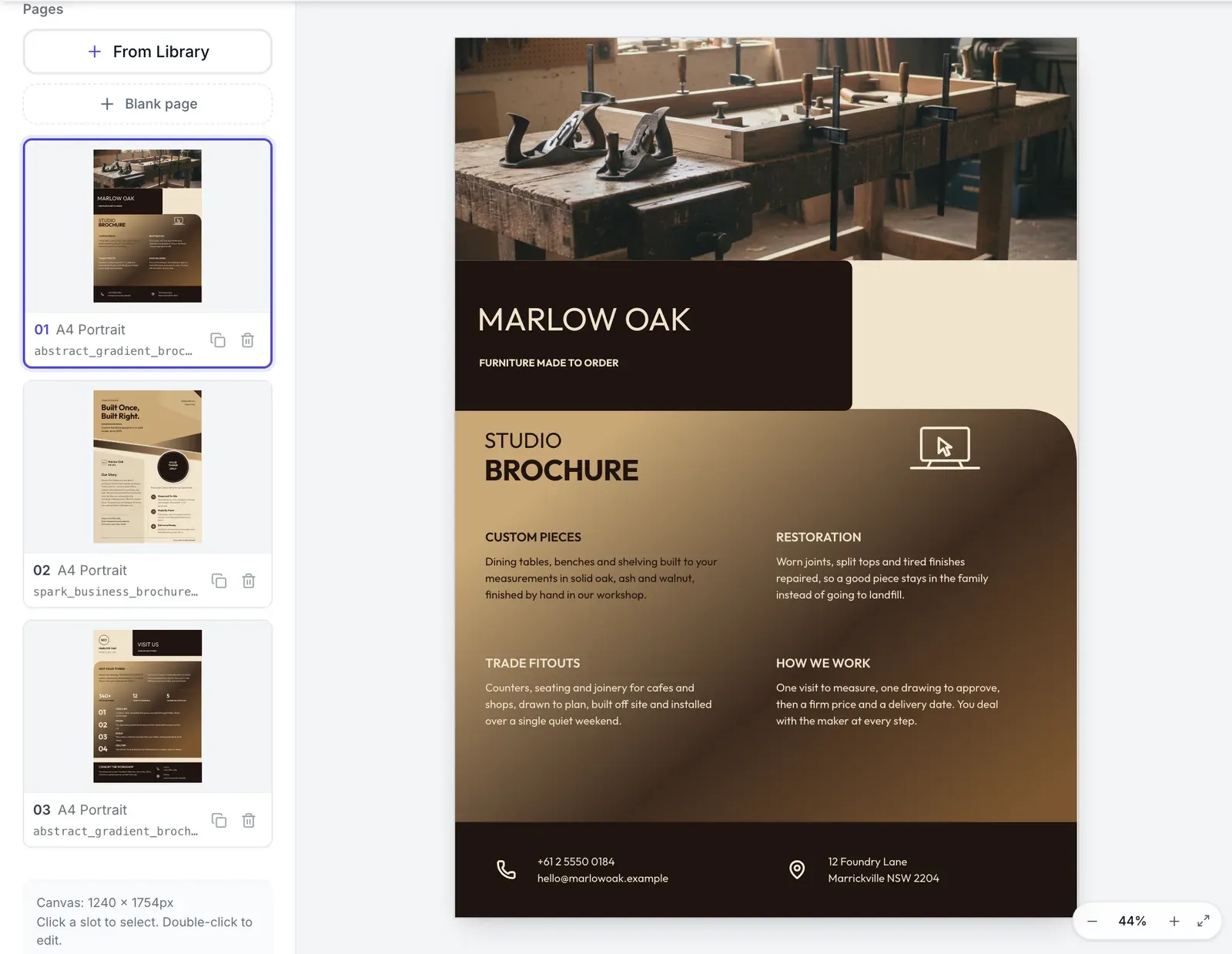
Eight designs are written as brochure pages
Their descriptions say so explicitly: company profile covers, a services brochure front and its matching back, a case study spread, a contact back cover, and a fashion trifold pair. That description is what the design director reads when it chooses, so a brief mentioning company profile or brochure will steer toward them without you naming one.
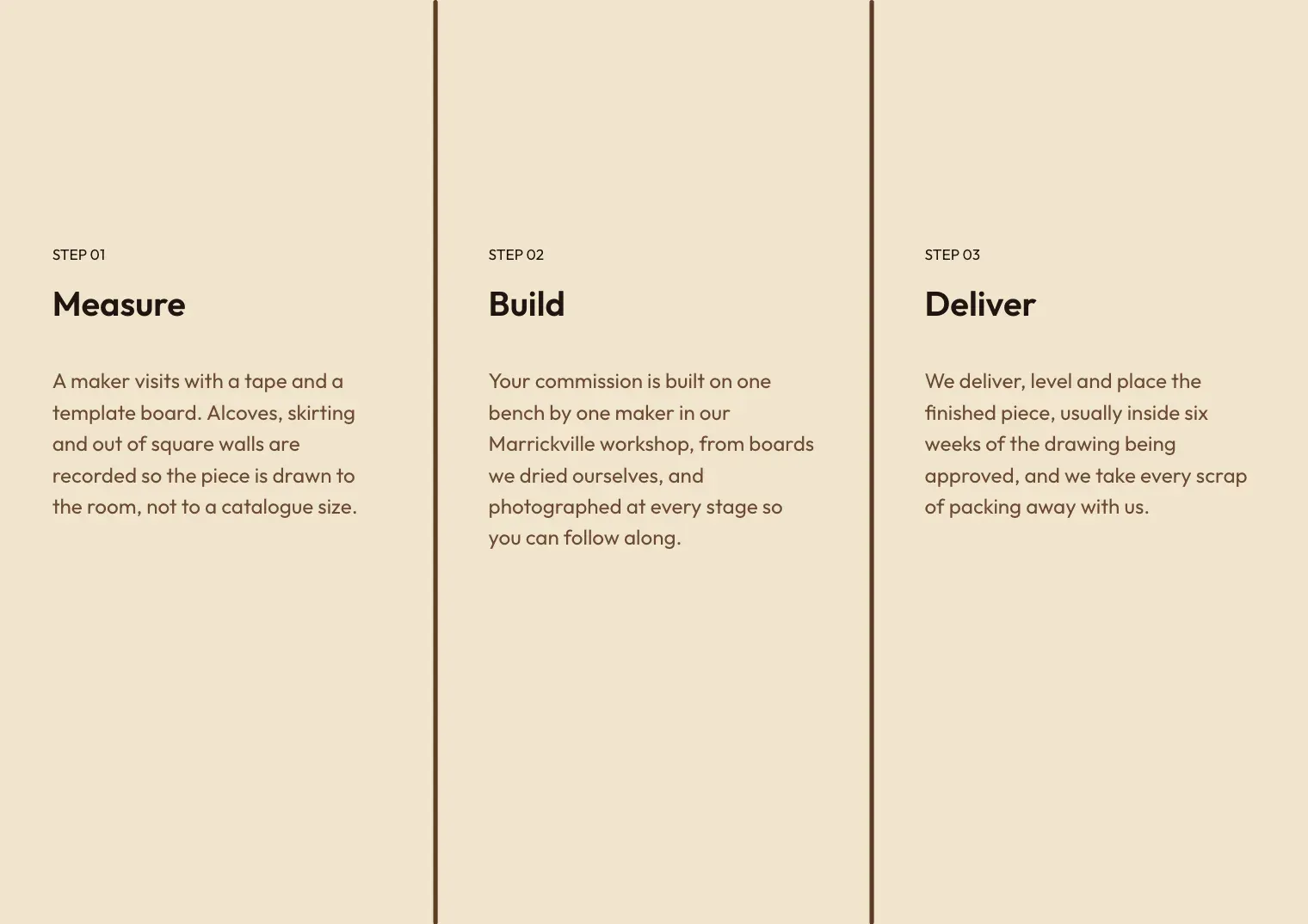
Front and back pairs are designed together
Two of the pairs are drawn as sets: a gradient brochure front with its own back, and a company profile cover with a matching contact back cover. Using both halves is the fastest route to a brochure that looks deliberate, because the mastheads, panels and colour bands were composed to sit opposite each other.
Assemble by adding pages, not by regenerating
Generate the cover, then use From Library to add each further page at the same canvas size, choosing the design that suits that page's job. The theme is set once for the whole flyer, so pages you add hours apart still share the palette and type. Duplicating a page you have already built is the shortcut for a repeating inside spread.
What each page should carry
A cover wants the company name, one line of positioning and one strong image, and nothing else. An inside page wants the substance: services, process, a stat or two, a photograph of real work. The back wants address, phone, email, hours and a licence or registration number if your trade has one. Splitting it that way is what stops the cover becoming a leaflet.
Export is one PDF
PDF export walks every page in order and writes them into a single file, each captured at twice the canvas resolution. That is the file to send to a printer or attach to an email. Image exports take one page at a time, so they are for pulling a single spread out for social rather than for producing the brochure.
How it works, in three steps
Step 1
Generate the cover
Describe the company, not the whole brochure. The cover is one message and one image.
Step 2
Add each page from the library
From Library inserts a design as a new page at the current canvas size. Pick a back cover design for the last one.
Step 3
Export the set as PDF
Every page lands in the one file, in the order shown in the page rail.
The full walkthrough with screenshots is in the guide Make a multi-page or double-sided flyer.
Limits worth knowing
- There is no brochure project type. A brochure is a multi page flyer you assemble page by page.
- AI generation fills one page per run, so each page is either generated separately or built by hand.
- One theme covers the whole flyer; pages cannot carry different palettes.
- No bleed, no crop marks and no imposition. Pages come out as single sheets in reading order.
- There is no page numbering block, so numbers are typed into a text element if you want them.
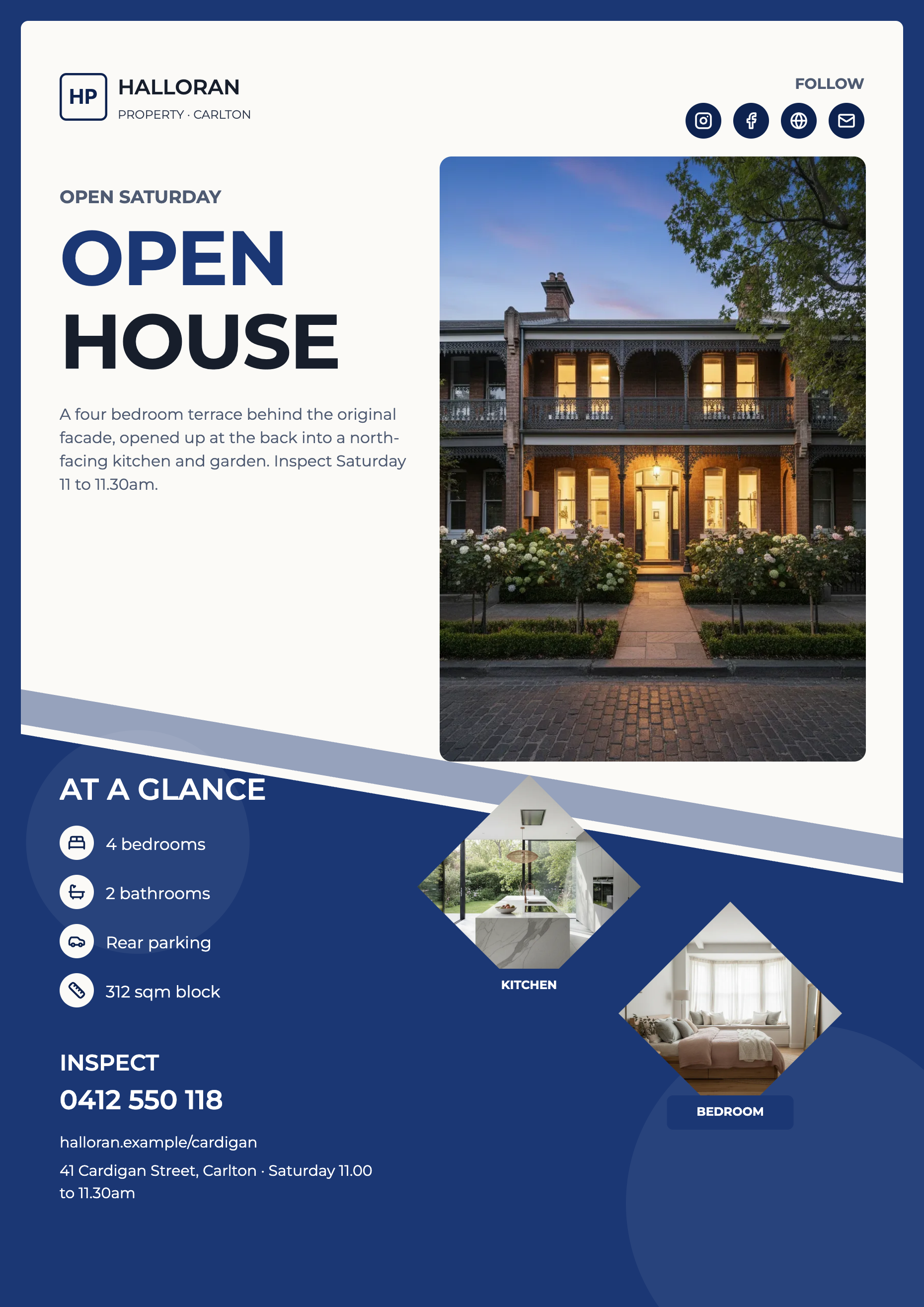
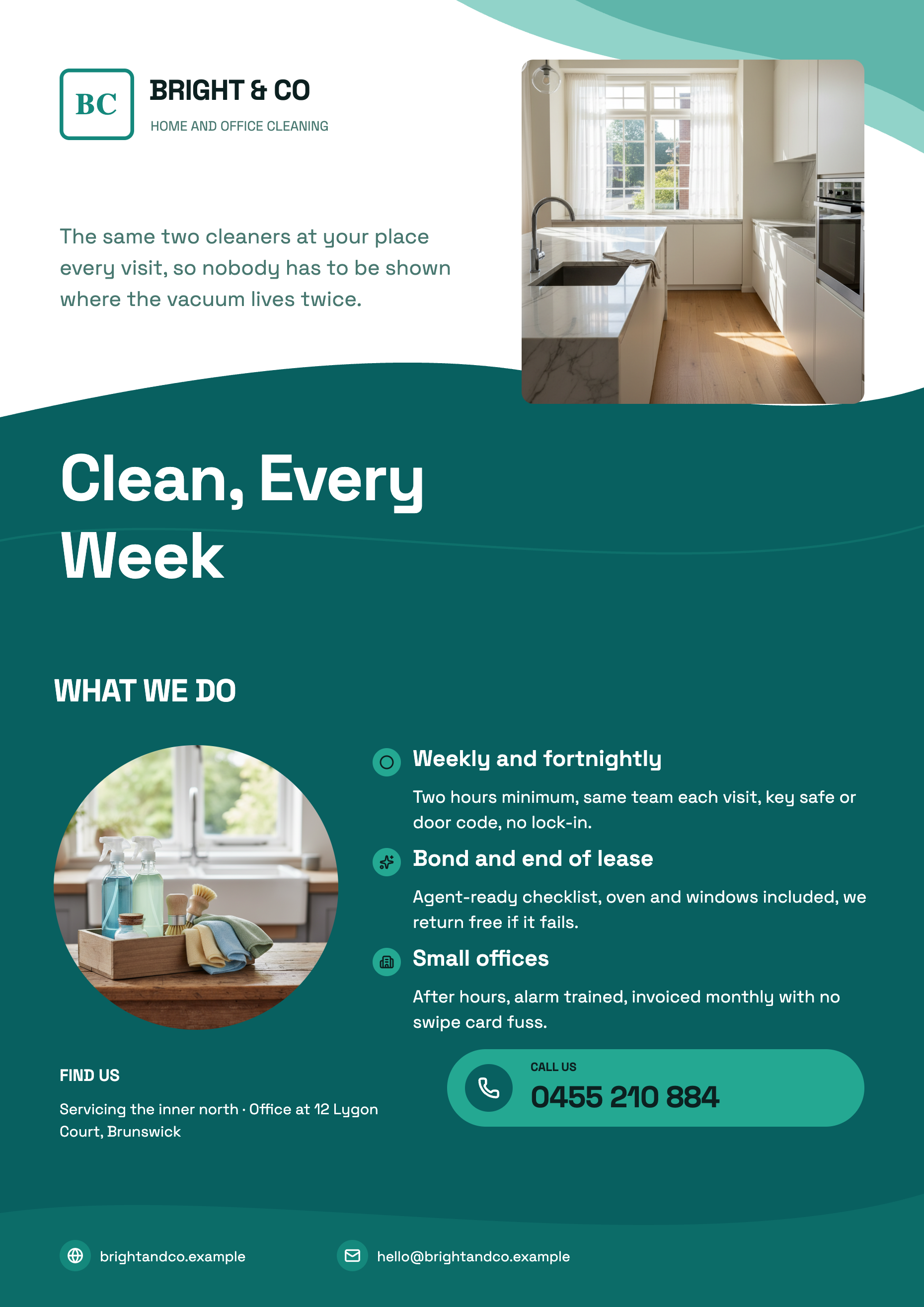
See it on a finished piece
Questions people ask
Can it write the whole brochure from one prompt?
No. Each generation returns one filled page. The practical method is to generate the cover, add the remaining pages from the library and use the chat editor to rewrite each page's text in place.
Are there matching front and back designs?
Yes, two pairs are drawn as sets. Search the template picker for the brochure and company profile designs and you will see the front and the back listed as separate cards.
How do I keep the pages consistent?
The theme does most of it, since it applies to every page. Beyond that, duplicating a page you have already styled and swapping its content beats building a similar page from scratch.
Will a print shop impose it into a booklet?
They can, but the export gives them sequential single pages rather than an imposed booklet layout, and it carries no bleed. Say so when you order.
Make your own flyer
The button opens the generator with this use case already described. Change the wording to match yours, generate, then edit anything you like.
Create a flyer with OneCraftRelated pages
Trifold brochure maker
Two designs carry trifold in their name, an inside panel and an outside panel, both drawn as A4 portrait sheets of three stacked bands. What does not exist is a folded spread with panel guides, so if you need a genuine six panel trifold you set the geometry out yourself, and it is worth knowing that before you start.
Flyer size guide
Eight canvases, two for print and six for social, each with a fixed pixel size you can see in the dropdown before you commit. This page is the reference: the numbers, where they come from, and which of them are close enough to share a design.
Flyer with a QR code
A QR code on a flyer is the shortest route from paper to a booking page. On these designs it is not a pasted picture: the code is computed from whatever you type into it and drawn as vector art that takes its colours from the theme, so it stays crisp and stays legible when the palette changes.
More finished work of this kind is on the flyer examples hub.
Written and checked by the OneCraft team. Last checked .