Presentations
Presentation version history
Versions are created when you save, not on a timer, so the history is a list of decisions rather than a stream of keystrokes. Each one carries a summary of what changed, which is what makes a long list readable instead of a wall of timestamps.
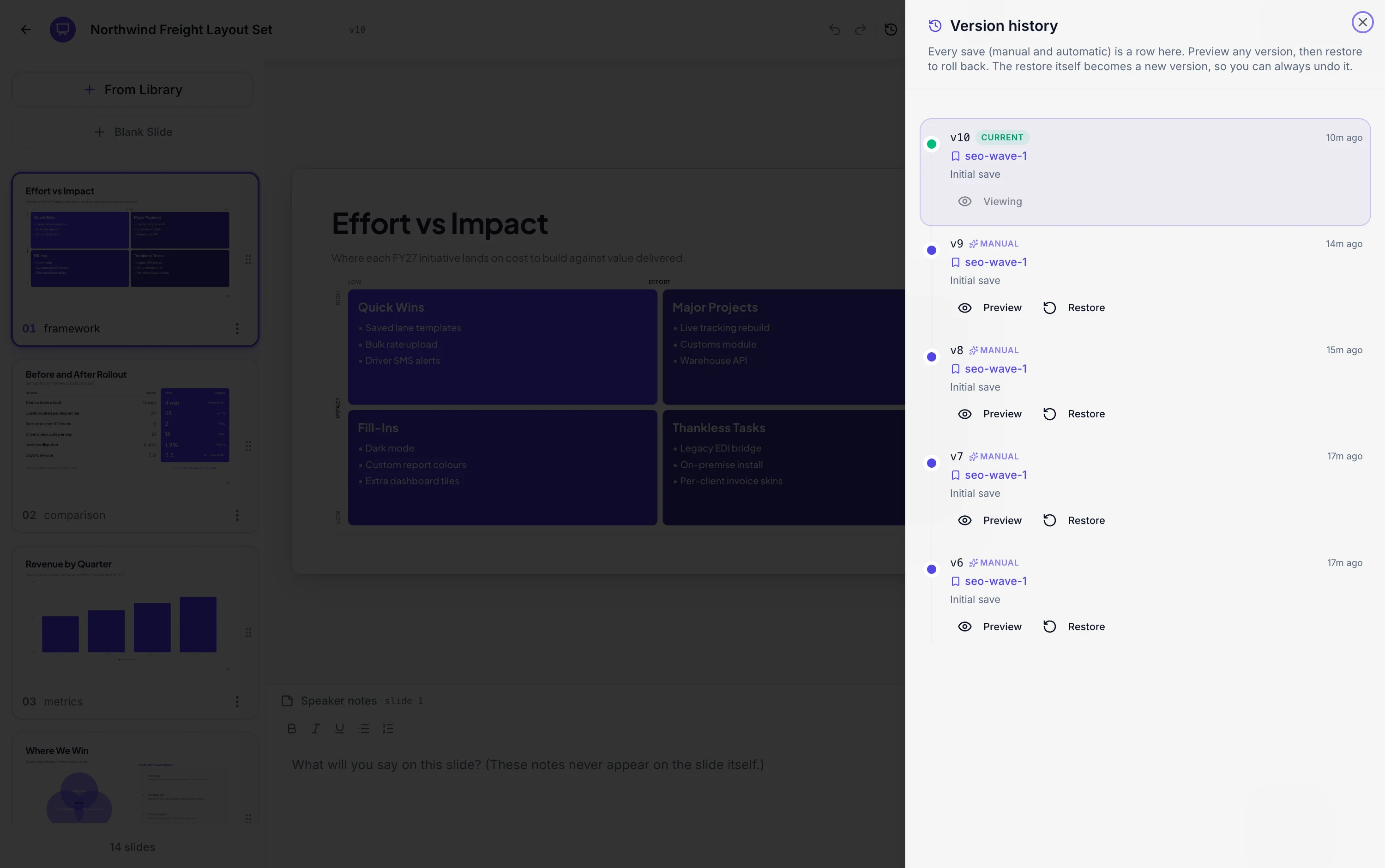
There is no autosave, and that is the point
Nothing writes a version in the background. A version appears when you press Save, and once more automatically when you apply a turn from the AI assistant, so an approved AI change and the version that embodies it land together. The consequence is that every entry in the list is a moment you decided the deck was in a state worth keeping.
The summary is computed, not typed
Each version records what changed by comparing it against the previous one: how many text edits, image and icon changes, list edits and styling changes, how many layouts were swapped, whether the theme changed, and how many slides were added or removed. The first save is labelled Initial save. You can also add your own label to any version, which is worth doing on the two or three that matter, such as the one you sent to the client.
Preview opens read only
Choosing Preview loads the deck at that version with editing switched off, so you can click through it, open the notes and satisfy yourself it is the right one before doing anything. Nothing is written and nothing is lost while you look. Leaving the preview puts you back on the current version exactly as you left it.
Restoring is itself a save
Restore does not roll back and discard. It copies that version's slides and theme into a brand new version at the top of the list, with a summary saying which version it was restored from. So the version you restored away from is still there, and restoring back to it is the same single action. There is nothing to be nervous about, which is the whole design intent.
Undo is the shorter memory
Fifty steps of undo live in the browser tab, which covers the last few minutes of work at a keystroke level. It does not survive closing the tab. Version history is the longer memory and survives everything, but only records the points where you saved. The two are complementary: undo for the last edit, history for last Tuesday.
How it works, in three steps
Step 1
Save at decision points
Nothing saves on a timer, so a version exists only when you make one. Save after finishing a section rather than after every sentence.
Step 2
Label the ones that matter
Sent to client, board version, before the rewrite. Inline rename on any version, and clearing the text removes the label.
Step 3
Preview before restoring
Preview loads it read only and writes nothing, so you can check you have the right version first.
The full walkthrough with screenshots is in the guide Undo changes and restore an earlier version.
Limits worth knowing
- The drawer loads the fifty most recent versions.
- There is no autosave. An unsaved edit is not in the history at all.
- Undo holds fifty steps and lives in the browser tab, so closing the tab loses it.
- You cannot restore a single slide from an old version. Restoring brings back the whole deck at that point.
See it on a finished piece

Questions people ask
Does it save automatically?
No, except in one case: applying a turn from the AI assistant saves as part of applying it. Otherwise a version exists only when you press Save.
Is restoring reversible?
Yes. Restore copies the old version into a new one at the top of the list, so nothing is discarded and restoring back is the same single action.
Can I bring back just one slide?
No. Restore works on the whole deck. To recover one slide, restore into a preview, note what it said, then go back and retype it.
How far back does the history go?
The drawer loads the fifty most recent versions. Since versions are created by saving rather than on a timer, fifty covers a lot of real work.
Make your own presentation
The button opens the generator with this use case already described. Change the wording to match yours, generate, then edit anything you like.
Create a presentation with OneCraftRelated pages
Undo flyer changes
Two safety nets exist on a flyer and it is worth knowing where each one stops. Undo goes back fifty steps but only while the tab is open, and the Flyer 1 and Flyer 2 switch takes you between the AI designs you were originally offered. There is no version history drawer, and this page is about working around that.
SWOT analysis slide
A SWOT is four boxes and a discipline. The boxes are easy. The discipline is keeping each entry short enough to argue about and honest enough to be worth arguing about, which is mostly a writing problem rather than a design one.
Three pillars slides
A pillars slide claims that a thing rests on a small number of supports, and it is only convincing if each support carries a sentence rather than a word. Thirty three layouts hold that shape, from three full colour panels to bento grids, temple diagrams and a seven item numbered row.
More finished work of this kind is on the presentation examples hub.
Written and checked by the OneCraft team. Last checked .