Presentations
SWOT analysis slide
A SWOT is four boxes and a discipline. The boxes are easy. The discipline is keeping each entry short enough to argue about and honest enough to be worth arguing about, which is mostly a writing problem rather than a design one.
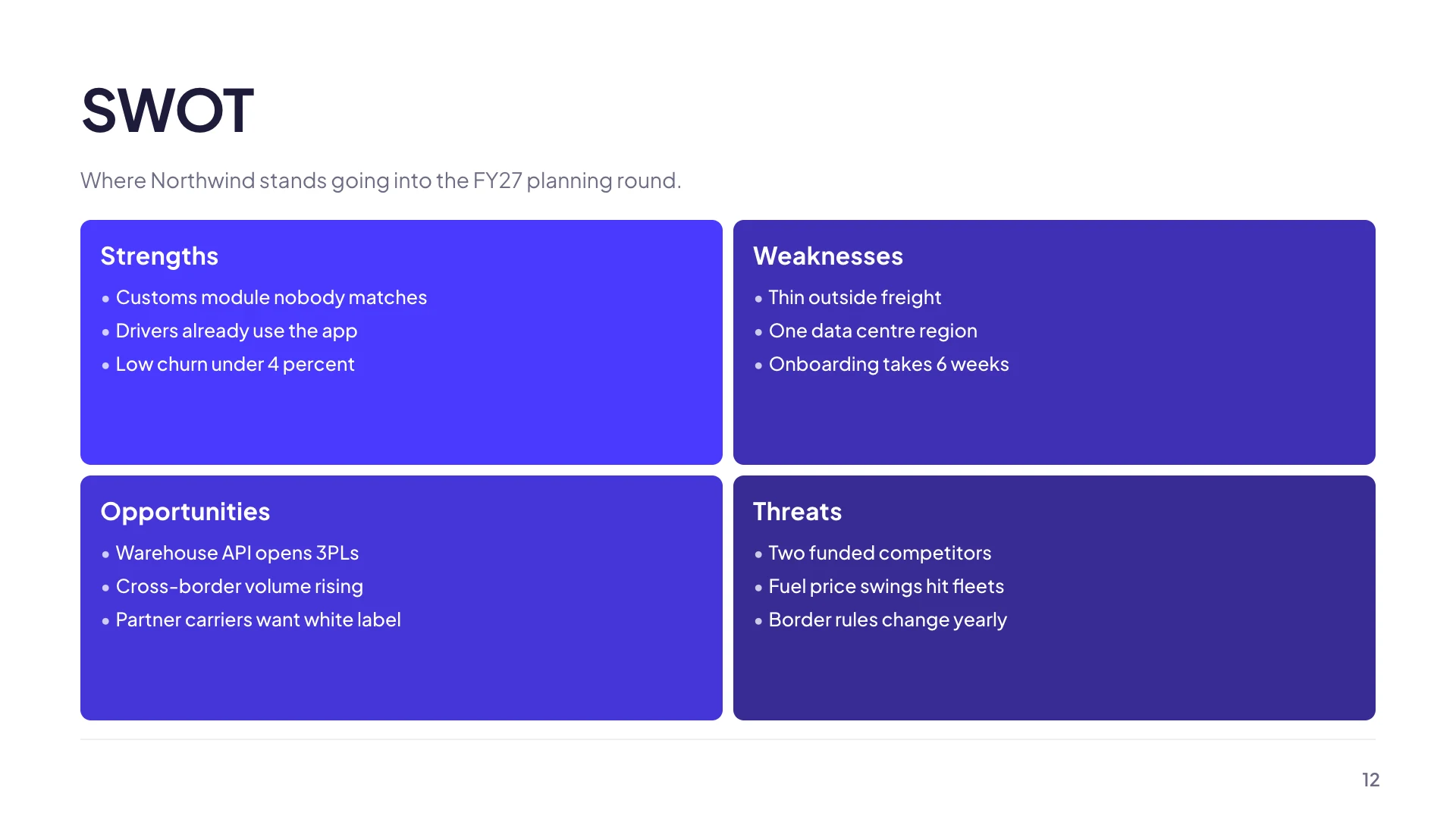
Two routes to one
The layout library carries a design called Grouping: SWOT Analysis, filed under framework and cross listed under comparison, which arrives as a proper four cell matrix. There is also a pillars design that draws four coloured quadrants from an ordinary list. Or you take any slide you already have and drop the SWOT tile from the element library's Matrices section onto it, which is the fastest route when the slide already carries a title you like.
The four labels are set, and overridable
A matrix in SWOT mode renders Strengths, Weaknesses, Opportunities and Threats as its quadrant headings without you typing them. Each heading is still editable on the canvas, which matters if your organisation uses a local variant such as Risks instead of Threats, or if the deck is in another language and you want the headings to match the body copy.
Everything is edited on the slide
Click a quadrant heading and type. Click an entry inside it and type. Clearing an entry's text deletes it, which is the whole delete mechanism, so there is no separate remove button to hunt for. The inspector panel deliberately holds only the render kind and a shadow toggle, because a four cell grid is faster to edit in place than through a form.
It is the same object as a 2x2 and a 3x3
SWOT is one of three modes on the same matrix component, alongside a generic 2x2 quadrant grid and a nine cell 3x3. The inspector will switch a SWOT to a plain 2x2 and back at any time, and the cell contents carry across, so a SWOT that turns out to be an impact and effort question can become one without being rebuilt. A 3x3 is the exception: it stays a 3x3.
Keep it to four entries a quadrant
The component does not stop you adding more, and the text will shrink to fit, which is exactly how a SWOT ends up unreadable from the fourth row of a room. Four short entries per quadrant is the practical ceiling on a projected slide. If you have fifteen strengths, the honest move is a second slide, not a smaller font.
How it works, in three steps
Step 1
Add the matrix
Either add a SWOT layout from the library, or drop the SWOT tile from the element library onto an existing slide.
Step 2
Write the entries in place
Click into a quadrant and type. Short noun phrases, not sentences. Clear an entry's text to remove it.
Step 3
Read it as an outsider
A SWOT with four flattering strengths and one vague threat convinces nobody. The weaknesses quadrant is what gives the other three credibility.
The full walkthrough with screenshots is in the guide Add charts, maps and diagrams to slides.
Limits worth knowing
- A SWOT matrix is exactly four cells. It cannot be extended to five or six.
- Entries are plain text lines. There is no scoring, weighting, or ranking.
- Nothing caps how many entries you add, so readability is your responsibility.
- In an editable PowerPoint export the quadrant artwork stays a picture, although the labels and entries become real text boxes.
See it on a finished piece


Slide examples
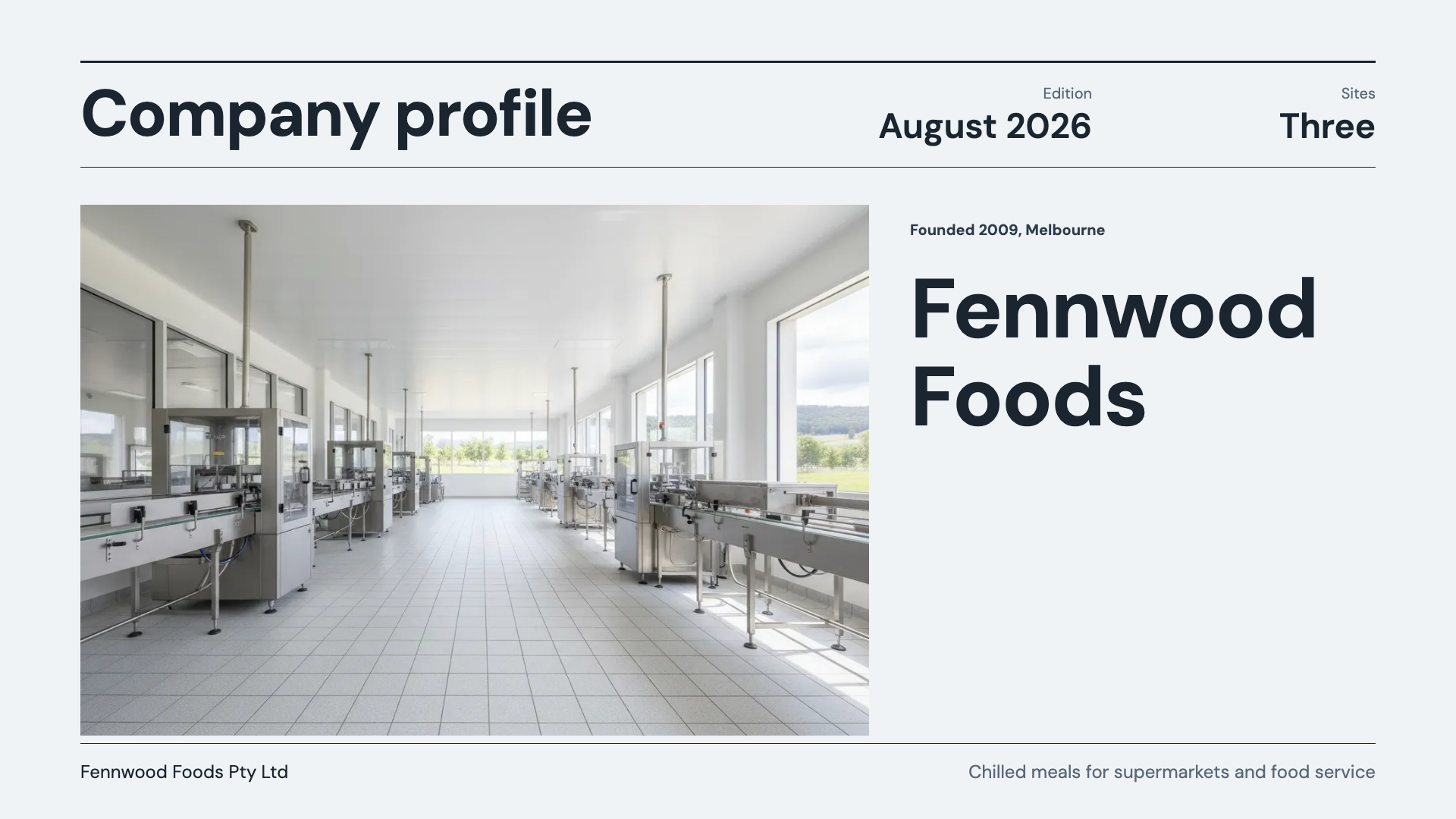
Finished single slides on this layout, each one built from a real template and written out in full.
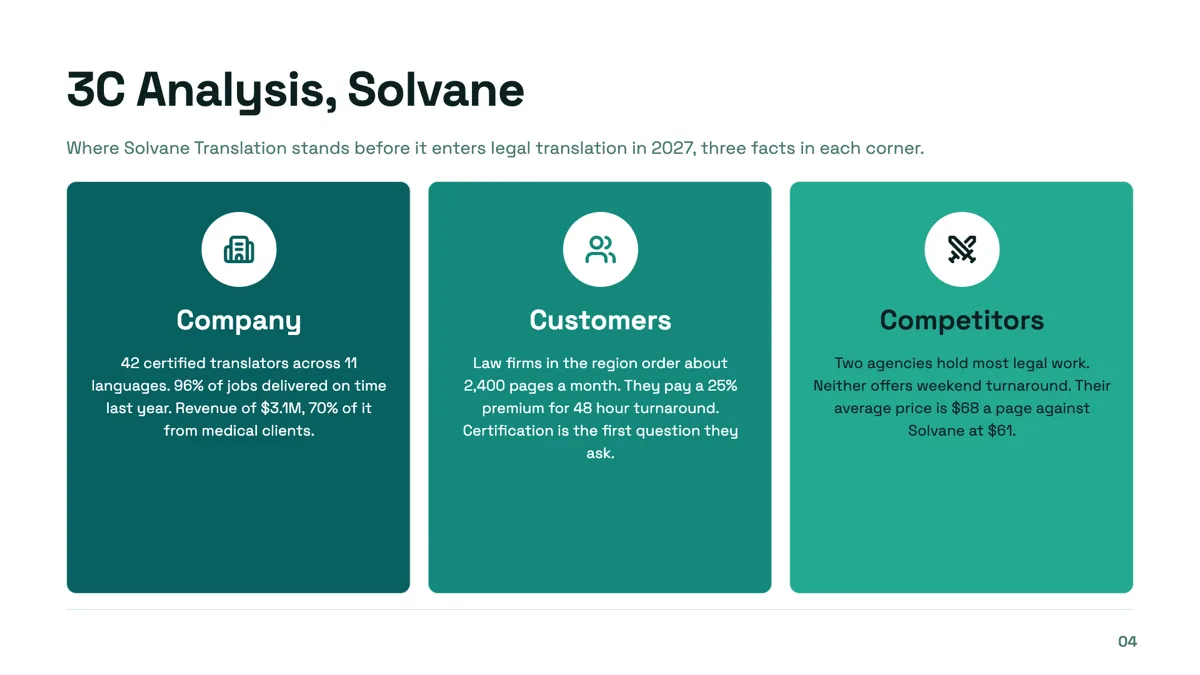
3C analysis slide with three facts in every corner

4P marketing mix slide with a number on every P
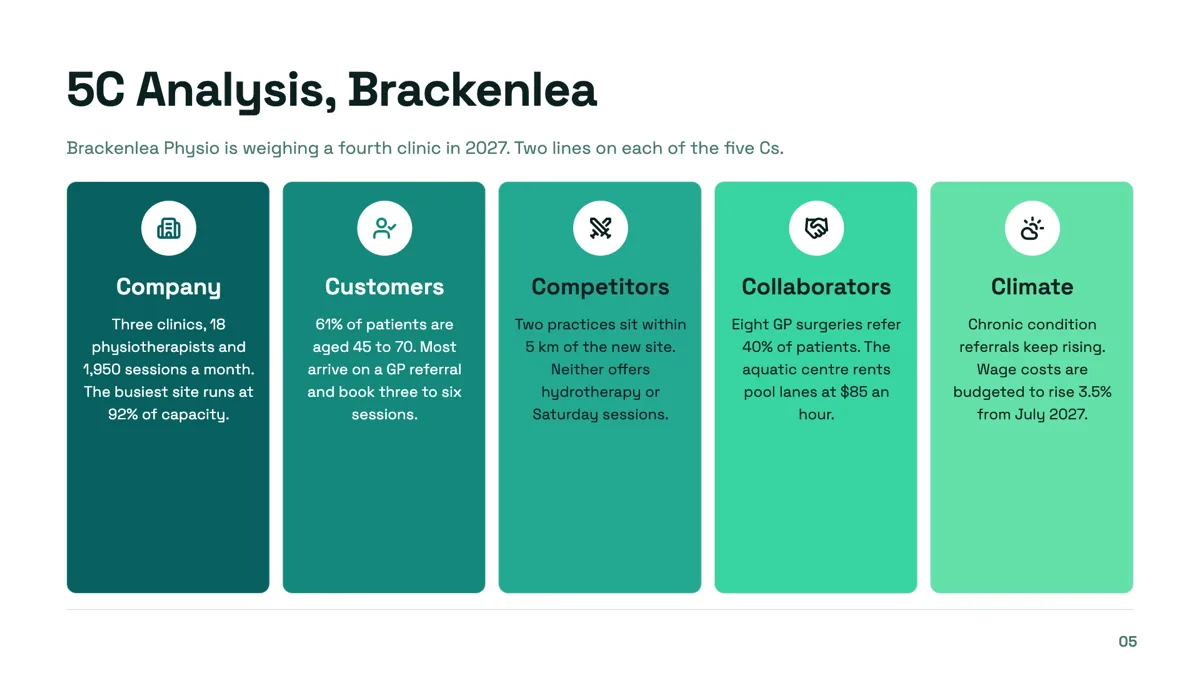
5C analysis slide for a fourth clinic decision
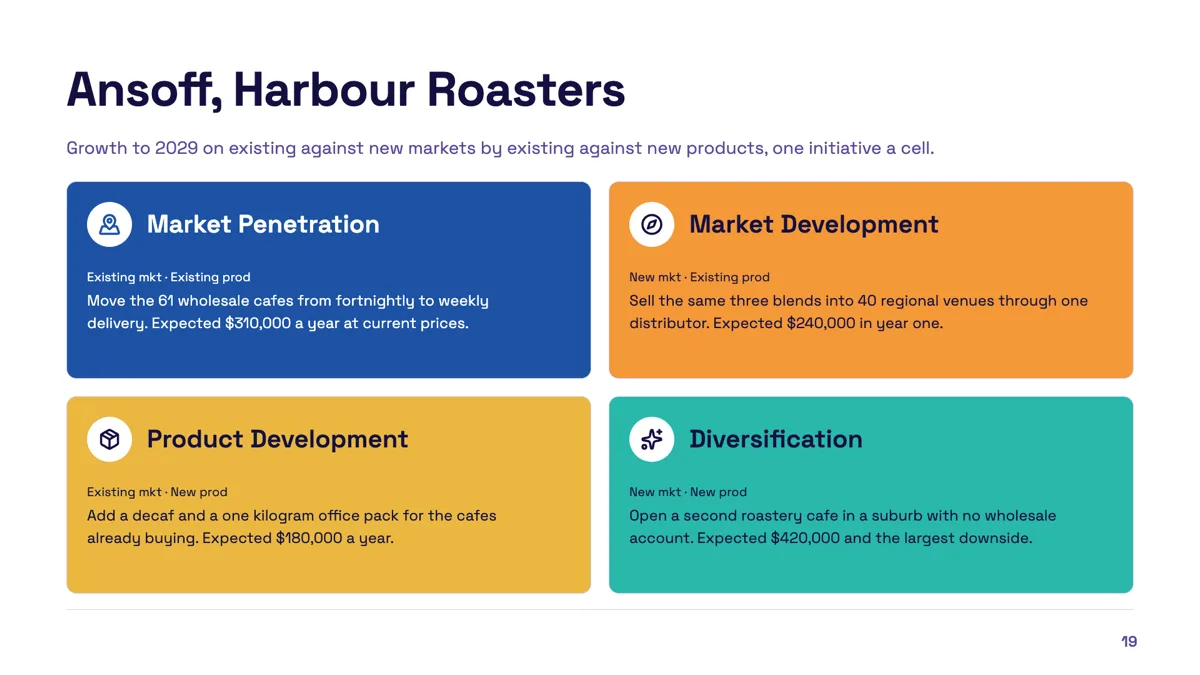
Ansoff matrix slide with one initiative in every quadrant

Balanced scorecard perspectives slide with a measure and target in each
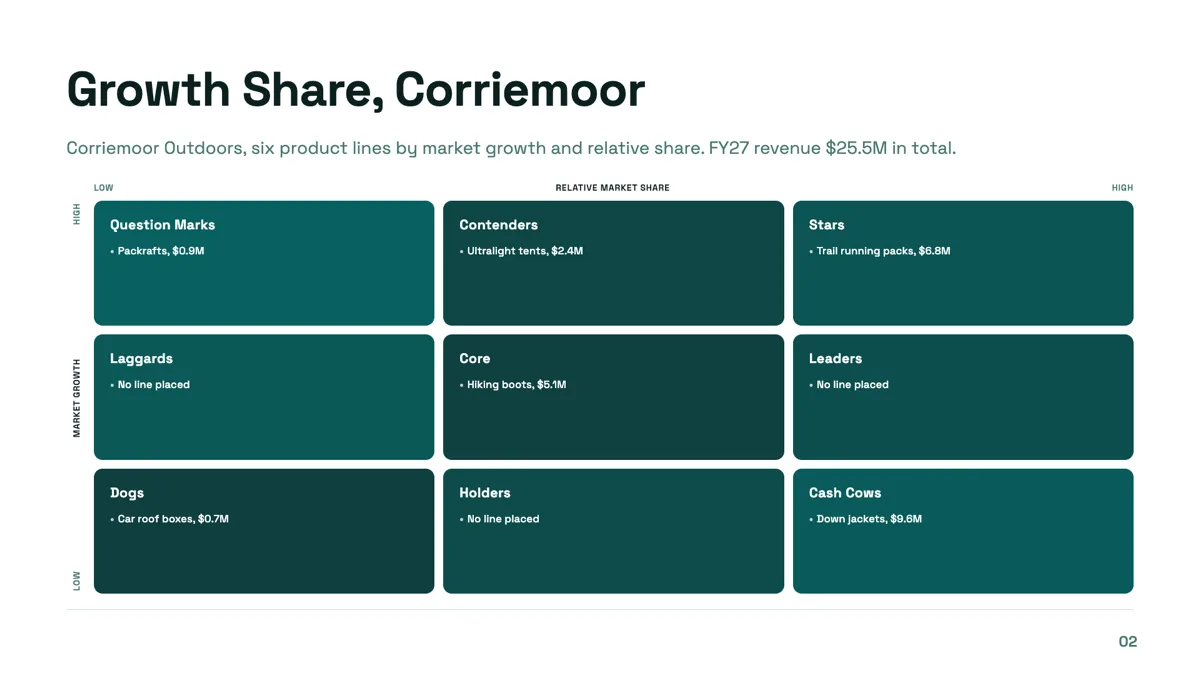
BCG matrix slide with six product lines on a three by three grid
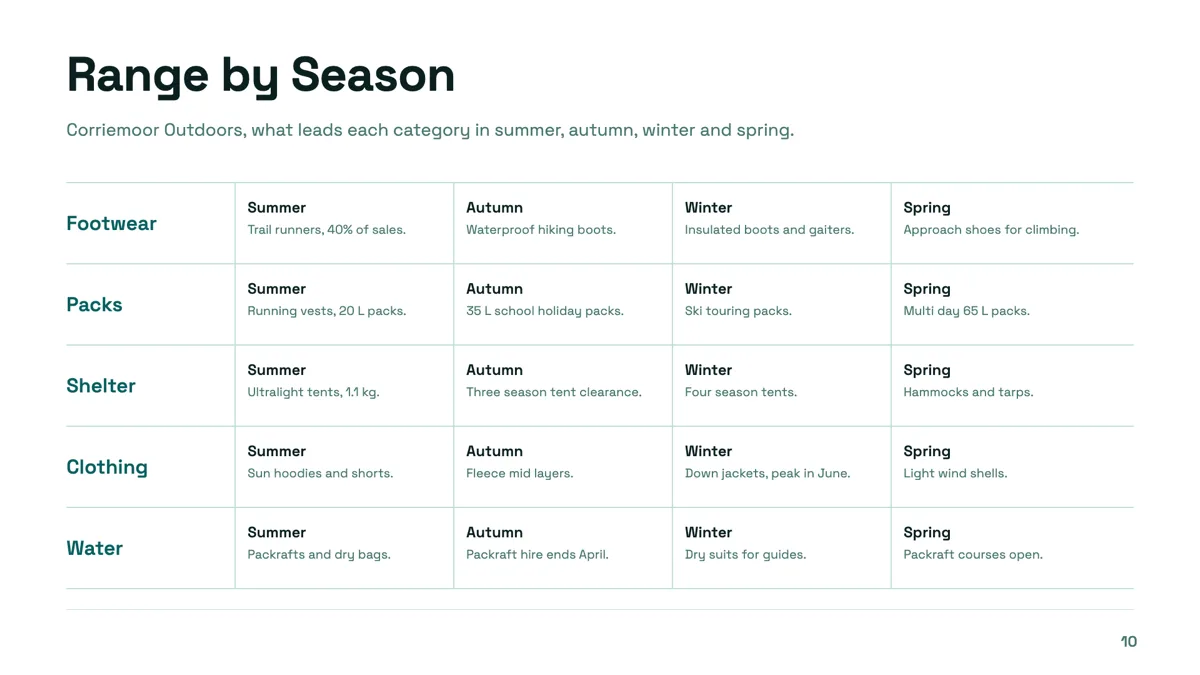
Category matrix slide with five categories across four seasons
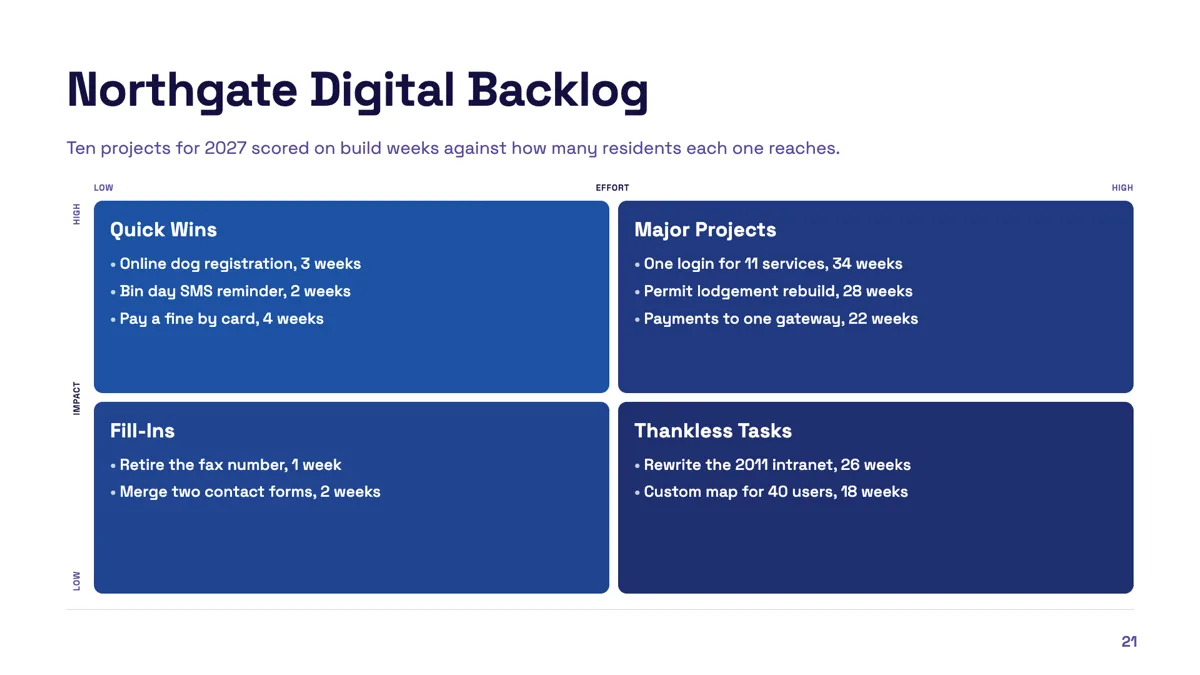
Effort impact matrix slide with ten projects placed
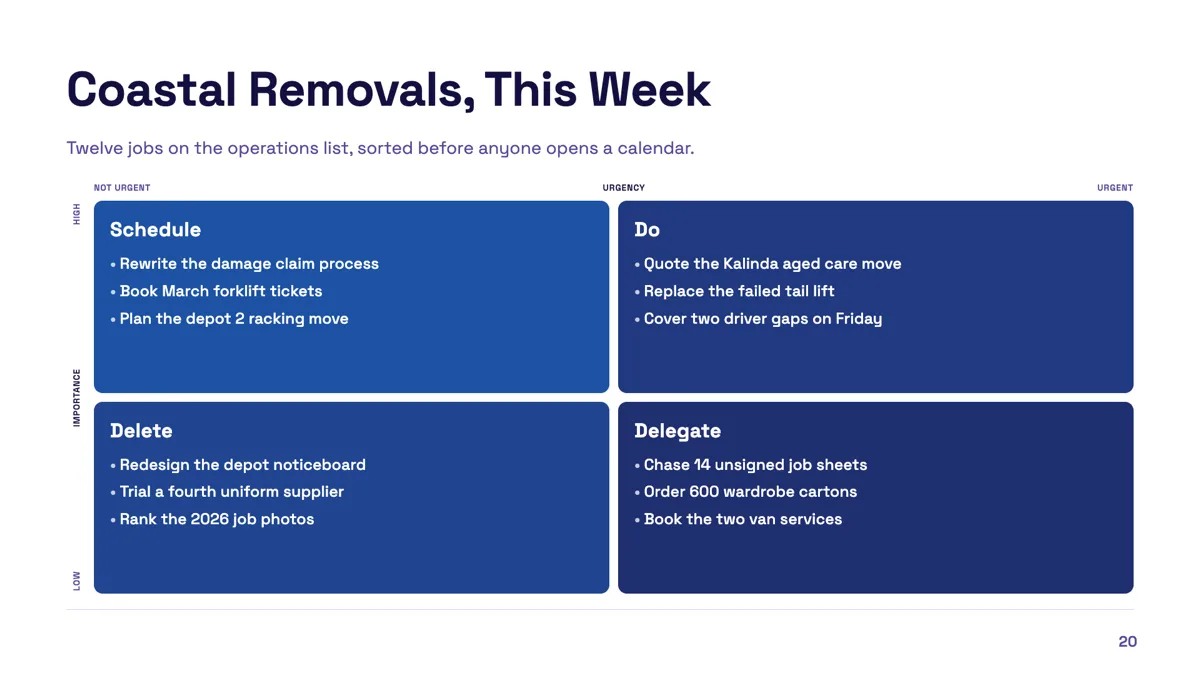
Eisenhower matrix slide with twelve tasks sorted
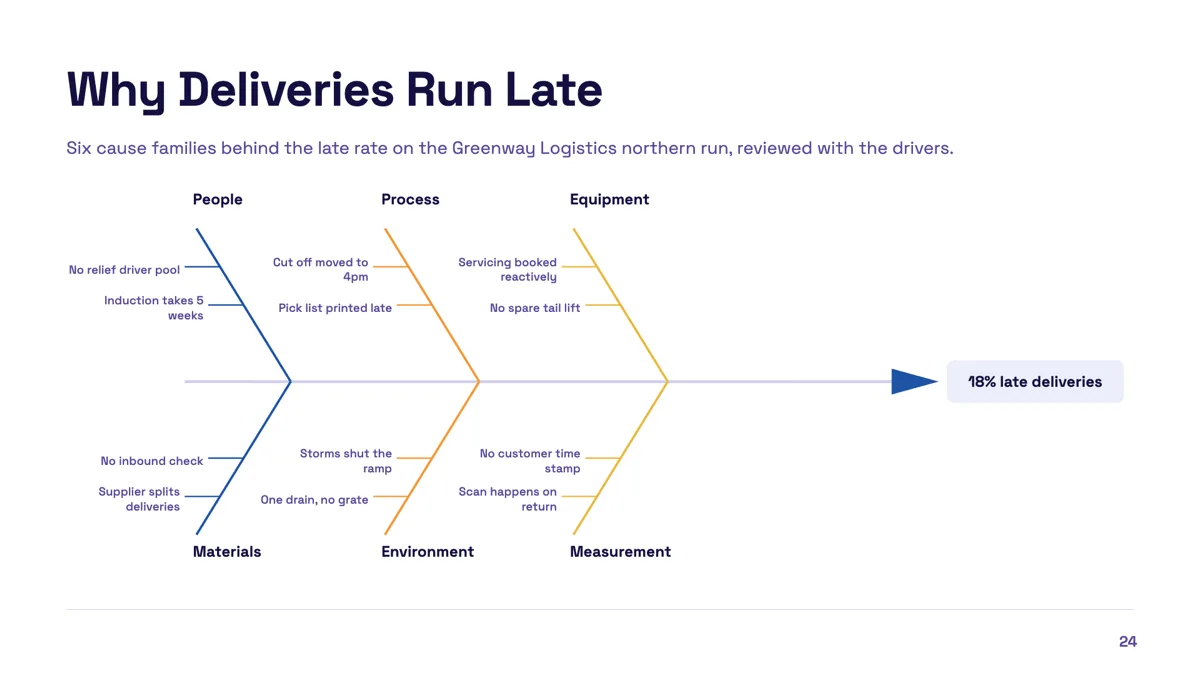
Fishbone diagram slide with six cause families
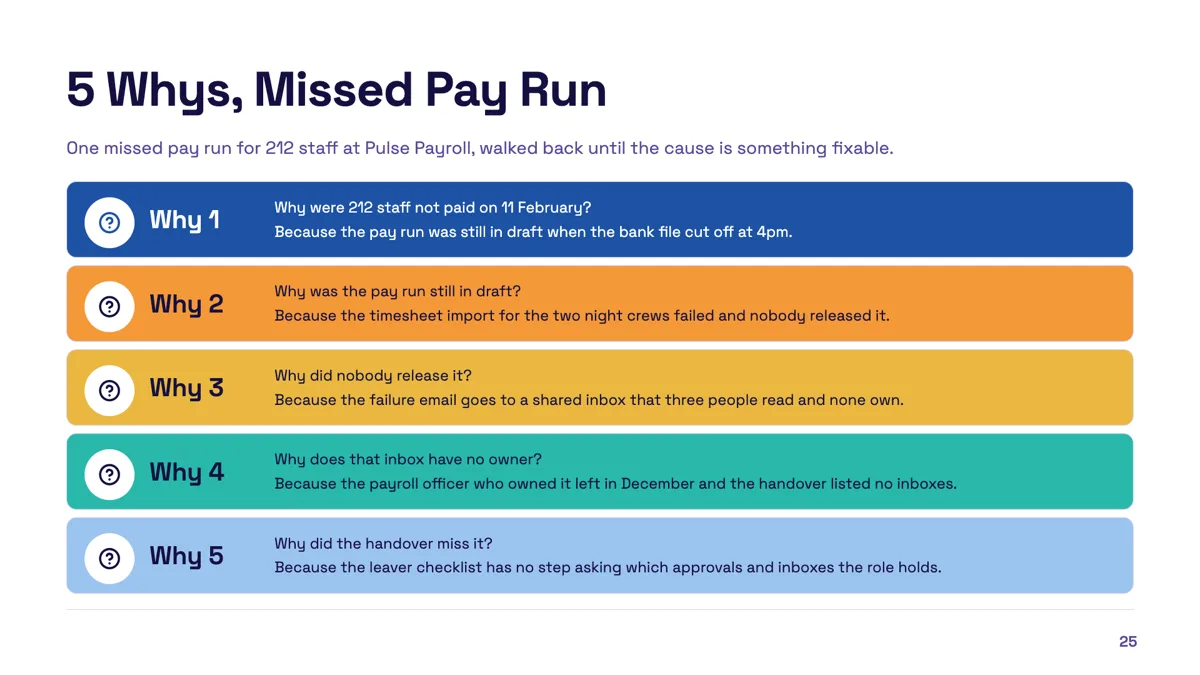
Five whys slide that ends at a fixable cause
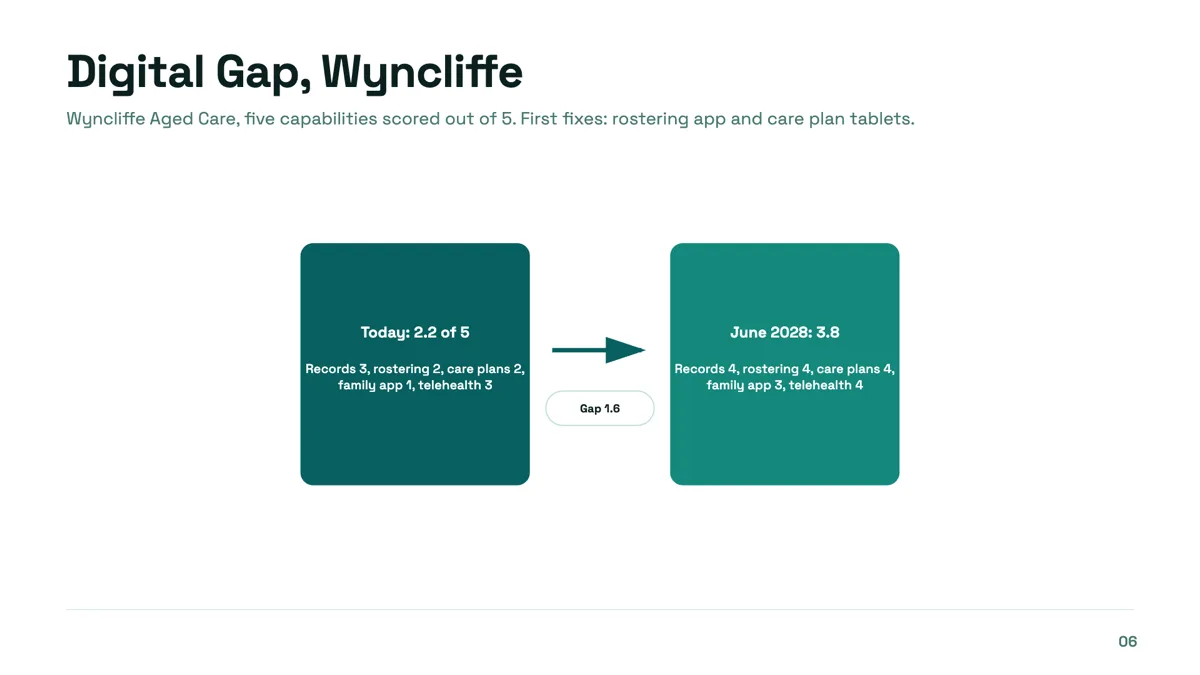
Gap analysis slide from current score to target
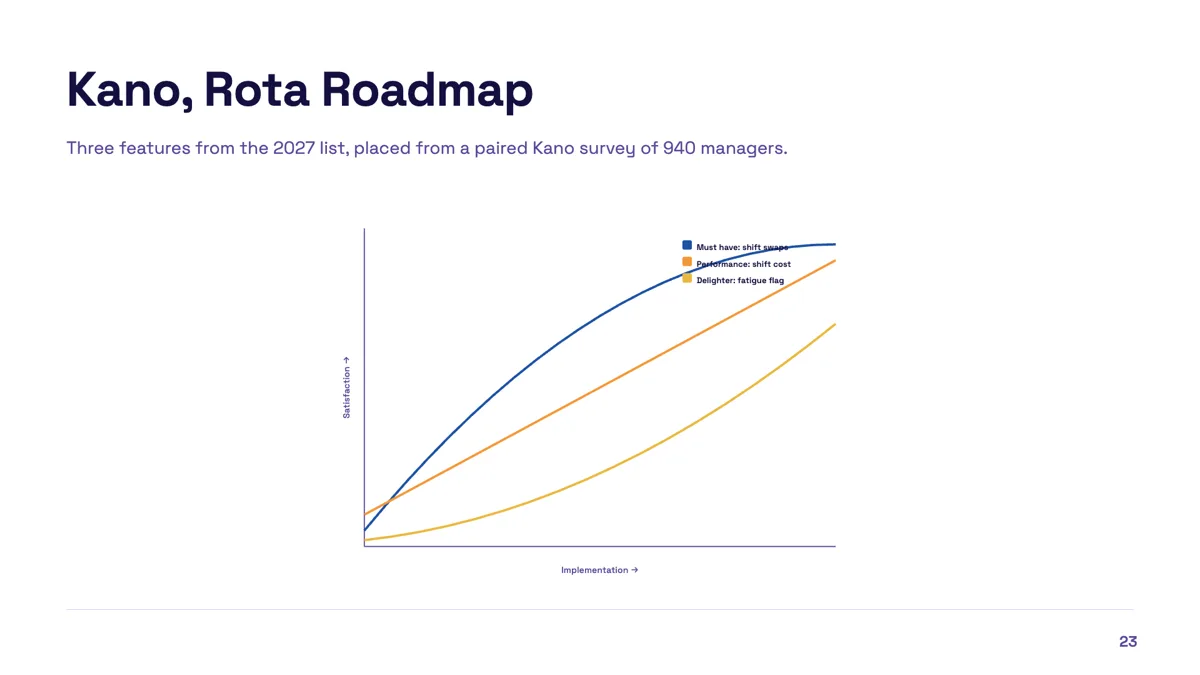
Kano model slide with three features classified
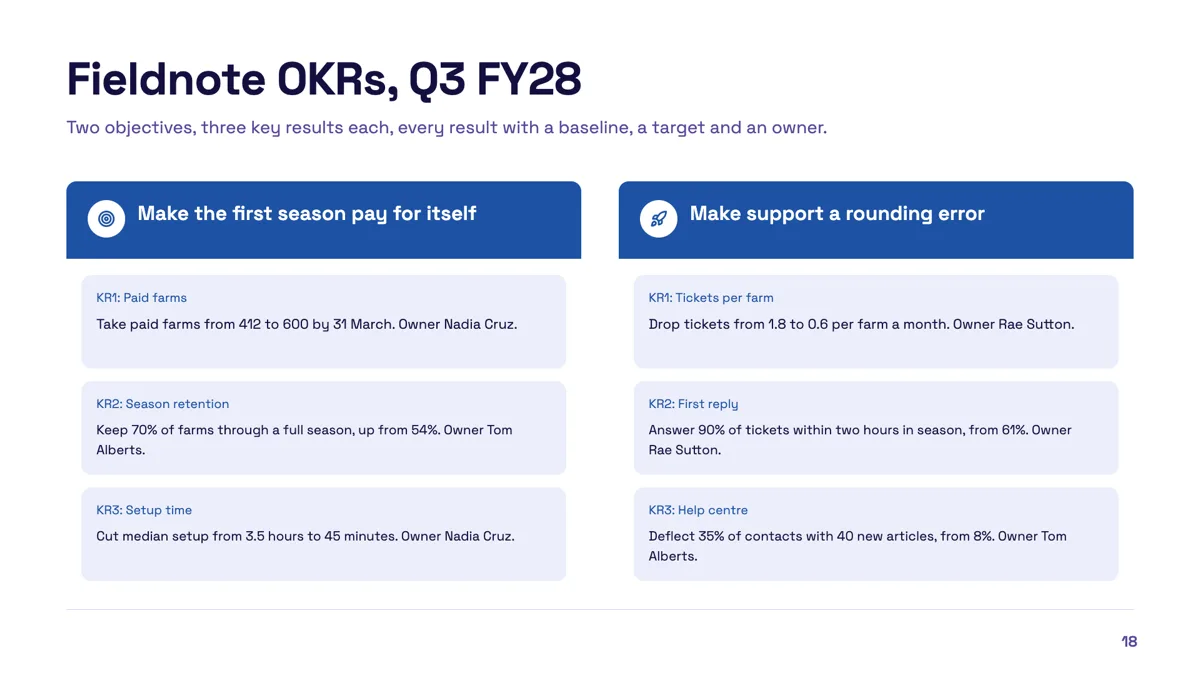
OKR slide example with two objectives and measurable results
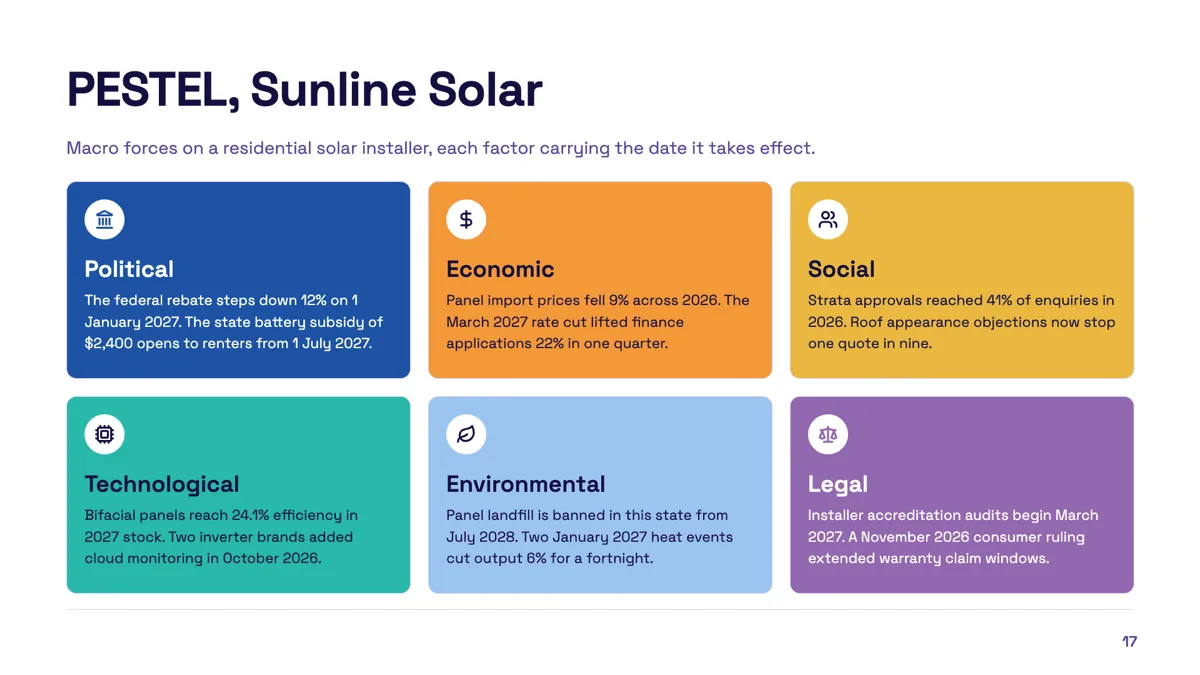
PESTEL slide example with a date on every factor
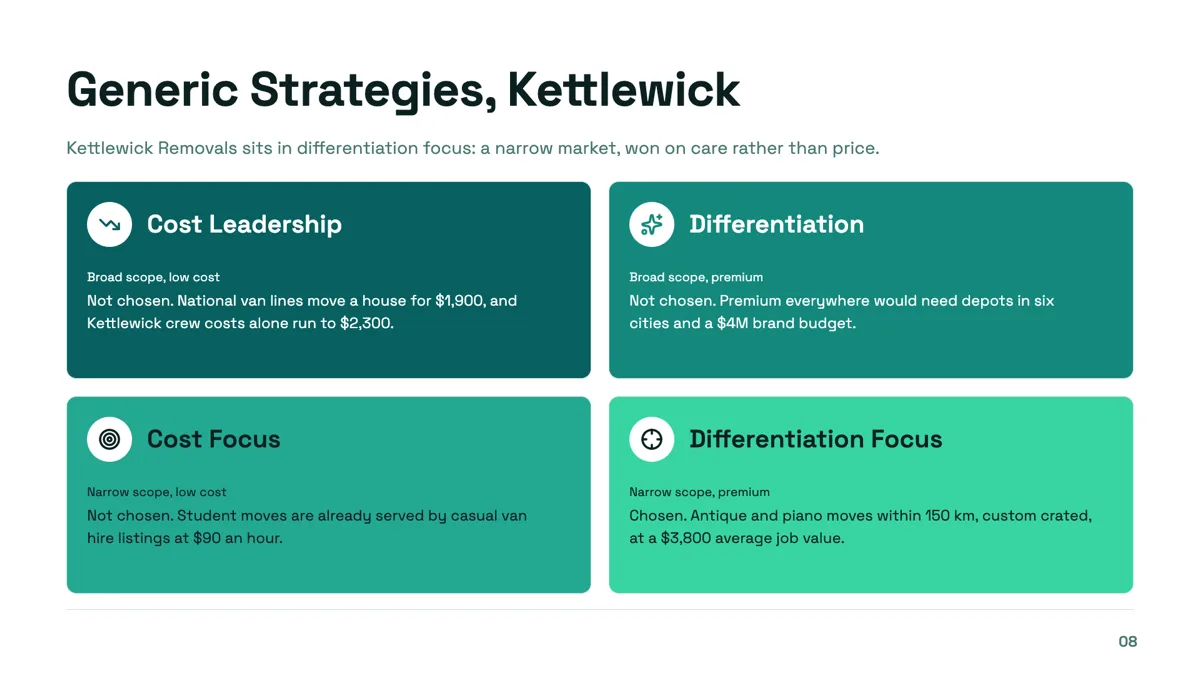
Porter generic strategies slide with one cell chosen and three ruled out
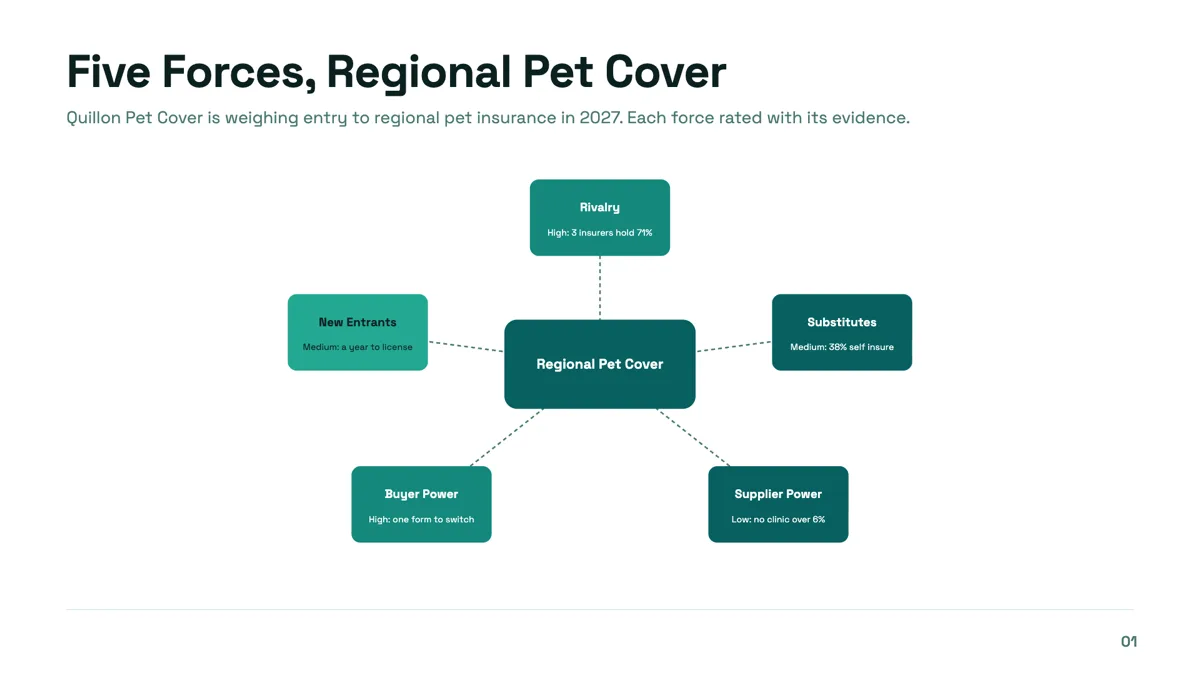
Porter's five forces slide with a rating and a reason on every force
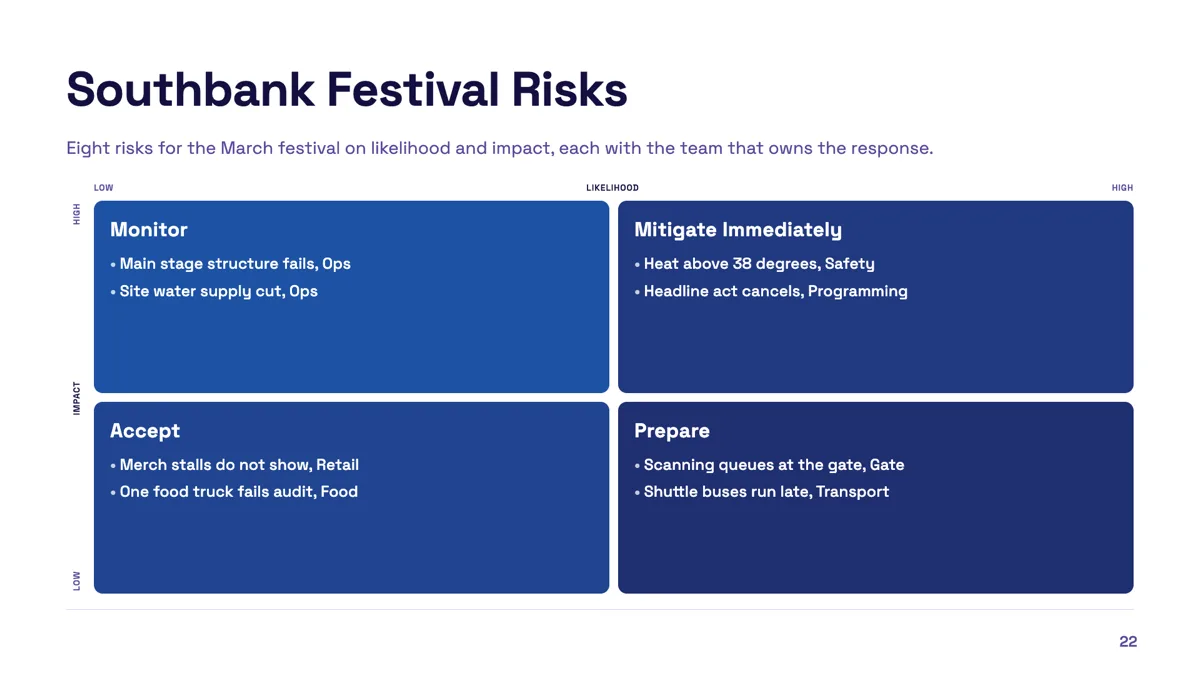
Risk matrix slide with eight risks and an owner on each
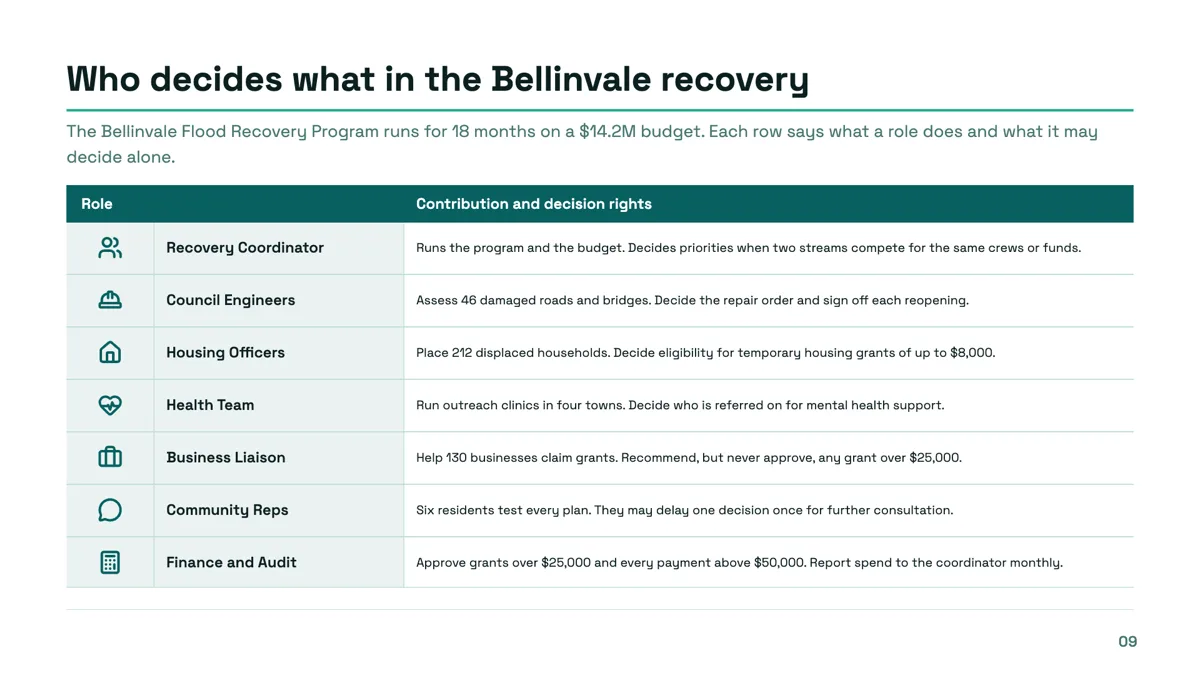
Roles and responsibilities slide with decision rights in every row
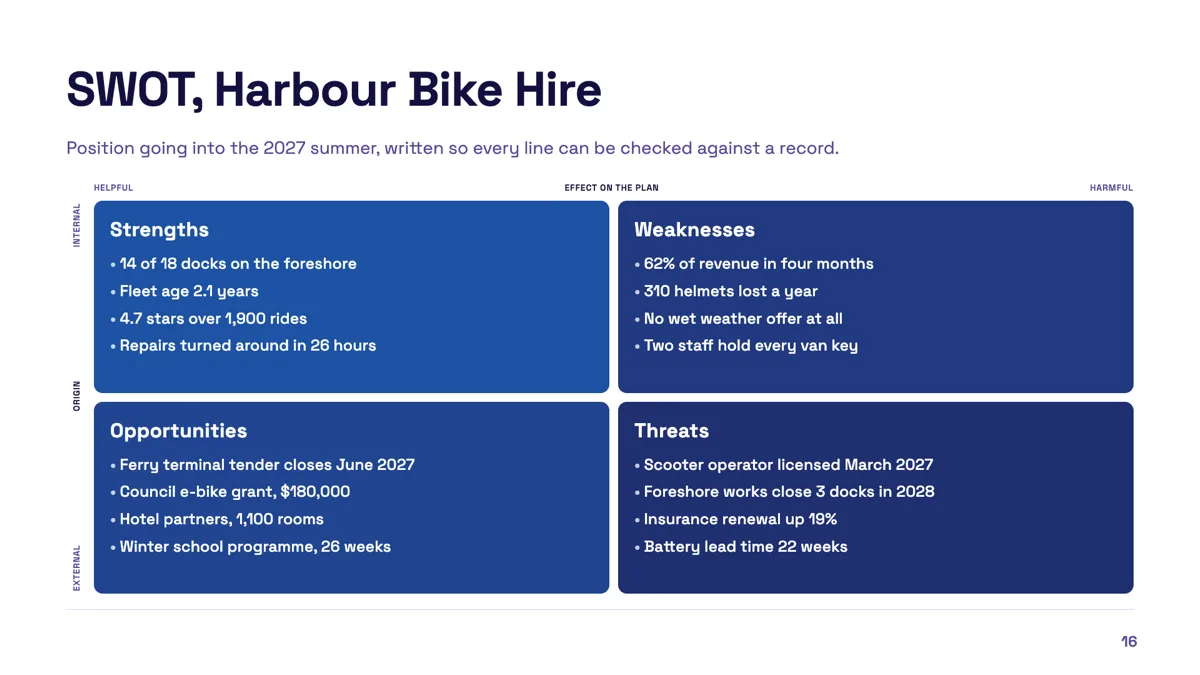
SWOT slide example filled with checkable points
Questions people ask
Can I rename the four quadrants?
Yes. The Strengths, Weaknesses, Opportunities and Threats headings are rendered by default and each is editable on the canvas, so a local variant or another language is a matter of typing over them.
How do I delete an entry?
Clear its text. An empty entry drops out of the list, which is the whole mechanism, so there is no separate delete control.
Can I turn my SWOT into a 2x2 priority grid?
Yes. SWOT and a generic 2x2 are two modes of the same component and the inspector switches between them freely, keeping the cell contents. The nine cell 3x3 is the one mode that cannot be switched.
Will the colours match my deck?
Yes. Quadrant fills and text come from theme tokens, so a theme swap recolours the SWOT along with everything else.
Make your own presentation
The button opens the generator with this use case already described. Change the wording to match yours, generate, then edit anything you like.
Create a presentation with OneCraftRelated pages
Framework slides
A framework slide borrows a structure the audience already knows, so the argument arrives half understood. Twenty three layouts carry named models, from SWOT and PESTEL to Porter's five forces, Ansoff, the Kano model and a fishbone, each with the cell labels already in place.
2x2 matrix slides
A 2x2 is only useful when both axes are things that can genuinely be high or low, and when putting an item in a quadrant is a claim somebody could dispute. Get the axes right and the grid does the arguing for you. Get them vague and it is decoration.
Diagram slides
A diagram here is a list of labelled items and a decision about how to arrange them. Twelve arrangements are available and they all read the same list, so a funnel becomes a pyramid without you retyping anything.
More finished work of this kind is on the presentation examples hub.
Written and checked by the OneCraft team. Last checked .