Forms
Edit a form with AI
The chat panel is a text editor you talk to. Ask it to soften a label, shorten the help text or rewrite every question in plainer English and it does that across the form. What it will not do is just as important as what it will.
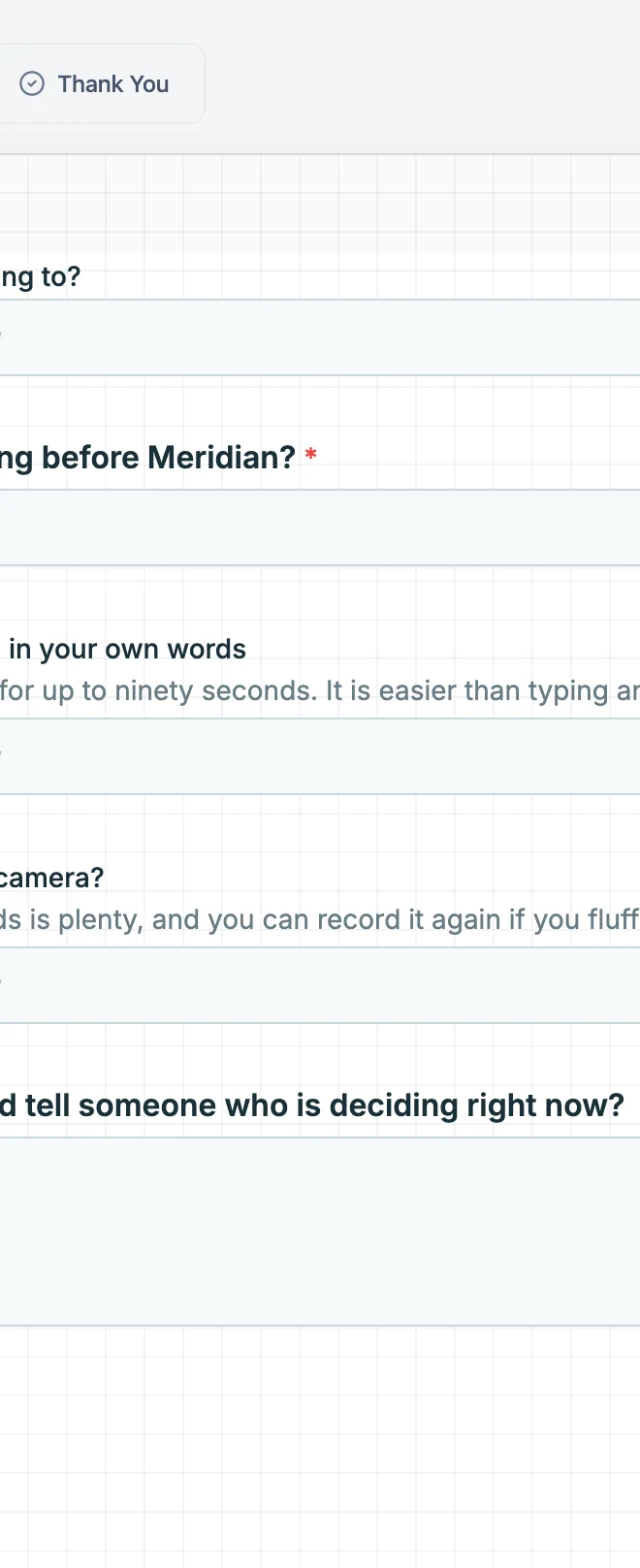
What it can do
Text. Every label, sublabel, description, placeholder and option list, plus the form title. That covers the things you most often want changed in bulk: making the tone warmer, cutting the length of every help text, rewriting the whole form at a reading age a wider audience can manage, or fixing a term that changed across twenty fields.
What it cannot do
It does not add or delete fields, reorder anything, change a field type, swap the theme, alter access control or publish. Those are all one or two clicks in the builder, and keeping them out of chat is what makes the chat safe to use quickly: a request can only ever change words.
It edits the draft
Chat changes land on the draft, exactly like manual edits. The live link keeps serving the last published version until you publish again, which means you can rewrite a live form in the middle of the day without anyone seeing a half-finished version.
One thing to watch
Undo groups edits that happen close together, so a chat turn applied right after a manual edit can be undone as one step. If you have just moved something by hand and then asked for a rewrite, check what came back before you carry on.
Two operations, text only
The chat has two: rewrite a component and set the form title. Nothing else exists, and a request that would change a non-text property is rejected on the server rather than half applied, so you never end up with a form that changed in a way you did not read. That narrow surface is what makes a chat edit safe to accept: you know only wording moved.
It edits the draft, not the live link
Every chat edit lands in the draft. The published link keeps serving the last version you published until you publish again, so you can rewrite twenty labels over an afternoon while people are still filling in the old form. Publish when you are happy, and the same link starts serving the new wording without changing.
Why the server rejects some requests
The check is not in the browser. A request that would change something other than text is refused where the edit is applied, so a clever prompt cannot talk its way into moving a field. You see nothing happen rather than a partial change, which is the behaviour you want from a tool you are trusting with a live form.
How it works, in three steps
Step 1
Ask for a text change
Name the scope: this field, this section, or the whole form. Whole form requests are where it saves the most time.
Step 2
Read what changed
Text edits apply straight away. Skim the fields you cared about before moving on.
Step 3
Publish when you are happy
Chat edits the draft. The live link does not change until you publish.
The full walkthrough with screenshots is in the guide Create a form from scratch with AI.
Limits worth knowing
- Text only. It cannot add, delete, reorder or retype a field.
- It cannot change the theme, the access type or the add-ons.
- It cannot publish.
- Undo can merge a chat turn with an adjacent manual edit, so one undo may revert both.
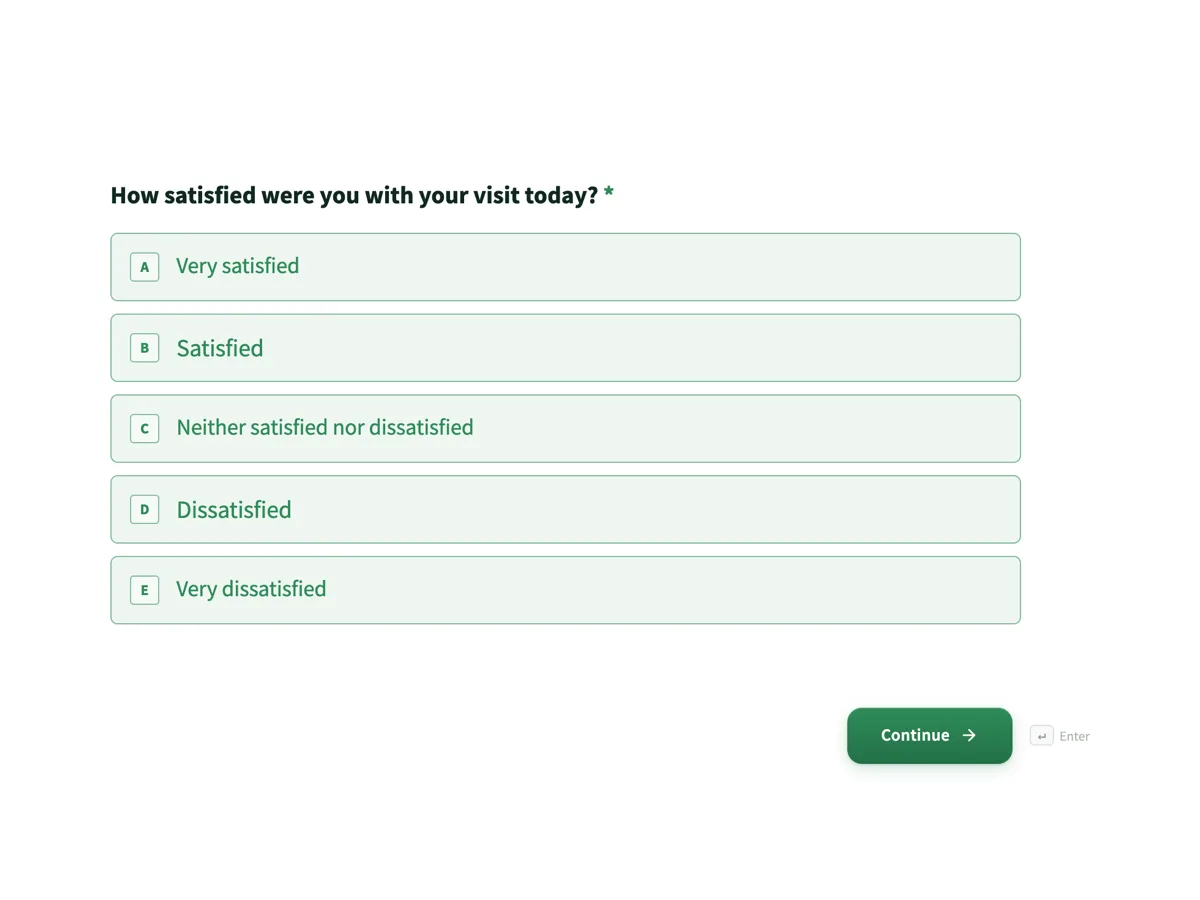
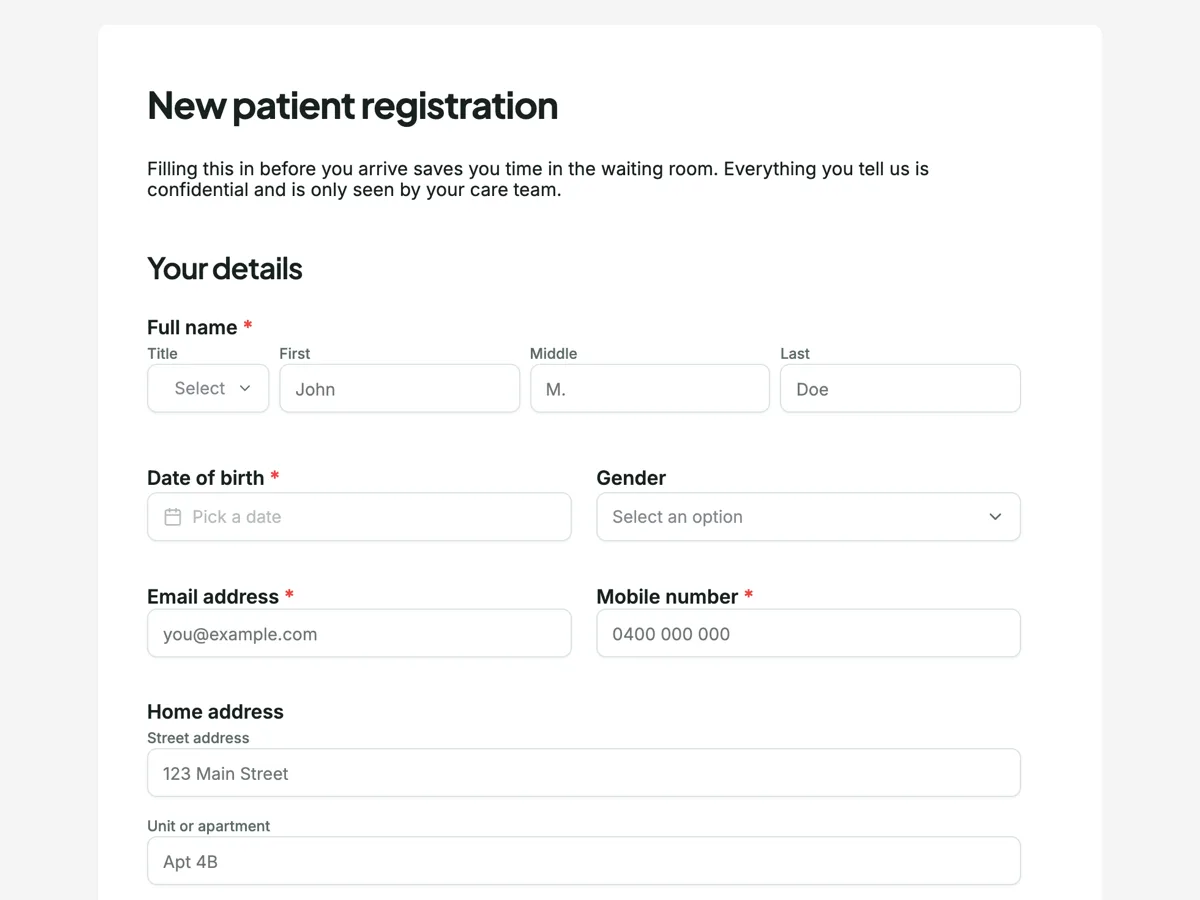
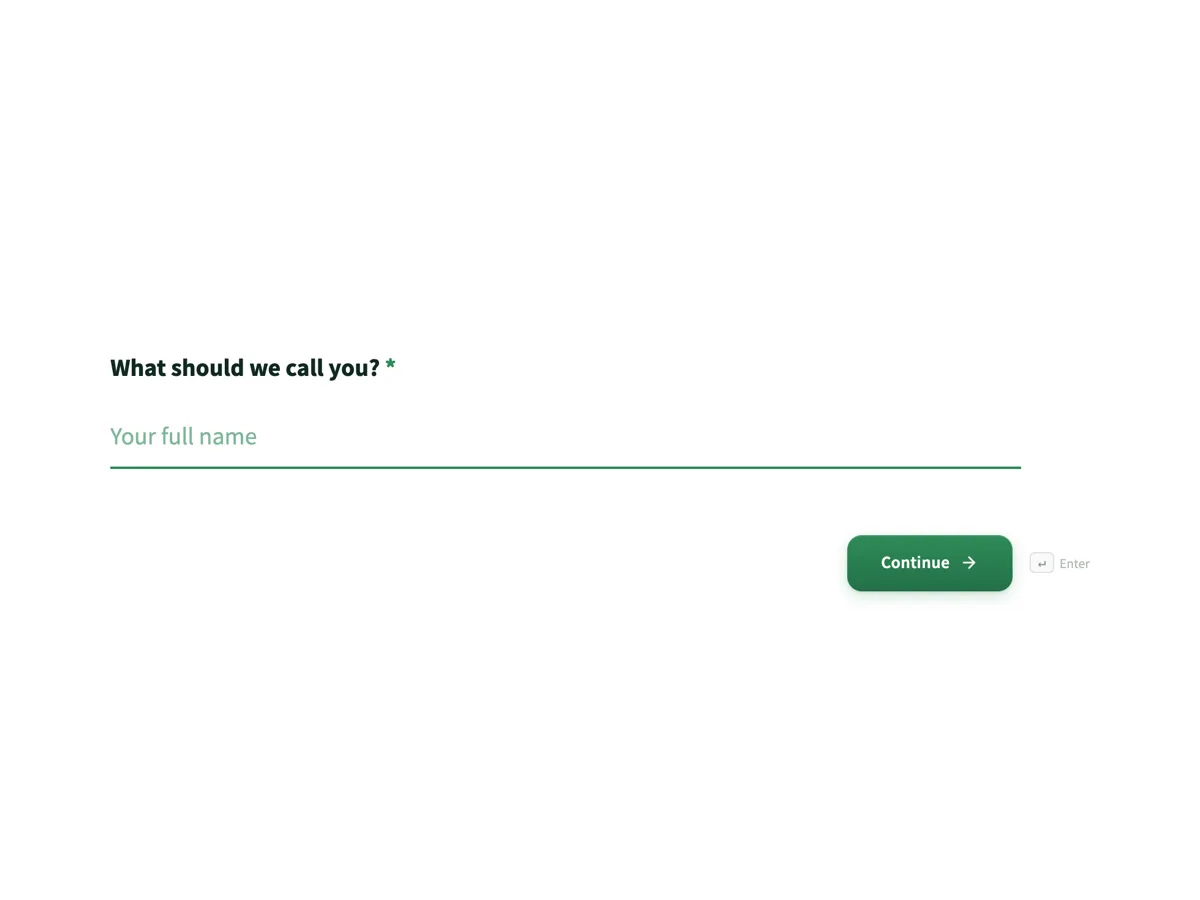
See it on a finished piece
Questions people ask
Can I ask it to add a field?
No. The chat edits text and nothing else, so adding a field is one drag in the builder. Keeping structure out of the chat is what makes a chat edit safe to accept without re-reading the whole form: only the words changed, and every field is exactly where you left it.
Does a chat edit go live straight away?
No. It edits the draft, and the live link keeps serving the last published version until you publish. That means you can work through a form at your own pace while responses are still arriving against the old one, then publish once when the whole rewrite is done.
What is it best at?
Bulk text changes. Rewriting every help text shorter, shifting the tone of a whole form, or replacing a term that turns up in fifteen labels. Those are the jobs where clicking each field in turn is slow and describing the change once is fast, and where a mistake is visible immediately.
Can it reorder or delete fields?
No. Order and structure are builder work, and the chat has no operation that reaches them. That is deliberate: reordering a form after responses have come in changes what the columns in your export mean, and it should be a decision you make deliberately rather than a side effect of a sentence.
Can it translate the form?
It can rewrite a label into another language, one component at a time, because that is a text edit. It is not the right tool for a whole form. Generating the form again with the language picker set gives you every label, option, help text, button and thank you screen in that language in one pass.
Make your own form
The button opens the generator with this use case already described. Change the wording to match yours, generate, then edit anything you like.
Create a form with OneCraftRelated pages
Edit flyer text with AI
The in canvas assistant does exactly two things: it replaces the value of a slot, and it renames the flyer. That is a narrow scope, and it is narrow on purpose. Everything it writes is checked against the design's own character budgets before it reaches your canvas.
Edit a proposal with AI, with pricing kept under your control
Editing a proposal with AI means asking for a change in plain words, such as shorten the introduction or add a second site visit at $180, and getting it made in the document. The danger is a model quietly changing what the client pays, so every money change should wait for your approval.
Edit a document with AI
The chat panel is a rewriting tool. It can reach the text of every block on the page, including the ones nested inside a container, and it deliberately cannot touch anything structural.
More finished work of this kind is on the form examples hub.
Written and checked by the OneCraft team. Last checked .