Flyers
AI images for a flyer
Generating a picture for a flyer is not the same as generating a picture. The slot already has a shape, a place in the composition and a job to do, and the generator is told all three before your words are added. That is why the result drops into the design instead of sitting on top of it.
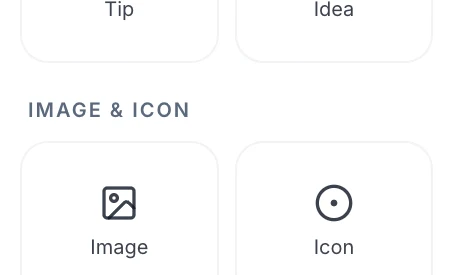
The slot picks the aspect, not you
There is no size or ratio field. The slot's own width and height are read and snapped to the nearest of eight ratios: 21 by 9, 16 by 9, 3 by 2, 4 by 3, 1 by 1, 3 by 4, 2 by 3 and 9 by 16. A tall story hero therefore asks for a 9 by 16 photograph and gets one composed that way, rather than a wide picture with its sides removed.
Your words are wrapped, not sent raw
Every prompt is bracketed by two fixed instructions. The first says the photograph fills the frame edge to edge with a real environmental background, never white, never a studio backdrop and never a frame or a polaroid border. The second asks for editorial photography with natural lighting and forbids any text, letters, words, watermarks or captions in the image. Your description sits between them.
Six phrases that get rewritten before they arrive
Asking for a neutral, plain, simple, clean, white or solid background pushes image models toward a cutout on white, which looks broken inside a full bleed slot. Those phrases are rewritten to realistic environmental background before the request goes out. Studio backdrop becomes on location setting, isolated subject becomes subject in context, tight crop becomes close framing that fills the frame, and negative space becomes environmental space.
Describe a scene, not a concept
The instruction the model works from asks for real scenes rather than abstract ideas, and it will never produce a logo, a diagram or a piece of type. Two loaves cooling on a floured wooden bench in a morning kitchen works. Artisan quality does not. If your image needs words on it, that is a text element placed over the picture, which is what the designs already do.
Every image stays with the flyer
Whatever you generate is stored against that flyer and appears under Your images in the inspector, so a second slot can reuse it with one click rather than a second generation. Deleting one from there is permanent. Reset to original puts the design's own placeholder back without touching your library.
How it works, in three steps
Step 1
Save the flyer first
Uploading and generating both need a saved flyer to attach the image to, and the panel says so until you do.
Step 2
Select the image and describe the scene
The Generate with AI box takes up to 2,000 characters. One or two concrete sentences beat a list of adjectives.
Step 3
Try again or reuse
Each attempt is stored under Your images, so comparing three takes costs three generations and no rework.
The full walkthrough with screenshots is in the guide Add or replace the images in a flyer.
Limits worth knowing
- Each generated image uses about 4 credits, charged only when it succeeds.
- Running out of credits returns a plan limit error rather than a queued job.
- The prompt box takes 2,000 characters, and there is no aspect, seed or style control.
- No text, letters or watermarks are ever rendered into a generated image.
- Logo slots cannot be generated at all; they take an upload or a set of initials instead.
- The flyer must be saved before the generate and upload controls become active.
See it on a finished piece
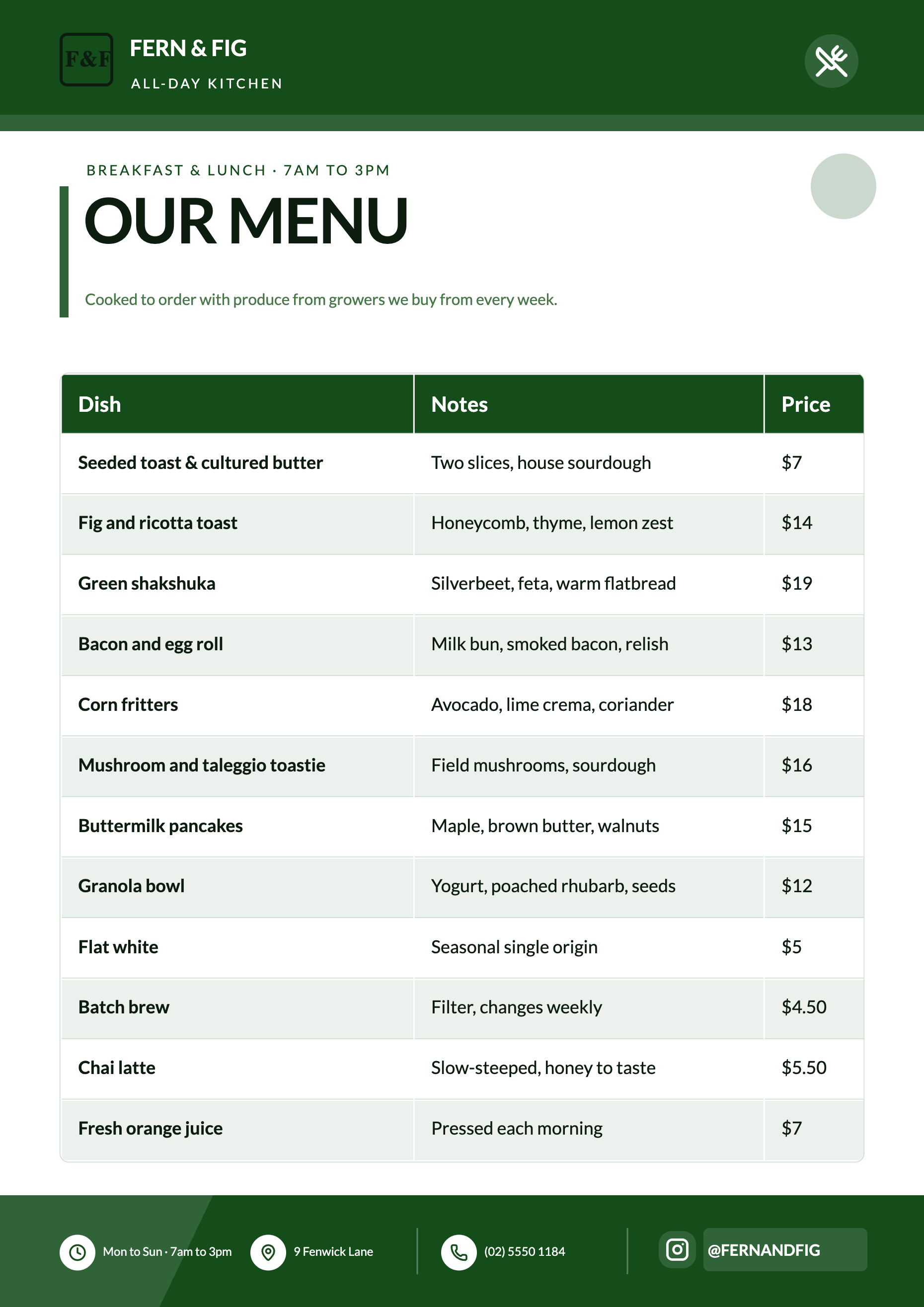
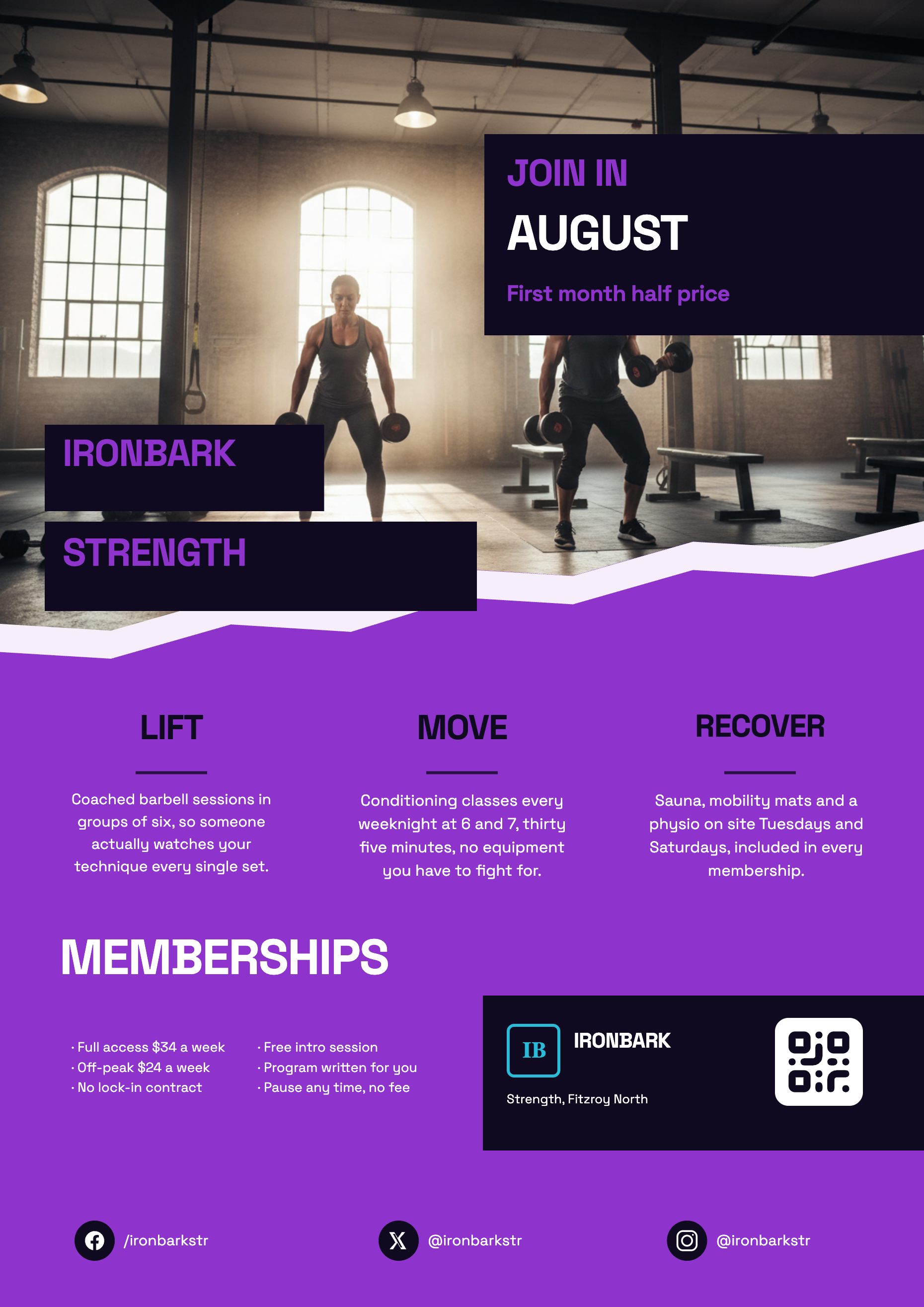
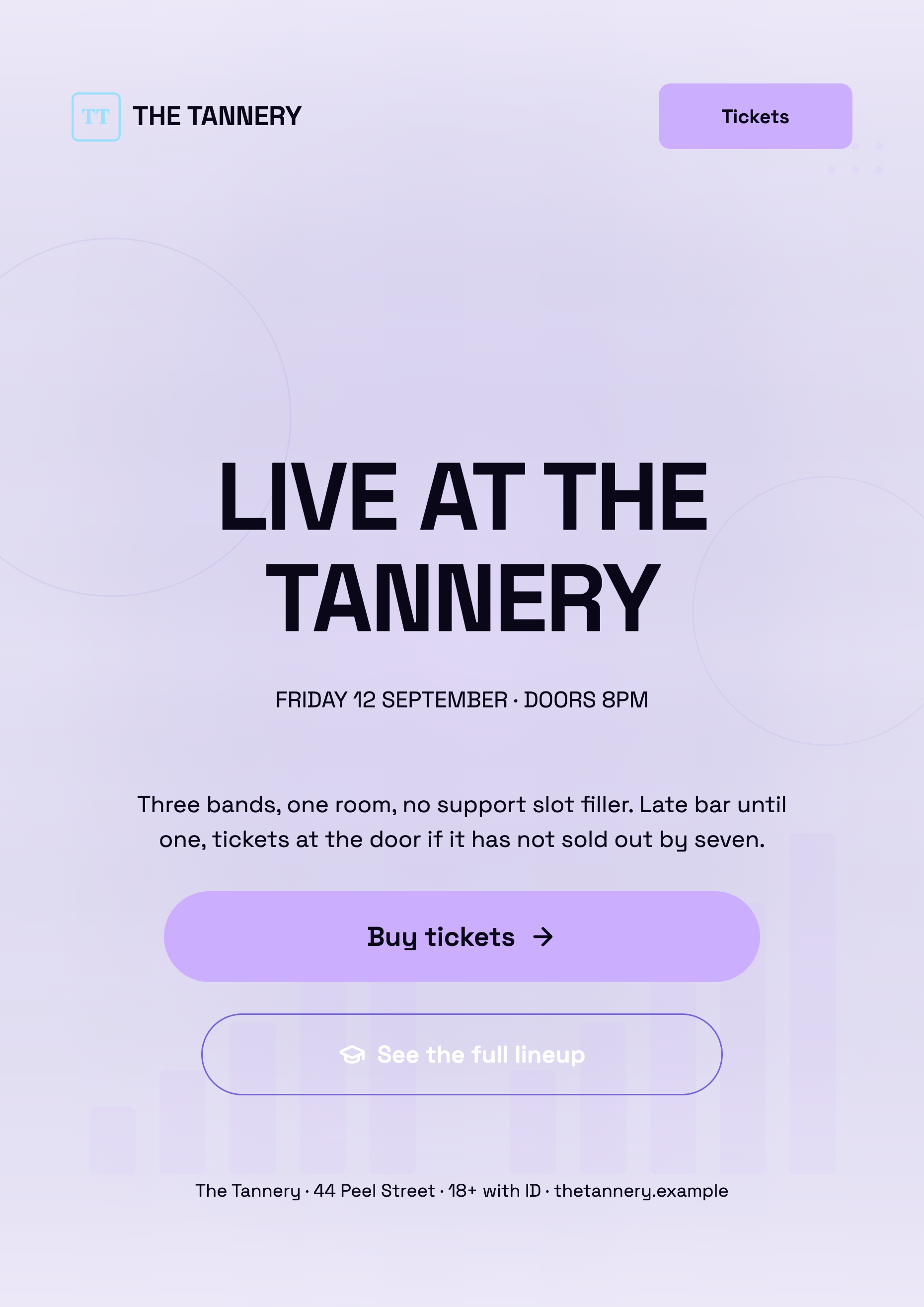
Questions people ask
Can I set the image size or aspect ratio?
No. It is taken from the slot the image is going into and snapped to the closest of eight ratios. That is what makes the result fit rather than needing to be cropped.
Why did asking for a white background not work?
Because that phrase is rewritten to realistic environmental background before the request is sent. A cutout on white leaves a white rectangle inside a full bleed slot, which reads as a mistake.
Can it put my product's name on the picture?
No. Rendering text into the image is explicitly forbidden. Put the name in a text element over the image instead, where it stays editable and follows the theme.
What happens when generation fails?
You get an error in the panel and nothing is charged. During the initial flyer generation the behaviour differs: there it falls back to a stock photo search, and if that fails too the slot keeps its placeholder.
Make your own flyer
The button opens the generator with this use case already described. Change the wording to match yours, generate, then edit anything you like.
Create a flyer with OneCraftRelated pages
Make a flyer from text
A description is not a wish. It is the content of the finished flyer, because the writer is told to treat your words as the source of truth and is barred from filling gaps with invented specifics. So the honest question is not how good the AI is, it is how much you told it.
Edit a flyer image by rebuilding it
To edit a flyer image, attach the JPG or PNG to the flyer generator and let it rebuild the words into a new design. The picture is read for its text, and that text is placed into a real template, so every line can be selected, rewritten, recoloured and moved to another size afterwards. A flyer you only have as a photograph is a picture of text, and tracing it would only give you another picture.
Flyer design options
Comparing two finished flyers is a different act from reading a description of two ideas. Both come back fully written, fully coloured and fully illustrated, and you choose the way you would in a print shop: by looking at them side by side.
More finished work of this kind is on the flyer examples hub.
Written and checked by the OneCraft team. Last checked .