Presentations
Build a presentation in another language
The language control sits with the theme and length settings under the prompt box. What it does is not translation. The whole deck is planned and written in the language you name, which produces different sentences from writing it in English and translating afterwards.
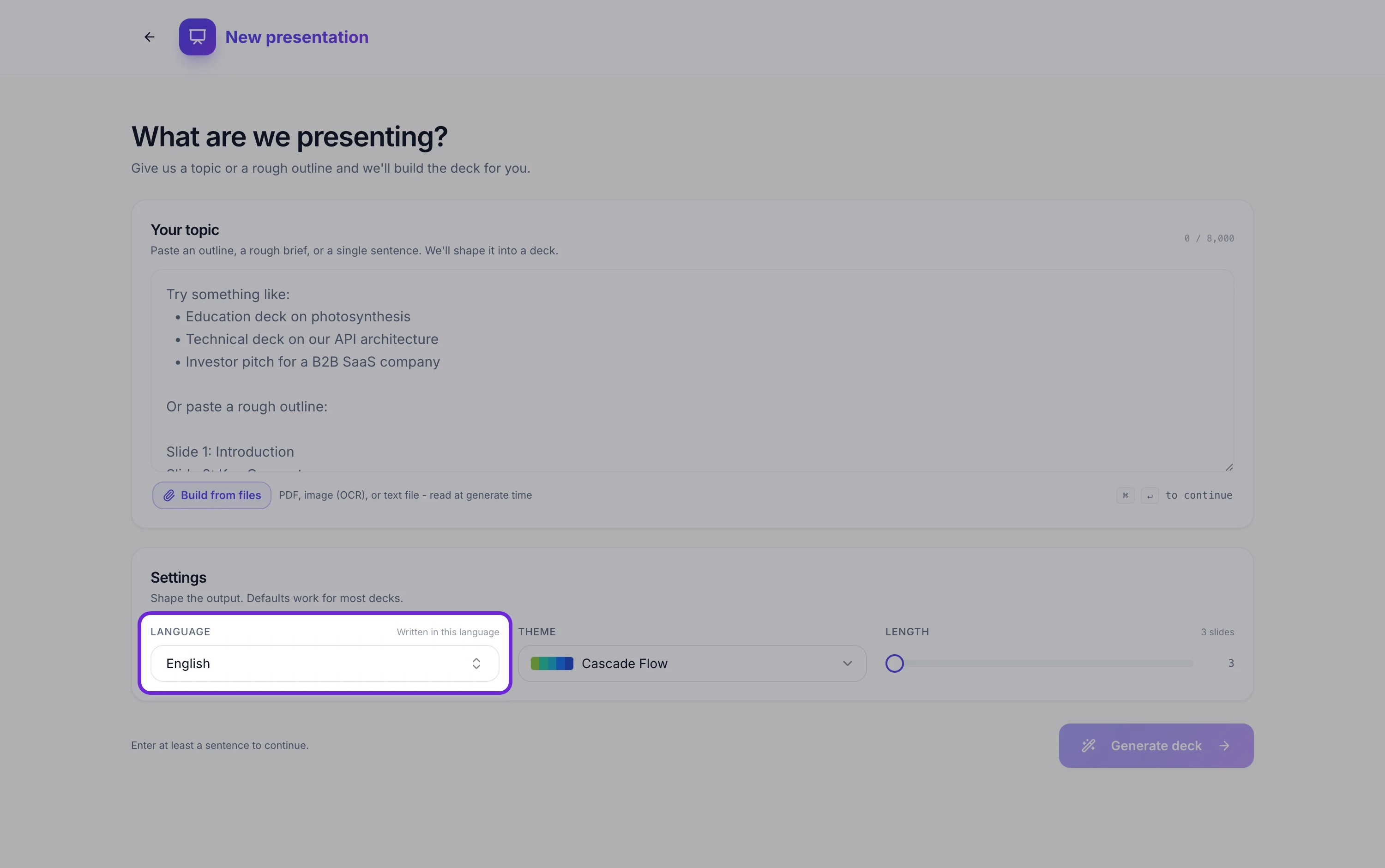
32 suggestions, and anything else you type
The list covers English, Spanish, Portuguese, French, German, Italian, Dutch, Polish, Czech, Hungarian, Romanian, Greek, Russian, Ukrainian, Turkish, Arabic, Hebrew, Persian, Hindi, Bengali, Urdu, Tamil, Indonesian, Malay, Vietnamese, Thai, Filipino, Japanese, Korean, both written forms of Chinese, and Swahili, each shown with its own name beside the English one. Typing something not on the list offers a Use this option, so any language works, and Auto-detect at the top infers it from your topic instead.
Written natively, not translated
The instruction the writer works under is explicit: apply the register in that language natively, and do not literally translate English business jargon. So a formal Japanese deck uses the conventions of a formal Japanese deck rather than English sentence structures in Japanese words. This is the difference that a native speaker notices immediately and a translation tool cannot produce.
Proper nouns and acronyms stay put
Brand names, product names and acronyms such as API, KPI, ROI and B2B are left in their original form rather than being rendered into the target language. That matters because a translated product name is worse than useless to an audience that has to search for it afterwards, and a translated acronym is unrecognisable to the people who use it daily.
Auto-detect reads your prompt
If you leave the language unset and write your topic in Spanish, the deck comes back in Spanish. That is usually the fastest route, because the prompt you would write anyway carries the answer. Set the language explicitly when you are briefing in one language for an audience in another, which is the common case for an internal team preparing a deck for an overseas client.
Check the typeface before you commit
The 42 typefaces are Google families and their script coverage varies. Latin, Cyrillic and Greek are broadly safe. For Japanese, Korean, Chinese, Arabic, Hebrew, Thai or the Indic scripts, generate one slide first and look at it, because a family without the glyphs will fall back to your system font and the deck will not match its theme. Switching to a family with the right coverage is one click in the Fonts tab.
How it works, in three steps
Step 1
Set the language before generating
The control sits between Theme and Length. Type any language, or leave it on Auto-detect.
Step 2
Write the prompt in that language too
Not required, but it gives the writer the vocabulary and register your audience actually uses.
Step 3
Check a text heavy slide first
Non Latin scripts are where a typeface either has the glyphs or does not. Fix it in the Fonts tab if not.
The full walkthrough with screenshots is in the guide Make a pitch presentation with AI.
Limits worth knowing
- One language per deck. There is no bilingual or side by side mode.
- The language applies to generation. It does not translate a deck you already made.
- Typeface coverage varies by script, and a missing glyph falls back to a system font.
- Right to left scripts are written in the requested language, but the slide layouts themselves are laid out left to right.
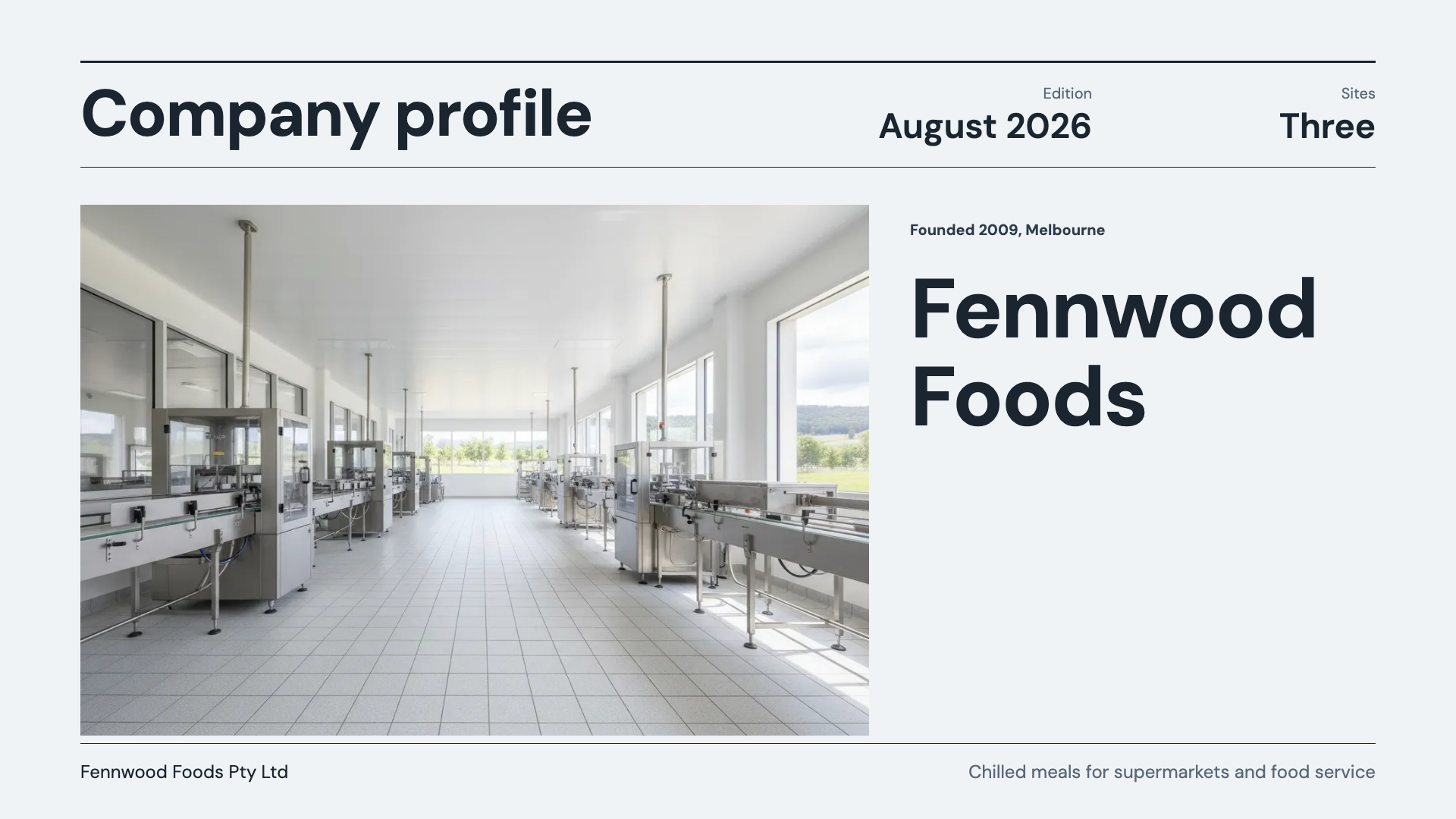
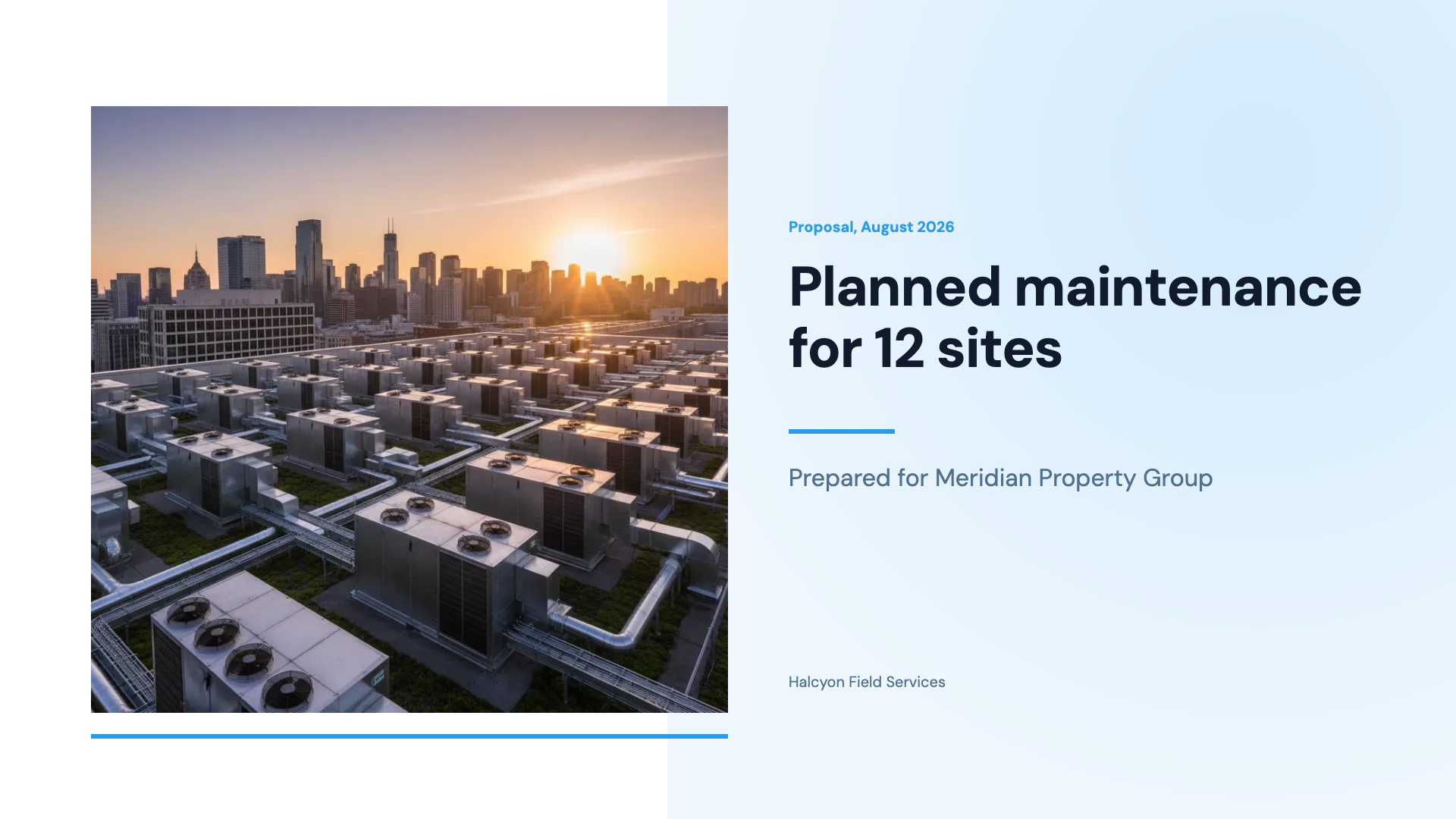
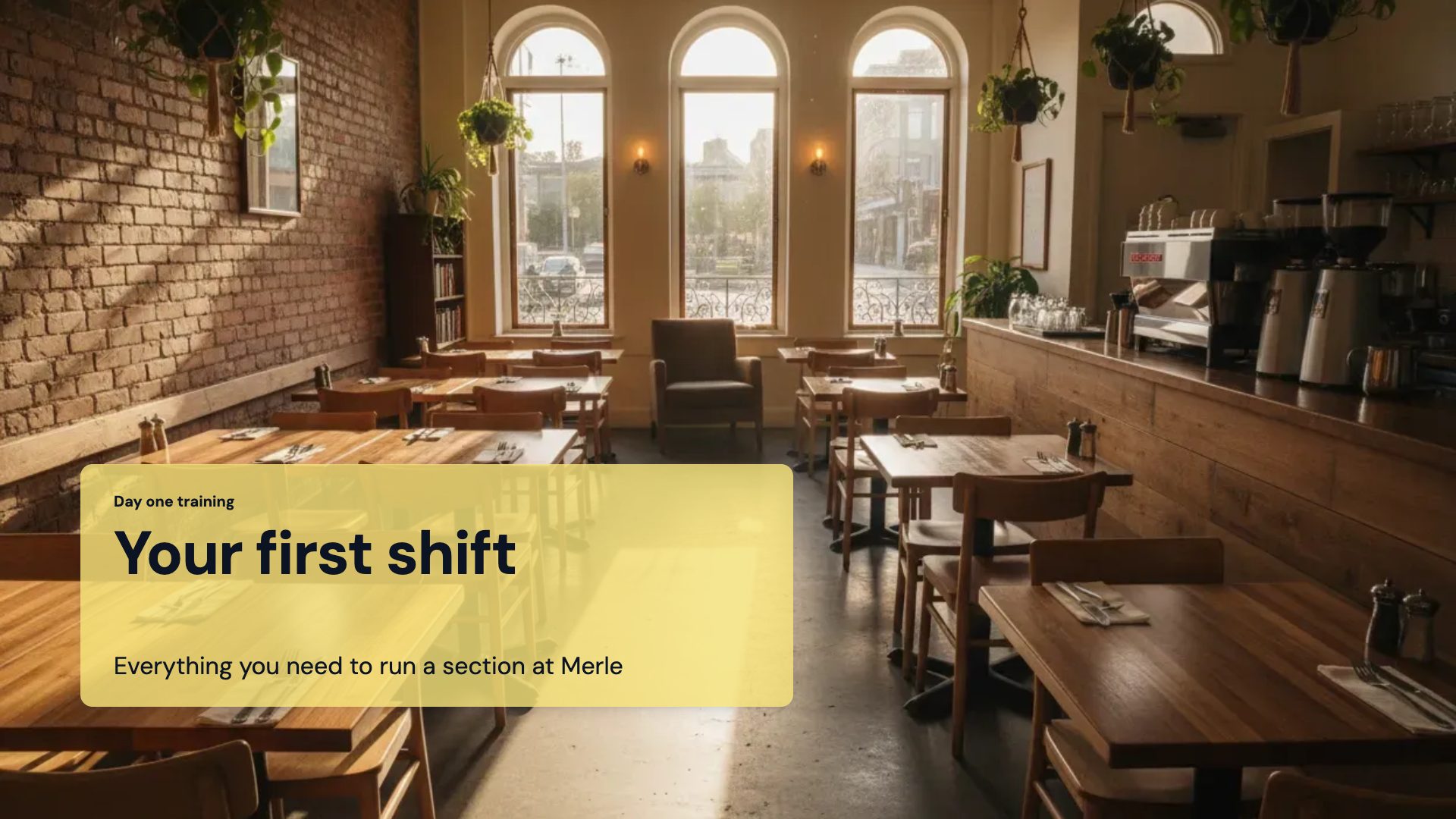
See it on a finished piece
Questions people ask
Can I translate a deck I already built?
Not with this control, which applies at generation time. The AI assistant can rewrite text slide by slide, which works for a short deck, or generate again with the same prompt in the new language.
What if my language is not in the list?
Type it. The field accepts any text and offers a Use this option, and the value is passed to the writer as you wrote it.
Will my product names be translated?
No. Proper nouns, brand names and acronyms such as API, KPI and ROI are deliberately left in their original form.
Does it handle right to left languages?
The copy is written in Arabic, Hebrew or Persian as asked, but the layouts are built left to right, so the slide structure does not mirror. Check a text heavy slide before committing to a long deck.
Make your own presentation
The button opens the generator with this use case already described. Change the wording to match yours, generate, then edit anything you like.
Create a presentation with OneCraftRelated pages
Hierarchy tree slides
A tree slide shows that one thing sits above several others, or that one question splits into a small number of answers. Ten layouts carry both readings: three are organisational charts, and seven are decision or taxonomy trees with a root, branches and details.
Record a presentation
You present the deck exactly as you would live, and a recording is made of it: the slides, your narration, your camera in a corner, and any marks you draw. When you stop, you download the file. Nothing is uploaded and nothing is hosted.
Presentation cover slides
The cover is the slide people look at longest, because it is up while the room settles. Twenty seven layouts are filed under the cover role, and they divide into photographic covers, typographic covers with no image at all, and editorial covers with a metadata rail carrying a date, an issue or an event.
More finished work of this kind is on the presentation examples hub.
Written and checked by the OneCraft team. Last checked .