Presentations
Presentation cover slides
The cover is the slide people look at longest, because it is up while the room settles. Twenty seven layouts are filed under the cover role, and they divide into photographic covers, typographic covers with no image at all, and editorial covers with a metadata rail carrying a date, an issue or an event.
Photographic, typographic and editorial
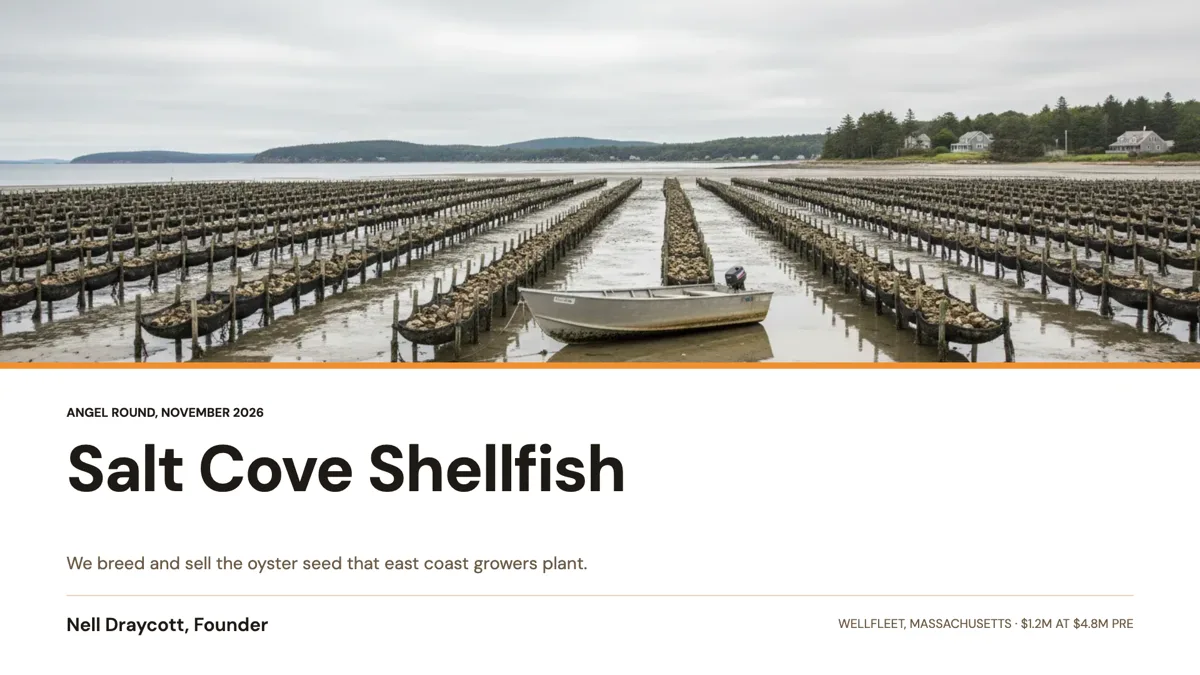
Roughly half the 27 are built around a photograph: full bleed with an overlay, a hard split, a curved reveal, a framed photo, a portrait panel and a hero band across the top. Six are typographic with no image, including a minimal cover, an oversized condensed word, stacked display type and a centred accent word. The rest are editorial, adding a masthead or a metadata rail with a date, an issue number or an event name. Pick by what you have: a stock photograph makes a worse cover than good type.
What a cover actually carries
Every cover holds a title. Most also hold an eyebrow or overline, a subtitle or framing line, and a byline with a name, a date or a company. The report and magazine covers add a prepared for and prepared by block. The canvas is 1920 by 1080, so a title has room for about six or seven words before it wraps, and text fits itself to its slot, so a long title shrinks rather than spilling.
Brand, theme and the projector
Colours come from the theme, and the picker offers 99 of them, with 42 top picks listed first. Brand chrome is separate: a logo, text or both in the top right, 80 to 700 pixels wide, set to the first slide only or to every slide. On a dim projector a dark gradient or typographic cover survives better than a photograph, because a photo loses its shadows first. That setting lives on the deck, so it persists across saves.
When the cover is the wrong slide to fuss over
A cover cannot rescue a deck, and it is the slide most often rebuilt after everything else is written. Leave it until the title is settled, because the title is the only thing on it that matters. If the deck will be sent rather than presented, the report cover with its metadata block does more work than an image, since it tells a reader who wrote it and when.
How the AI picks this slide
Every generated deck starts with a cover: the outline assigns the role first and writes the title from your topic. It does not choose the layout, the colours or the fonts, so the cover you get is the theme's default reading of a cover layout. Swapping to another of the 27 afterwards carries the title and byline across, because content re-keys by box id on a layout swap.
How it works, in three steps
Step 1
Settle the title first
Six or seven words is the practical limit at 1920 by 1080. Everything else on the cover is supporting text.
Step 2
Pick by what you have
A real photograph goes to a photographic cover, a stock one to a typographic layout. Open the layout flyout to see each option drawn with your own title in it.
Step 3
Set the brand chrome once
Logo or text in the top right, scoped to the first slide or to all slides. It is saved on the deck rather than on a version.
Step 4
Check it on the screen you will use
Present mode fills the display. A cover that reads on a laptop can lose its contrast on a projector, which is why the typographic covers exist.
The full walkthrough with screenshots is in the guide Add, reorder and restructure slides.
Limits worth knowing
- The title fits itself to the slot, so a long title is scaled down rather than given more room.
- Image generation never fills a logo slot, so a brand mark on the cover is an upload.
- Page numbers and the footer band do not render on most cover layouts, and the footer toggles only affect the editor canvas.
- There is no separate title and subtitle style setting outside the theme's type ramp and the per slot overrides.
See it on a finished piece
Slide examples
Finished single slides on this layout, each one built from a real template and written out in full.
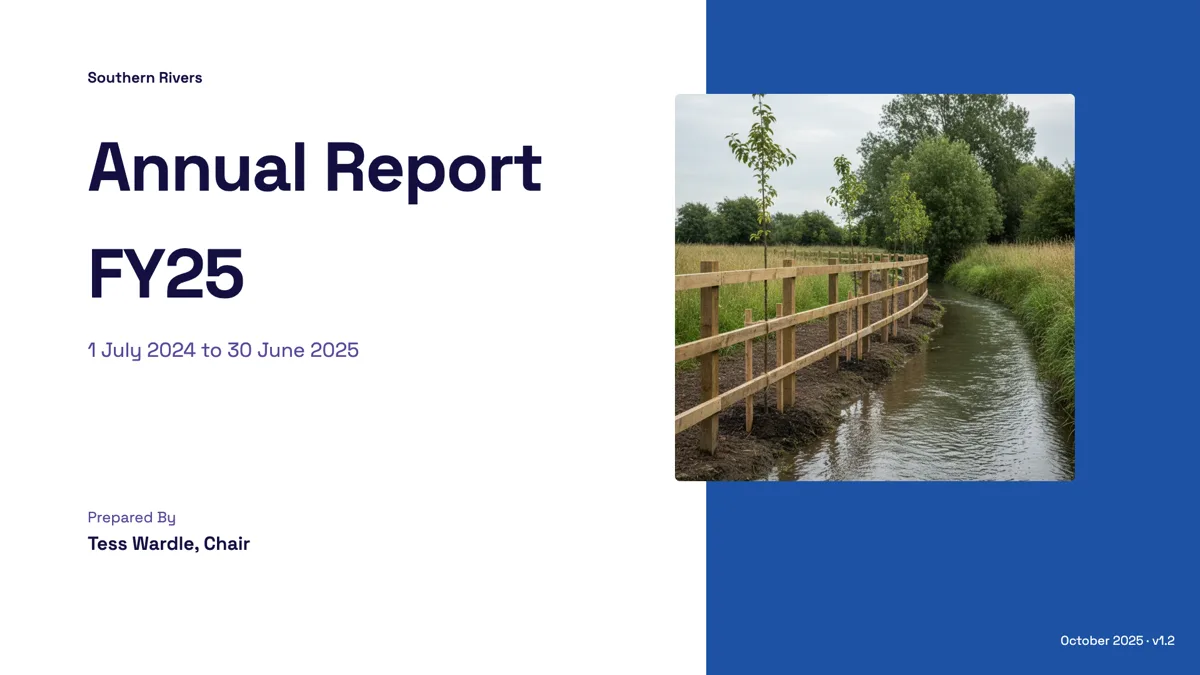
Annual report cover slide with the period, author and version
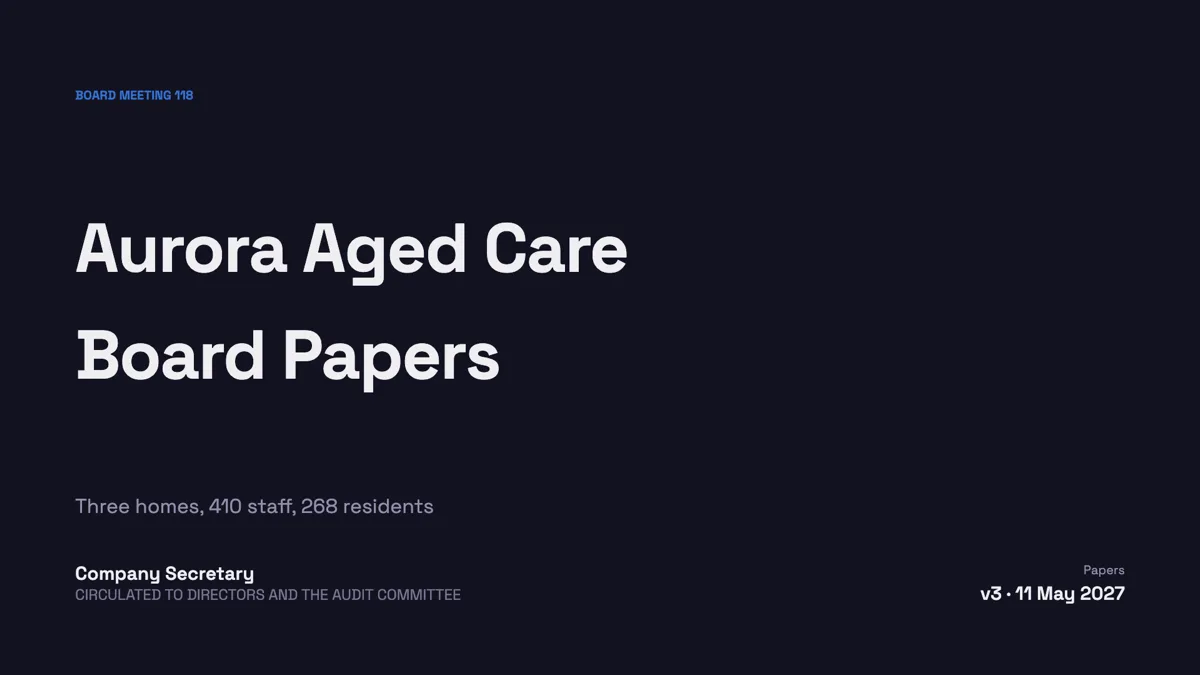
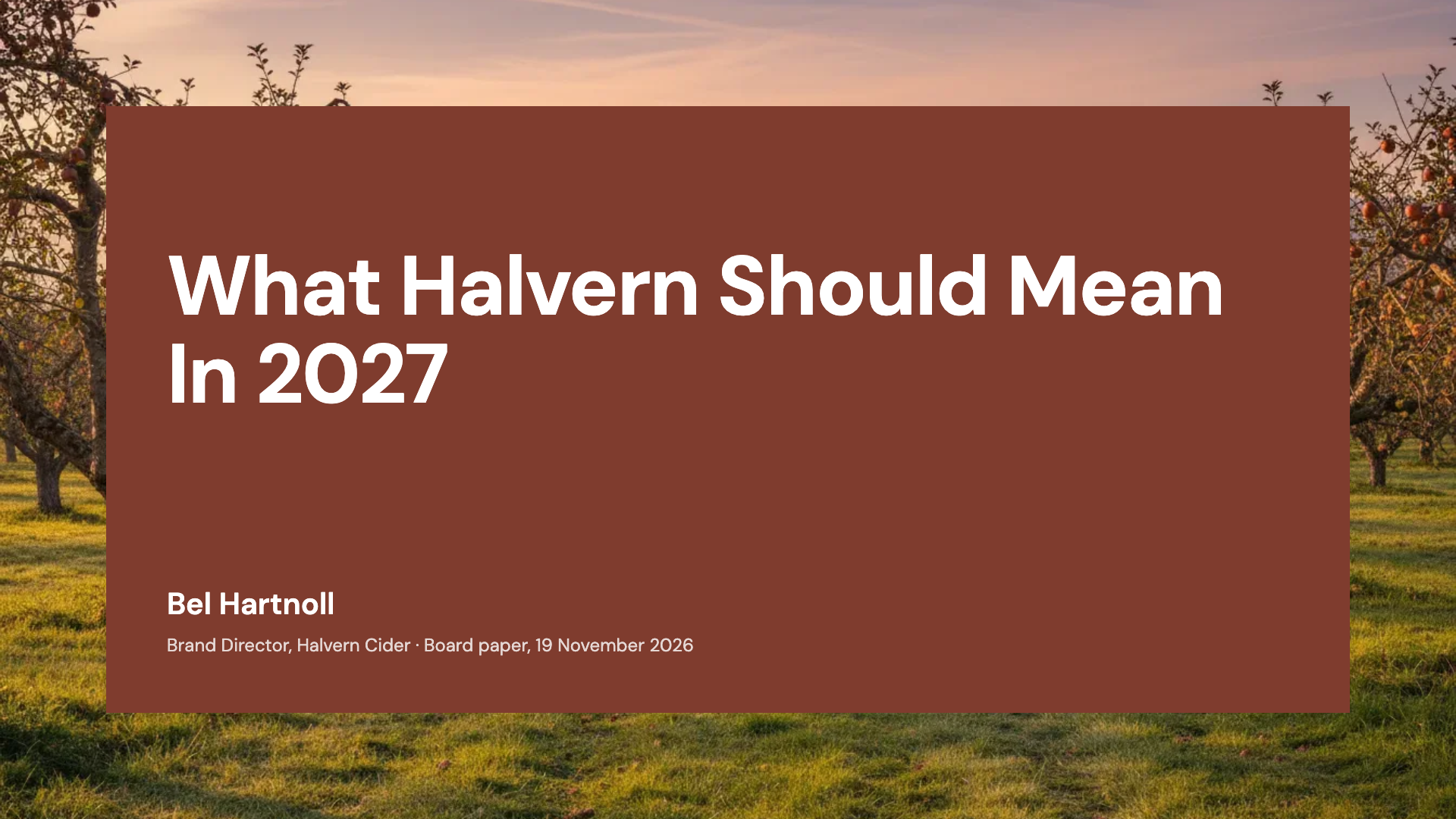
Board meeting cover slide with the meeting number and papers version
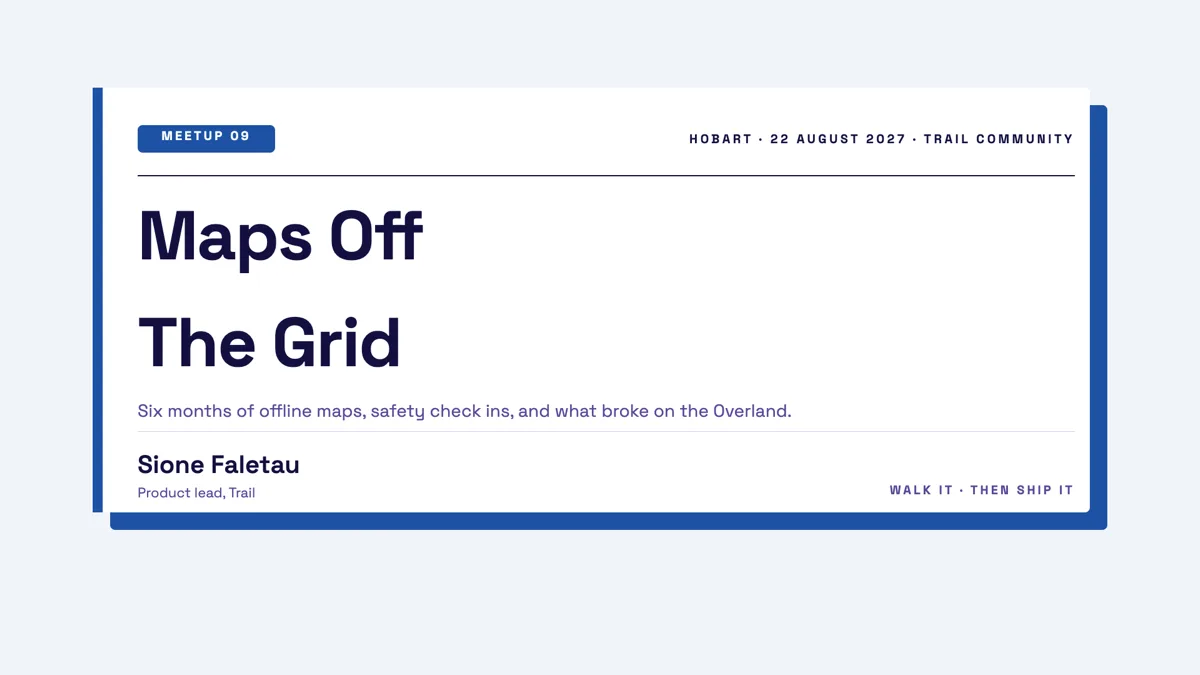
Bold cover slide example with a neobrutalist offset shadow
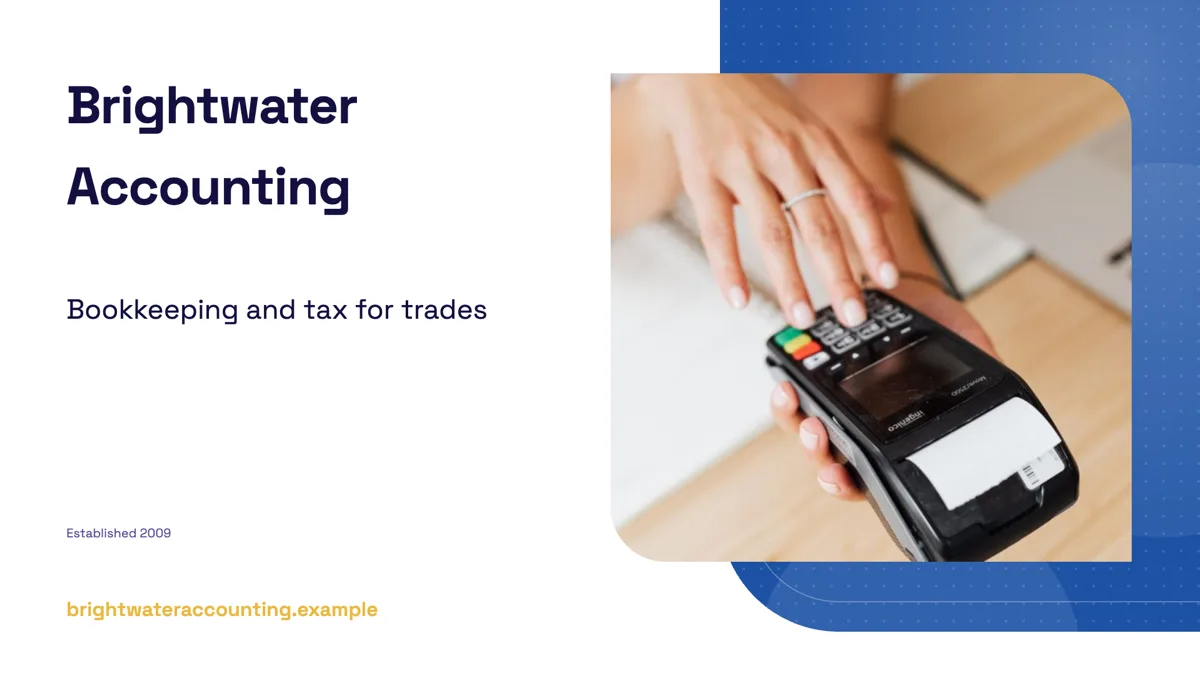
Company profile cover slide that says what the firm does

Keynote title slide example built on a single word
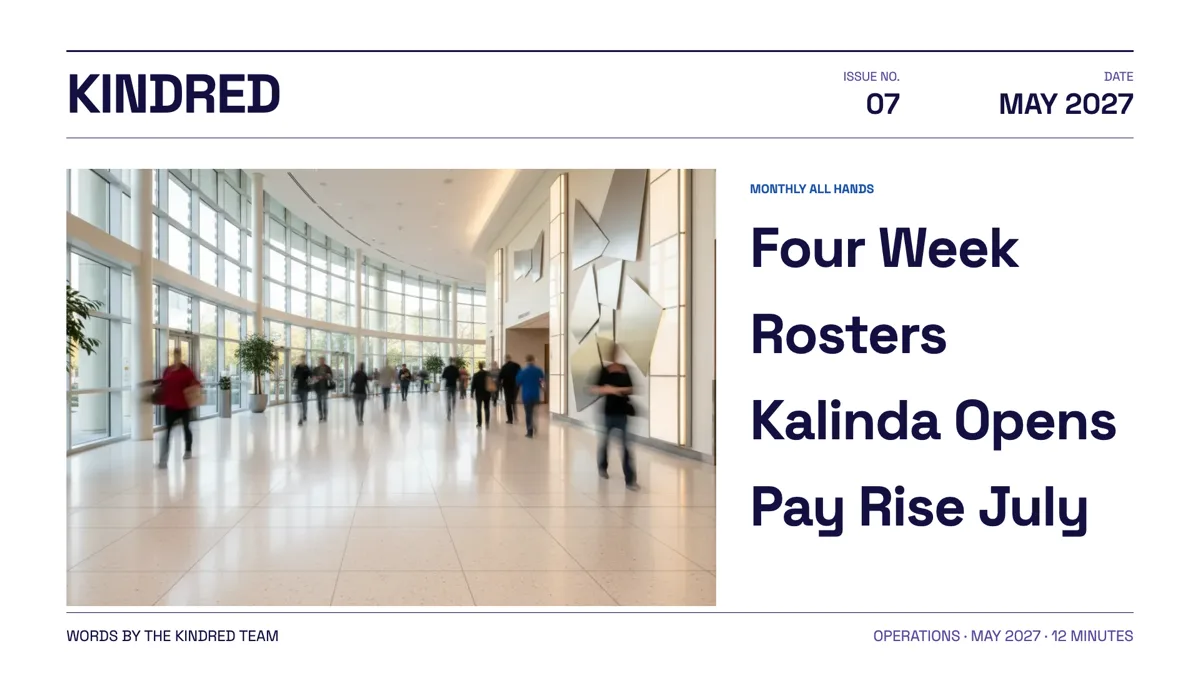
Magazine style cover slide with a nameplate and teasers
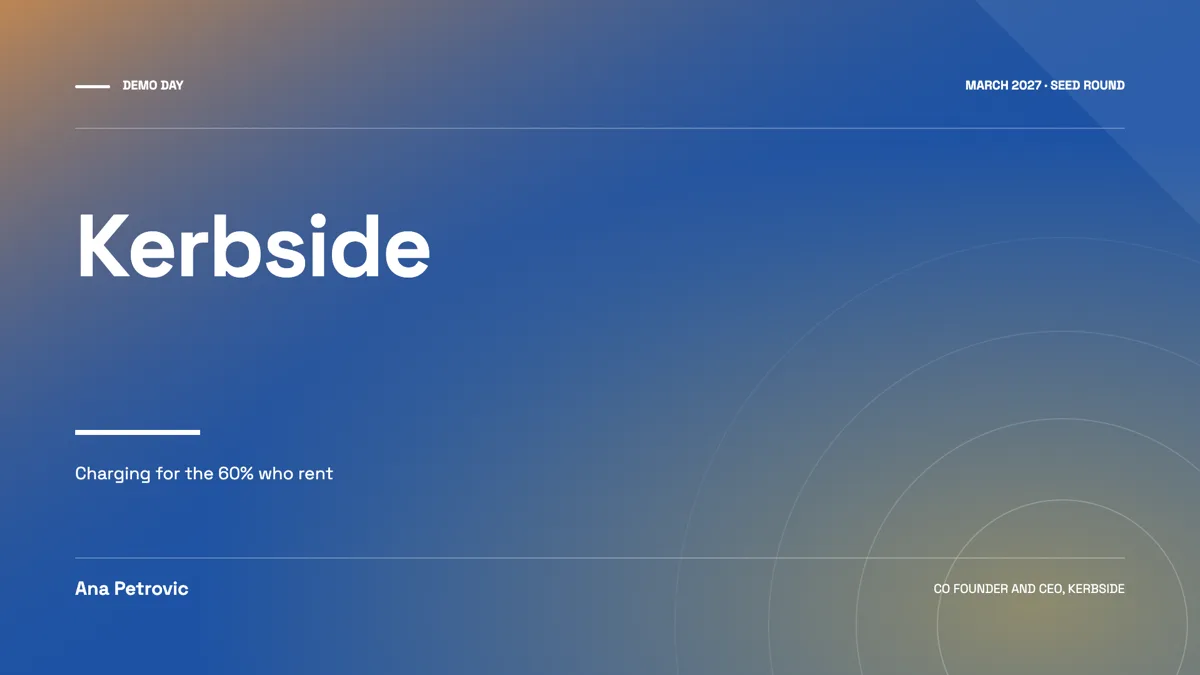
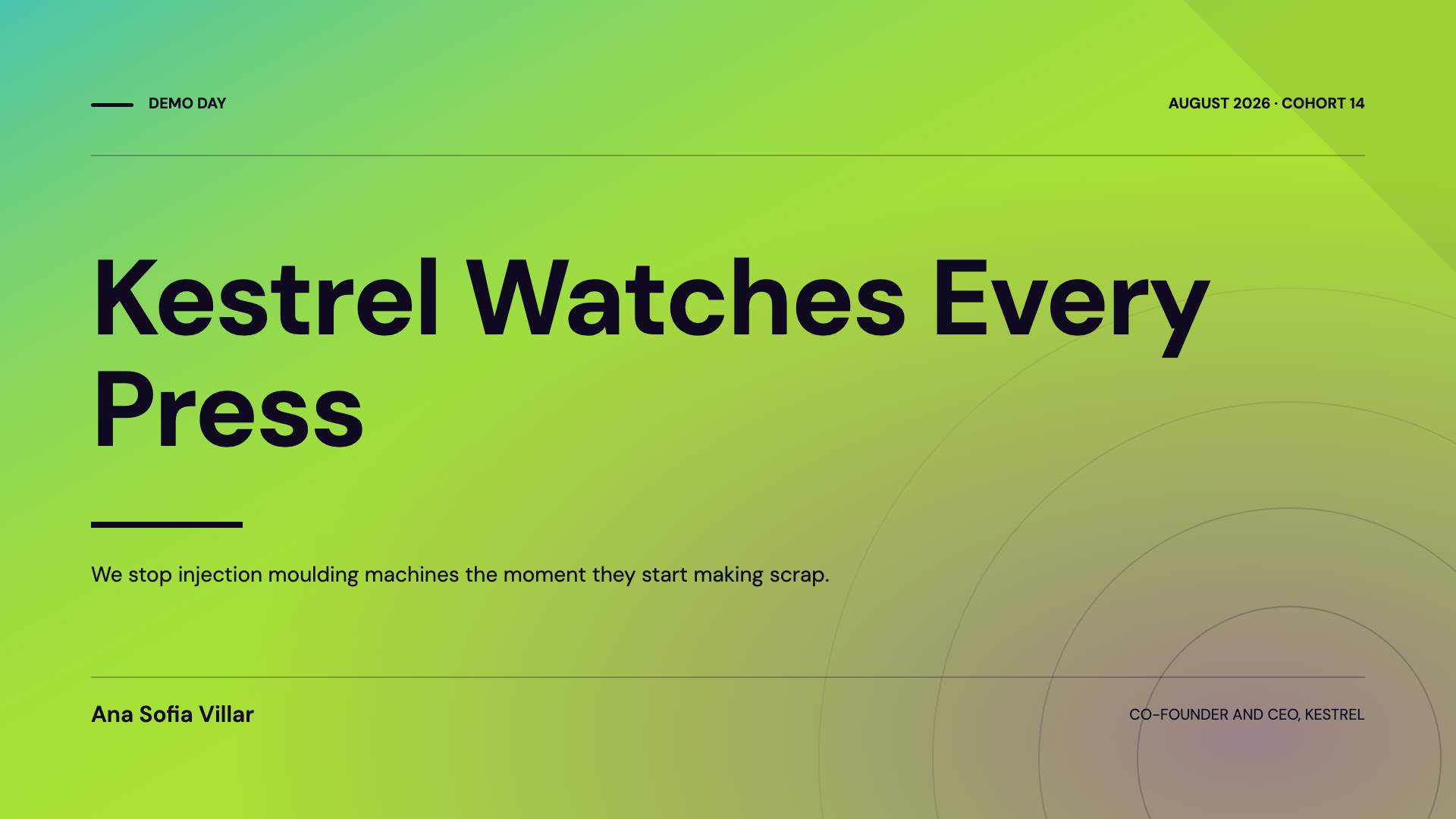
Pitch deck cover slide example for a demo day
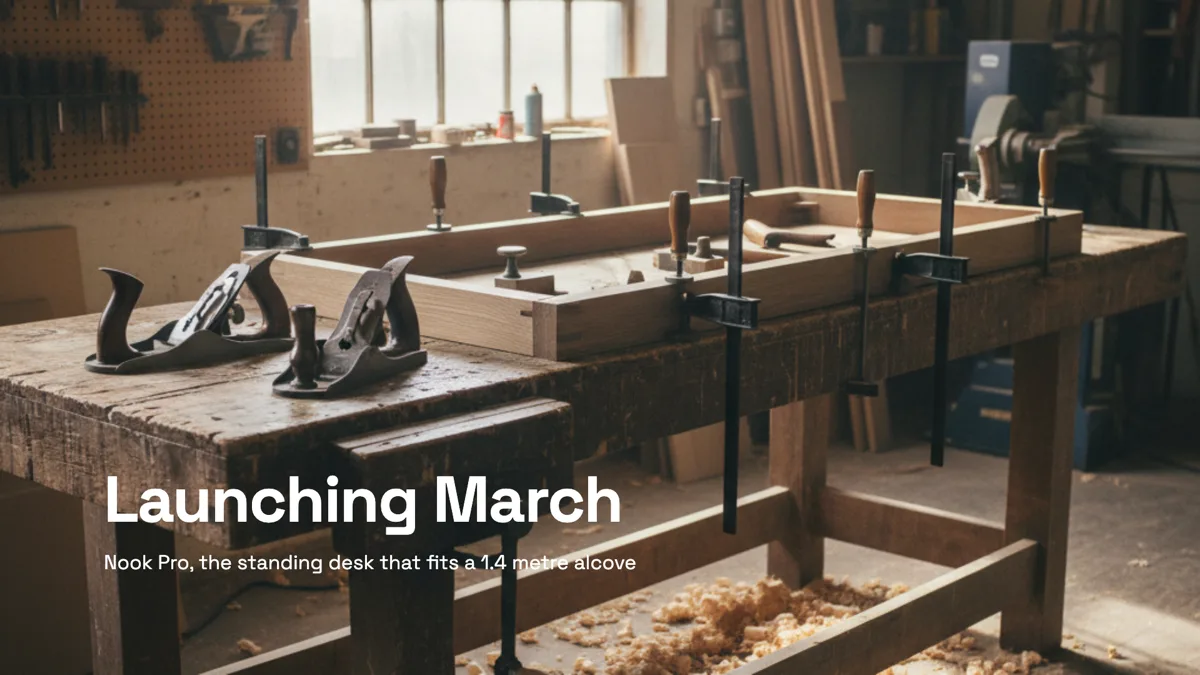
Product launch cover slide with a full bleed photograph
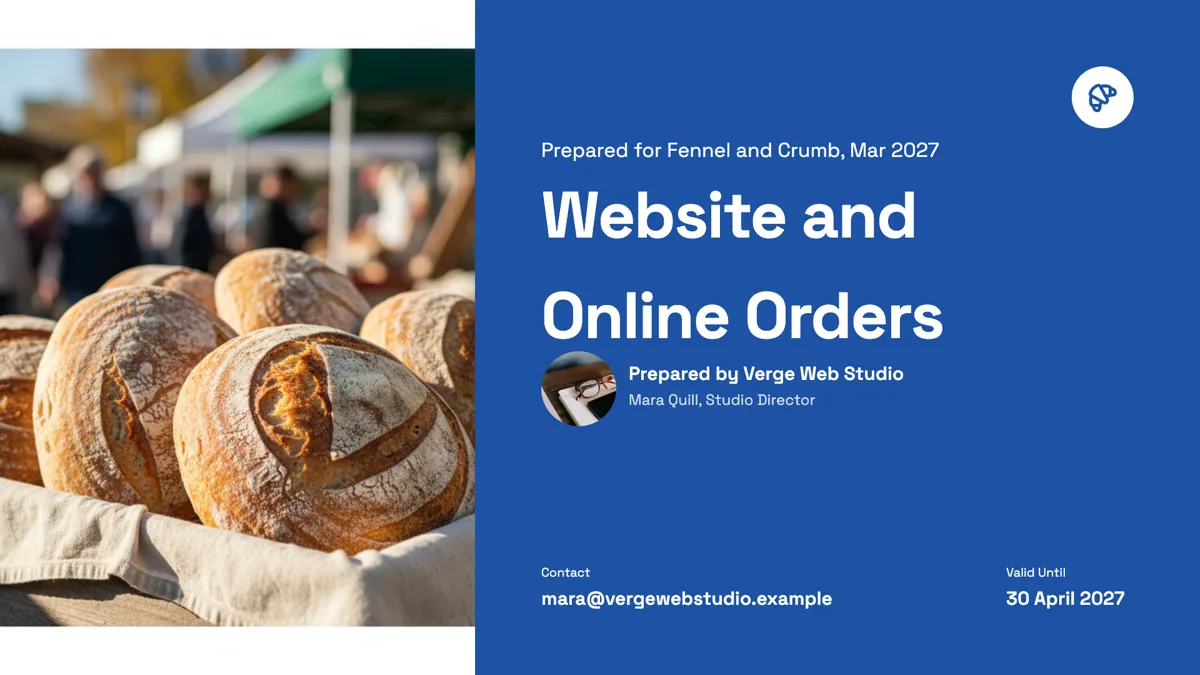
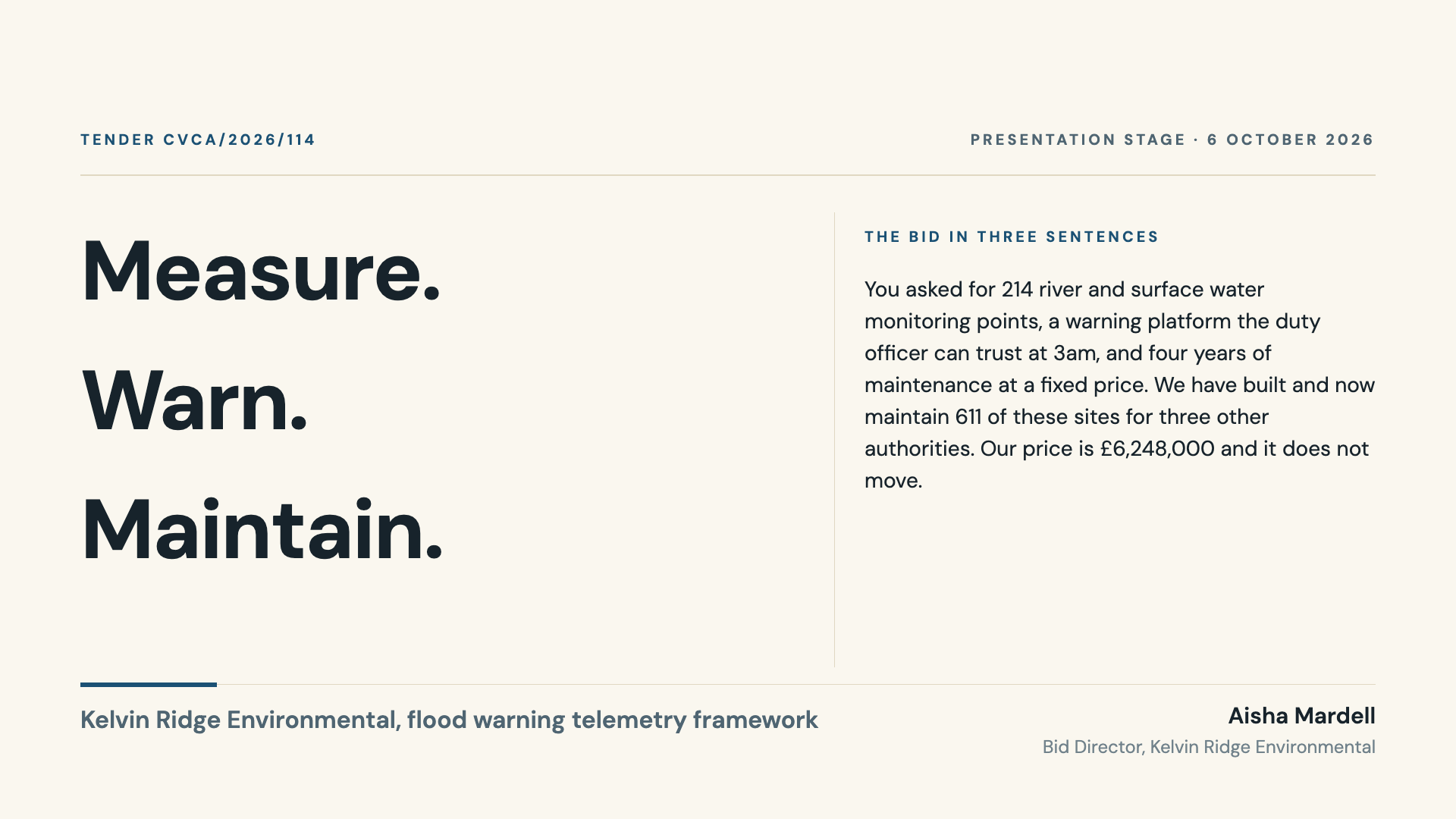
Proposal cover slide example naming the client and the sender
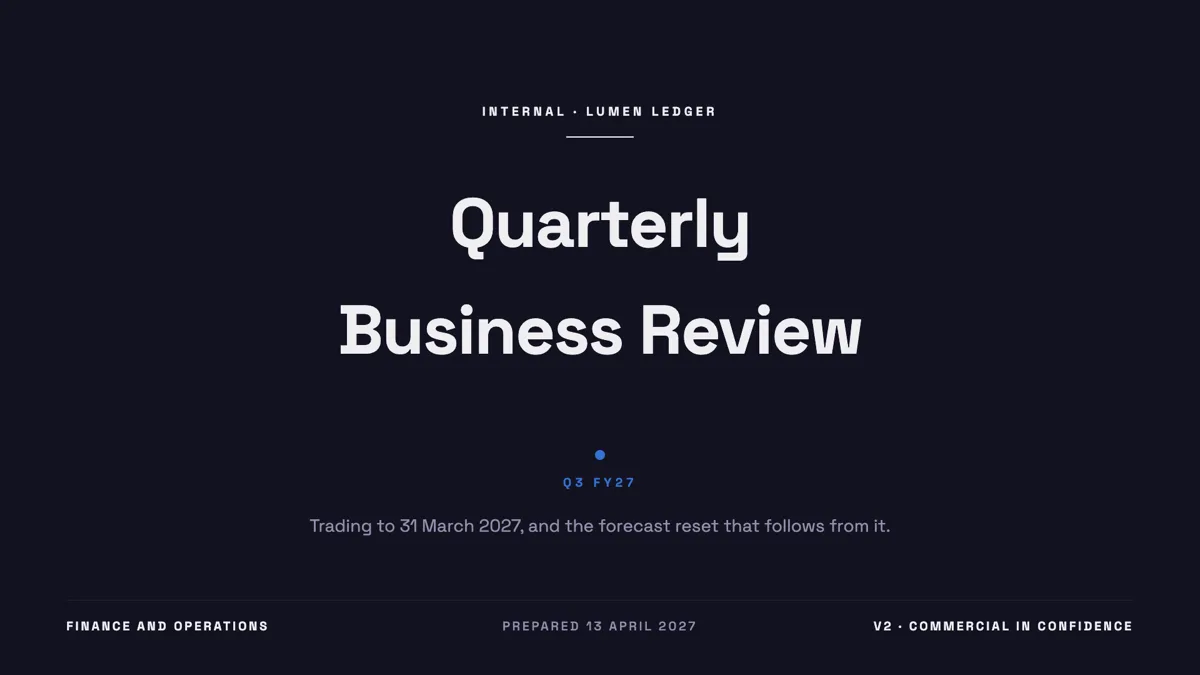
Quarterly review cover slide with the quarter as an accent word
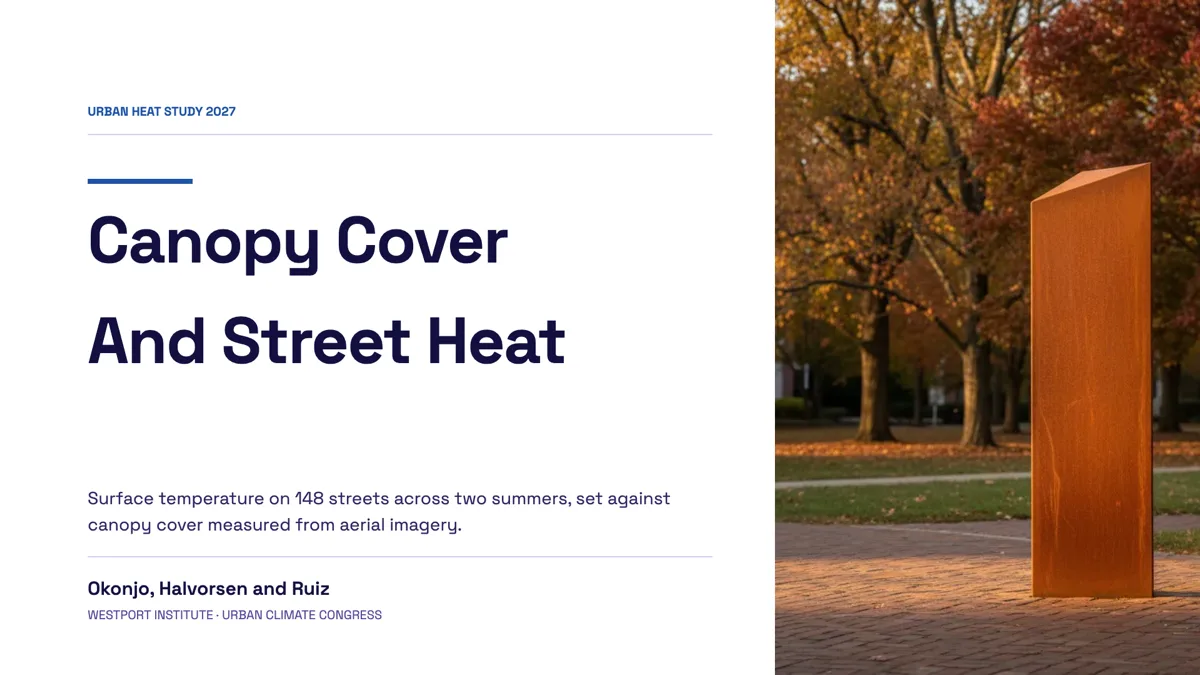
Research presentation cover slide with authors and affiliation

Workshop title slide with the date, duration, trainer and room
Questions people ask
How many cover layouts are there?
Twenty seven templates carry the cover role, split between photographic covers, six typographic covers with no image, and editorial covers that add a masthead or a metadata rail.
What size is a slide?
1920 by 1080 pixels, which is 16 by 9. Every layout is drawn at that size, and exports are rendered at twice it, so a cover holds up on a large screen.
Can I put my logo on the cover only?
Yes. Brand chrome has a scope setting of first slide or all slides, sits in the top right, and can be a logo, text or both, sized between 80 and 700 pixels wide.
Can I use my own photograph?
Yes, uploaded as jpeg, png, webp or gif. The image fills its slot and is cropped to it, and the inspector offers corner radius, a frame in four tokens and a shadow toggle.
Will a generated image put the title in the picture?
No. Generated images never render text, and the prompt is capped at 2,000 characters. The title is always a text slot over the image, which is why it stays crisp at export.
Can I change the cover after the deck is written?
Yes. Swap layouts from the flyout in the left rail; content re-keys by box id, so the title, subtitle and byline carry across and per box styling survives the swap.
Make your own presentation
The button opens the generator with this use case already described. Change the wording to match yours, generate, then edit anything you like.
Create a presentation with OneCraftRelated pages
Intro slides
The slide after the cover has to give the audience a reason to keep listening, which is a different job from naming the deck. Eleven layouts are filed under the intro role, covering why now arguments, manifesto statements, company overviews and split openers with a photograph.
Add a text box and 65 other slide elements
The layouts cover the common shapes, but sometimes a slide needs one more thing: a caveat in a callout, a number pulled out as a stat, a second list. The element library is a drag and drop catalogue of 66 pieces that go onto any slide, wherever you drop them.
Presenter view on a second screen
Two windows, one on each screen. The slides go full screen on the display everyone can see, and the notes go into a separate small window you drag to your own. It is a simpler arrangement than a dedicated presenter mode, and worth setting up before the room fills.
More finished work of this kind is on the presentation examples hub.
Written and checked by the OneCraft team. Last checked .