Presentations
Add a text box and 65 other slide elements
The layouts cover the common shapes, but sometimes a slide needs one more thing: a caveat in a callout, a number pulled out as a stat, a second list. The element library is a drag and drop catalogue of 66 pieces that go onto any slide, wherever you drop them.
Text: 25 pieces for words
Ten heading and body styles from a display Title down to an Eyebrow and a Caption, plus a Blockquote and a Pull Quote. Three boxes that draw a container behind their text. Two numbered cards, one single and one arranged as a two by two. Seven list types: bullet, numbered, task, checklist, steps, pros and cons, and a definition list. And three stat pieces: a big stat, a row of three, and a KPI card.
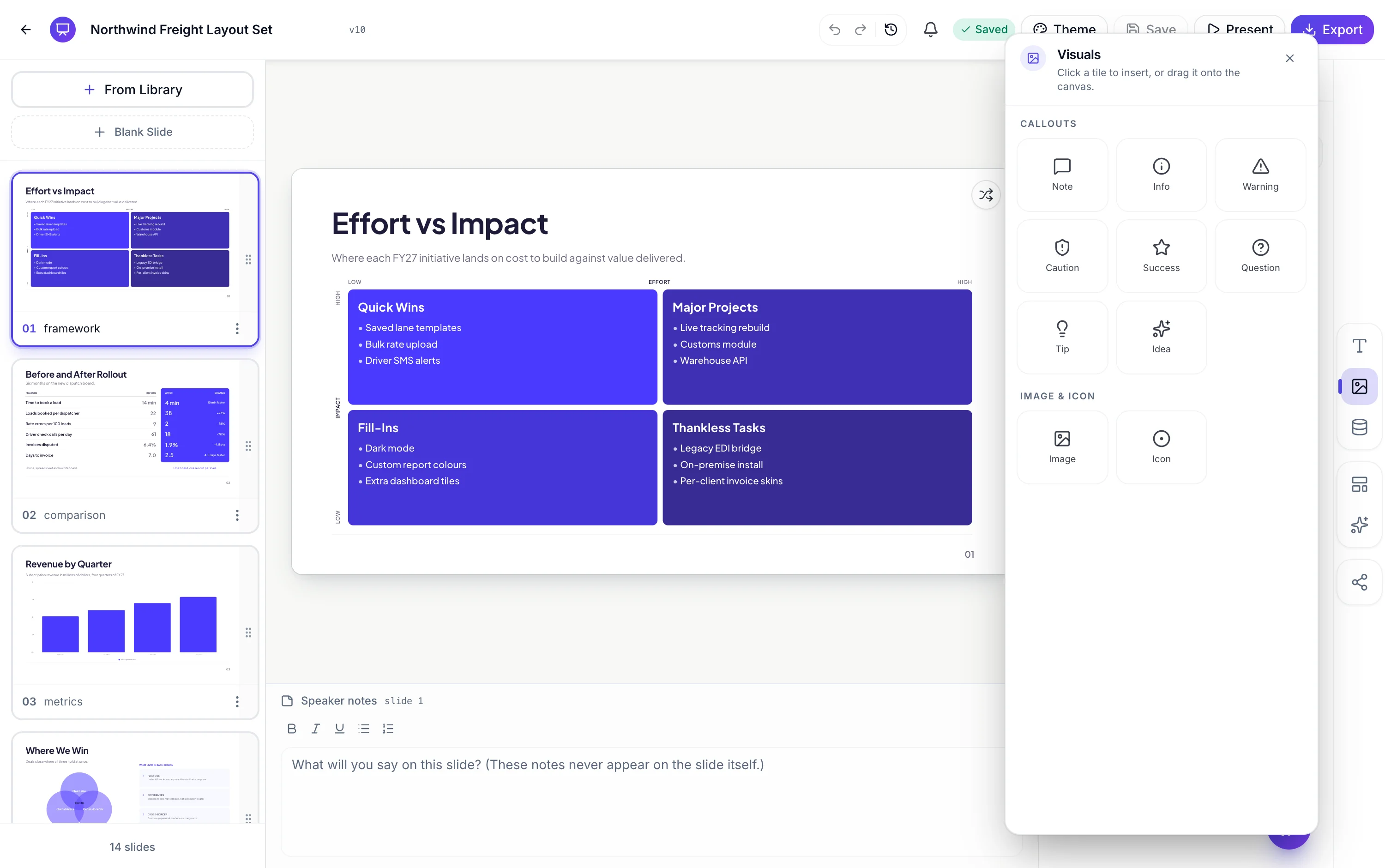
Visuals: eight callouts and two media pieces
Note, Info, Warning, Caution, Success, Question, Tip and Idea, each with its own icon and colour role, which is what makes a callout read as a caveat rather than as another paragraph in a box. Alongside them, an Image piece and an Icon piece for when a layout has the space but not the slot.
Data: 31 pieces, and they are the same components the layouts use
All ten chart kinds, twelve diagram shapes plus a flowchart, three matrices covering 2x2, 3x3 and SWOT, three table sizes from two by two to four by four, and a Gantt and a world map. Dropping one gives you the full component with its own inspector, not a simplified version, which is why a chart you add yourself offers all ten render kinds where one built into a layout offers three or four.
Dropped elements are positioned where you drop them
The piece lands centred on your cursor and can then be dragged and resized with eight handles. Unlike the boxes that came with the layout, a piece you added owns its position, so it survives a layout swap with that position intact. Duplicating the slide clones it properly with a new identity rather than sharing one, so editing the copy does not change the original.
They are ordinary slots in every other respect
A dropped element goes through the same renderer, the same inspector and the same selection overlay as anything a layout supplied. It takes theme tokens, so it recolours on a theme swap. It shrinks its text to fit, so it does not overflow. And it is included in the exports, including as a native object in the editable PowerPoint export where its kind supports that.
How it works, in three steps
Step 1
Open the element library
In the left rail. Three categories, Text, Visuals and Data, split into twelve sections.
Step 2
Drag the tile onto the slide
It lands centred on where you drop it. Drag it again to move it, or use the eight handles to resize.
Step 3
Edit it like anything else
Click into text to type. Select it to open the inspector for its kind, whether that is a chart, a table or a callout.
The full walkthrough with screenshots is in the guide Style text and add callouts, stats and lists.
Limits worth knowing
- 66 tiles. There is no way to add a tile of your own or save a piece for reuse.
- Elements are positioned freely, which means nothing aligns them to the layout's grid for you.
- There is no shape, line or arrow tool. Decorative geometry comes from the layout, not from you.
- A dropped element belongs to one slide. Copying it to another slide means duplicating the slide or adding a fresh one.
See it on a finished piece



Questions people ask
Can I move and resize what I drop?
Yes. Drag it anywhere and resize it with eight handles. A piece you added owns its position, so it keeps it even through a layout swap.
Are these simplified versions of the components?
No. A chart you drop is the full chart with its own data grid and all ten render kinds, and a table you drop is the full table. They are the same components the layouts use.
Can I draw a box or an arrow?
Not freehand. There are three text boxes that draw a container behind their words, and eight callouts, but no shape or line tool.
Will a dropped element survive a layout swap?
Yes, with its position intact. Boxes that came with the layout are re-keyed against the new one, but a piece you added is yours and stays put.
Make your own presentation
The button opens the generator with this use case already described. Change the wording to match yours, generate, then edit anything you like.
Create a presentation with OneCraftRelated pages
Share a presentation link
One link per deck. It does not change, it cannot be edited through, and it always serves the most recent version you saved. That last part is the reason to use it: nobody ends up presenting last Tuesday's numbers because they downloaded the file on Tuesday.
Flowchart slides
A flowchart is the one diagram where the connections carry as much meaning as the boxes. This component treats them that way: nodes and connections are separate lists, positions are computed for you, and then you move things until it reads.
Slide page numbers and section labels
The strip along the bottom of most slides carries two pieces of navigation: a section label on the left telling the audience where they are, and a page number on the right telling them how far in. Both are supplied automatically and one of them is worth editing.
More finished work of this kind is on the presentation examples hub.
Written and checked by the OneCraft team. Last checked .