Presentations
Slide page numbers and section labels
The strip along the bottom of most slides carries two pieces of navigation: a section label on the left telling the audience where they are, and a page number on the right telling them how far in. Both are supplied automatically and one of them is worth editing.
The footer is a theme band, not a text box
It is a 106 pixel strip at the bottom of the 1080 pixel canvas, with a hairline rule across the top, a small brand dot and the section label on the left, and the page number anchored right. It comes from the theme rather than from the layout, so every slide that has one has an identical footer, and swapping the theme restyles all of them together.
Page numbers are automatic and zero padded
You never type one. The number is the slide's position in the deck, so inserting a slide at position three renumbers everything after it with no action from you. It renders zero padded, so slide 4 of 16 shows as 04. That padding is a small typographic decision that stops the number changing width between 9 and 10 and pulling the eye.
Section labels come from the layout, and you should change them
Each layout carries a default label naming what it is: Framework, Comparison, Context, Metrics, Timeline, Agenda. There are 95 distinct defaults across the catalogue. Those are honest but generic, and the label is far more useful when it names your section instead. Click it on the slide and type. That override is stored on the slide and persists, and clearing the text leaves it deliberately blank.
35 layouts have no footer at all
804 of the 1,071 designs opt into the theme footer. The rest are all 69 covers plus most gallery, divider and closing layouts and a few others, where a page number would sit on top of the artwork and a section label would state the obvious. So a deck's numbering skips its cover, which is what most people would do by hand anyway.
The two hide toggles only affect the editor
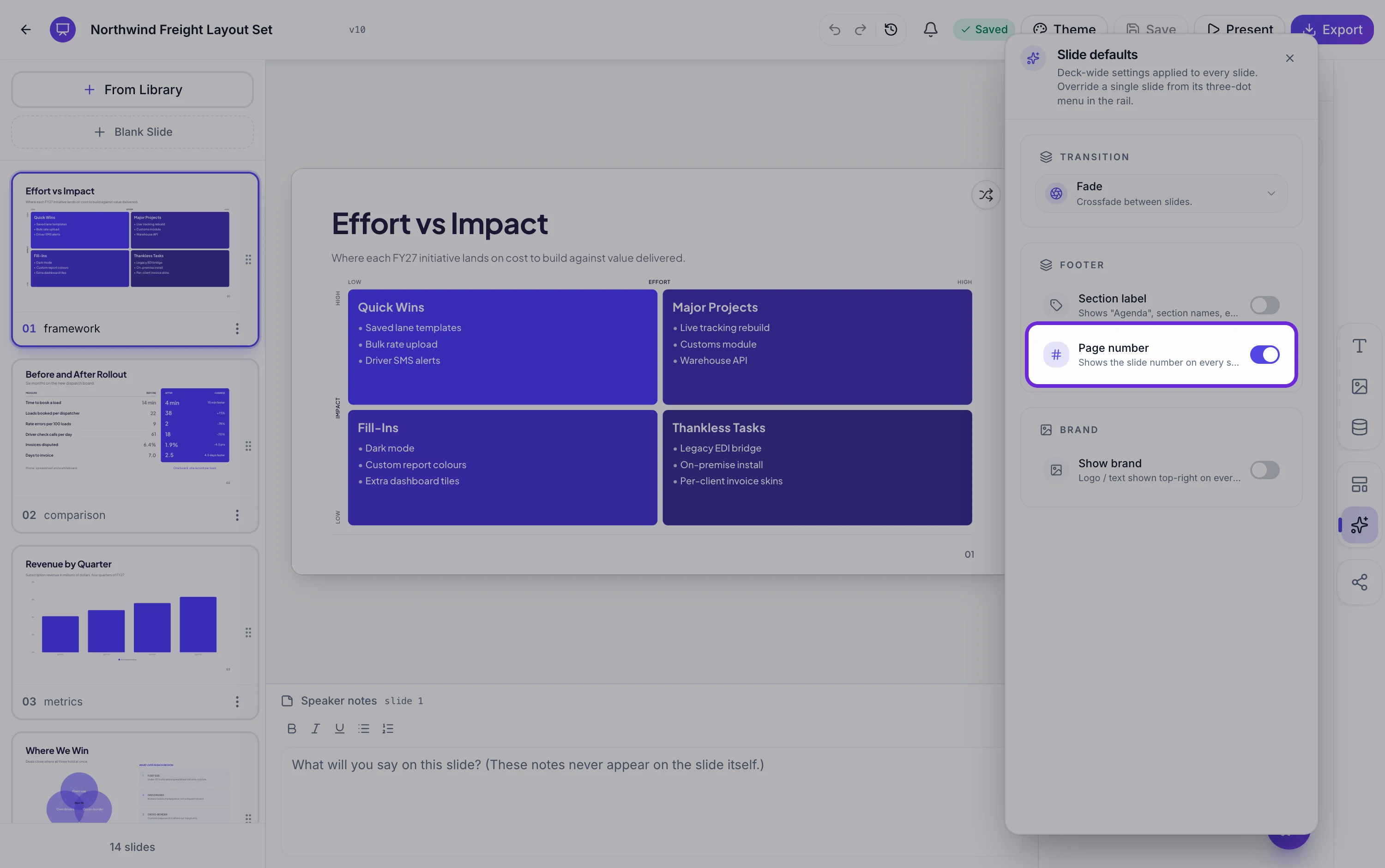
There are deck-wide switches for the page number and the section label in the slide defaults panel, and they are worth understanding before you rely on them. They change what you see on the editor canvas and in the rail thumbnails, and nothing else. They are not written to the deck, so they reset when you reload, and present mode, the exports and the shared link all use the defaults regardless: page number shown, section label hidden.
How it works, in three steps
Step 1
Click the label on the slide
Bottom left, beside the small brand dot. Type your own section name over the layout's default.
Step 2
Leave the numbering alone
It follows the slide's position automatically and renumbers itself when you reorder or insert.
Step 3
Check a cover and a divider
Those layouts have no footer by design, so the numbering visibly starts on your first content slide.
The full walkthrough with screenshots is in the guide Change your presentation's theme, fonts and colours.
Limits worth knowing
- The deck-wide hide toggles for the page number and section label affect the editor canvas only. They are not saved and do not change present mode, exports or the shared link.
- Page numbers cannot be started at a different value, offset, or formatted differently. They are the slide position, zero padded.
- The footer's position and height come from the theme and cannot be moved.
- 267 of the 1,071 layouts carry no footer, so those slides show neither a number nor a label.
See it on a finished piece
Questions people ask
Can I stop the numbering counting the cover?
It already does in effect. Cover layouts carry no footer, so the number simply does not appear there, although the count itself still includes the slide.
Why did turning off page numbers not change my PDF?
Because that toggle only affects the editor canvas. It is not saved with the deck, and the exports, present mode and the shared link all use the defaults.
Can I write my own section names?
Yes, and you should. Click the label at the bottom left of the slide and type. The change is stored on that slide and persists.
Do the footer texts survive an export?
Yes. In the editable PowerPoint export the section label and the page number are both emitted as real text boxes rather than being part of the background picture.
Make your own presentation
The button opens the generator with this use case already described. Change the wording to match yours, generate, then edit anything you like.
Create a presentation with OneCraftRelated pages
Closing slides
The last slide stays on screen through the questions, which is the argument against a bare thank you. Eleven layouts are filed under the closing role, and they range from an oversized thank you to a contact grid of four and a written conclusion with a supporting paragraph.
Dark presentation theme and the other three modes
Dark is not a separate theme here, it is one of four colour modes that any slide can be switched to on its own. The palette stays the same and the mode decides how its colours are applied, so a dark slide in the middle of a light deck still belongs to the deck.
Editable PowerPoint export
This export takes a slide apart. Anything PowerPoint has a native equivalent for is emitted as that object, and only the artwork it cannot express is left as a picture behind them. The result is a file somebody can actually keep working on.
More finished work of this kind is on the presentation examples hub.
Written and checked by the OneCraft team. Last checked .