Presentations
Dark presentation theme and the other three modes
Dark is not a separate theme here, it is one of four colour modes that any slide can be switched to on its own. The palette stays the same and the mode decides how its colours are applied, so a dark slide in the middle of a light deck still belongs to the deck.
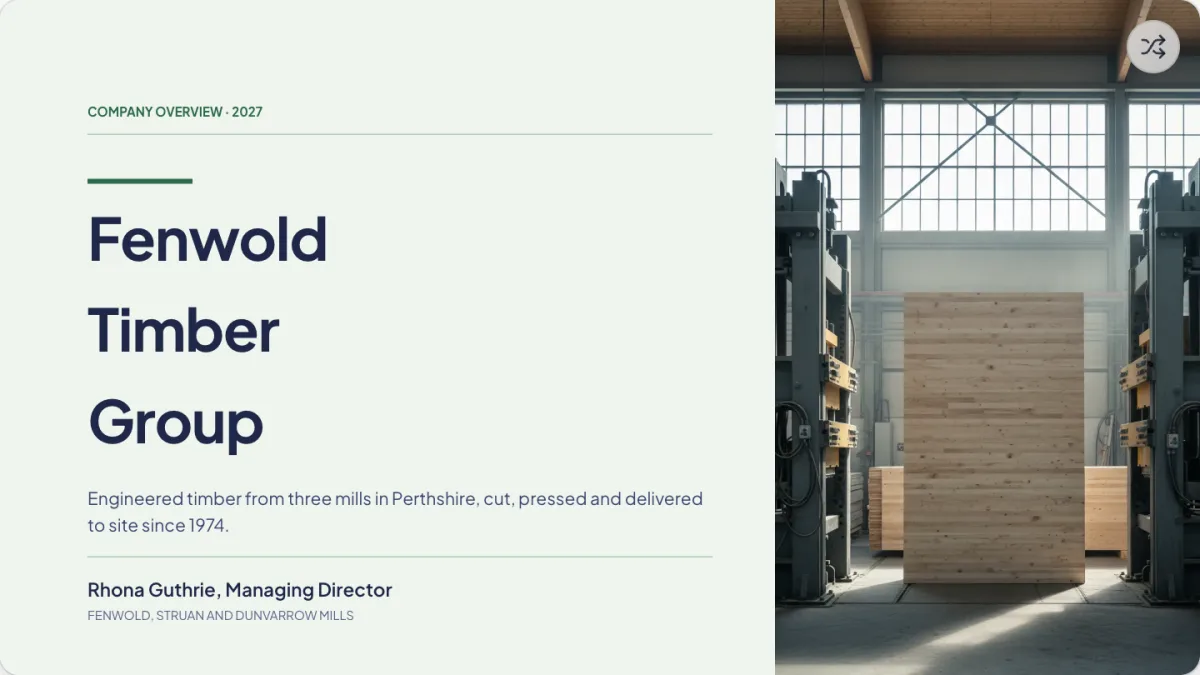
One button, four modes, per slide
A small round control sits at the top right of the canvas and cycles the current slide through spectrum, matching, outline and dark, then back to spectrum. It changes that slide only. Its icon changes with the mode and it tints itself whenever the slide is on anything other than the default, so you can see at a glance which slides you have moved.

Spectrum is the default and the busiest
Accent colours are drawn from across the palette's element range, so a row of four cards gets four different hues and a diagram's segments are distinguishable at a glance. This is right for content where the colours are carrying meaning, such as a set of workstreams, a comparison of four options, or anything with a legend.
Matching and outline calm it down
Matching pulls the accents back toward a single hue family so the slide reads as one thing rather than six. Outline goes further and draws cards and panels as thin strokes on the plain background instead of filled blocks. Both are the right answer when the slide's content is verbal rather than categorical, and a spectrum treatment would be decorating rather than communicating.
Dark inverts the ground, not the meaning
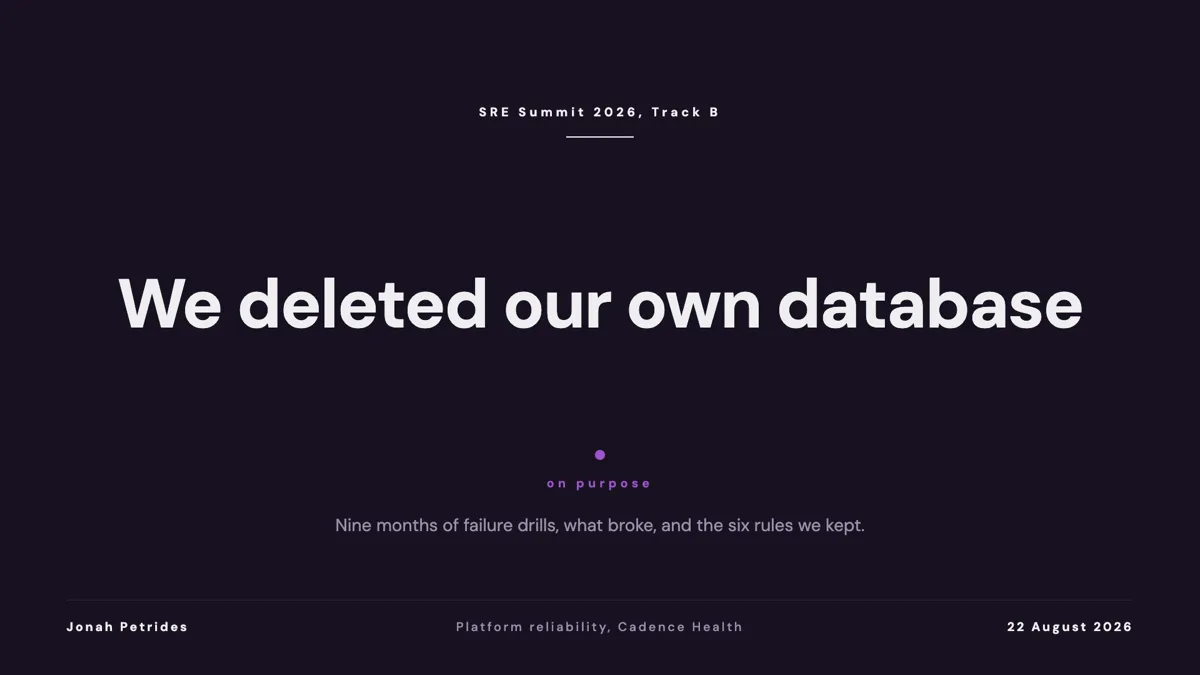
The palette's dark block is flattened over the base before rendering, so background and text swap roles and the accent colours are lifted toward pastel while the brand colour keeps its identity, because charts and tables anchor on it. What you do not get is a naive inversion where a mid grey becomes a different mid grey and a light panel disappears. Every palette ships a dark block that has been contrast checked separately.
Which one to project
In a bright room, light modes win, because a projector cannot make black, it can only fail to add light, so a dark slide turns into a grey slide and its text loses contrast. In a dim room or on a large screen, dark reads better and is easier on the eyes over an hour. Mixing works too: a light deck with dark section dividers gives the audience an obvious reset between topics.
How it works, in three steps
Step 1
Find the button on the canvas
Top right corner of the slide, a small round control. It cycles rather than opening a menu.
Step 2
Set the mode per slide
Click through to the mode you want. It applies to the current slide alone, so dividers can differ from content.
Step 3
Check the data slides
Charts and tables are where a mode change shows. Look at those before you decide it works.
The full walkthrough with screenshots is in the guide Change your presentation's theme, fonts and colours.
Limits worth knowing
- There is no deck wide mode switch. Each slide is set on its own, one click at a time.
- The four modes are spectrum, matching, outline and dark. There is no separately named light mode, because spectrum and matching already sit on a light ground.
- Charts and heat grids follow spectrum and outline, but keep the brand colour under matching and dark, because remapping it there would paint a bar in the background colour and make it vanish.
- Mode is not a theme. It reshapes how the current palette is applied and cannot introduce a colour the palette does not have.
See it on a finished piece

Questions people ask
Can I make the whole deck dark at once?
Not with one control. Set each slide, or choose a palette whose light block is already dark toned so the deck reads dark without switching modes.
Does dark mode just invert the colours?
No. Each palette carries a separate dark colour block that has been contrast checked on its own, with accents lifted toward pastel and the brand colour holding its identity for charts and tables.
Which mode should I use for a projector?
A light mode in a bright room, because a projector cannot render black and a dark slide becomes a grey one. Dark works well on a screen or in a dim room.
Do modes survive export?
Yes. The mode is stored on the slide, so the PDF and the PowerPoint carry whatever each slide was set to.
Make your own presentation
The button opens the generator with this use case already described. Change the wording to match yours, generate, then edit anything you like.
Create a presentation with OneCraftRelated pages
Quiz slide templates
A quiz slide in a deck is not an interactive quiz. Nobody clicks an answer and gets a score. It is a question held on screen while a room answers out loud, followed by a slide that shows which answer was right. That is a smaller thing than a quiz app and a very useful thing in a training session.
Framework slides
A framework slide borrows a structure the audience already knows, so the argument arrives half understood. Twenty three layouts carry named models, from SWOT and PESTEL to Porter's five forces, Ansoff, the Kano model and a fishbone, each with the cell labels already in place.
Regenerate a slide
There are three different things people mean by redo this slide, and they have three different mechanisms with three different costs. Picking the wrong one is how you lose an edit you wanted to keep.
More finished work of this kind is on the presentation examples hub.
Written and checked by the OneCraft team. Last checked .