Presentations
Regenerate a slide
There are three different things people mean by redo this slide, and they have three different mechanisms with three different costs. Picking the wrong one is how you lose an edit you wanted to keep.
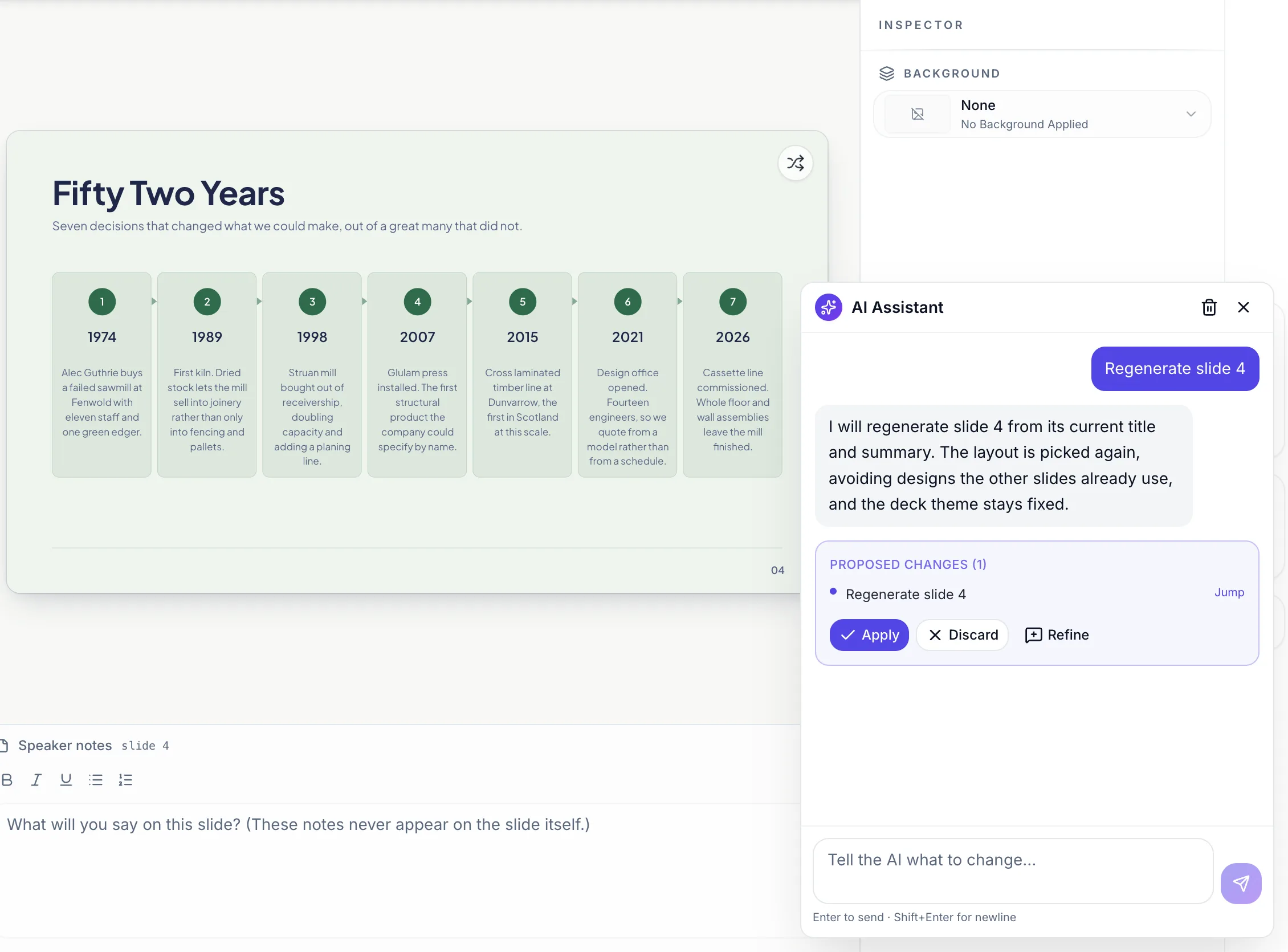
Regenerate: new content, new layout, from the assistant
Ask the assistant to redo a slide and it runs one regenerate operation on that slide, which is written again from scratch. The layout is chosen again too, deliberately excluding the layouts every other slide is currently using so you do not end up with two identical designs. The deck's theme is held fixed, so one regeneration cannot restyle the whole deck.
It anchors on the title and summary
Regeneration is not a random reroll. It reads the slide's current title and one line summary and writes fresh content against those. If you edited the title, your edited title is the anchor. This is the lever worth knowing: change the title to what you actually want the slide to say, then regenerate, and you get a different slide rather than a rephrasing of the same one. A slide with neither a title nor a summary has nothing to anchor on and is left alone.
What regenerating destroys
Every text edit you made on that slide, and every styling change. Because a new layout may have entirely different boxes, the old content edits and style overrides cannot be re-keyed and are cleared. One thing is kept: speaker notes you wrote yourself. Freshly generated notes are only adopted when your notes were empty, so a regeneration will not overwrite a script you spent time on.
Reset to AI version: keep the design, drop your edits
In the slide's menu in the rail there is Reset to AI version, and it is a different thing entirely. No AI call, no new layout, no cost. It clears your content edits and your styling on that slide and puts back what the generator originally produced. Use it when you have made a slide worse by editing rather than when the generator's version was wrong. It is greyed out when there is nothing of yours to clear.
Undo: step back one change at a time
Fifty steps are held in memory, and a regeneration lands as a single step rather than fifty small ones, so one undo puts the whole slide back. That memory does not survive closing the tab, which is where version history takes over. Every save is a version, an applied assistant turn is a save, and restoring a version is itself reversible.
How it works, in three steps
Step 1
Fix the title first
Regeneration writes against the slide's title and summary, so editing the title is how you steer the result.
Step 2
Ask the assistant to redo it
It runs as one regenerate operation on just that slide, and the fill starts straight away. If the turn is interrupted and you come back later, the builder restores it as a proposal with Apply and Discard so nothing lands without you seeing it.
Step 3
Or reset instead, if the original was fine
Reset to AI version in the slide's menu restores the generator's own content with no AI call and no cost.
The full walkthrough with screenshots is in the guide Undo changes and restore an earlier version.
Limits worth knowing
- There is no Regenerate button on the slide. It is reached by asking the AI assistant.
- Regenerating clears every text edit and every style change on that slide, because the layout may change.
- A slide with no title and no summary cannot be regenerated, because there is nothing to write against.
- Undo holds fifty steps and lives in the browser tab. Closing the tab loses it, and version history is the longer memory.
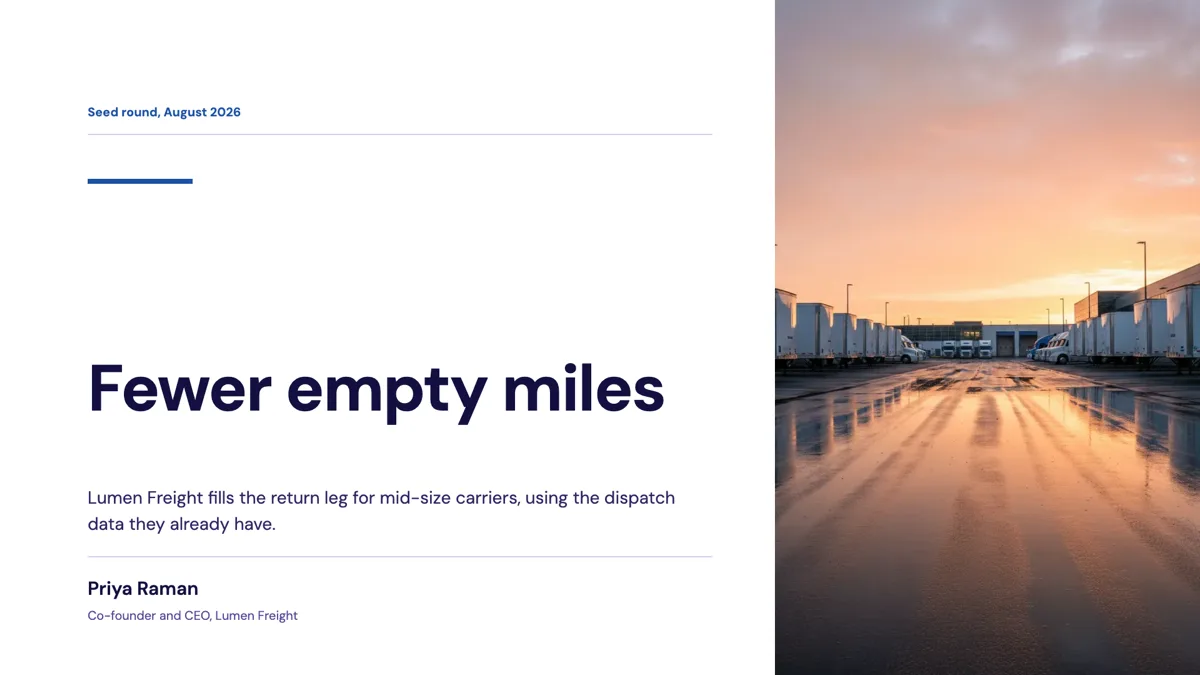
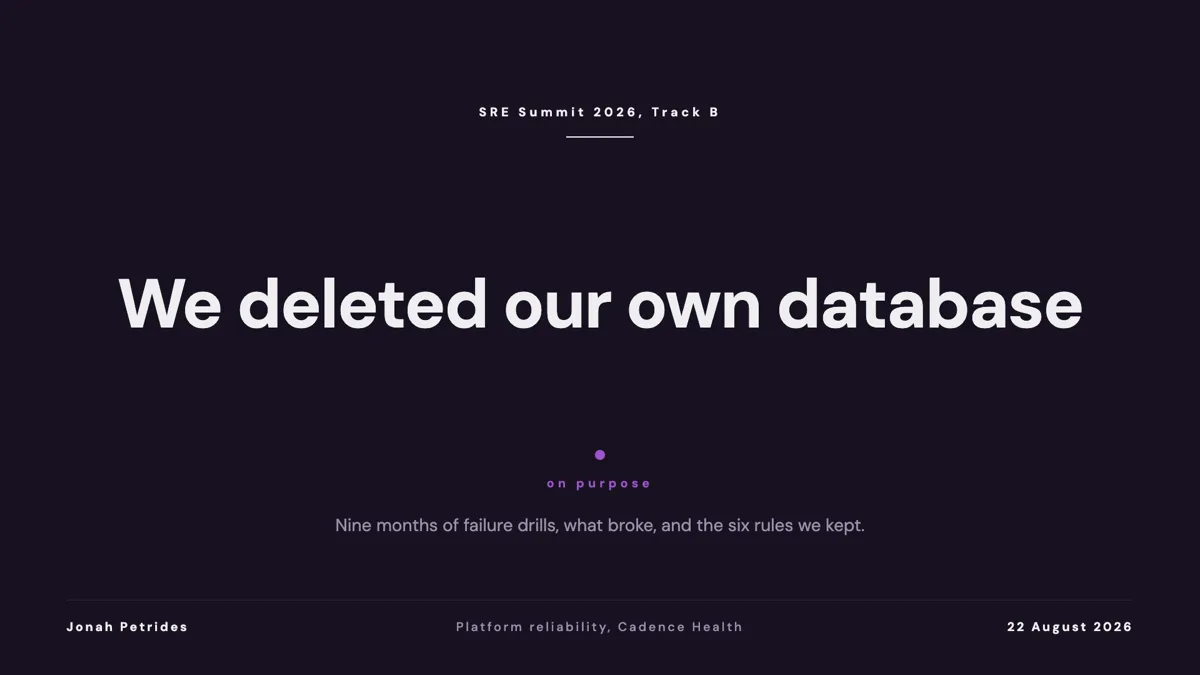
See it on a finished piece

Questions people ask
Where is the regenerate button?
There is not one. Ask the assistant in the side panel to redo the slide, and it regenerates that slide alone.
Will regenerating change my speaker notes?
Only if they were empty. Notes you wrote yourself are kept, and freshly generated notes are adopted only into an empty notes field.
How do I get the same layout back?
You cannot pin it through regeneration unless the slide already had a specific layout chosen for it. Regenerate first, then swap the layout back from the picker, which keeps the new content.
What is the difference from Reset to AI version?
Reset makes no AI call. It clears your edits and puts back the content the generator originally wrote, keeping the same layout. Regenerate writes new content and may pick a new layout.
Make your own presentation
The button opens the generator with this use case already described. Change the wording to match yours, generate, then edit anything you like.
Create a presentation with OneCraftRelated pages
Add my own video clip
Not everything should be generated. If you already have footage, six scene layouts exist to play it, with a title beside it, three icon bullets, a quote, a counting number, or full screen with a caption over the top. The clip is trimmed and fitted in the inspector rather than in a separate editor.
Timeline slides
Time on a slide has more than one honest shape. A run of milestones wants a rail. A set of phases with detail under each wants columns. A history with unequal gaps wants a vertical list. Twenty layouts cover those cases, and choosing badly is what makes a timeline unreadable.
Closing slides
The last slide stays on screen through the questions, which is the argument against a bare thank you. Eleven layouts are filed under the closing role, and they range from an oversized thank you to a contact grid of four and a written conclusion with a supporting paragraph.
More finished work of this kind is on the presentation examples hub.
Written and checked by the OneCraft team. Last checked .