Presentations
Closing slides
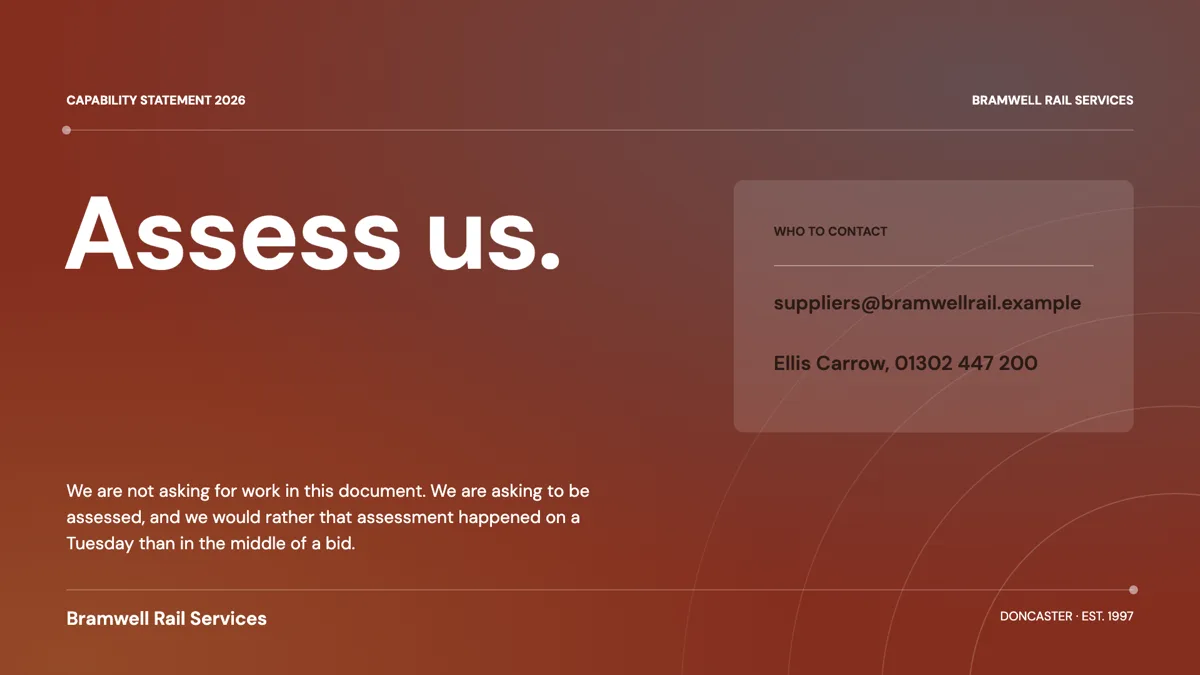
The last slide stays on screen through the questions, which is the argument against a bare thank you. Eleven layouts are filed under the closing role, and they range from an oversized thank you to a contact grid of four and a written conclusion with a supporting paragraph.
Thank you, contact, or conclusion
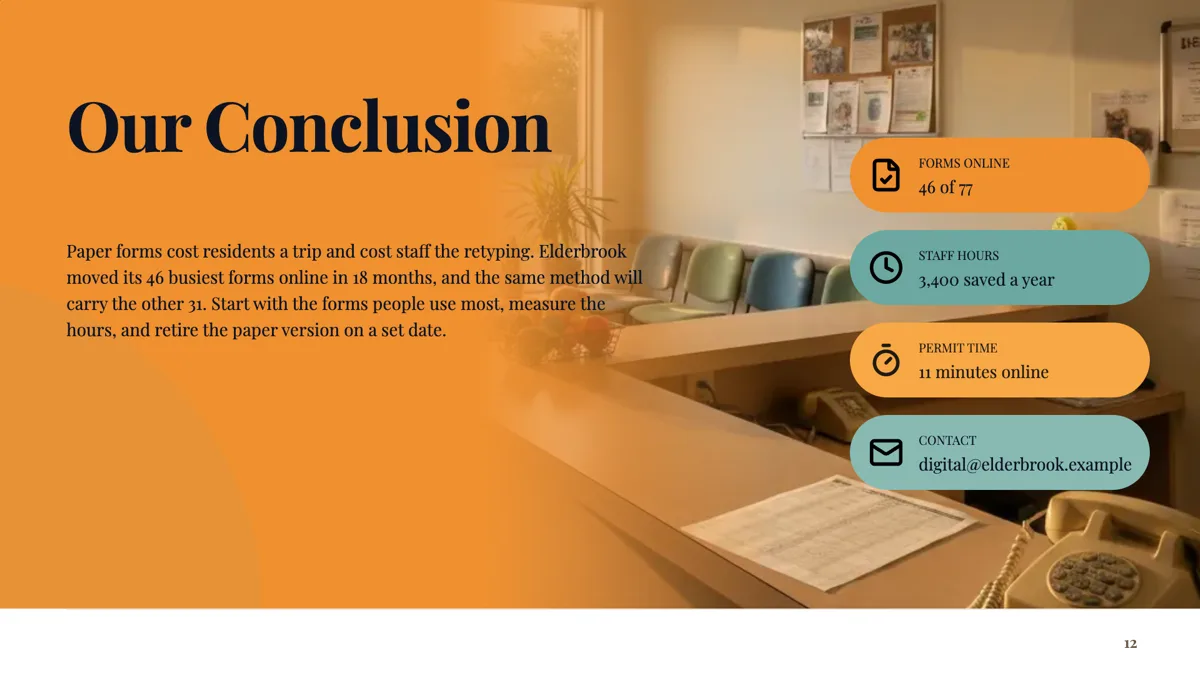
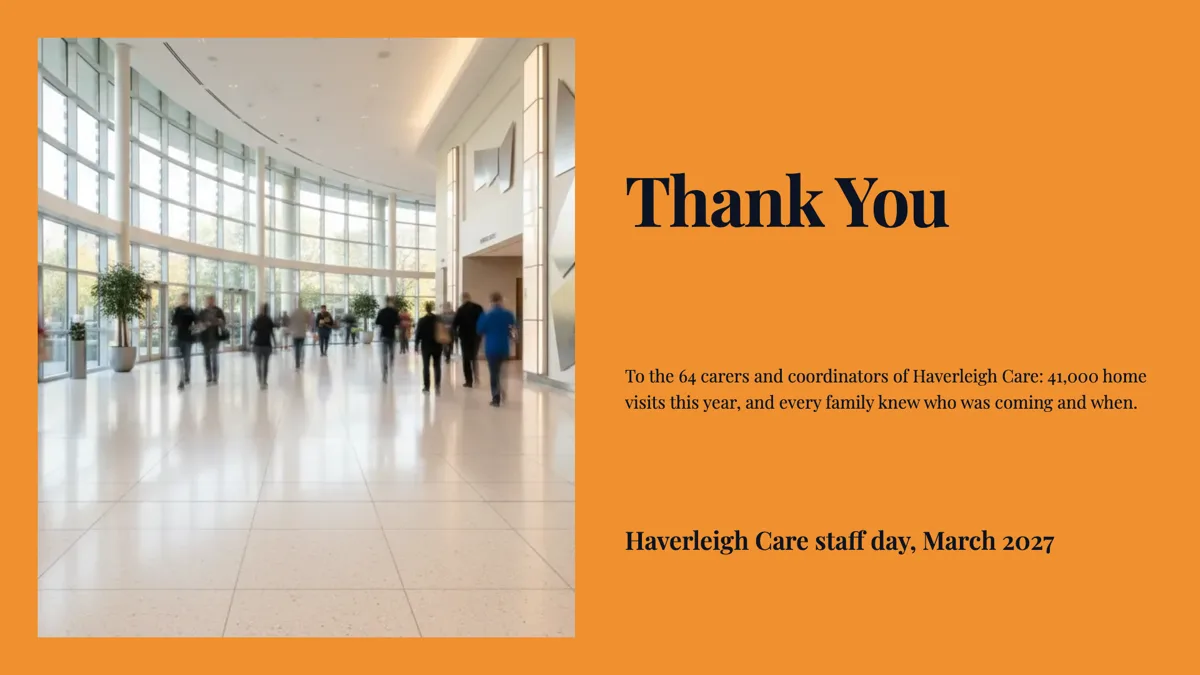
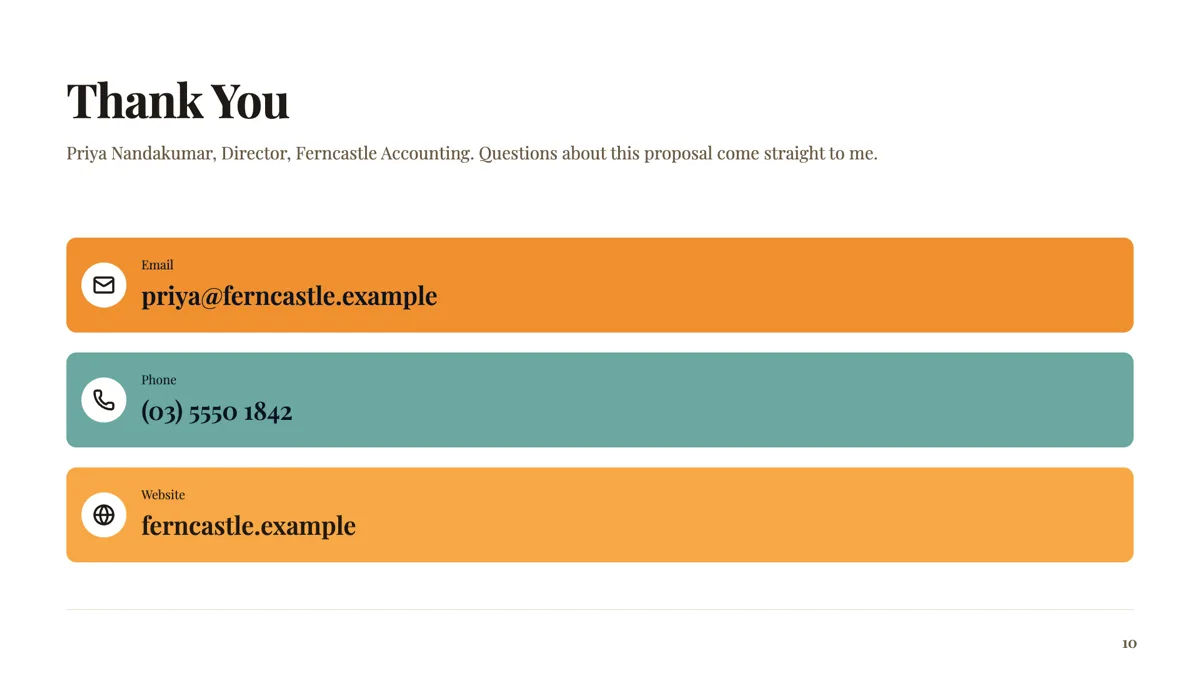
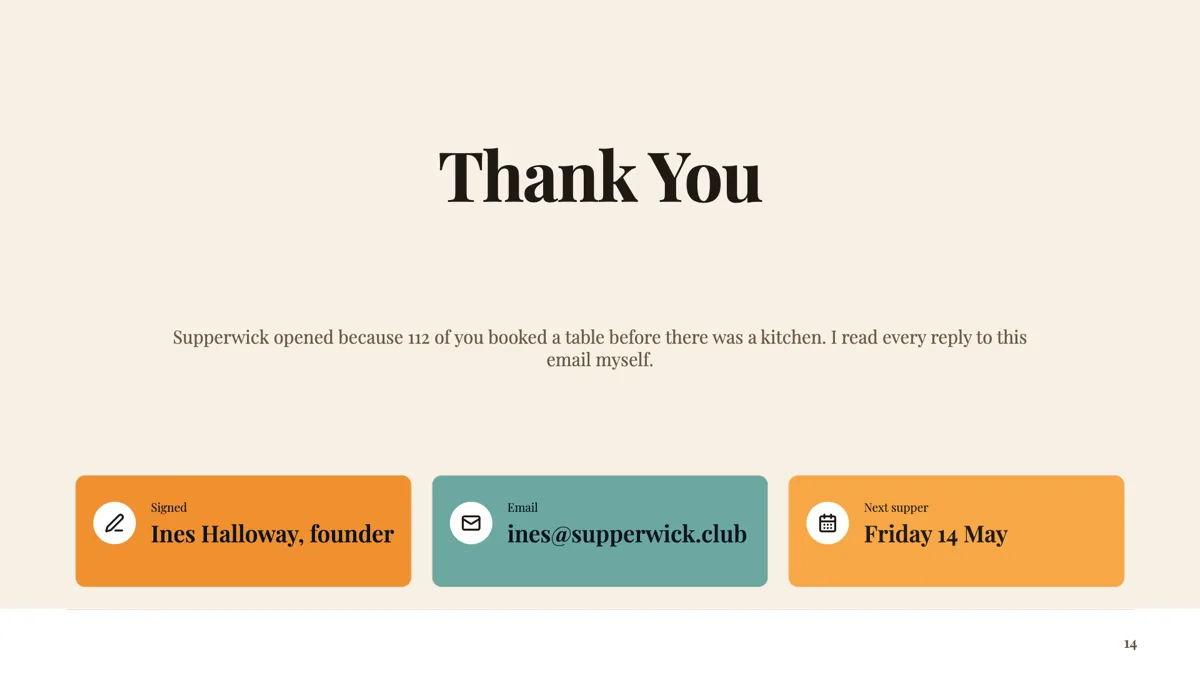
The eleven divide three ways. Four are thank you slides: a giant centred one, an oversized brand filled version, one on a photo card and one with a curved photo. Four carry contact details: a card stack of three rows, a grid of four, a photo split with a contact column, and a thank you with a signature row. Three are conclusions: a bold statement, a conclusion with an icon rail and a left aligned call to action hero. Which you need depends on what happens after the last slide.
What to leave on screen during questions
If there is a question and answer session, the slide behind it should be working. A contact grid gives people something to write down; a conclusion restates the argument you want them to argue with. A giant thank you gives them nothing. The one case for the bare thank you is a keynote where the deck ends on applause rather than a discussion.
The call to action, and what it can do
The call to action hero carries a display invitation, a subtitle and one action bar. The button is artwork with a label, not a link that does anything in a PDF, so the action has to be legible as text: an email address, a short URL or a date. There are separate qa layouts, five of them, if the deck needs a dedicated question slide before the close.
Contact details that survive a PDF
Contact rows take a circular icon, a label and a value. Write the value in full rather than relying on a link, because the PDF export places each slide as a bitmap and nothing in it is clickable or selectable. The same applies to the PowerPoint export, where a plain export is one image per slide; only the editable PPTX turns the text into native objects.
How the AI picks this slide
Most generated decks end on a closing slide, and the fill writes a thank you line and a contact block from your brief. It will not invent an email address or a phone number, so an unspecified contact block comes back empty rather than plausible. Swapping to another of the eleven afterwards carries the text across, since content re-keys by box id on a layout swap.
How it works, in three steps
Step 1
Decide what happens next
Questions, a decision, or an introduction. The closing layout should match: a conclusion, a call to action or a contact grid.
Step 2
Add the slide from the library
From Library on the slide rail with the Role filter set to closing. Eleven layouts come back.
Step 3
Write the contact details in full
The export is a bitmap, so nothing on the slide is clickable. An email typed in full is more useful than a button that says get in touch.
Step 4
Check it as the questions slide
Put yourself in the room: this is what the audience looks at while they think of something to ask.
The full walkthrough with screenshots is in the guide Add, reorder and restructure slides.
Limits worth knowing
- Buttons and call to action bars are artwork with a label; they are not links, and exports are not clickable.
- The contact card layouts hold a fixed number of rows, three or four depending on the template.
- The generator will not invent contact details, so an unspecified block is left empty.
- Page numbers render on the 804 of 1,071 templates that use the theme footer, so a full bleed closing layout may not show one.
See it on a finished piece

Slide examples
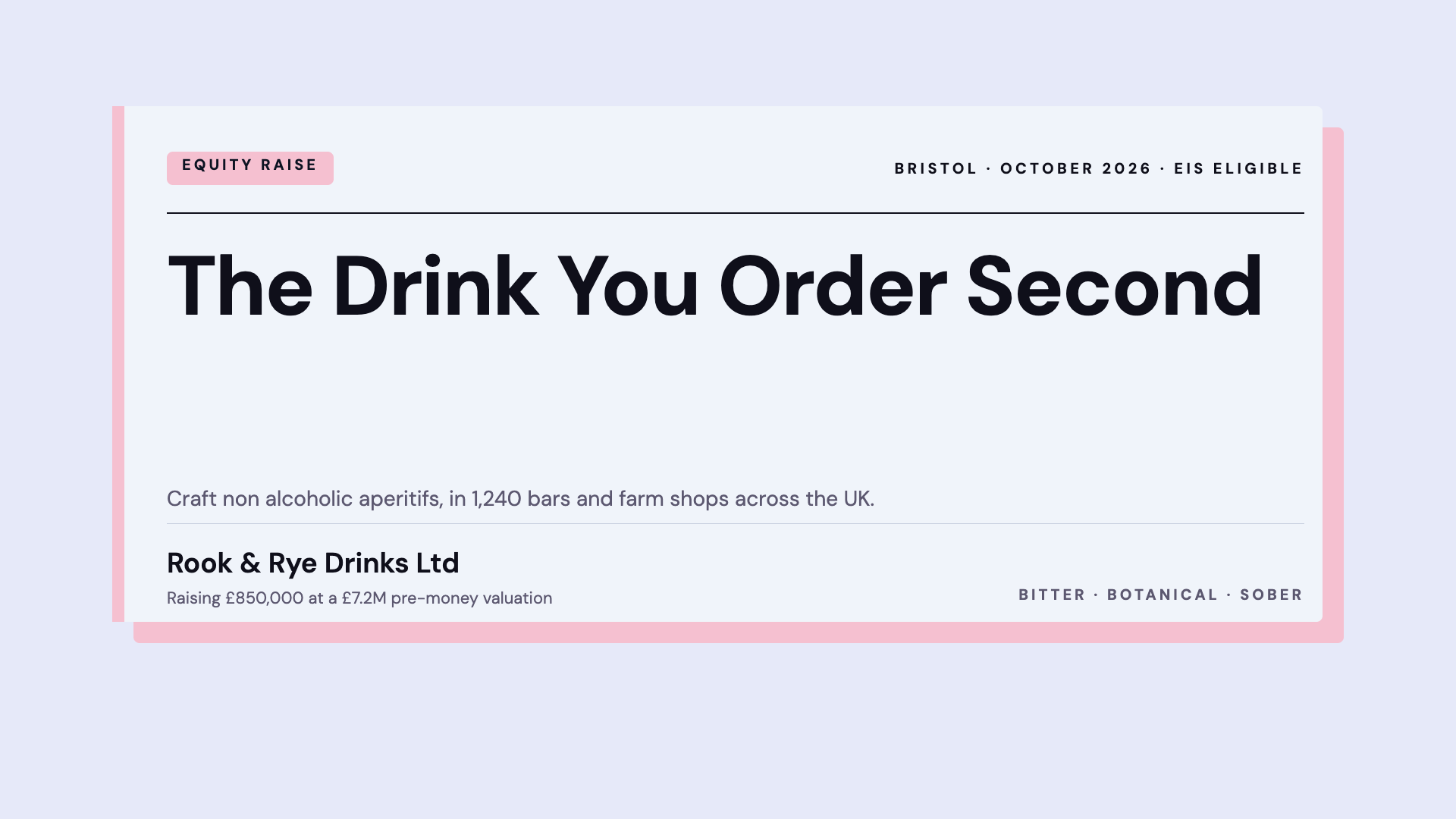
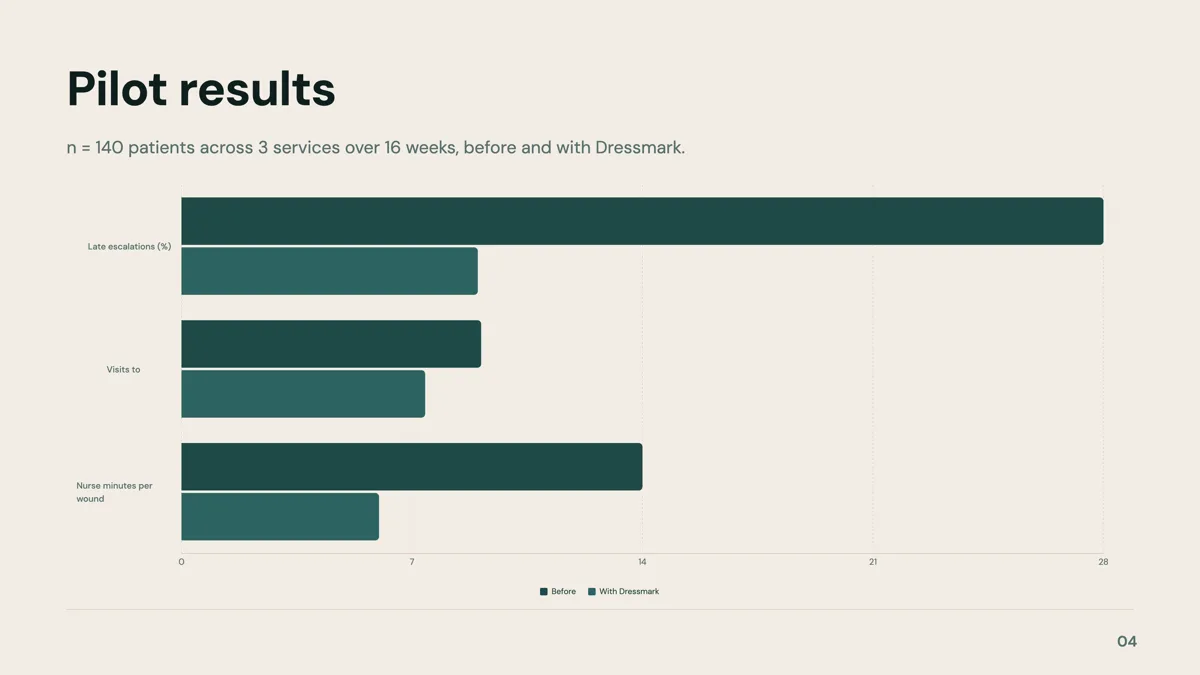
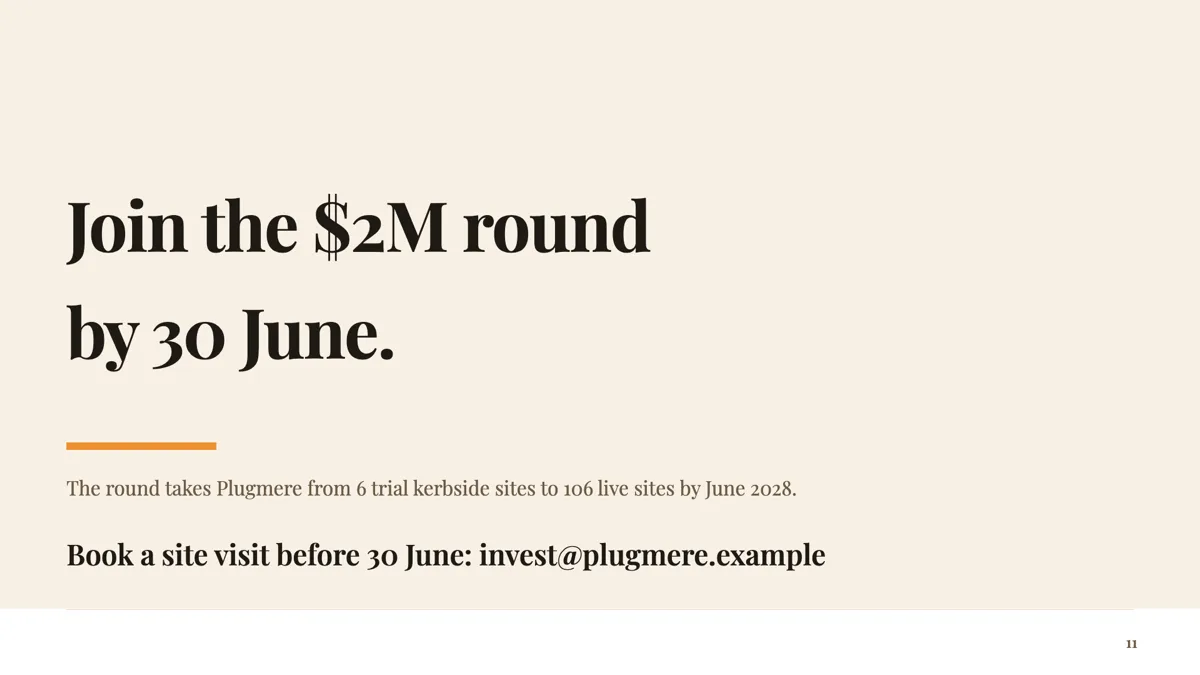
Finished single slides on this layout, each one built from a real template and written out in full.
Questions people ask
How many closing layouts are there?
Eleven templates carry the closing role: four thank you variants, four with contact details, and three written conclusions including a call to action hero.
Should the last slide say thank you?
Only if nothing follows it. If there are questions, a conclusion or a contact grid does more work, because that slide stays on screen for the whole discussion.
Can I put a QR code on the closing slide?
Slides have no QR slot kind. Write the short link in full, or add an image slot and upload a QR image you generated elsewhere.
Will a link on the slide be clickable?
Not in an export. PDF and plain PowerPoint place each slide as a rendered image, so nothing is clickable or selectable. In the editable PPTX the text becomes native text, which PowerPoint may linkify itself.
Can I use a photograph on the last slide?
Yes. Three of the eleven are built around one: a photo card, a curved photo and a photo split with the contact column beside it. Photographs are uploads, cropped to fill their slot.
Is there a separate questions slide?
Yes, the qa role has five layouts for a dedicated question and answer slide, which is worth using before the close in a long session.
Make your own presentation
The button opens the generator with this use case already described. Change the wording to match yours, generate, then edit anything you like.
Create a presentation with OneCraftRelated pages
Q&A slides
The slide that says Questions? in the middle of an empty screen is doing one job badly. There are six layouts here, and the useful ones do a second job: they give the room something to ask about, or they leave your contact details on screen while people are still looking.
Testimonial slide templates
Twelve layouts are filed under the testimonial purpose, and they split by how many voices you have. The one thing none of them will do is make a customer up: the quote has to be in your brief, or the slide comes back empty.
Make a presentation on your phone
The builder does not shrink the desktop layout onto a phone. Below 1024 pixels it becomes a different arrangement: a vertical feed of every slide you scroll through, with the tools that make sense on a touch screen and without the ones that do not.
More finished work of this kind is on the presentation examples hub.
Written and checked by the OneCraft team. Last checked .