Presentations
Make a presentation on your phone
The builder does not shrink the desktop layout onto a phone. Below 1024 pixels it becomes a different arrangement: a vertical feed of every slide you scroll through, with the tools that make sense on a touch screen and without the ones that do not.
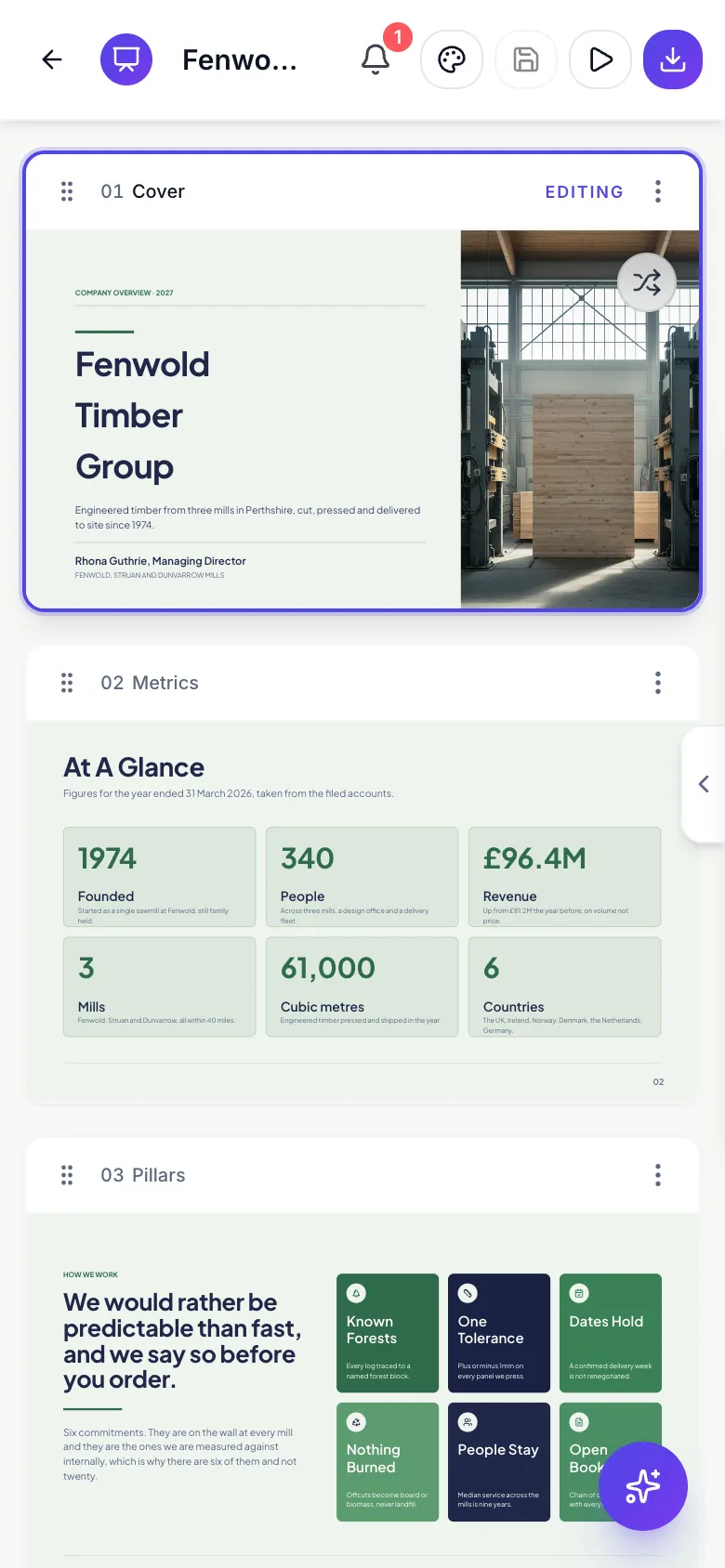
Every slide at once, not one at a time
The single canvas and the vertical rail are replaced by a feed: every slide as a full width card in order, each rendered at full fidelity in its 16 by 9 shape. Scrolling the feed is how you read the deck, which turns out to be a better review experience than a desktop editor, because you see structure and repetition rather than one slide in isolation.
Only the slide you tapped is editable
Tapping a card makes it the active one. Cards that are not active render read only, deliberately, so a long deck does not have twenty live editing surfaces measuring themselves at once. Tapping something inside the active card selects it and brings up the inspector for whatever it is: a chart's data grid, a table's rows, a text box's styling.
Two taps to edit text
One tap selects, two rapid taps in the same place start editing, which mirrors the double click on a desktop. It is done this way because the native double tap event is unreliable on mobile browsers, so the timing is handled explicitly. Selection also behaves differently under a finger: tapping a field inside a card selects the field directly rather than selecting the card first, so the first tap is never wasted.
Everything else is a floating control
The tool rail becomes a small floating strip on the right edge rather than a fixed column, so the layout picker, the theme panel, the element library, the slide defaults and the AI assistant are all reachable. Slides are reordered by dragging sideways along the strip at the top, and each card carries its own menu with duplicate, reset to the AI version and delete.
One thing is desktop only
The speaker notes pane is not rendered below 1024 pixels. Notes you wrote on a computer are still there, still travel with the deck, and are still readable when you present, but you cannot type or edit them on a phone. If you are drafting notes, do that part on a laptop.
How it works, in three steps
Step 1
Scroll the feed to read the deck
Every slide is a card in order at full fidelity, which is the fastest way to review structure on a small screen.
Step 2
Tap once to select, twice to type
One tap picks the card or the element. Two rapid taps in the same place opens the text for editing.
Step 3
Use the floating rail for everything else
Layout, theme, elements, deck defaults and the assistant all live in the strip on the right edge.
The full walkthrough with screenshots is in the guide Add, reorder and restructure slides.
Limits worth knowing
- The speaker notes pane is not available below 1024 pixels. Notes can be read while presenting but not edited.
- Only the active card is editable. Other cards render read only until you tap them.
- Presenting full screen is restricted by mobile Safari, which limits the fullscreen API, so the presentation runs as an overlay instead.
- Free positioning of dropped elements is possible but fiddly with a finger. Layout work is easier on a larger screen.
See it on a finished piece



Questions people ask
Can I generate a whole deck from my phone?
Yes. The generator is fully responsive, so the topic box, language, theme and length all work, and the builder opens in the feed layout when it is done.
Why will my text not edit when I tap it?
One tap selects. Two rapid taps in the same place starts editing. That gesture replaces the desktop double click, which mobile browsers report unreliably.
Can I write speaker notes on a phone?
No. The notes pane is desktop only. Existing notes are kept and are readable in present mode, but editing them needs a wider screen.
Can I reorder slides with a finger?
Yes. The rail lies down into a horizontal strip and you drag sideways instead of up and down.
Make your own presentation
The button opens the generator with this use case already described. Change the wording to match yours, generate, then edit anything you like.
Create a presentation with OneCraftRelated pages
Edit a presentation with AI
The assistant in the side panel does not touch your deck. It reads a snapshot, decides what would have to change, and hands back a list of proposed operations you approve or throw away. That separation is the whole design, and it is why asking it to restructure a deck is not frightening.
Reorder slides
The rail down the left is the deck's table of contents and its editing surface. Slides are dragged into a new order, duplicated, deleted, and each one shows the purpose it was built for, which is what makes the order easy to judge at a glance.
Add a text box and 65 other slide elements
The layouts cover the common shapes, but sometimes a slide needs one more thing: a caveat in a callout, a number pulled out as a stat, a second list. The element library is a drag and drop catalogue of 66 pieces that go onto any slide, wherever you drop them.
More finished work of this kind is on the presentation examples hub.
Written and checked by the OneCraft team. Last checked .