Presentations
Edit a presentation with AI
The assistant in the side panel does not touch your deck. It reads a snapshot, decides what would have to change, and hands back a list of proposed operations you approve or throw away. That separation is the whole design, and it is why asking it to restructure a deck is not frightening.
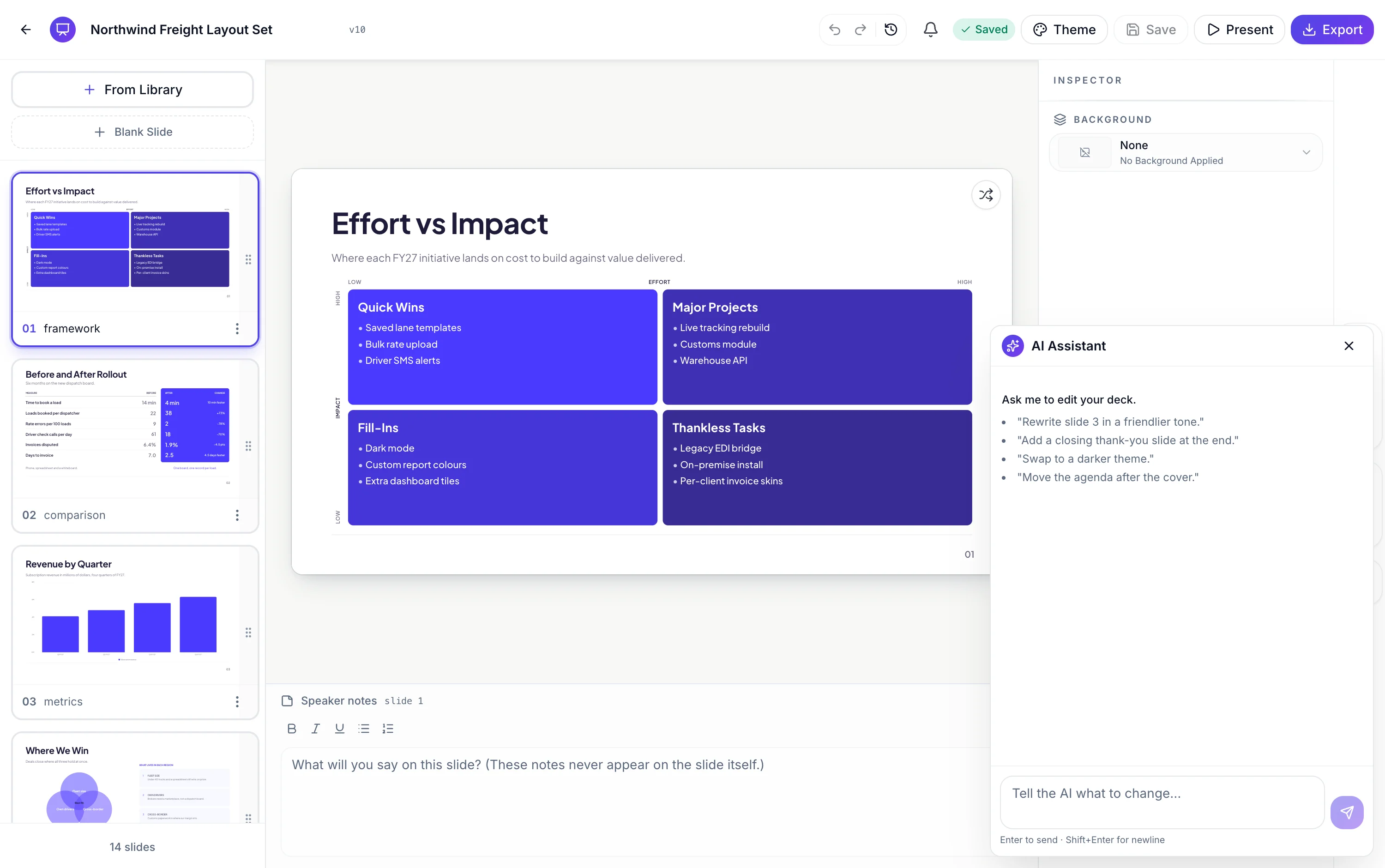
Nine operations and nothing else
Add a slide, delete a slide, move a slide to a new position, update the text in one box, swap a slide's layout, swap the deck's theme, rename the deck, regenerate a slide from scratch, and generate an image for a picture box. That is the complete vocabulary. Anything it cannot express as one of those nine, it will tell you about rather than attempt.
Every turn is a proposal
The backend records operations and never writes to the deck itself. They arrive in the panel as a readable list, each line naming its target: delete slide 4, move slide 7 to position 2, swap layout on slide 3, generate an image for the hero box on slide 1. Three buttons sit under the list: Apply, Discard, and Refine, which sends the proposal back with your correction rather than starting the conversation again.
Applying also saves
When you apply, the operations and the cleared proposal are written in one go, so the deck version and the fact that you consumed the proposal cannot come apart. That means an applied chat turn is a save point you can return to from version history, which is a useful safety net when you have asked for something structural like rewrite every slide title in plainer English.
Two operations finish after you apply
Regenerating a slide and generating an image are both slow, so they are kicked off once you approve rather than while the assistant is thinking. A regenerated slide shows as generating and fills in; a picture box shows as pending until its image lands. Adding a slide works the same way: the assistant plans the role and the layout, and the copy is written by the fill step afterwards.
It can look things up before it answers
The assistant can list the available slide purposes, fetch the layouts registered for a purpose, inspect what boxes a specific layout has, and run a web search or read a page. That last pair matters when you ask it to update the market figures on slide 6, because without it the assistant would be editing from memory. What it never does is invent a layout or a box that does not exist, since it checks first.
How it works, in three steps
Step 1
Say what you want changed
Plain language, naming slides by number. Rewrite slide 3 in plainer English. Move the pricing slide before the case studies.
Step 2
Read the proposed operations
Each line names its target and its effect. Nothing has touched the deck yet.
Step 3
Apply, Discard or Refine
Refine sends your correction back with the proposal attached, which is faster than restating the whole request.
The full walkthrough with screenshots is in the guide Edit your deck with the AI assistant.
Limits worth knowing
- Nine operations. It cannot resize or reposition a box, restyle text, change colours, or export.
- It edits one deck. It has no access to your other decks, your files or your account.
- The transcript holds the most recent 200 messages.
- Regenerated slides and generated images run after you apply, so a turn is not finished the moment the list appears.
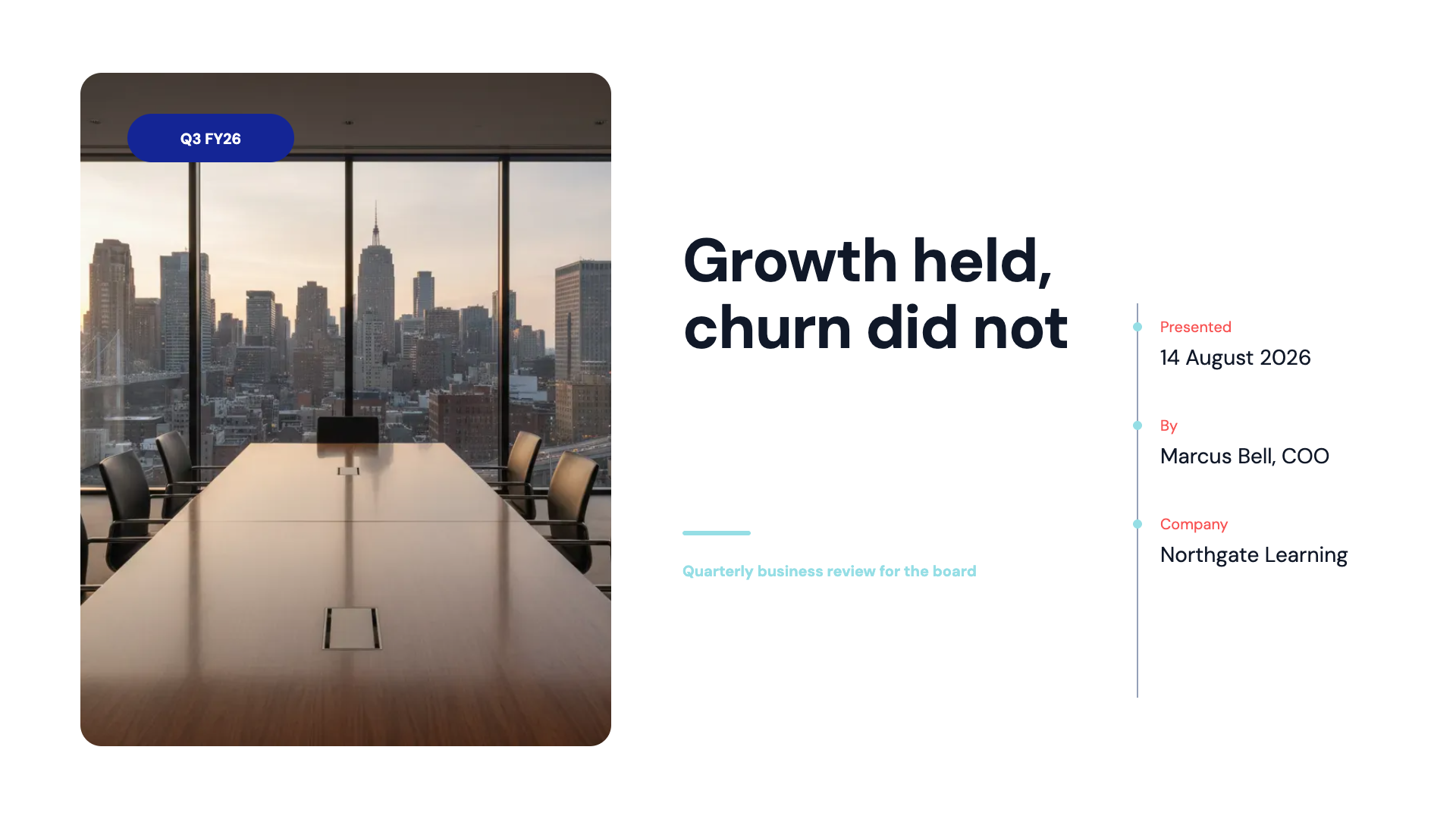
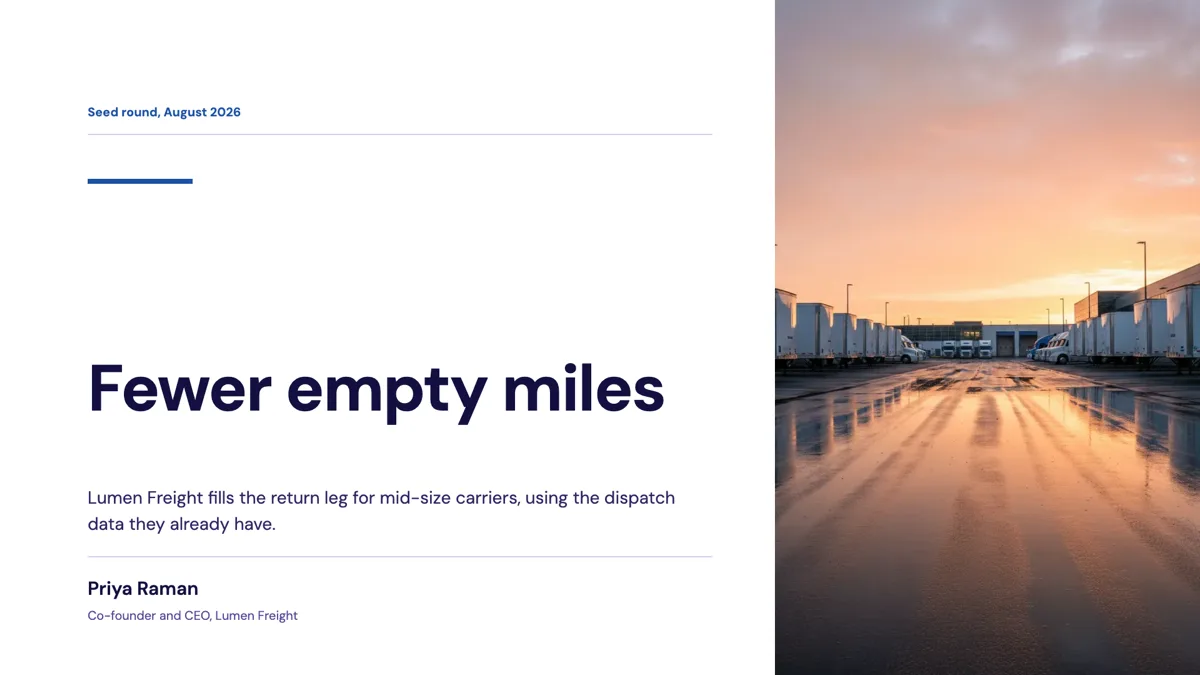
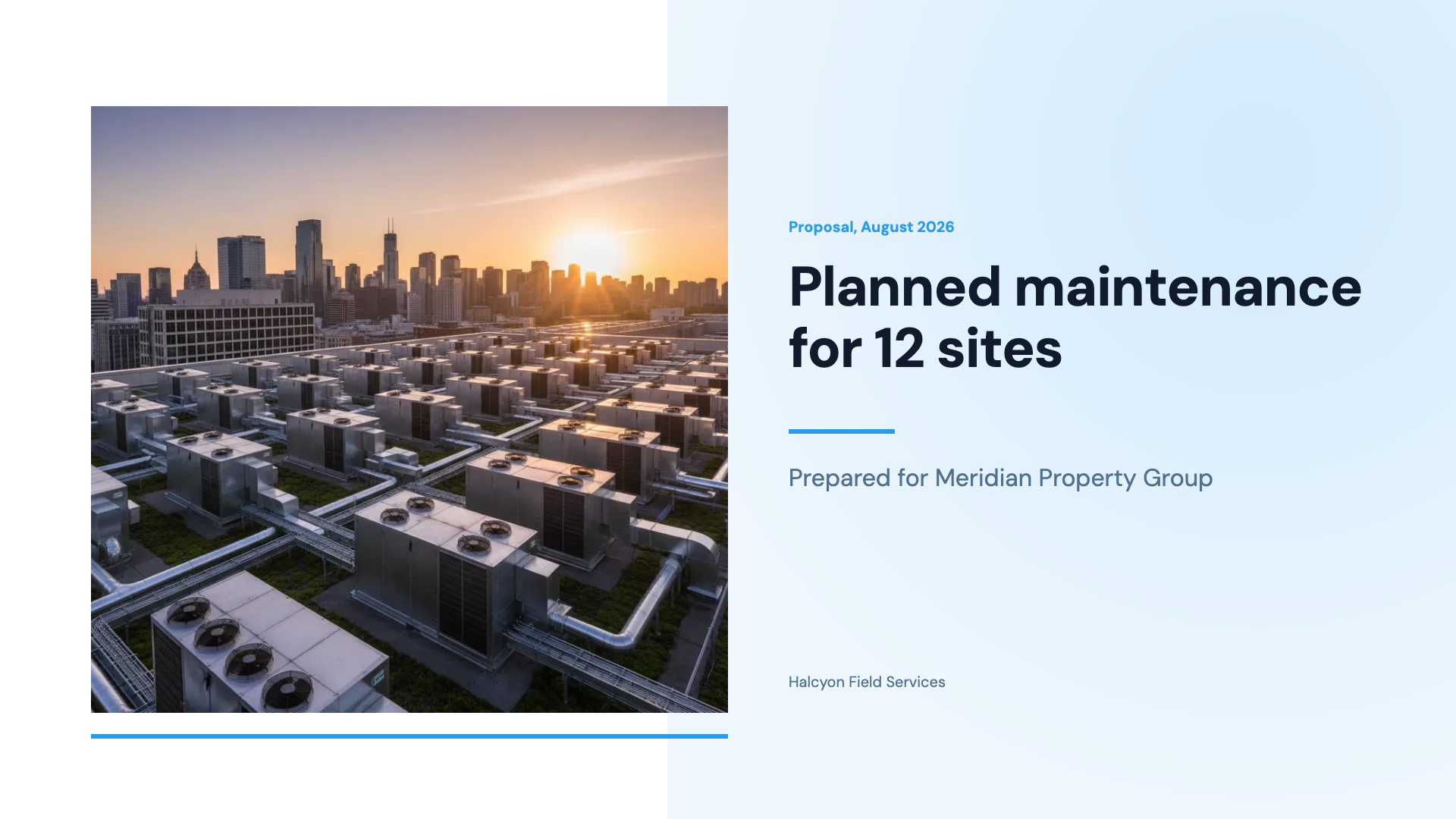
See it on a finished piece
Questions people ask
Can it change the deck without asking me?
No. The backend records operations and never writes to the deck. Nothing changes until you press Apply, and Discard throws the proposal away.
Can it restyle text or move things around?
No. Colours, sizes, positions and fonts are outside its nine operations. It changes content and structure, and you handle styling in the inspector.
What does Refine do that retyping does not?
It sends your correction along with the proposal it just made, so the assistant adjusts what it produced instead of starting from your original request again.
Can I undo an applied turn?
Yes. Applying writes a version, so version history has the state before it, and the in editor undo stack holds fifty steps.
Make your own presentation
The button opens the generator with this use case already described. Change the wording to match yours, generate, then edit anything you like.
Create a presentation with OneCraftRelated pages
Edit a proposal with AI, with pricing kept under your control
Editing a proposal with AI means asking for a change in plain words, such as shorten the introduction or add a second site visit at $180, and getting it made in the document. The danger is a model quietly changing what the client pays, so every money change should wait for your approval.
Edit a form with AI
The chat panel is a text editor you talk to. Ask it to soften a label, shorten the help text or rewrite every question in plainer English and it does that across the form. What it will not do is just as important as what it will.
Edit a document with AI
The chat panel is a rewriting tool. It can reach the text of every block on the page, including the ones nested inside a container, and it deliberately cannot touch anything structural.
More finished work of this kind is on the presentation examples hub.
Written and checked by the OneCraft team. Last checked .