Presentations
Presenter view on a second screen
Two windows, one on each screen. The slides go full screen on the display everyone can see, and the notes go into a separate small window you drag to your own. It is a simpler arrangement than a dedicated presenter mode, and worth setting up before the room fills.
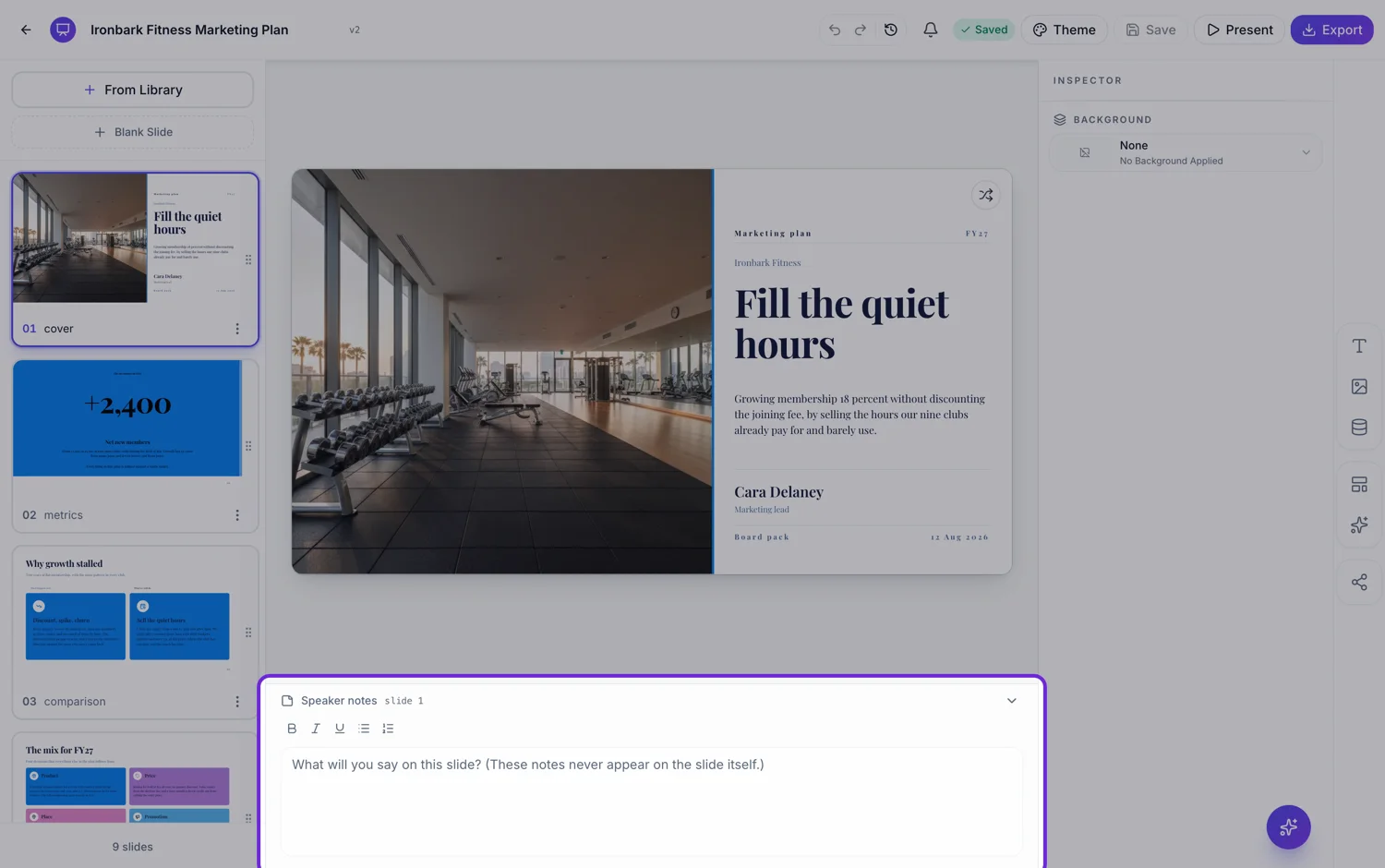
The setup, in the order that works
Connect the second display and set it to extend rather than mirror. Open the deck, start presenting, then open the notes and use the pop out control in the notes header. A second browser window appears carrying the notes. Drag that window to your own screen, then click back onto the slide window and press F for full screen. Doing it in that order avoids the moment where the projector briefly shows your notes.
You place the window, and that is deliberate
The notes window opens at 640 by 720 in the middle of wherever your browser felt like putting it, and you drag it. Browsers do not let a page target a specific physical screen without an experimental permission, so the alternative would be a best effort guess that lands wrong half the time. Being asked to drag it once is better than being surprised by where it went.
What the notes window actually holds
The notes for the current slide, a slide counter reading slide four of fourteen, and a Close button that re-docks the notes back into the main window. It follows along as you advance, because it is the same live view portalled into a second document. It does not show a preview of the next slide and it does not carry a timer or a clock, so bring your own watch.
The audience window is just the slides
Full screen, no chrome, and the controls fade out after two and a half seconds of no mouse movement. Advance with the right arrow, space, page down or j, go back with the left arrow, page up or k, jump with Home and End. Everything on the presenter side stays on the presenter side, because it is a different window rather than an overlay that could be revealed by a stray click.
If the pop out does not appear
It is a browser popup, so a popup blocker will stop it, and when that happens the notes silently stay docked in the main window instead of failing loudly. Allow popups for the site and try again. Closing the popped out window at any point, with its Close button or the browser's, re-docks the notes rather than losing them.
How it works, in three steps
Step 1
Extend, do not mirror
Set the second display to extend in your operating system's display settings. Mirroring puts your notes on the projector.
Step 2
Pop the notes out and drag them
Open the notes in present mode, use the pop out control in its header, then drag the new window to your own screen.
Step 3
Click the slide window and press F
Full screen applies to the window you clicked last, so make sure that is the one on the projector.
The full walkthrough with screenshots is in the guide Present your slides with speaker notes and a pen.
Limits worth knowing
- There is no next slide preview and no timer or clock in the notes window.
- The window cannot be placed on a specific screen for you. You drag it once.
- A popup blocker stops the pop out silently, and the notes stay docked instead.
- The notes window shows notes and a slide counter only. There are no controls for advancing from it.
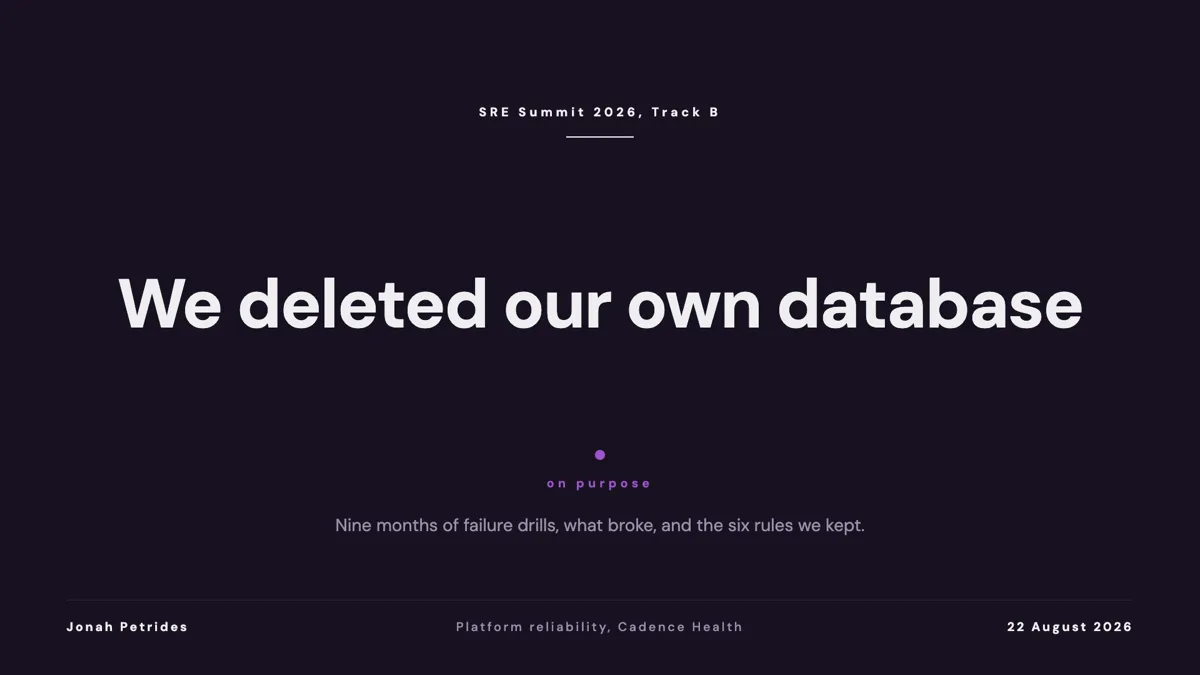
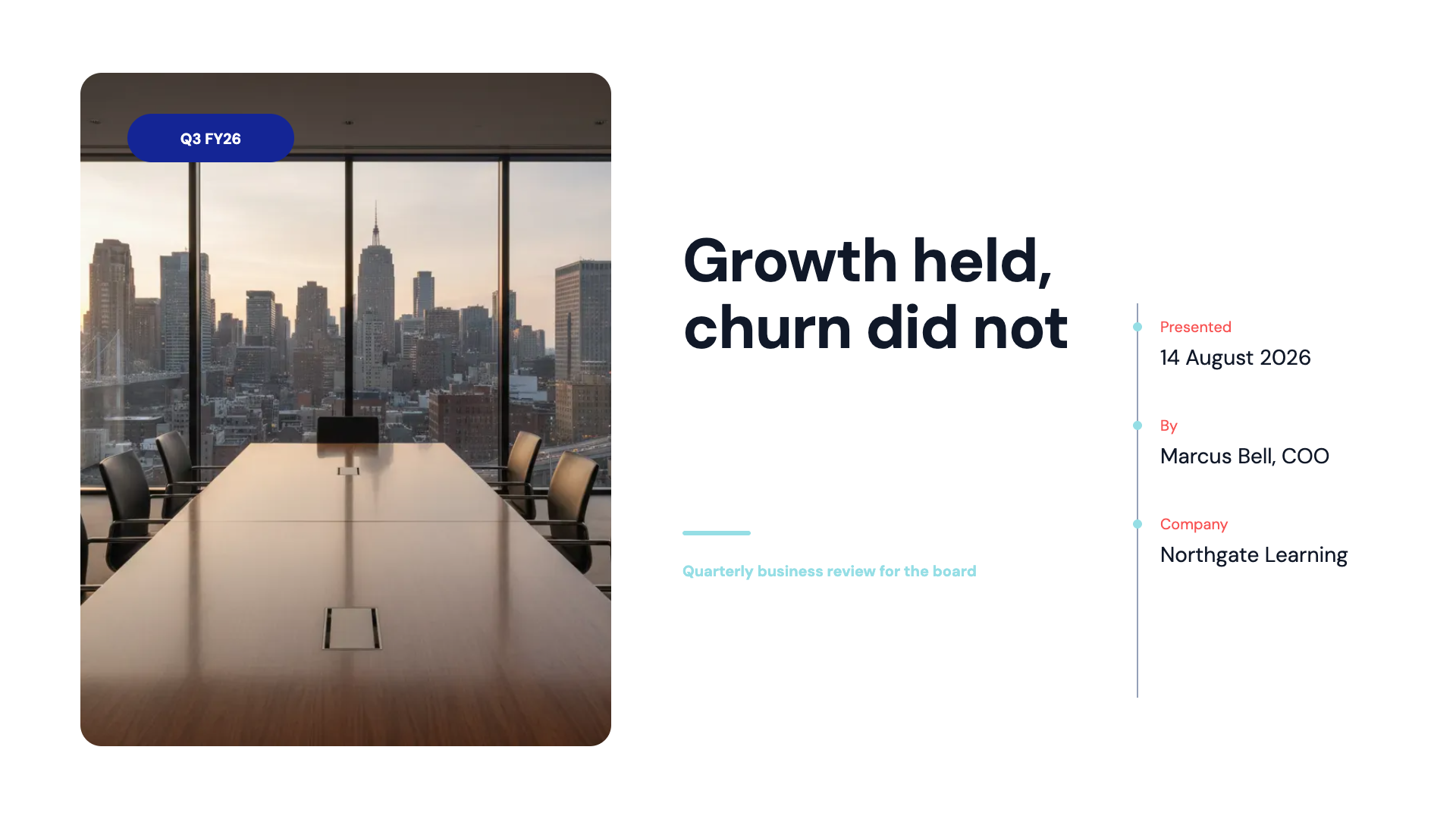
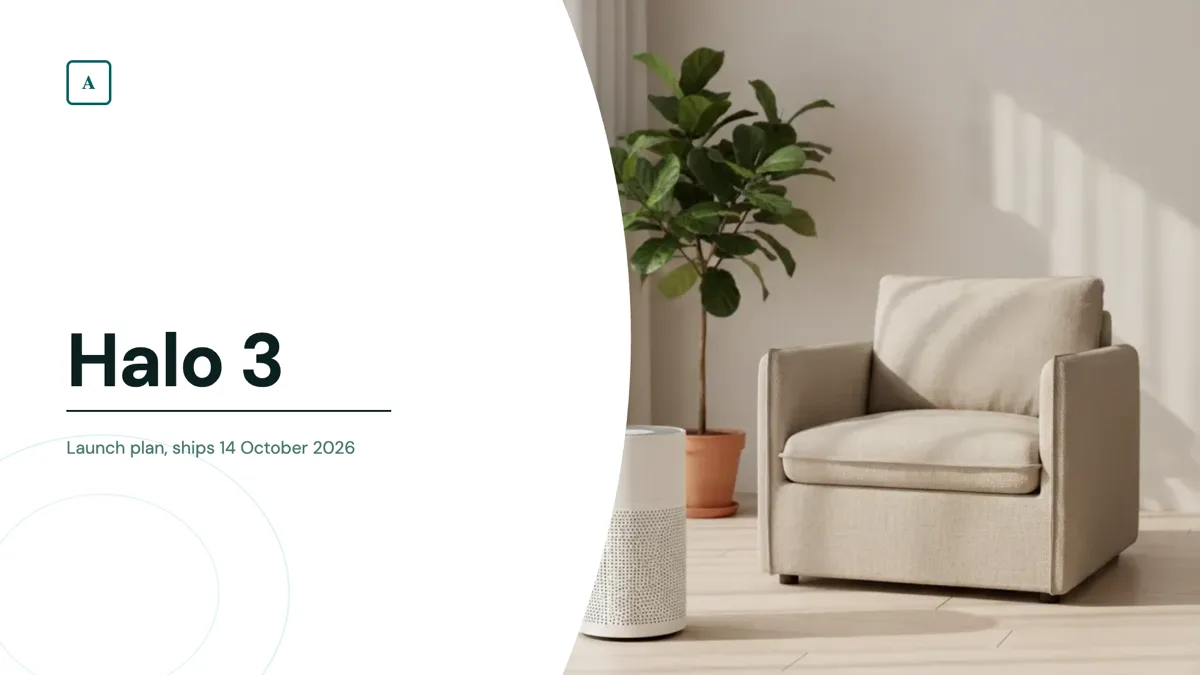
See it on a finished piece
Questions people ask
Does it show the next slide?
No. The second window carries the current slide's notes and a slide counter. There is no thumbnail of what is coming.
Is there a timer?
No. Nothing in the notes window tracks elapsed time. The only timer in present mode belongs to the recording feature.
Can I advance the slides from the notes window?
No. It is a display, not a remote. Keep focus on the slide window and use the arrow keys, space or a clicker.
Why did nothing happen when I clicked pop out?
A popup blocker stopped the new window. The notes stay docked rather than erroring, so allow popups for the site and try again.
Make your own presentation
The button opens the generator with this use case already described. Change the wording to match yours, generate, then edit anything you like.
Create a presentation with OneCraftRelated pages
Speaker notes
Notes live under the canvas, one set per slide, and they never appear on the slide itself. While you are presenting they stay closed unless you open them. The one thing to understand before you write anything sensitive is who else can reach them.
Slide transitions
Eight choices, one of which is no motion at all, and it is the default. Each of the other seven runs for a set duration between about a quarter of a second and half a second, which is short enough to feel like a cut and long enough to be seen.
Draw on slides while presenting
Three tools appear over the slide while you present, and the difference between them is how long a mark lasts. That single distinction is what makes them useful, because a mark that lingers past the sentence it belonged to becomes clutter.
More finished work of this kind is on the presentation examples hub.
Written and checked by the OneCraft team. Last checked .