Presentations
Draw on slides while presenting
Three tools appear over the slide while you present, and the difference between them is how long a mark lasts. That single distinction is what makes them useful, because a mark that lingers past the sentence it belonged to becomes clutter.
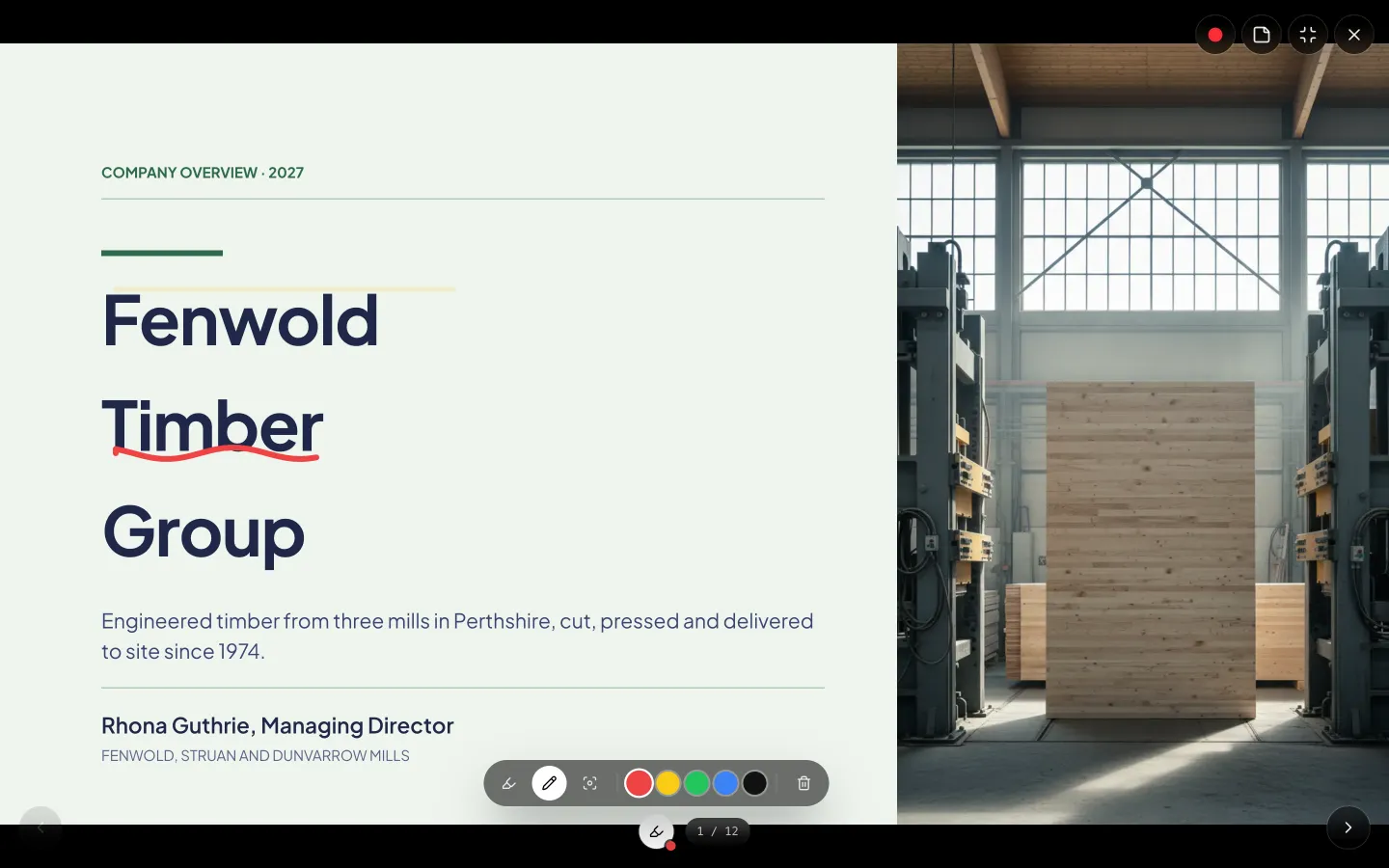
Highlighter: about two and a half seconds
A temporary stroke stays at full opacity for a second and a half after you lift the pointer, then fades out over another second. It is the right tool for circling a number while you say it, because the mark is gone by the time you have finished the next sentence and you never have to remember to clean up. This is the one most presenters should use most of the time.
Pen: stays until you clear it
A permanent stroke persists on the slide. Use it for something you will refer back to across a minute or two: a ring around the option you are recommending, a line joining two figures. The bin button in the toolbar wipes every stroke on the current slide, temporary and permanent together, in one click.
Spotlight: a ring that follows the pointer
Not a stroke at all. Turning it on draws a coloured ring around your cursor so a remote audience can see where you are pointing, which they otherwise cannot, because your arm is not in the video. It costs nothing to leave on for a whole call and it is the single most useful of the three when you are presenting over a screen share.
Marks are wiped when you change slide
Advance or go back and the strokes on the slide you left are gone, following the convention every presentation tool uses. Nothing is stored with the deck, so drawings never appear in an export, in the shared link, or the next time you present. If you want a mark to be permanent, it belongs on the slide as content rather than as an annotation.
While a pen is active, clicks draw instead of advancing
That is the trade off and it catches people out once. With no pen selected, clicking anywhere moves to the next slide. With the highlighter or the pen selected, the click is a stroke and you advance with the arrow keys or space instead. Clicking the active tool again turns it off and gives you back click to advance. There are five stroke colours: red, yellow, green, blue and black.
How it works, in three steps
Step 1
Open the pen toolbar in present mode
It sits over the slide with the highlighter, the pen, the spotlight, five colours and a clear button.
Step 2
Pick highlighter for anything transient
Circle the number as you say it. The mark clears itself, so you never build up clutter.
Step 3
Use arrow keys while a pen is on
Clicking draws instead of advancing. Space and the arrow keys still move through the deck.
The full walkthrough with screenshots is in the guide Present your slides with speaker notes and a pen.
Limits worth knowing
- Drawing tools are a paid feature. On a free account they do not appear in present mode at all.
- Marks are wiped when you change slide and are never saved with the deck.
- Five stroke colours, and no eraser. The bin clears every stroke on the slide at once.
- While a pen is active, clicking draws rather than advancing the slide.
See it on a finished piece



Questions people ask
Do my drawings save with the deck?
No. They live only in the present-mode session and are wiped when you change slide. Nothing reaches the exports or the share link.
Is there an eraser?
No. There is a clear button that removes every stroke on the current slide. For anything short lived, the highlighter clears itself after about two and a half seconds.
Do drawings show up in a recording?
Yes. The recorder composites the strokes and the spotlight ring into the video, so a recorded walkthrough carries your annotations.
Why can I not click to advance any more?
Because a pen is active, so clicks are strokes. Click the active tool again to switch it off, or use the arrow keys and space, which always work.
Make your own presentation
The button opens the generator with this use case already described. Change the wording to match yours, generate, then edit anything you like.
Create a presentation with OneCraftRelated pages
Speaker notes
Notes live under the canvas, one set per slide, and they never appear on the slide itself. While you are presenting they stay closed unless you open them. The one thing to understand before you write anything sensitive is who else can reach them.
Map slides
One map, the world by country, in two modes. Highlight answers where are we, shade answers how much is where. Anything below country level is out of scope, and knowing that before you plan the slide saves a wasted ten minutes.
Section divider slides
A divider is a deliberate pause: it tells the audience the last thing finished and a new one is starting. Ten layouts carry that job, from a restrained numbered rule to an oversized chapter numeral, a glass panel on a gradient and a full bleed photograph.
More finished work of this kind is on the presentation examples hub.
Written and checked by the OneCraft team. Last checked .