Presentations
Speaker notes
Notes live under the canvas, one set per slide, and they never appear on the slide itself. While you are presenting they stay closed unless you open them. The one thing to understand before you write anything sensitive is who else can reach them.
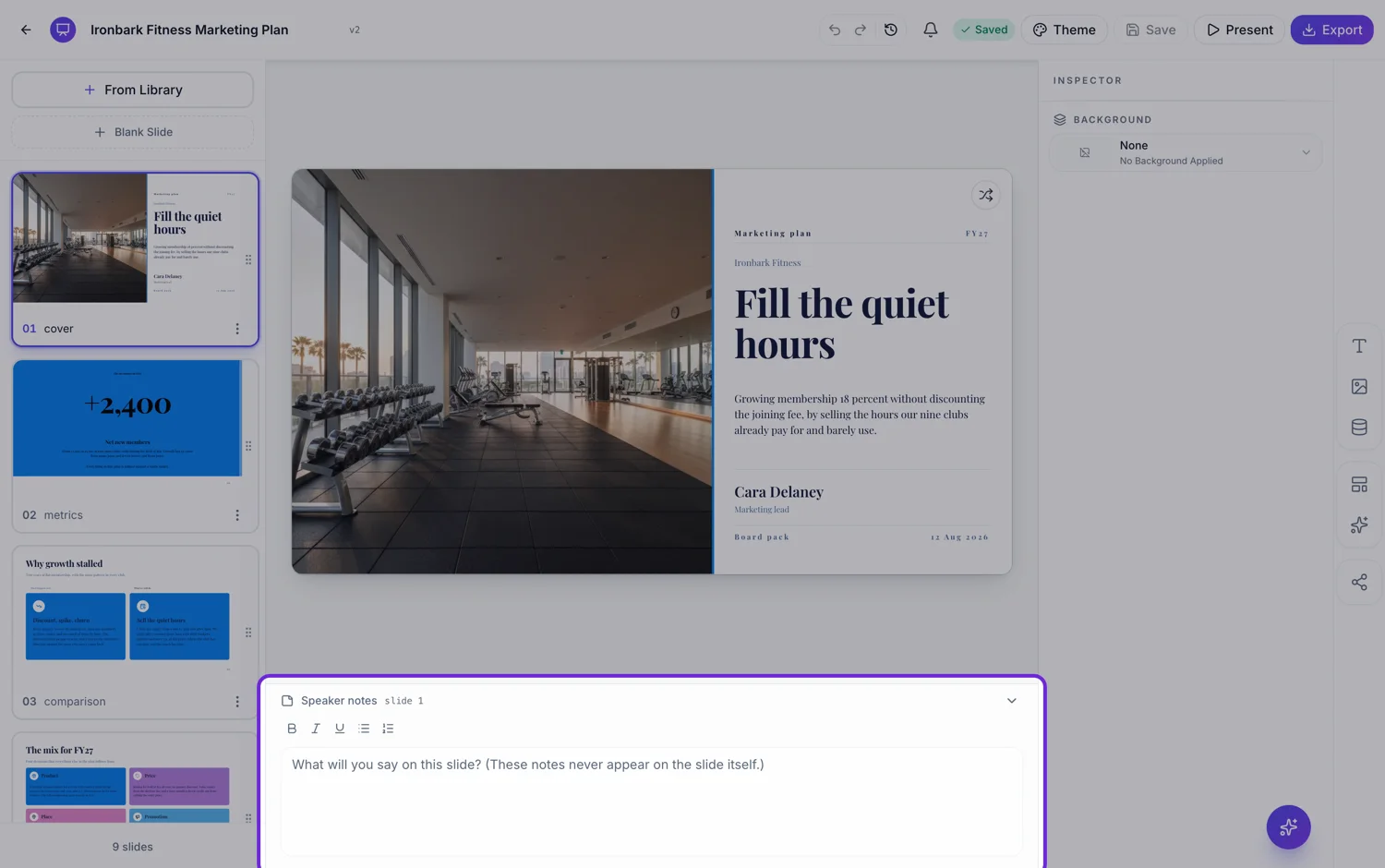
A strip under the canvas, collapsed by default
The notes pane sits below the slide as a 36 pixel bar showing the first 120 characters of whatever you wrote, and opens to 200 pixels when you click it. That collapsed preview is the useful part: scrolling the deck with the pane shut still tells you which slides have notes and roughly what they say. Whether it is open is remembered for the session, not saved with the deck.
Formatting is deliberately basic
Bold, italic, underline, a bulleted list and a numbered list. That is the whole toolbar, and the stored HTML is filtered down to exactly those tags with every attribute stripped before it is rendered anywhere. The filtering is a security measure rather than a style choice, because notes are rendered in a viewer that other people can open.
Presenting: closed unless you open it
In present mode the notes pane starts closed on purpose, because presenting usually means a shared screen and unrequested notes would put your private cues in front of the room. Press N or the sticky note button to open it beside the slide, drag its edge to resize it between 240 and 720 pixels, and that width is remembered on your machine for next time.
The share link exposes them
This is the limit that matters. The read only link you send is served by the same presentation viewer, and its notes button is not hidden. Anyone with the link can press N and read every note in the deck. Treat notes as content you are prepared to publish alongside the slides, and keep pricing floors, negotiating positions and anything about a named person out of them.
They do not travel in an export
Neither the PDF nor either PowerPoint export carries notes. A deck exported to .pptx opens with empty notes fields in PowerPoint. If somebody needs your script with the file, paste it into an accompanying document. Notes also survive a slide regeneration if you wrote them yourself, and are only replaced when the field was empty.
How it works, in three steps
Step 1
Click the strip under the slide
It opens to about five lines. The collapsed bar shows the first 120 characters so you can scan the deck without opening anything.
Step 2
Write cues, not a script
Bold, italic, underline and two list types. A bulleted list of three cues is easier to glance at than a paragraph.
Step 3
Press N while presenting
The pane opens beside the slide. Drag its edge to set the width, which is remembered for next time.
The full walkthrough with screenshots is in the guide Present your slides with speaker notes and a pen.
Limits worth knowing
- Anyone with the deck's share link can open the notes. They are hidden from the slide, not from a viewer.
- Notes are not included in the PDF, the PowerPoint or the editable PowerPoint export.
- Formatting is bold, italic, underline and two list types. Everything else is stripped.
- There is no timer, no next slide preview and no per note timing in the notes view.
See it on a finished piece


Questions people ask
Can the audience see my notes?
Not on the slide, and not while you present unless you open the pane. But anyone you send the read only share link to can open the notes themselves, so do not put anything confidential in them.
Do notes come across in a PowerPoint export?
No. Both PowerPoint exports and the PDF leave notes out entirely, so a .pptx opens with empty notes fields.
Will regenerating a slide wipe my notes?
No, as long as you wrote them. Generated notes are only adopted into an empty notes field, so anything you typed is kept.
Can I write notes in a table or paste formatted text?
No. The allowed formatting is bold, italic, underline, bulleted and numbered lists. Pasted HTML is filtered down to those tags with attributes removed.
Make your own presentation
The button opens the generator with this use case already described. Change the wording to match yours, generate, then edit anything you like.
Create a presentation with OneCraftRelated pages
Slide transitions
Eight choices, one of which is no motion at all, and it is the default. Each of the other seven runs for a set duration between about a quarter of a second and half a second, which is short enough to feel like a cut and long enough to be seen.
Presenter view on a second screen
Two windows, one on each screen. The slides go full screen on the display everyone can see, and the notes go into a separate small window you drag to your own. It is a simpler arrangement than a dedicated presenter mode, and worth setting up before the room fills.
Draw on slides while presenting
Three tools appear over the slide while you present, and the difference between them is how long a mark lasts. That single distinction is what makes them useful, because a mark that lingers past the sentence it belonged to becomes clutter.
More finished work of this kind is on the presentation examples hub.
Written and checked by the OneCraft team. Last checked .