Presentations
Slide transitions
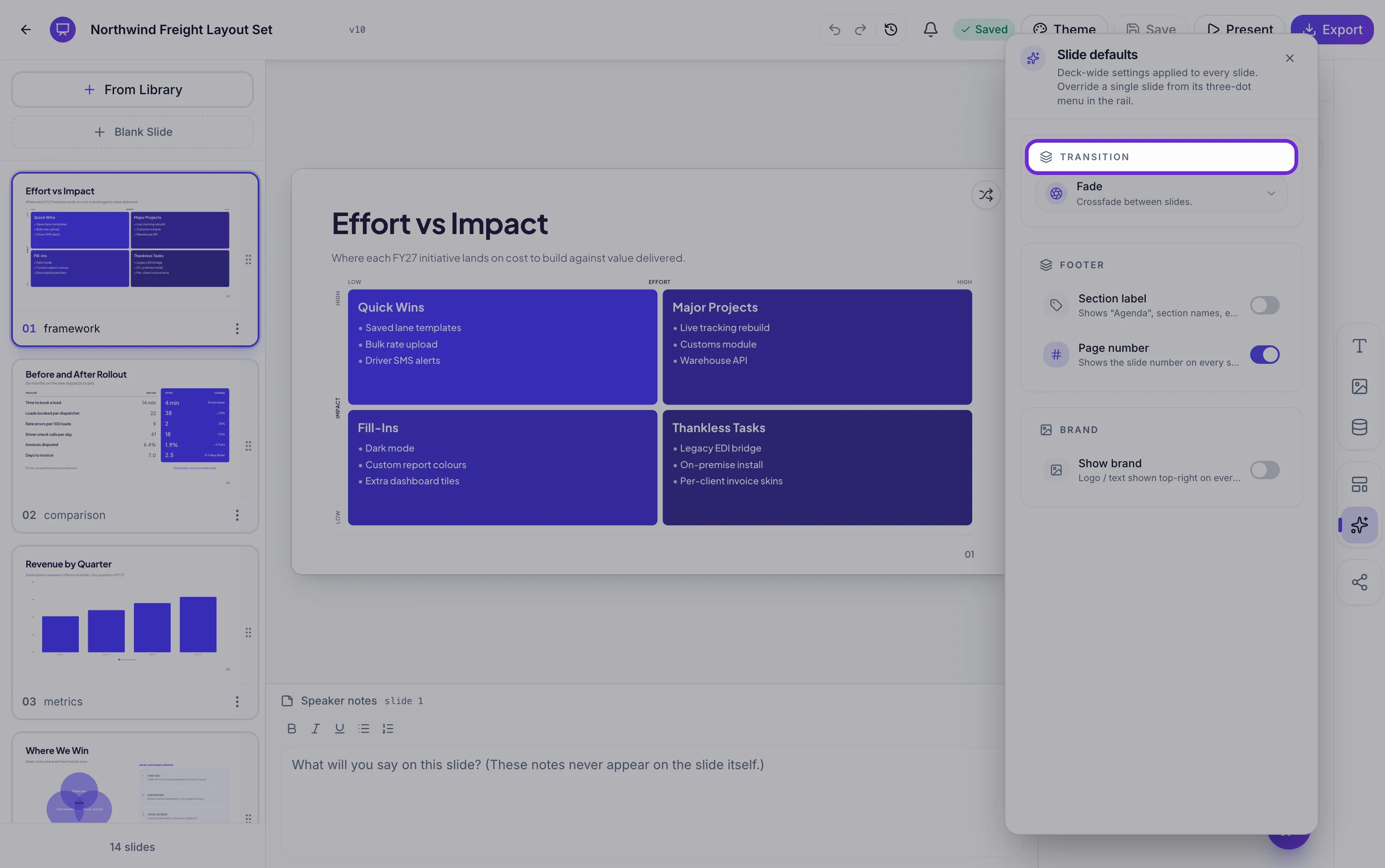
Eight choices, one of which is no motion at all, and it is the default. Each of the other seven runs for a set duration between about a quarter of a second and half a second, which is short enough to feel like a cut and long enough to be seen.
What each one does, and how long it takes
Fade crossfades in about 0.28 seconds. Zoom scales up slightly while fading, 0.32. Blur arrives soft and lands sharp, 0.35. Slide pushes in from the side and knows which direction you are moving, 0.36. Swipe wipes across to reveal the new slide, 0.45. Flip rotates in three dimensions like turning a card, 0.5. Iris opens a circle from the centre, 0.5. None cuts instantly and is what a new deck uses.
Direction follows your navigation
Slide and flip are direction aware. Going forward, the new slide comes in from the right and the old one leaves to the left. Going back, both reverse. That sounds obvious and it is the detail most tools get wrong, because a backward step that still animates forward makes an audience feel they have lost their place.
One deck setting, with per slide exceptions
The deck default lives in the slide defaults panel alongside the footer and brand settings, and it applies everywhere unless a slide says otherwise. Each slide's menu in the rail has a Transition submenu with the same eight options plus Use deck default, so you set the deck to none and give three section dividers an iris, rather than picking a transition eight times.
They only play in present mode
Transitions are a presentation behaviour, not a property of the slide. Clicking through the rail in the editor does not animate, the exported PDF has no motion, and the PowerPoint export does not carry them into PowerPoint's own transition settings. They play when you present, and when someone opens your shared link and clicks through it, because that viewer is the same presentation mode.
When not to use one
Anything with a strong direction, so slide, flip, swipe and iris, is worth reserving for a real change of subject. Using one on every slide teaches the audience to stop noticing it, which wastes the one signal you had. The pattern that works is none or fade for content slides, and something with movement on the two or three slides that open a new section.
How it works, in three steps
Step 1
Set the deck default first
In the slide defaults panel. None or fade is the right starting point for most decks.
Step 2
Give your section dividers something else
The Transition submenu in a slide's menu in the rail. Use deck default is the first entry, so an override is easy to remove.
Step 3
Present it once to judge
Transitions do not play in the editor. Open present mode and click through, since half a second reads differently full screen.
The full walkthrough with screenshots is in the guide Add, reorder and restructure slides.
Limits worth knowing
- Eight options including None, and no way to add another or change a duration.
- Transitions play in present mode and in the shared link viewer only. They do not play while you edit.
- Neither export carries them. A PDF is static and a PowerPoint file arrives with PowerPoint's own transitions unset.
- There is no per element or build animation. Motion applies to the whole slide as it enters.
See it on a finished piece



Questions people ask
Can I set a transition on just one slide?
Yes. Each slide's menu in the rail has a Transition submenu that overrides the deck default, and Use deck default puts it back.
Do transitions come across in a PowerPoint export?
No. The exported file has no transitions set. If you need them in PowerPoint, apply them there after opening the file.
Can I animate bullets appearing one at a time?
No. There are no build or element animations. A transition applies to the whole slide as it enters, and if you want a reveal, use two slides.
Can I change how long a transition takes?
No. Each of the seven has a fixed duration between roughly a quarter and half a second, tuned so it reads without slowing you down.
Make your own presentation
The button opens the generator with this use case already described. Change the wording to match yours, generate, then edit anything you like.
Create a presentation with OneCraftRelated pages
Speaker notes
Notes live under the canvas, one set per slide, and they never appear on the slide itself. While you are presenting they stay closed unless you open them. The one thing to understand before you write anything sensitive is who else can reach them.
Draw on slides while presenting
Three tools appear over the slide while you present, and the difference between them is how long a mark lasts. That single distinction is what makes them useful, because a mark that lingers past the sentence it belonged to becomes clutter.
Presenter view on a second screen
Two windows, one on each screen. The slides go full screen on the display everyone can see, and the notes go into a separate small window you drag to your own. It is a simpler arrangement than a dedicated presenter mode, and worth setting up before the room fills.
More finished work of this kind is on the presentation examples hub.
Written and checked by the OneCraft team. Last checked .