E-signatures
Place signature fields on a PDF
A box that looks right in the editor and stamps two centimetres off in the finished PDF is the classic failure of this kind of tool. Avoiding it is a question of what the coordinates are measured against.
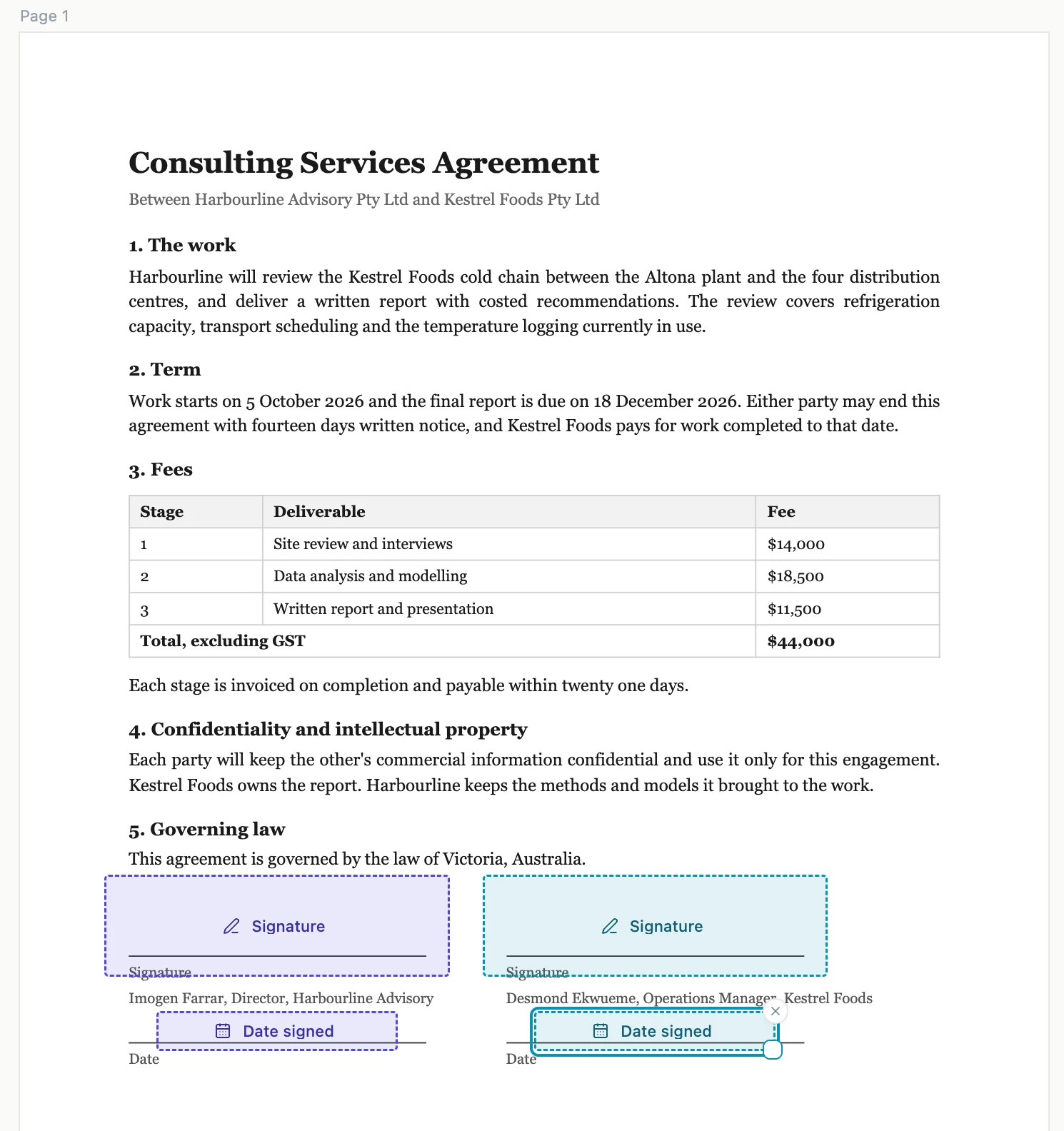
The page geometry comes from the file
When the PDF is attached, it is opened once and the exact width and height of every page is read out and stored, along with a hash of the bytes. Every position you set is expressed in PDF points against those recorded numbers, never against whatever size the viewer happens to be drawing at. The editor scales by one factor, the signer's browser by another, and the stamper by none at all, but all three are working from the same underlying figures.
Dragging with a mouse
Fields drag out of the palette onto the page. The point you release becomes the centre of the box, which is where your cursor visually sits, rather than its top left corner. A placed box moves by dragging it and resizes from its corner, with a floor of 12 points in each direction so it cannot be shrunk into nothing. Both operations use pointer capture, so a fast drag that leaves the page does not lose the field.
Tapping on a touch screen
Drag and drop does not exist on touch, so tapping a field in the palette places it instead. It lands centred horizontally about a third of the way down the first page, selected and ready to be dragged where it belongs. On a narrow screen the whole recipients and fields panel lives in a sheet that slides up from a button, so the document keeps the width it needs.
Nothing can sit off the page
Dragging clamps the box inside the page bounds, and resizing stops at the right and bottom edges. That is not only tidiness: the server refuses to save a field whose box falls outside the recorded page size, naming the field and the page. An off-page field would be stamped into nothing and quietly lose a signature, which is worse than an error message.
Rotated pages are refused at the door
If a page in your PDF was saved rotated, the upload is rejected with the page number and a note to save it upright. The reason is that the stored page size ignores the rotation flag, so a field placed against it would land somewhere no reader agrees with. Rotating the pages in whatever produced the file and uploading again is the fix, and it takes less time than discovering the problem in a signed document.
How it works, in three steps
Step 1
Upload the PDF and wait for the pages
The upload reads the page sizes before anything can be placed, which is why the empty state says it is reading them.
Step 2
Pick the signer, then drag or tap
With a mouse, drag from the palette and release where the box should sit. On touch, tap the field and drag it into position.
Step 3
Nudge and resize until it lines up
Drag to move, pull the corner to resize. The box stays inside the page, so the edges are a usable guide.
The full walkthrough with screenshots is in the guide Send a PDF for e-signature. If the document was written in OneCraft, read Send a document for signature.
Limits worth knowing
- There is no grid, no snapping and no alignment guides. Placement is by eye against the rendered page.
- Fields cannot be copied to another page or duplicated. Each one is placed individually.
- The smallest box is 12 points square.
- PDFs with rotated pages, a password, or over 25 MB are refused at upload.
Questions people ask
Will the box land exactly where I put it?
Yes, because the editor and the stamper both work in PDF points against the page sizes read from the file, rather than against screen pixels.
Can I place fields on a phone?
Yes. Tapping a field in the palette places it on the first page, and you drag it from there. The panel opens as a sheet so the page keeps its width.
Why was my PDF rejected?
Three reasons cover nearly all of it: it is over 25 MB, it is password protected, or one of its pages was saved rotated. The message names the page in the last case.
Do I have to place fields at all if the document was written here?
No. A document or form built in OneCraft hands over the positions from its own signature blocks, so there is no placement step.
Make your own signing flow
The button opens the generator with this use case already described. Change the wording to match yours, generate, then edit anything you like.
Send a document for signingRelated pages
Forms that get signed by email
The e-signature field is for the party who signs after the form is submitted. Each signer gets their own private link, you decide the order they sign in, and the finished PDF comes back with a record of who signed and when.
Add a signature field to your form
An inline signature is the person in front of you signing the form they are already filling in. They draw with a finger or a mouse, or type their name, and the mark prints into the PDF of their response.
The proposal acceptance certificate, field by field
A proposal acceptance certificate is the page that proves an offer was accepted: by whom, when, from where and for exactly what. It is added to the PDF of the accepted proposal so the offer and its acceptance travel together.
More finished work of this kind is on the e-signature examples hub.
Written and checked by the OneCraft team. Last checked .