E-signatures
Send a PDF for signature
The part you cannot see is the part that decides whether somebody signs. This is exactly what lands in their inbox, what it tells them before they click, and what happens on your side while you wait.
The note you write is the note they read
An envelope carries an optional message of up to two thousand characters, set when you create it. It is printed into the invitation above the button, unchanged. That is the only place you get to explain yourself, so it is worth using for the thing people actually want to know: what this is, why it arrived today, and who to ask if something looks wrong. Left blank, the email says nothing beyond the document title.
What the invitation contains
The subject reads Signature requested followed by your document title. Inside, the recipient is greeted by name, told they have been asked to review and sign, and shown a small panel with three rows: the document, the address they are signing as, and the date the request expires. Then your message, then a large Review and sign button, and a footer reminding them the link is personal and should not be forwarded.
A warning when a code is involved
If you set an identity check on that recipient, the email says so before they click, which saves the confused reply asking what the code is. An access code recipient is told they will need the code you shared with them separately. A one-time code recipient is told a code will be emailed to confirm it is them. A recipient with no check gets neither line, because there is nothing to warn them about.
The link is theirs, not the document's
Every recipient gets a different link. Opening it proves nothing on its own: before any identity check passes, the page tells them the document title, their own name and which check is needed. Not the page count, not a preview, not the other signers. That is why forwarding the email to a colleague does not work, and why the footer asks them not to try.
While you wait
The status page lists each recipient with a badge that moves through Waiting, Viewed and Signed. Viewed is set the moment they get past their identity check, not when the email is opened, so it means someone actually reached the document. If the invitation could not be delivered at all, that failure is recorded as its own event in the audit trail rather than disappearing.
How it works, in three steps
Step 1
Write the title and the message first
The title becomes the email subject and the filename of the finished PDF. The message is your only chance to explain the request.
Step 2
Add the recipient and choose their check
Name, email, and whether they need an access code or an emailed one-time code before the document opens.
Step 3
Send and leave it alone
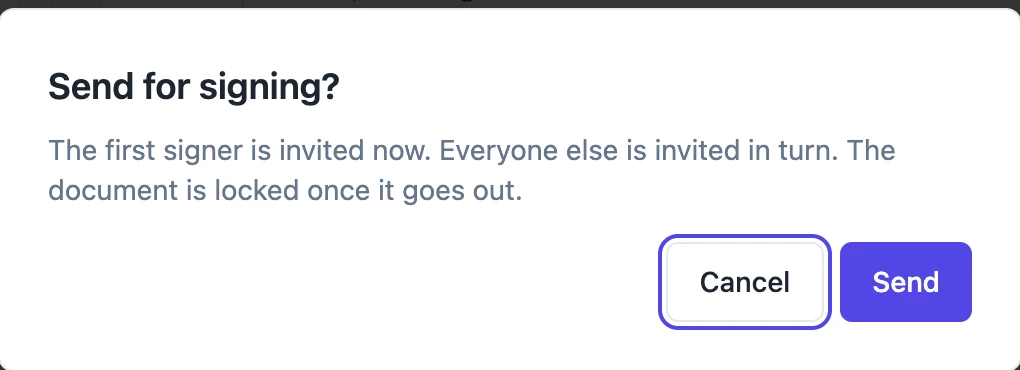
The invitation goes out through the queue. Chase from the status page rather than by email, since resending from here rotates the link properly.
The full walkthrough with screenshots is in the guide Send a PDF for e-signature.
Limits worth knowing
- The message is capped at 2,000 characters and the title at 200.
- You cannot customise the wording, layout or sender address of the invitation email.
- The expiry shown in the email is always 30 days from when the envelope was created.
- If an invitation email bounces, the recipient stays pending so a retry re-invites only them.
Questions people ask
Can I send the same PDF to twenty people at once?
You can add up to 25 recipients to one envelope, but they all sign the same copy. For twenty separate agreements you want twenty envelopes.
What does Viewed actually mean?
That the recipient got past their identity check and reached the document. Simply opening the email does not move the badge.
Can I change the email template?
No. The invitation, the completion notice, the declined notice and the withdrawal notice are all fixed. Your message is the only editable text.
They said they never got it. What now?
Use Resend on their row. It issues a new link and cancels the old one, so a lost email cannot leave two working links floating around.
Do signers need an account?
No. A signer gets a link that belongs to them alone and opens it in a browser, on whatever device they are already holding. The only thing they may be asked for is whichever identity check you set on them, such as an access code or a one time code by email. There is no sign up step and nothing to install.
Make your own signing flow
The button opens the generator with this use case already described. Change the wording to match yours, generate, then edit anything you like.
Send a document for signingRelated pages
Resend a signing invitation
Somebody says they never got it. The lazy fix is to forward the original email, which leaves two live links to the same document in two inboxes. Resending properly replaces one with the other.
Sign a PDF online yourself
Sometimes nobody else is involved. You have a PDF that needs your signature on it, and you want it back as a proper certified file rather than a photo of a scribble pasted into a page.
The signed copy, emailed
The moment everybody has signed, the finished file goes out as an attachment to everyone involved. Nobody has to log in, remember a link or ask you to forward it, which removes the most common follow-up email in the whole process.
More finished work of this kind is on the e-signature examples hub.
Written and checked by the OneCraft team. Last checked .