E-signatures
Track who has signed
Half the work of getting a document signed is knowing who to chase and when. A row per person, with a badge and a timestamp, replaces the reply-all thread asking whether anybody has looked at it yet.
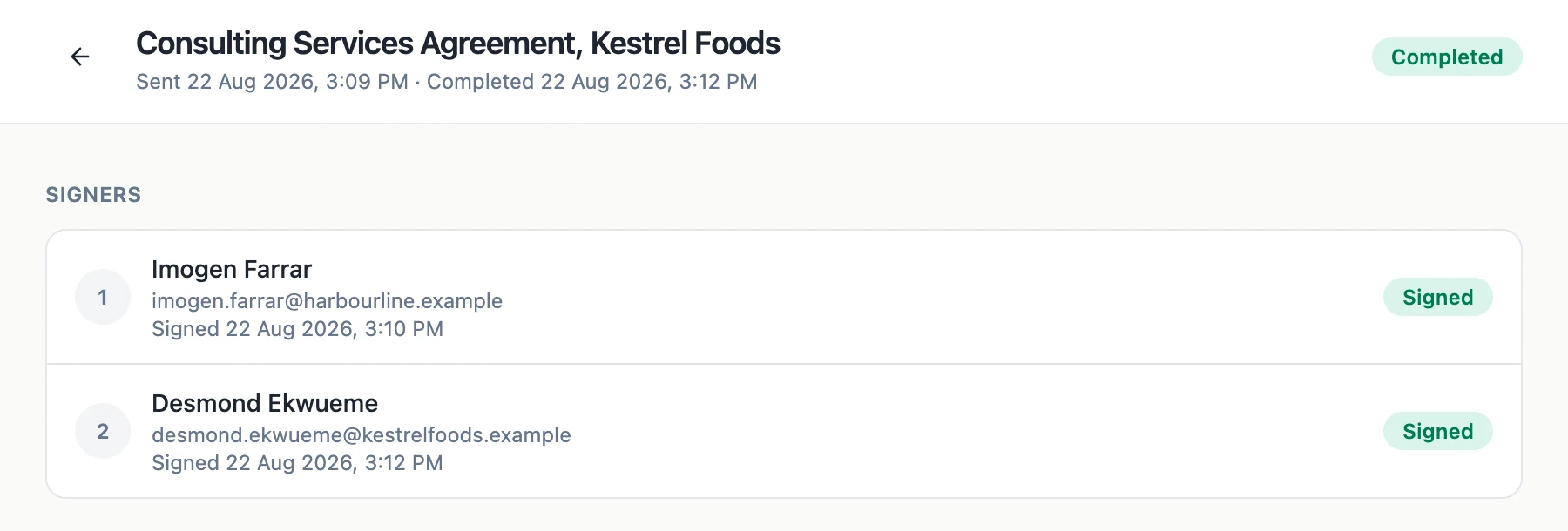
Five states per person
Waiting, Viewed, Signed, Declined and Expired. Waiting covers everything before they reach the document, including invited but untouched. Viewed means they got past their identity check and reached the pages, so it is a real signal rather than an email open. Signed and Declined are terminal. Expired means their link lapsed with the envelope. Under each row, the exact time of viewing or signing is printed, and a decline prints the reason.
Nine states for the envelope
Draft while you prepare it. Sending for the moment between pressing the button and the invitations going out. Waiting for signatures once they have. Partially signed as soon as one person is done but not all. Then Completed, Declined, Withdrawn, Expired, or Failed if certification could not be applied at the end. Each carries its own colour, so a list of thirty envelopes is scannable without reading a word.
The list, filtered
The envelope list has four tabs: All, Drafts, Awaiting and Completed, and Awaiting deliberately groups sending, out for signature and partially signed together, since from your side they are the same situation. Ten to a page, newest first, searchable by title. Each card shows the source of the envelope too, whether it was an uploaded PDF, a document or a form response.
Two buttons where they are useful
While the envelope is still live, every row that is neither signed nor declined offers Resend and Sign here, and both disappear once that person is finished. That keeps the actions attached to the person they apply to rather than in a menu somewhere. Resend reissues their link, Sign here opens the document on your own device for somebody standing next to you.
Underneath, the full log
The badges are a summary. Below them sits the audit trail, numbered from one, listing every event with its timestamp to the second, its label, the signer it belongs to and the IP address behind it. That is where you look when the badges do not explain something, for instance a recipient stuck on Waiting whose row shows a failed verification and then an invitation email failure.
How it works, in three steps
Step 1
Open the envelope from the list
The card shows its status badge, its source and how many signers it has, so you can often stop there.
Step 2
Read the signer rows
One row each, with a badge, the time they viewed or signed, and any reason they gave for declining.
Step 3
Act from the same row
Resend to nudge, or Sign here if they are in the room. Both are on the row of the person they concern.
The full walkthrough with screenshots is in the guide Send a PDF for e-signature.
Limits worth knowing
- Viewed is set when a signer passes their identity check, so it does not tell you whether an email was opened.
- There are no reminder emails. Chasing is manual, through the Resend button.
- The list pages ten envelopes at a time.
- Downloads are not tracked. There is no record of who opened the completed file.
Questions people ask
Can I tell whether somebody read the whole document?
No. The record shows they opened the link and reached the document, not how far they scrolled or how long they spent.
Why is a signer still on Waiting after they said they signed?
Check the audit trail on the same page. A failed verification or a failed invitation delivery both leave a signer stuck at Waiting and both are logged.
What does Partially signed mean exactly?
At least one signer has finished and at least one has not. On an ordered envelope it is also the point at which the next person is invited.
Can I see envelopes that came from a document or a form?
Yes, they appear in the same list with their source labelled, and a document links back to the document it came from.
Make your own signing flow
The button opens the generator with this use case already described. Change the wording to match yours, generate, then edit anything you like.
Send a document for signingRelated pages
B2B video maker
Two findings from a professional network's own creative research shape everything about B2B video. A logo in the opening two seconds lifts click through by about a sixth. Human talent in that same window lifts it by around two fifths. And only about seven percent of the B2B ads analysed featured any human emotion at all.
Sales pitch video maker
Outbound video splits into two jobs and only one of them belongs here. The one to one prospecting video, where a rep films themselves waving with the prospect's name on a whiteboard, is a camera job and this tool has no camera. The pitch asset that follows the reply is a build job, and that is what this is for.
Background music for video
Music here is one track laid across the whole video, looping to fill it and automatically dropping out of the way whenever anybody speaks. That is a deliberately simple model, and knowing where its edges are saves you fighting it.
More finished work of this kind is on the e-signature examples hub.
Written and checked by the OneCraft team. Last checked .