Websites
Order management for a small online store: from paid to sent
Order management is the daily routine after a sale: see what is waiting, pack it, tell the buyer it is on its way, and keep a record. For a small shop it should take one screen and a few clicks per order, with the buyer emails sent for you.
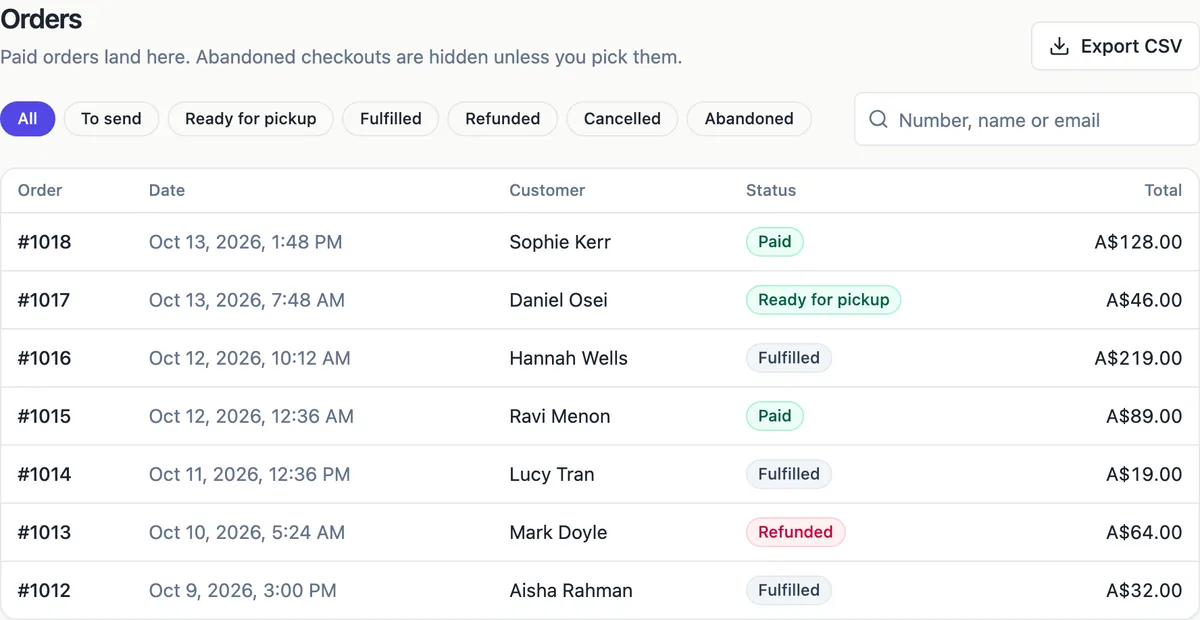
How an order arrives
When Stripe confirms a payment, the order becomes paid, gets the next order number and its stock is committed. The buyer gets a receipt with the items, totals, delivery or pickup details and any download buttons; you get an email with a link to the order and, if you set it up, a push notification. Unpaid and abandoned checkouts stay out of the default list.
Views for each step
All shows paid orders, newest first, 50 at a time with Show older. To send lists paid orders still to be posted; Ready for pickup lists pickup orders waiting for collection; Fulfilled, Refunded and Cancelled show what is done. Abandoned shows checkouts that never paid. Search finds an order by number, name or email.
Actions on one order
The order page shows the items and totals, the customer, delivery or pickup, payment and a timeline. Mark as sent asks for an optional carrier, tracking number and tracking link, and emails the buyer that the order is on its way. For pickup, Ready for pickup emails that it is ready to collect, and Mark collected closes it. Add notes to the timeline for yourself.
Refunds and cancellations
An unpaid order can be cancelled, which expires its Stripe session first. A paid order not yet sent can be cancelled, and the screen reminds you to refund in Stripe. Refunds are made in your Stripe Express dashboard, opened from the order with one click; when Stripe reports a refund, full or partial, the order updates and the buyer gets a refund email.
Records and exports
Export CSV downloads orders for your accounts, up to 20,000 rows, with cells guarded against spreadsheet formula tricks. Resend receipt sends the buyer receipt again. Orders made only of downloads or tickets need no sending and are marked fulfilled without a step.
How it works, in three steps
Step 1
Open To send
In the store screens open Orders and pick To send or Ready for pickup.
Step 2
Pack and mark
Open an order, pack it, then Mark as sent with tracking, or Ready for pickup and later Mark collected.
Step 3
Keep records
Add notes, resend receipts when asked and export the CSV for your accounts.
Limits worth knowing
- Refunds are made in your Stripe Express dashboard, not in the Orders screen.
- No shipping label printing or carrier booking.
- The CSV export covers up to 20,000 orders.
- Orders are listed 50 at a time with Show older.
Questions people ask
What emails does the buyer get?
A receipt when the payment is confirmed, an on its way email with any tracking details when you mark the order sent, a ready to collect email for pickup orders, and a refund email when Stripe reports a refund. Emails use your brand colour and can carry your reply to address and footer text.
Can I edit an order after it is paid?
You cannot change the items or the amount of a paid order. Add a note to the timeline for changes agreed with the buyer, refund a part in Stripe if something is removed, or cancel before sending and ask the buyer to order again if the change is large.
What is an abandoned order?
An order created when a buyer started checkout but never paid. Its stock hold is released after 35 minutes and it expires. Abandoned orders are hidden from the main list and kept under the Abandoned view, where you can see the email the buyer typed if you want to follow up personally.
Can I print packing slips?
There is no packing slip template. The order page lists the items, quantities, options and delivery address on one screen, which many small shops print from the browser. The CSV export can also feed a spreadsheet or label tool if you pack in batches.
How do I handle a refund for one item?
Make a partial refund for that item amount in your Stripe Express dashboard. When Stripe reports it, the order is marked partially refunded with the refunded amount, and the buyer gets an email for that refund. The order stays in your records with both amounts.
Can staff manage orders?
Orders belong to the site owner account, so staff who pack orders sign in with that account on a shared device, such as the packing bench tablet. Turn on push notifications there so new orders appear on the device where they are packed, and use timeline notes to record who sent what.
Make your own website
The button opens the generator with this use case already described. Change the wording to match yours, generate, then edit anything you like.
Create a website with OneCraftRelated pages
Customer list for your online store: who buys, how often, how much
A customer list shows the people who have bought from you, with enough detail to spot regulars and thank them. In a small shop it is most useful for two questions: who are my best customers, and who has not ordered in a while.
Shipping rates for your online store: zones, rates and free over
Shipping rates decide what a buyer pays for delivery and which options they can choose. For a small shop the simplest setup that works is a domestic zone with one or two flat rates, a free shipping threshold, and a rest of the world zone, or none if you only ship at home.
Sell digital products online without a marketplace
Selling digital products online means taking payment for a file and handing the file over automatically, at any hour. On your own site that takes three pieces: a product with the file attached, a checkout, and a download link that only paying buyers can use, for a limited time.
More finished work of this kind is on the website examples hub.
Written and checked by the OneCraft team. Last checked .