Videos
Video scene types
A scene here is not a slide, it is a role. Fifty two roles exist, each with a written definition of what it shows and when it should be used, and behind them sit 410 concrete layouts. The director picks a sequence of roles first, then chooses one layout per role.
Four openers, forty four body roles, four closers
The openers are intro, which names the product or topic; hook_question, which opens on a question or a shock number; agenda, which lists what is coming; and logo_bumper, a short brand sting. The closers are cta when there is a real action, outro for a calm sign off, contact for reaching a human, and ugc_close, which only exists in the creator format. Everything else is body.
The body roles, grouped by what they do
Argument: statement, statement_light, problem, solution, use_case, comparison, before_after. Product: product_hero, showcase, feature_list, feature_spotlight, ui_demo, how_it_works, prompt, chat, integrations. Evidence: stat, stat_grid, chart, table, map_reach, case_study. Trust: quote, testimonial, social_proof, logos_wall, rating, press, award, team. Structure: timeline, diagram, checklist, gallery, tutorial. Commerce: pricing, faq, offer, countdown. Plus user_clip for your own or stock footage, social_post for the social clip format, and three of the four creator roles.
A role you cannot fill is not offered
This is the rule that prevents the usual failure. Showcase and ui_demo need a real uploaded screenshot, so with no uploads they are removed from the list the director can even choose from, rather than being filled with a fake interface. Same for user_clip with no video, offer with no offer, countdown with no date, contact with no contact details, and testimonial with a named person the brief never named.
Each role also says what not to use it for
The definitions carry their own boundaries and they are enforced through the prompt. before_after is only for one thing shown before and after a change, so two views of the same product are showcase or gallery instead. A funnel is not a cycle. Two rivals are comparison, a customer result is case_study. A formal quote is quote or testimonial, informal buzz is social_proof. Steps in order are how_it_works, a list of included things is checklist.
How it works, in three steps
Step 1
Describe the argument, not the scenes
Say what has to be established and in what order. The role sequence is chosen from that, and it is better at it than a list of scene names.
Step 2
Name a role when you really want it
Asking for a problem scene, a comparison or a contact close in the brief is respected, because those are named roles it can reach for.
Step 3
Add or swap scenes afterwards
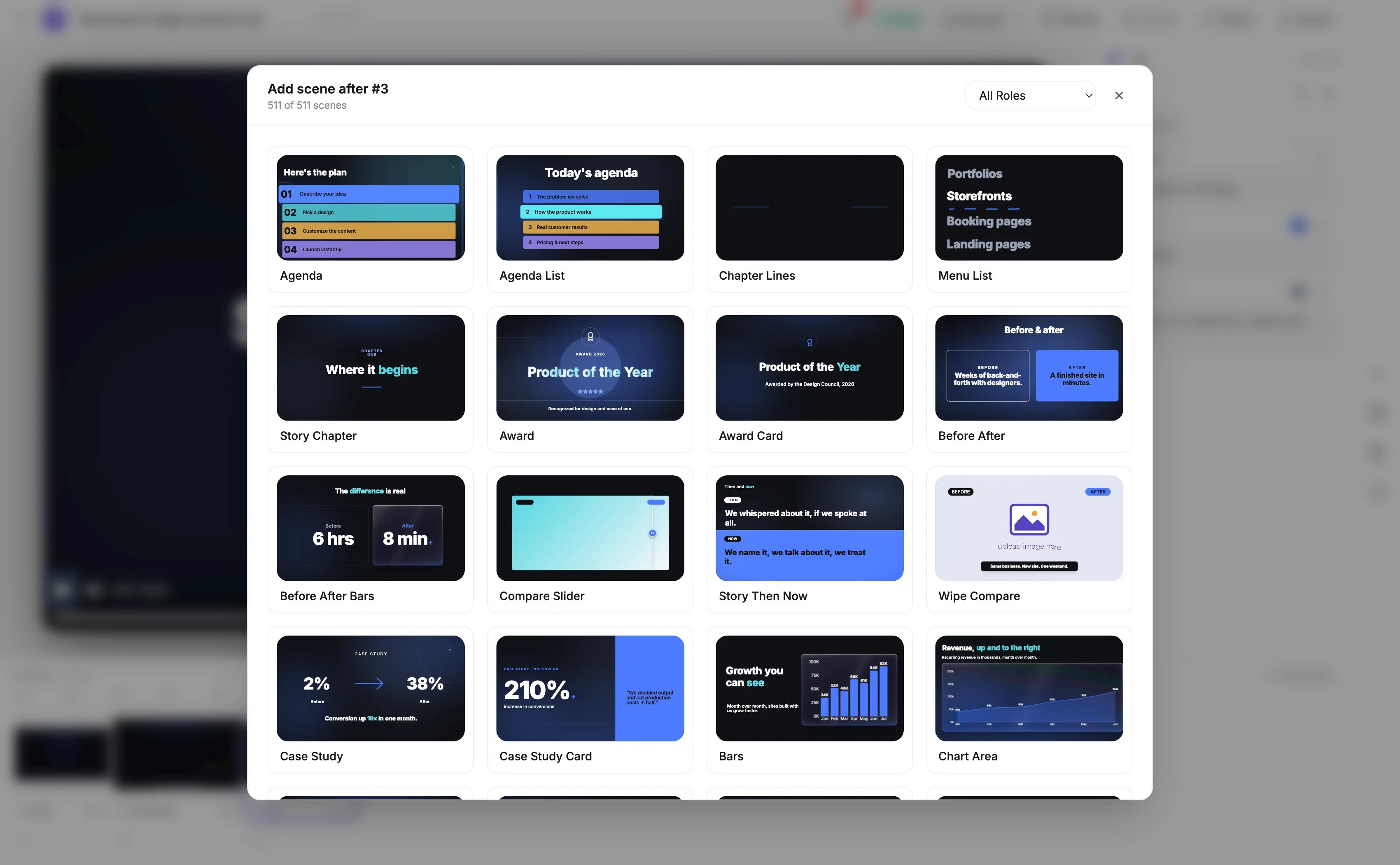
The Add scene dialog lists every layout filtered by role, so you can insert one the director did not pick without regenerating anything.
The full walkthrough with screenshots is in the guide Make a promo video with AI voiceover.
Limits worth knowing
- The same role is not used twice in a row in a promo, so nine scenes cannot all be feature scenes.
- Tutorial mode only offers five roles: intro, tutorial, how_it_works, checklist and outro. There is no call to action role there.
- The four creator roles are only available in the UGC format, which needs the Pro plan.
- Agenda needs four short labels and is skipped on videos of fewer than five scenes.
Questions people ask
How many layouts does one role have?
It varies a lot. Statement is the widest with layouts covering a shouted line, stacked words, a setup and payoff, a cycling phrase, a ghost word, a lower third, a definition and three that pair the line with a photo. Tutorial has 36, and social_post, used only in the social clip format, is the largest with 60. Some roles have one.
Can I choose the layout myself?
Yes, in the builder. The Add scene dialog lists every layout with a live thumbnail and a role filter, so you can pick the exact variant rather than the role.
What decides the order?
The director designs it, guided by eleven named example flows and by the rule that a promo must end on a closing role. Openers sit at the front, closers at the end, and body roles fill the middle.
Do all the roles work in both formats?
Yes. Every slot in every layout carries its own box for landscape and vertical, plus optional per format overrides for size, alignment, type size and camera move.
Make your own video
The button opens the generator with this use case already described. Change the wording to match yours, generate, then edit anything you like.
Create a video with OneCraftRelated pages
Animated map in a video
A map scene is for one specific claim: that you operate somewhere. It draws a world or region map with glowing markers on the cities you name, usually beside a count-up number. It is a coverage graphic, not a mapping tool, and the difference matters before you reach for it.
Animated video backgrounds
Backgrounds here are applied one scene at a time, not once for the whole video, and every one of them is built from colour tokens rather than fixed hex values. So a background is not a picture you drop behind the content. It is a treatment that takes on whatever palette the video is using.
Testimonial video scene
A quote lands harder with a face attached, and there is a scene role for exactly that. What it will not do is invent the person. The instruction is explicit: only claim a named person when the brief actually names one, so a testimonial from nobody in particular is a quote scene instead.
More finished work of this kind is on the video examples hub.
Written and checked by the OneCraft team. Last checked .